
Accommodation
Starting from version 2.0 a new Accommodation module is available in Geek Divers.
With this module you can define your accommodation offer, both your own in your dive resort and the rooms or apartments that you can manage at local hospitality facilities (hotels, resorts, residences, bed & breakfast, homestays…etc). You can set up your meal plans and the variations in prices due to the seasons, the number of people in a room or the type of guests (e.g. children might get a special discount).
The Accommodation menu will be available to the admin logins for some time free of charge. After the trial period it will be switched off. If you wish to continue using it, please reach out to us.
If you don’t see menu Accommodation, please ask your administrator to add it to your user name.
Before you start using the accommodation module, you need to set it up.
If you intend to use the accommodation module for your business and if you offer both diving services and accommodation to your travel agents, before you set up your partner price lists, you need to set up the accommodation module.
Before you start the setup of this new module, please make sure that you have all the following information readily available:
-
The complete list of your rooms, their type (standard, superior, single, double…etc.), the maximum number of adults per room and the maximum number of people per room (e.g. max 2 adults, max 3 people: 2 adults + 1 child).
-
The list of your guest types if your room prices are per person. It’s important that you define different guest types if the room price per person changes according to the type of guest that reserves it.
-
All your room prices, per person or per room, single occupancy, prices per season and package prices.
-
Your meal plans, prices and package prices.
-
The dates of your seasons.
In version 2.0 the setup of dorm rooms is not available. However there might be workarounds. Please send us a message and we’ll suggest the best way to complete your setup.
16.1 Room Settings
Section titled “16.1 Room Settings”Go to menu Accommodation and click on Room Settings.
On this page you will find 6 sections:
-
Guest types - e.g. Adult, Adult non-diver, Child 0-3yo, Child 3-12yo.
-
Room Area - e.g. Main Resort, Camping area.
-
Room Types - e.g. Standard Double, Superior Double, Budget Single.
-
Price Levels - e.g. High Season, Mid Season, Low Season.
-
Meal Plans - e.g. B&B, HB, FB, All Inclusive.
-
Room Prices
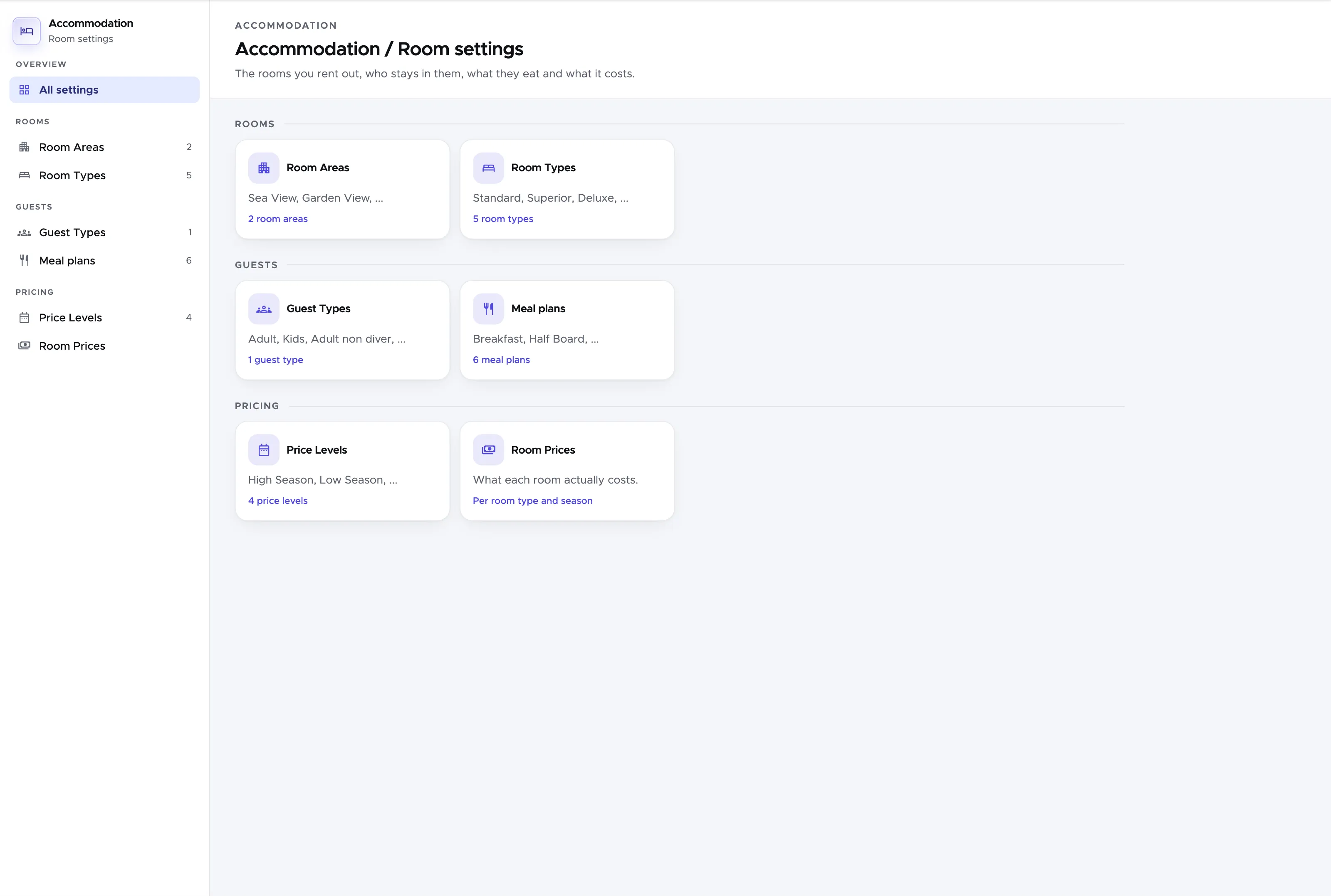
Below here you’ll find explanations and instructions on how to set them all up correctly.
16.1.1 Guest types
Section titled “16.1.1 Guest types”Guest types are defined as the type of guests who could rent one of your rooms. You should define different guest types if your prices depend on who rents your rooms and especially if your room prices are per person.
As an example, you might have a reduced price for a Diver as opposed to a regular Adult non-diver. Or you might offer a special price for children under 12 years old.
Click on New guest type at the top right. Write a name for your guest type and a description, and switch on Counts as an adult if appropriate.
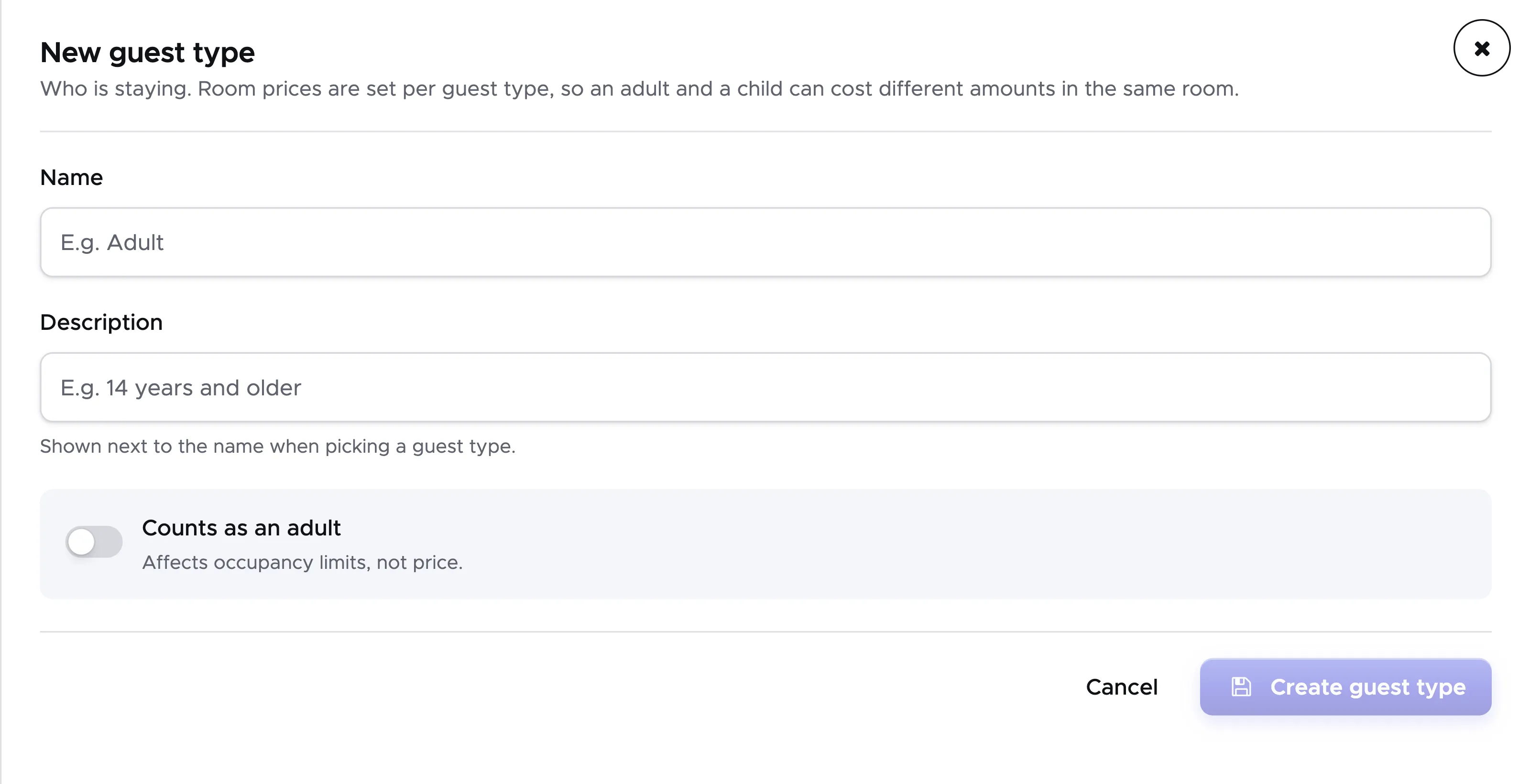
Click on the button Create guest type to see it in the table.
You can modify all the details by clicking on the pencil icon at the end of the guest row and then on button Save guest type.
Guest Type “Adult” is available by default. If your prices are per room, you don’t need to add any more guest types. You can however change the name of the only guest type.
You can delete a guest type by clicking on the trash icon at the end of the guest row. You cannot delete the default guest type.
16.1.2 Room Area
Section titled “16.1.2 Room Area”This section does not contain mandatory information. The room area describes where the room is in your resort or in a facility nearby. If you choose to use the room areas, you can assign an area to each of your rooms.
Examples of room areas could be: “Jungle”, “Pool”, “Beach” or “Hotel ABC”, “Apple Guesthouse”. The room area gives more information to the location of the room, but it does not change its price.
If you don’t need the room area, you can skip this paragraph.
To save a room area, click on New room area, write a name and click on button Create room area. You will see your room areas listed.
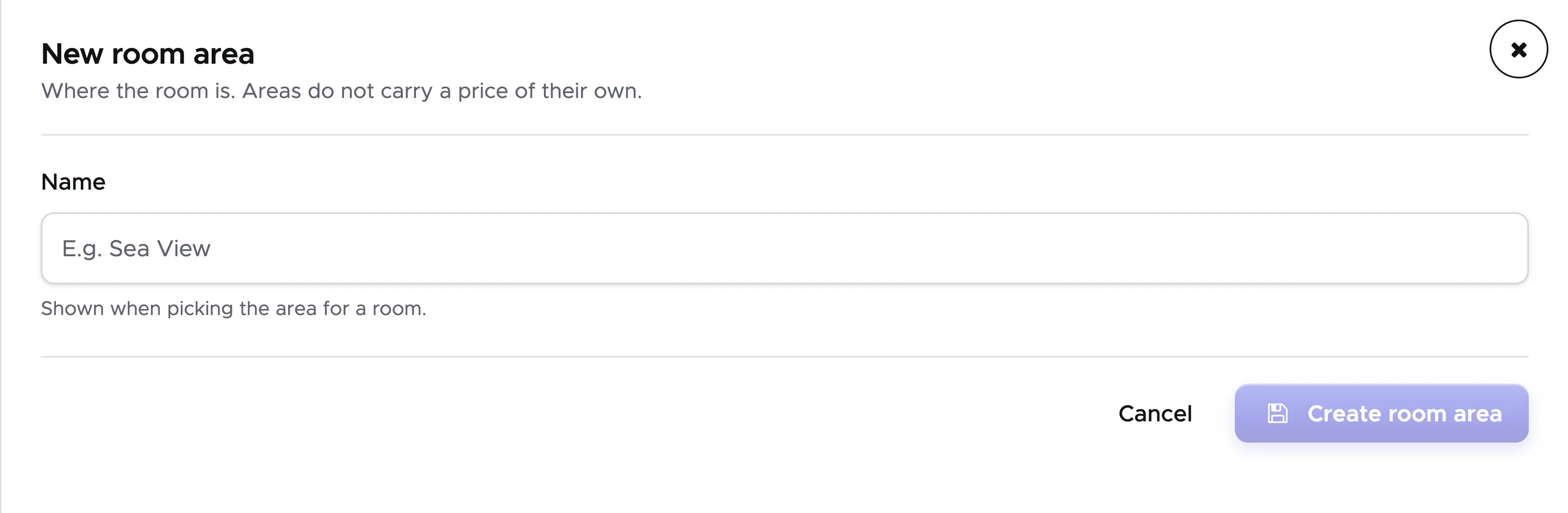
If you wish to modify the name of a room area, click on the pencil icon next to it, make your changes and click on button Save room area.
You can delete a room area by clicking on the trash icon next to it.
16.1.3 Room Types
Section titled “16.1.3 Room Types”In tab Room Types you can define your single, double, twin and triple room types.
Please remember that you need to define as many types as you need for your different prices. If for example a double room - pool view has a different price compared to a double room - garden view, you need to define both as room types.
To define a room type click on button New room type, write a name, a description and the keywords you want to show as the room’s features.
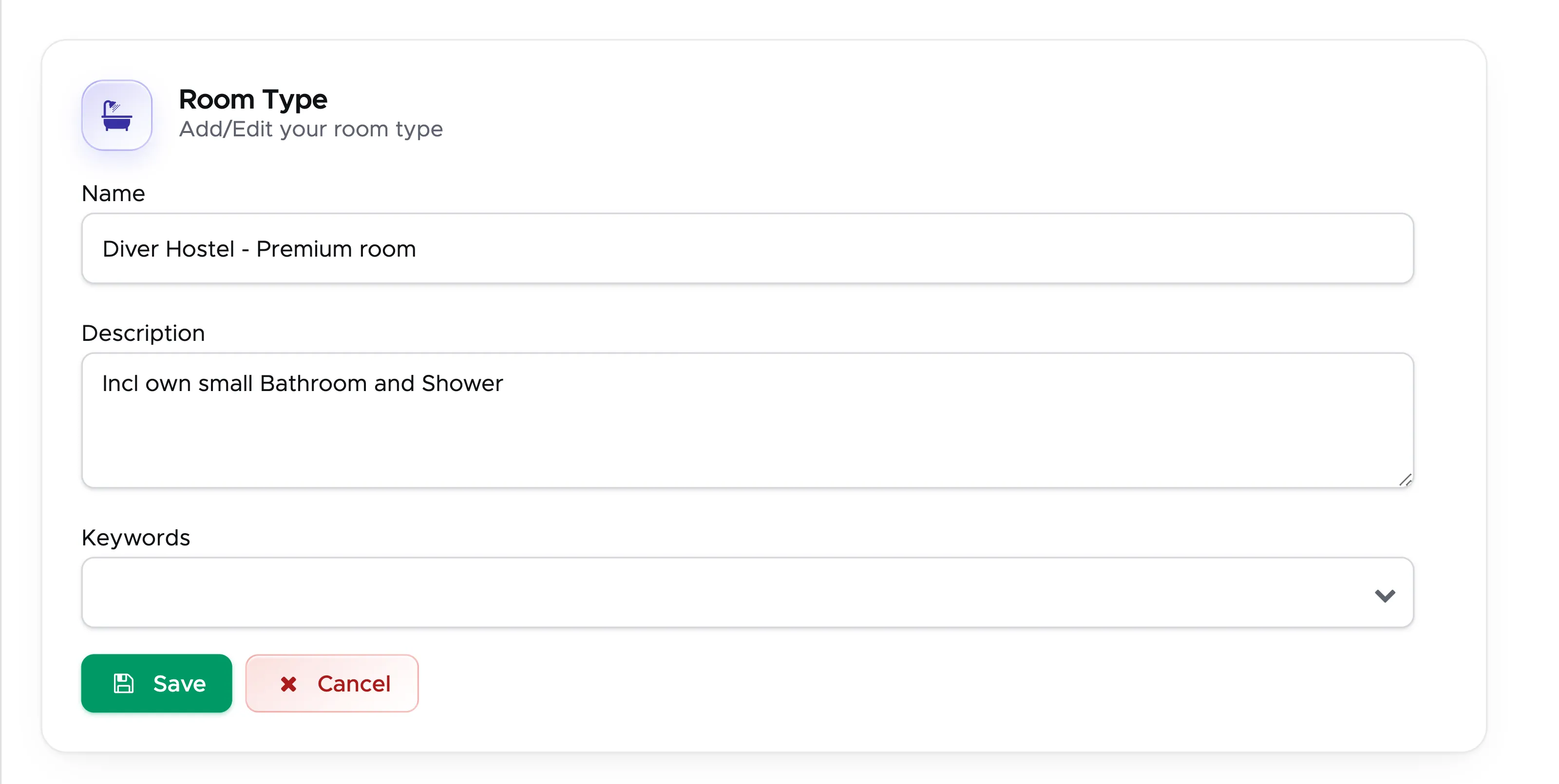
Once you’ve defined the room type details, click on button Save. You will see your room type in the list, with its keywords in column Features.
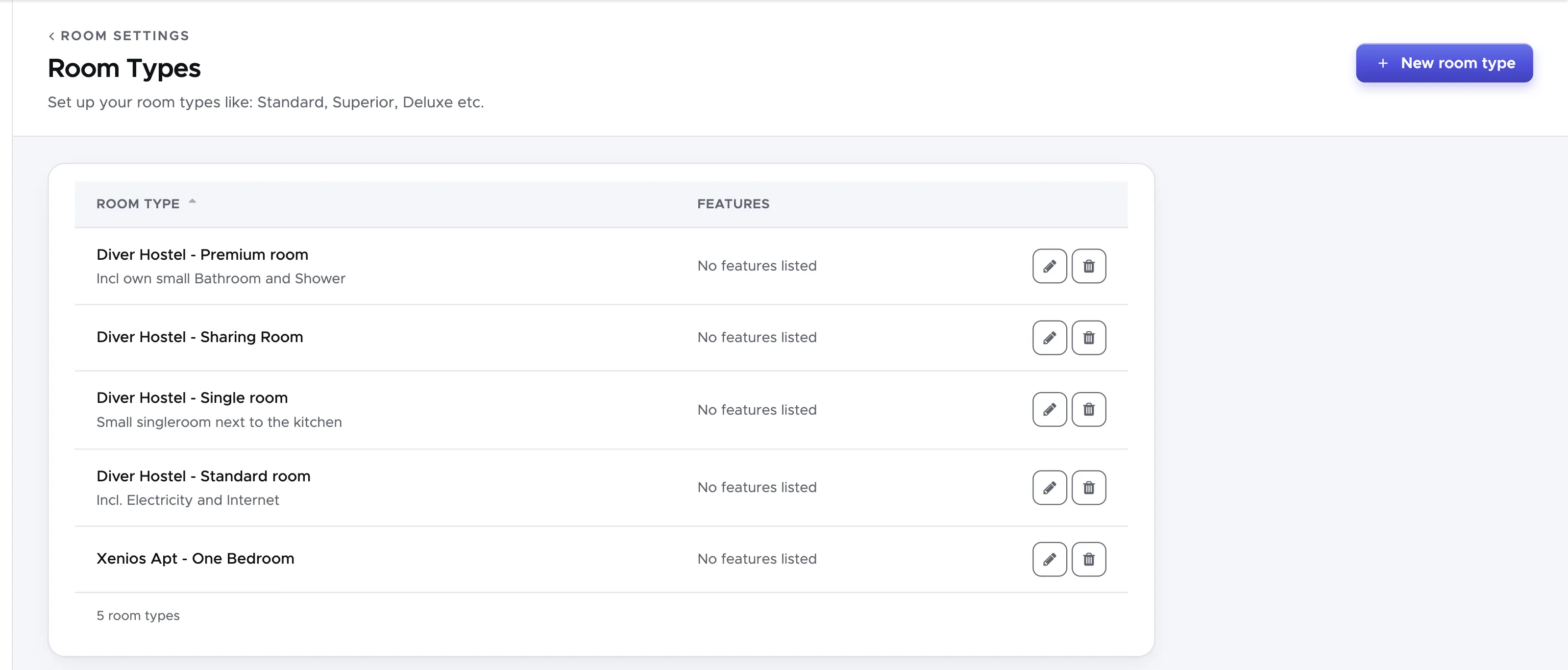
As soon as you add a room type, you will also see the following warning message:
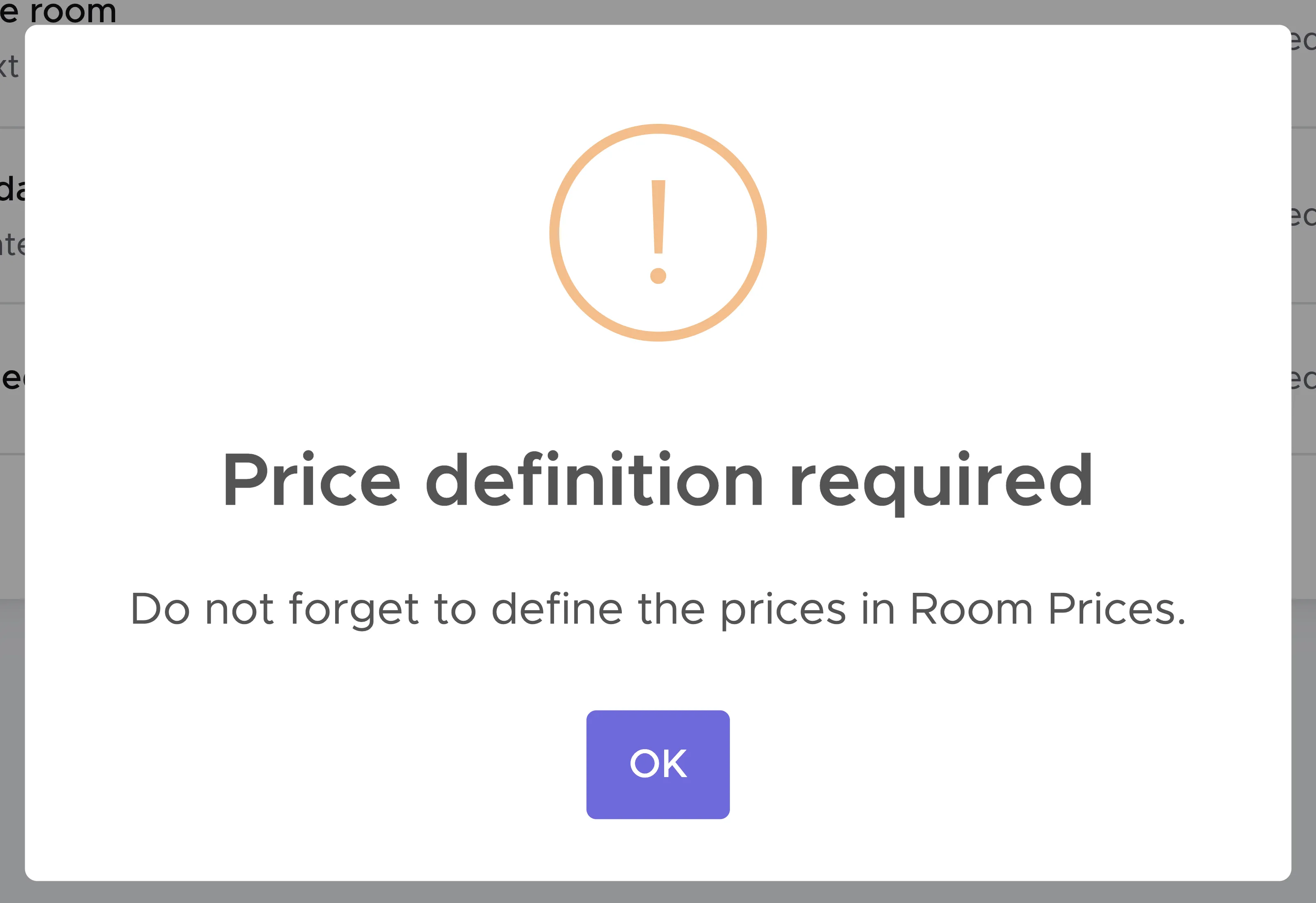
This message is just a reminder for you to define the prices of the room type that you’ve just saved. During the initial setup you obviously haven’t defined your prices yet (we’ll get there soon!), but in the future, if you need to define new room types, this message will offer a good reminder to avoid selling a room for a price of 0.
Anytime you need to update your room type, you can click on the pencil icon next to it, make your changes and click on button Save.
You can delete a room type only if none of your rooms are assigned to this type. To delete a room type click on the trash icon next to it.
16.1.4 Price Levels
Section titled “16.1.4 Price Levels”Price Levels in Geek Divers represent your seasons: High Season, Low Season…etc.
For each price level you can define a name, a description, a minimum number of nights and a background colour to use in your accommodation calendar.
Click on New price level, enter this information and click on button Create price level. You will see your saved price levels in the list.
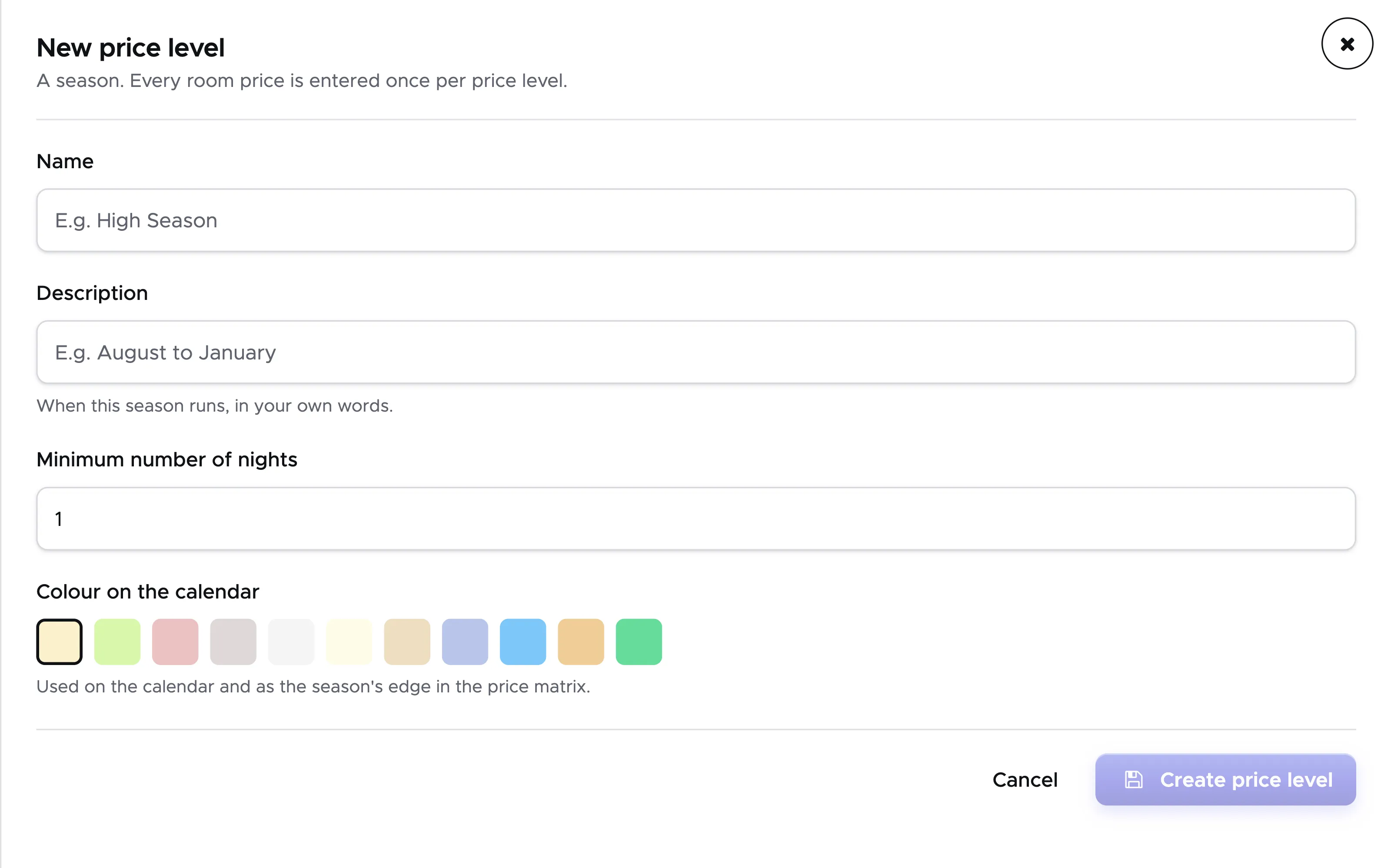
Any time you wish to update any information, you can click on the pencil icon next to the price level, make your changes and click on button Save price level.
If, for example, your Peak Season has a minimum number of nights of 3, a guest booking for 2 nights in Peak Season will be automatically charged for 3 nights.
16.1.5 Meal Plans
Section titled “16.1.5 Meal Plans”Here you can define your meal plans. The most frequently used meal plans are already available with “No Meals” as default. You can find the available meal plans at the bottom of this page. The chosen meal plan price will be added to the room rate.
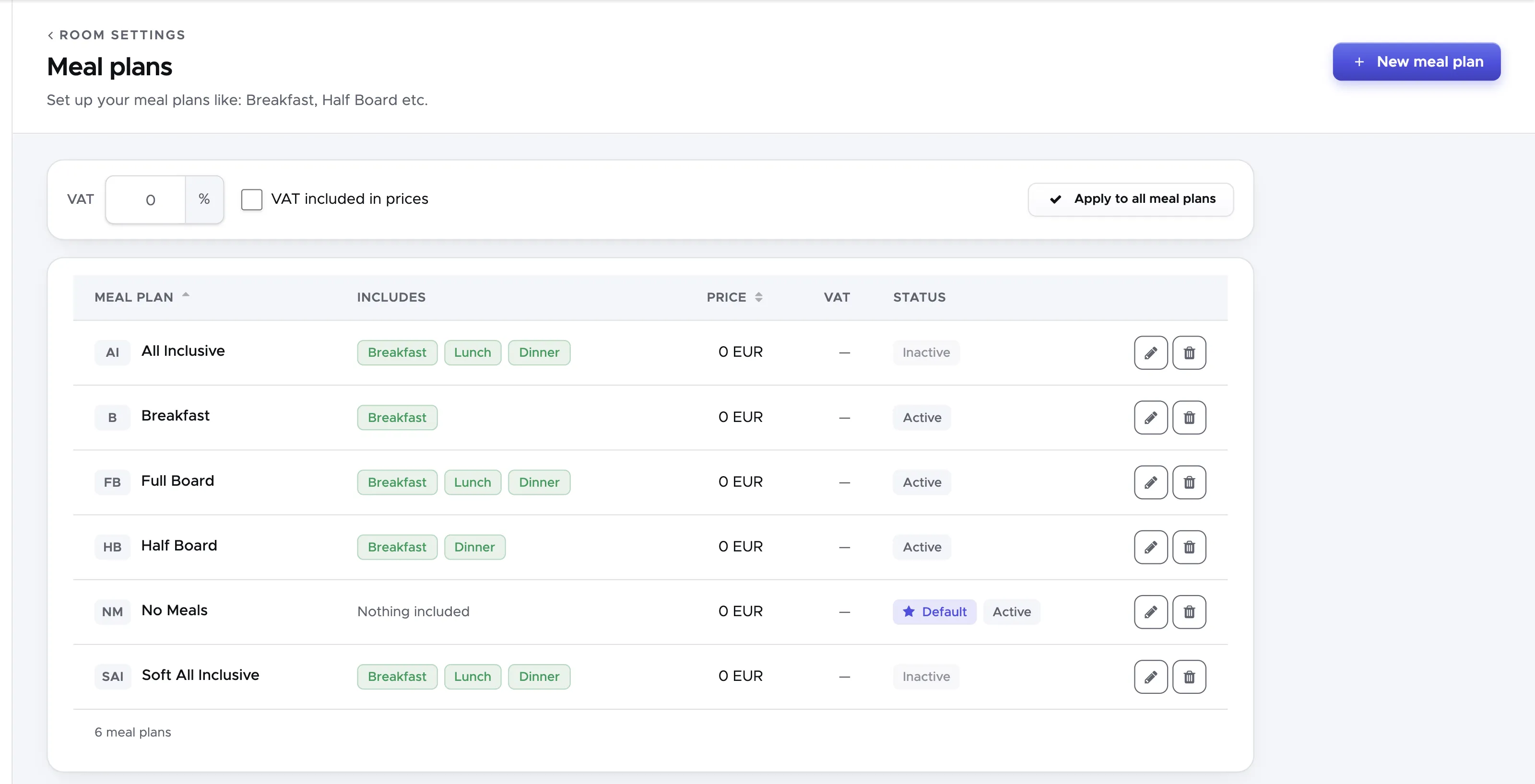
It is recommended to modify the available meal plans before creating new ones.
To modify a meal plan, click on the pencil icon at the end of its row.
Write a description, the price, add your VAT and choose if it’s included or not, tick the checkbox Active and click on button Save.
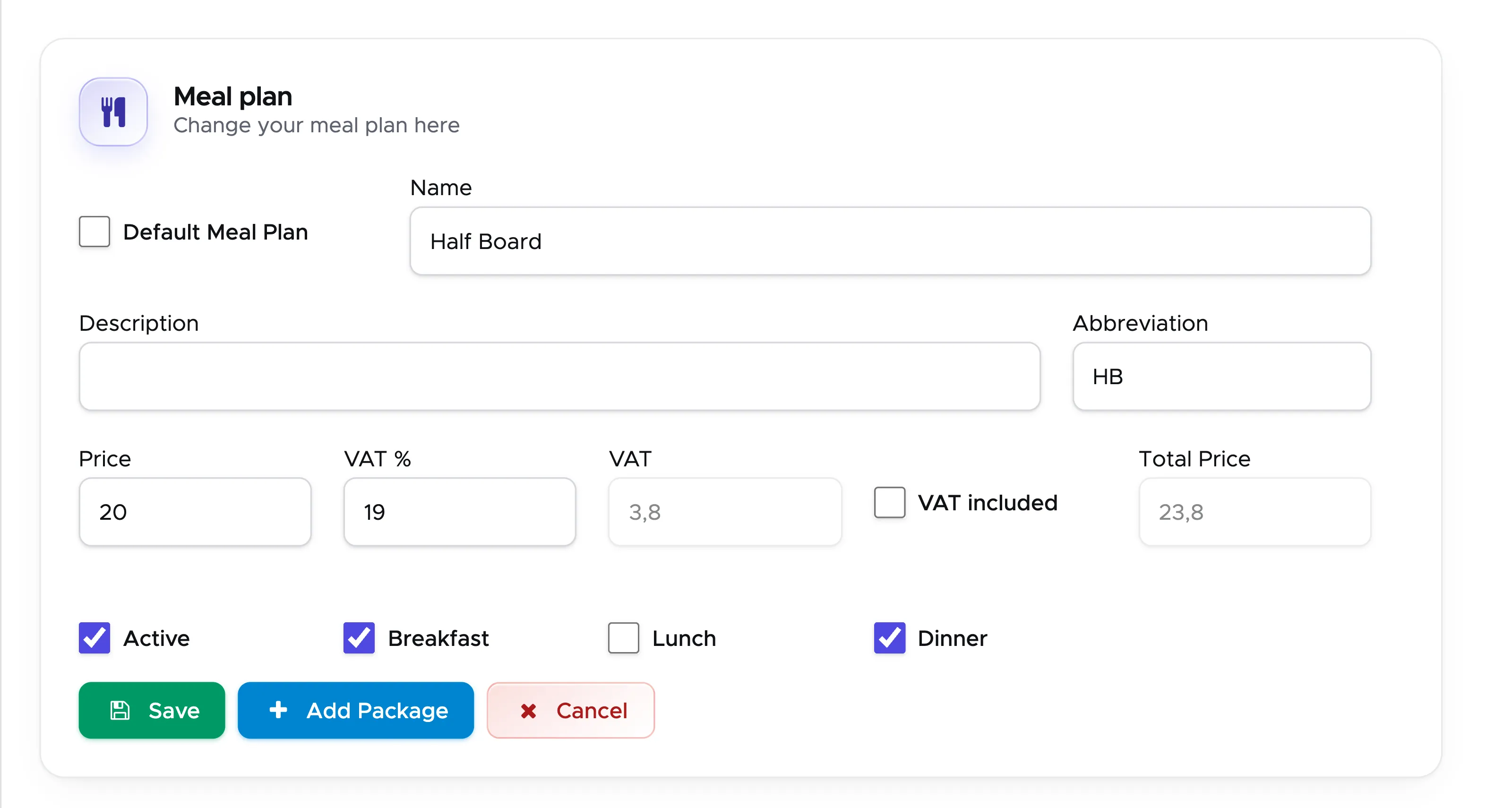
If “No Meals” is not your default meal plan, click on the pencil icon of your default meal plan and tick the checkbox Default Meal Plan. Click on button Save to view the changes in the table.
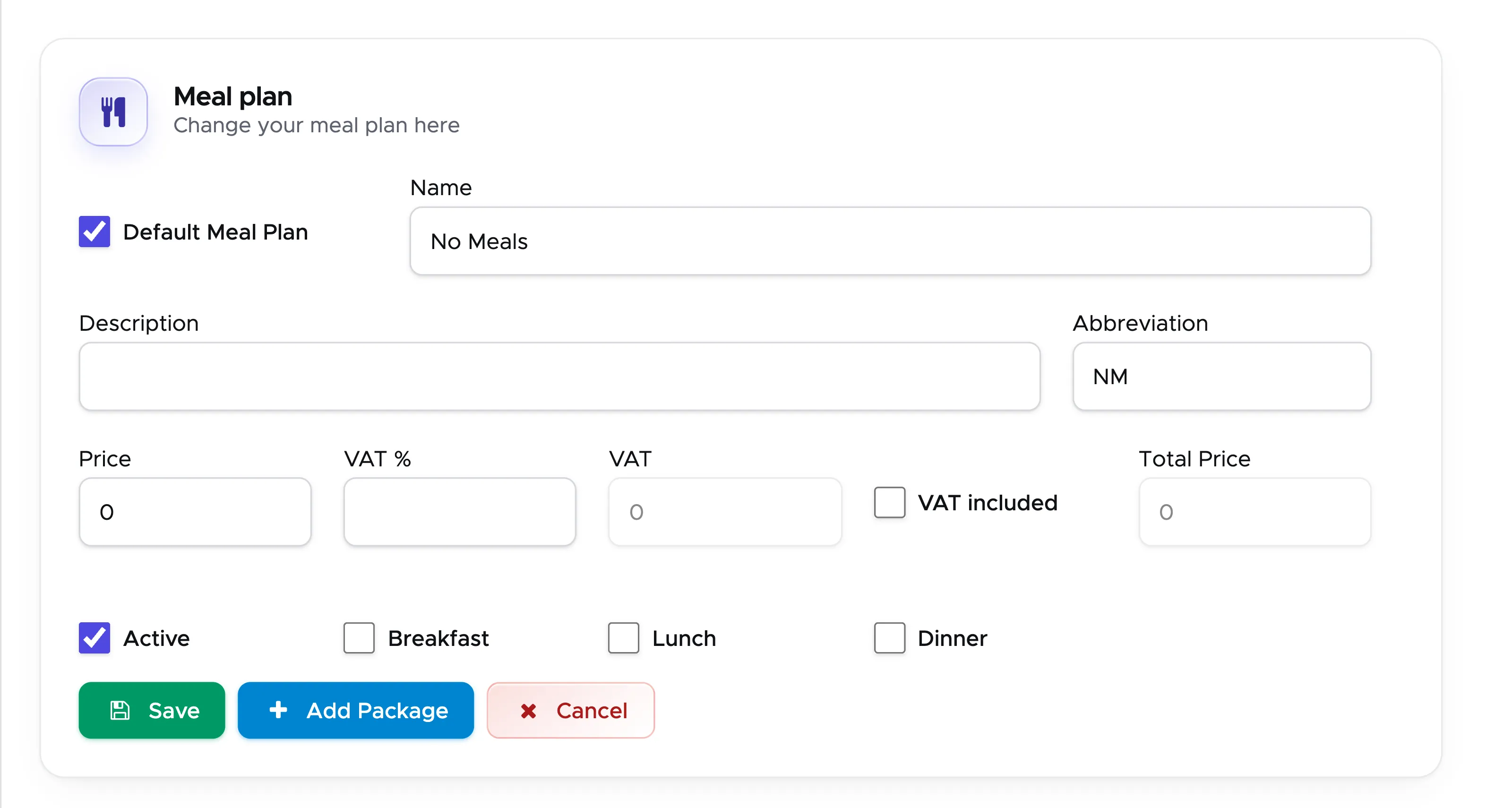
If you offer a meal plan that is cheaper than your default meal plan and you wish to discount the difference to your customers, you can enter a negative price that will be deducted from your room rate. In the screenshot below you can see an example in No Meals. In this case Breakfast is the default meal plan. If guests choose to book only the room without meals, they will receive a deduction of 50 THB per day per person.

Verify that only your meal plans show Active in column Status. If you wish to delete the inactive meal plans you can do so by clicking on the trash icon at the end of the row. However there’s no need to delete a meal plan that is not active as the system will not use it.
If you wish to create more meal plans, click on button New meal plan and fill out the fields in the sidebar.
If you offer package discounts for your meal plans, click on the pencil icon of the meal plan with packages and on button Add Package.
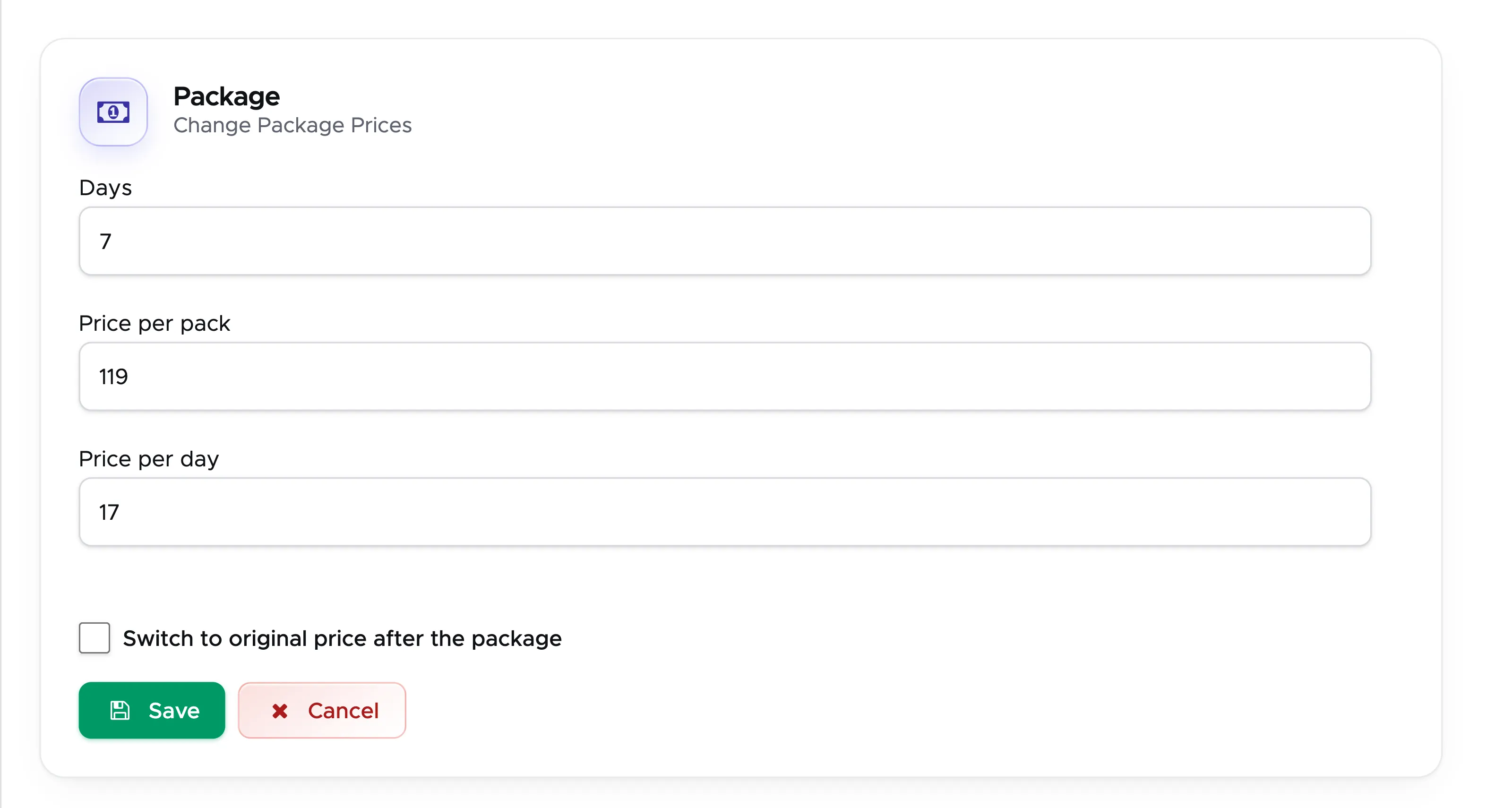
Define the number of days in the package and either the price per pack or the reduced price per day: Geek Divers will calculate the other price automatically. Tick the checkbox Switch to original price after the package if you wish to charge your customer the original meal plan price after the number of days that you’ve defined.
In the example above, my meal plan will be reduced to 17 per day (119 for the pack) for room reservations starting from 7 days/nights. If my customer books a room for 8 nights the meal plan will still be charged 17 per day.
If I choose to switch to the original price after the number of days in the package, for a reservation of 8 nights, my customer will be charged 17 per day for 7 days and the original price of the meal plan for day number 8.
Click on button Save to save your meal plan package and view it in the sidebar. The package meal plan will take the same definition of sales tax of your meal plan.
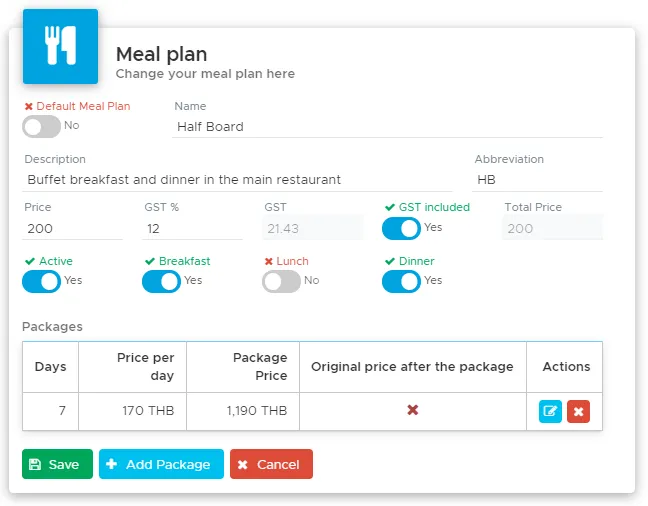
Click on button Add Package if you wish to add more packages or Save to save the meal plan and go back to the main page.
In the meal plan table you will see a tick in column “Package” if you’ve saved packages for a meal plan. You can save as many packages as you need for any of your active meal plans.
16.1.6 Room Prices
Section titled “16.1.6 Room Prices”In tab Room Prices you can define the prices for your room types, guest types and price levels.
The first time that you click on this tab, if you haven’t defined guest types, room types and price levels, you won’t be able to set up your room prices.
If you’ve set up all the above, you will see your room types.
At the top of the page you can define your VAT in percentage and tick the checkbox VAT included in prices if it is included, or leave it empty if it should be calculated on top.

For each room type you need to choose if you wish to define prices per person or per room. The chip next to the room type shows its current choice; click on Switch basis to change it.

Please consider that if you manage rooms that belong to other hospitality facilities, you can define the correct room prices (per room or per person) for every room type. You can for example set up 2 room types with price per person and 2 room types with price per room. If you’re not sure of how to set up your accommodation offer, please feel free to contact the Geek Divers support.
16.1.6.1 Define Prices Per Person
Section titled “16.1.6.1 Define Prices Per Person”If your price model is per room you can skip this chapter and go to the following one.
If the chip next to your room type reads Per room, click on Switch basis until it reads Per person. Open the room type with the arrow in front of its name. You will see a matrix that includes your price levels and guest types.
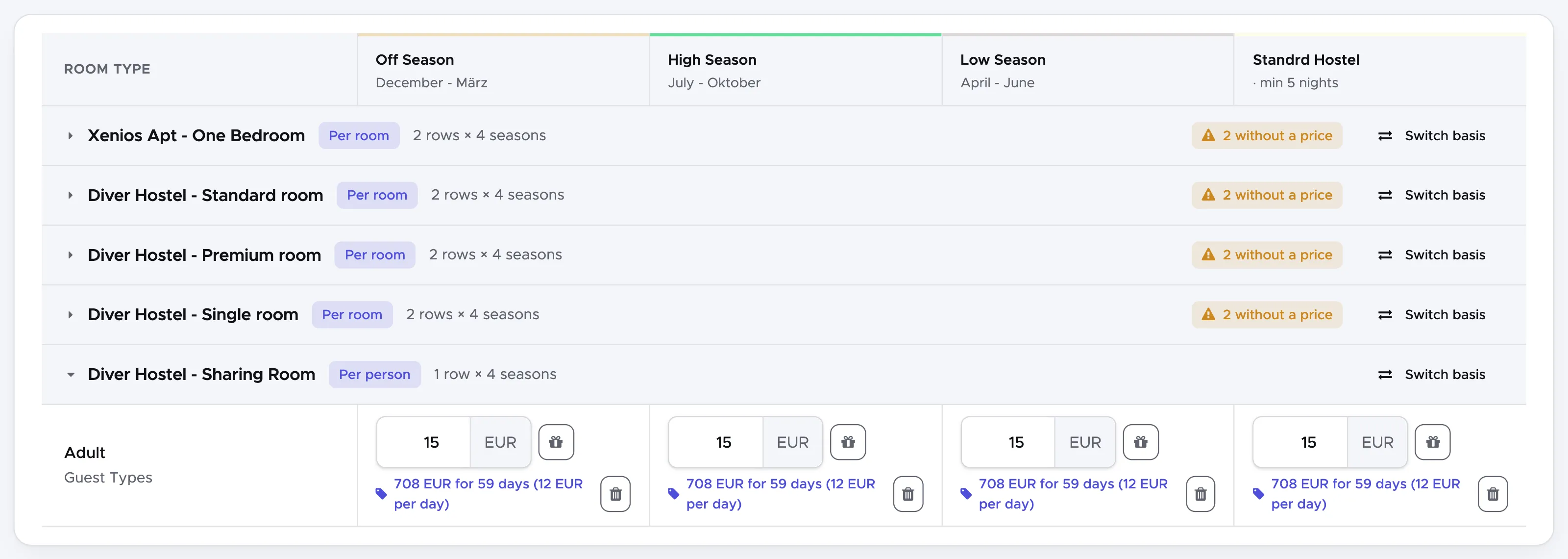
The matrix is composed of as many columns as the number of your price levels (your seasons), each marked with a line in the colour of your choice, and as many rows as the number of your guest types.
The currency that you see is your default currency defined in General Settings - Units. When you define your Partner Price Lists you can define a different currency for your partners. See chapter Partner Price Lists to find out how.
Fill out your prices according to the season and the guest type. If a guest type in a specific season can stay free of charge you can leave 0 in the respective field.
If you wish to add packages for one or more seasons, click on the gift icon next to the price.
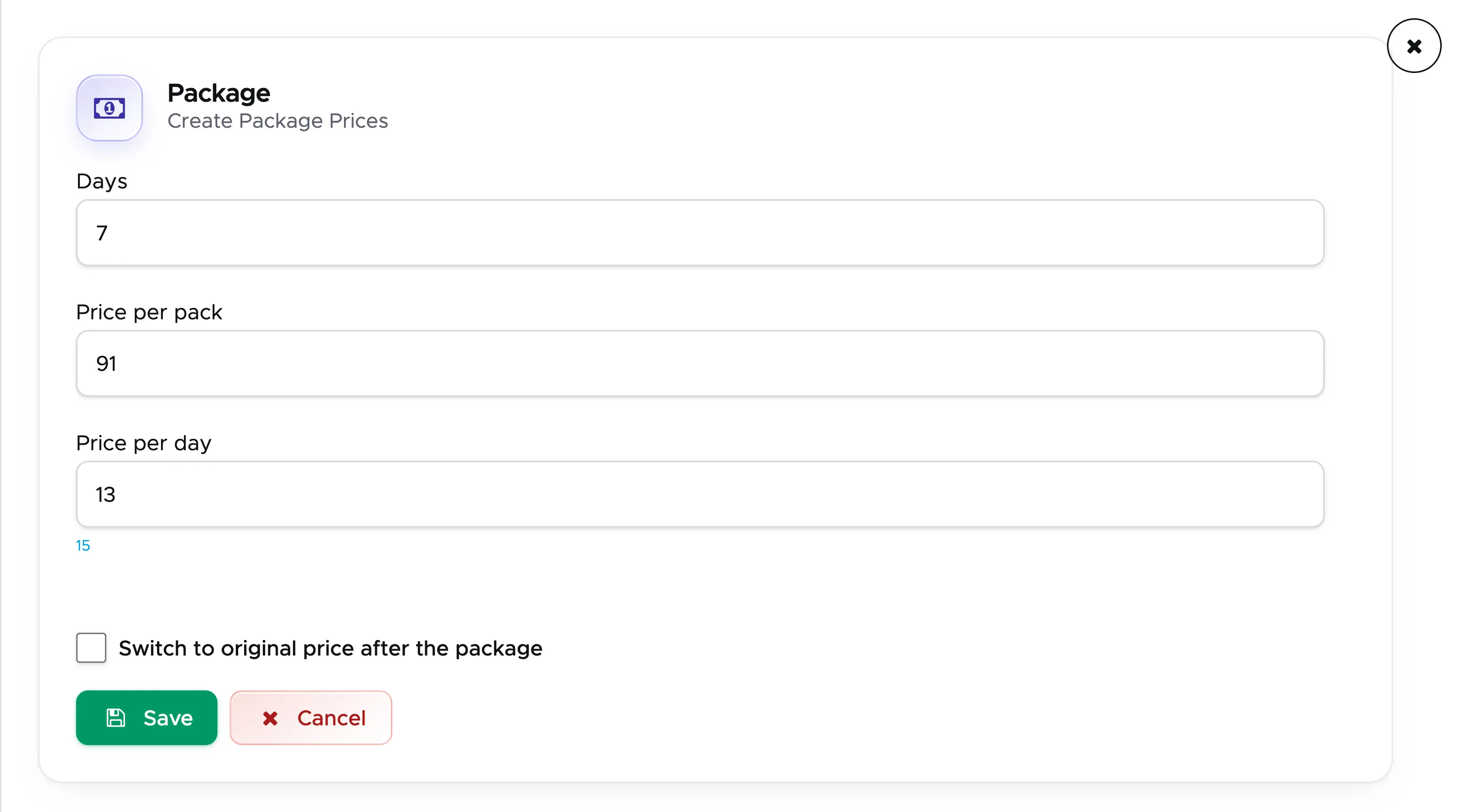
In the sidebar, fill out the number of days and either the price of the package or the discounted price per day in the package. Geek Divers will automatically calculate the other price.
Tick the checkbox Switch to original price after the package if you wish to charge the regular price after the number of days in the package. In the example above a customer booking for at least 7 nights will receive a discounted price of 13 EUR per night instead of the regular 15 EUR. If the checkbox is ticked, for a reservation of 8 nights my customer will be charged 13 EUR per night for the first 7 nights and 15 EUR for night number 8.
Click on button Save to save your package and see it in the matrix.
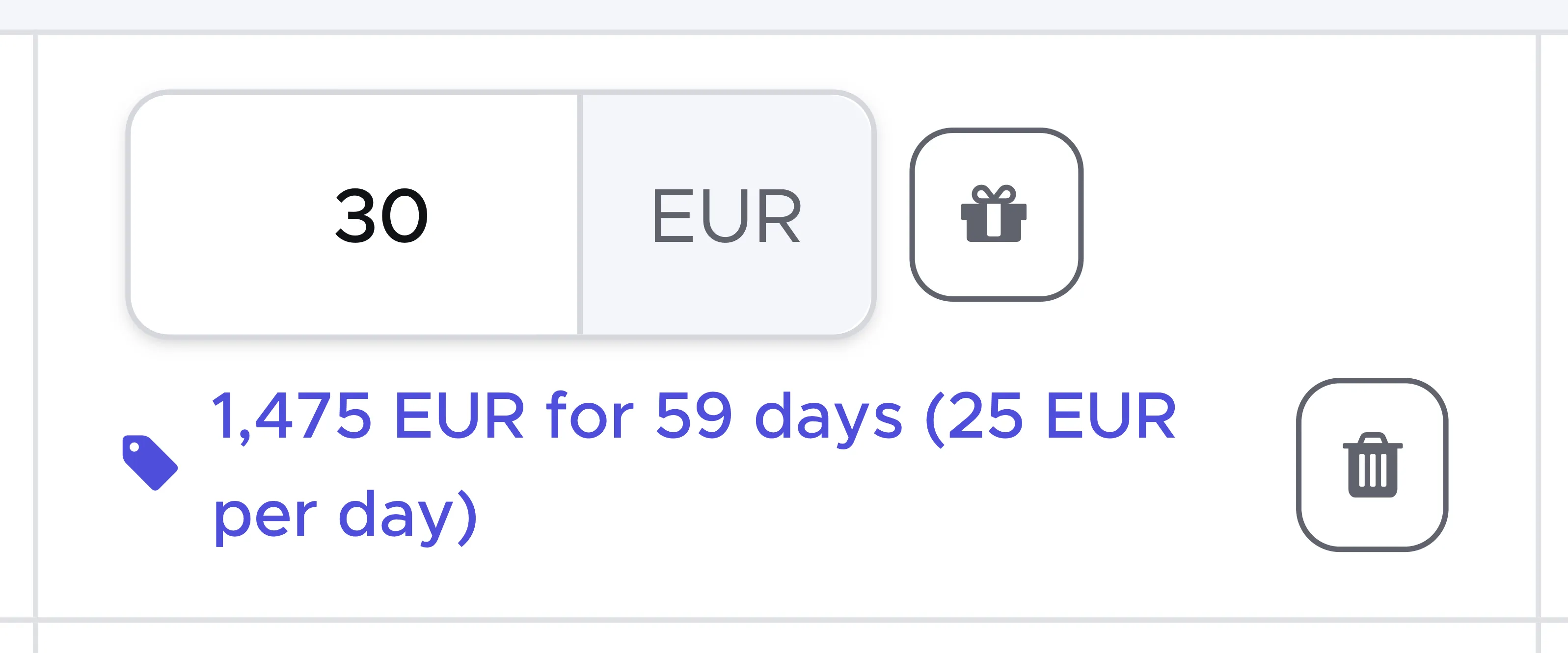
Repeat the steps above to set up all your package prices in your room prices matrix. You can set up as many package prices as you need.
In case of mistakes or if a package price is outdated, click on the package line to edit it or on the trash bin icon to delete it. Once a package price is modified or deleted, the new definitions will be available in future reservations. Existing reservations won’t be updated.
Repeat the room prices definition and package prices definition for all your room types with price per person.
Before leaving this page don’t forget to click on the button Save prices at the top of the page.
16.1.6.2 Prices Per Room
Section titled “16.1.6.2 Prices Per Room”If your price model is per person you can skip this chapter and refer to the previous one.
If you charge per room with/out a different price for single occupancy, click on Switch basis until the chip next to your room type reads Per room, and open the room type with the arrow in front of its name.
You will see a matrix with as many columns as your price levels, each marked with a line in the colour of your choice, and two rows: Room and Room Single Occupancy.
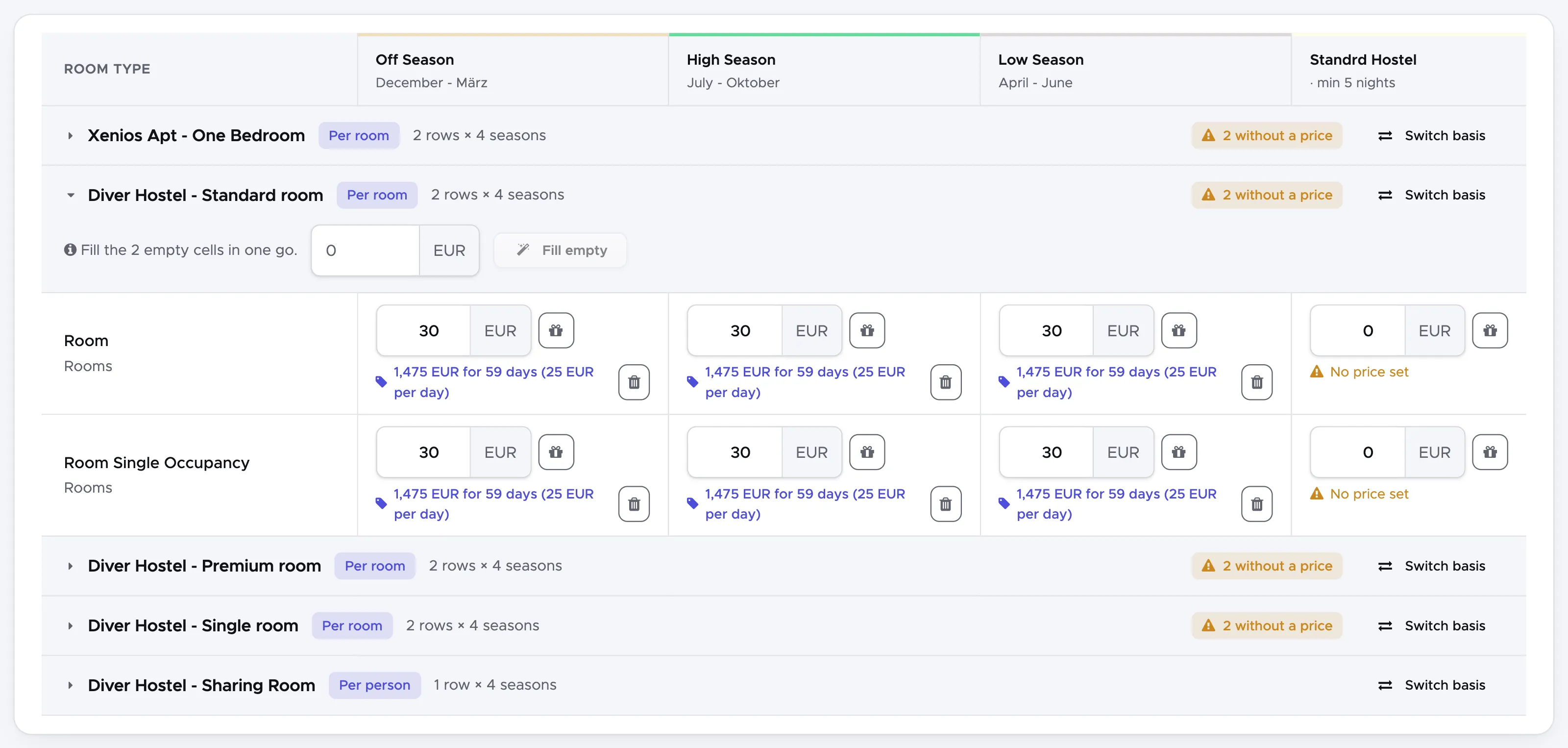
Enter your prices both for Room and Room Single Occupancy. If there’s no difference in price for single occupancy, please type the same price written in Room. If you leave 0 Geek Divers will consider the room as free of charge when it’s booked by 1 guest only.
If you wish to add package prices for one or more of your seasons click on the gift icon next to the price.
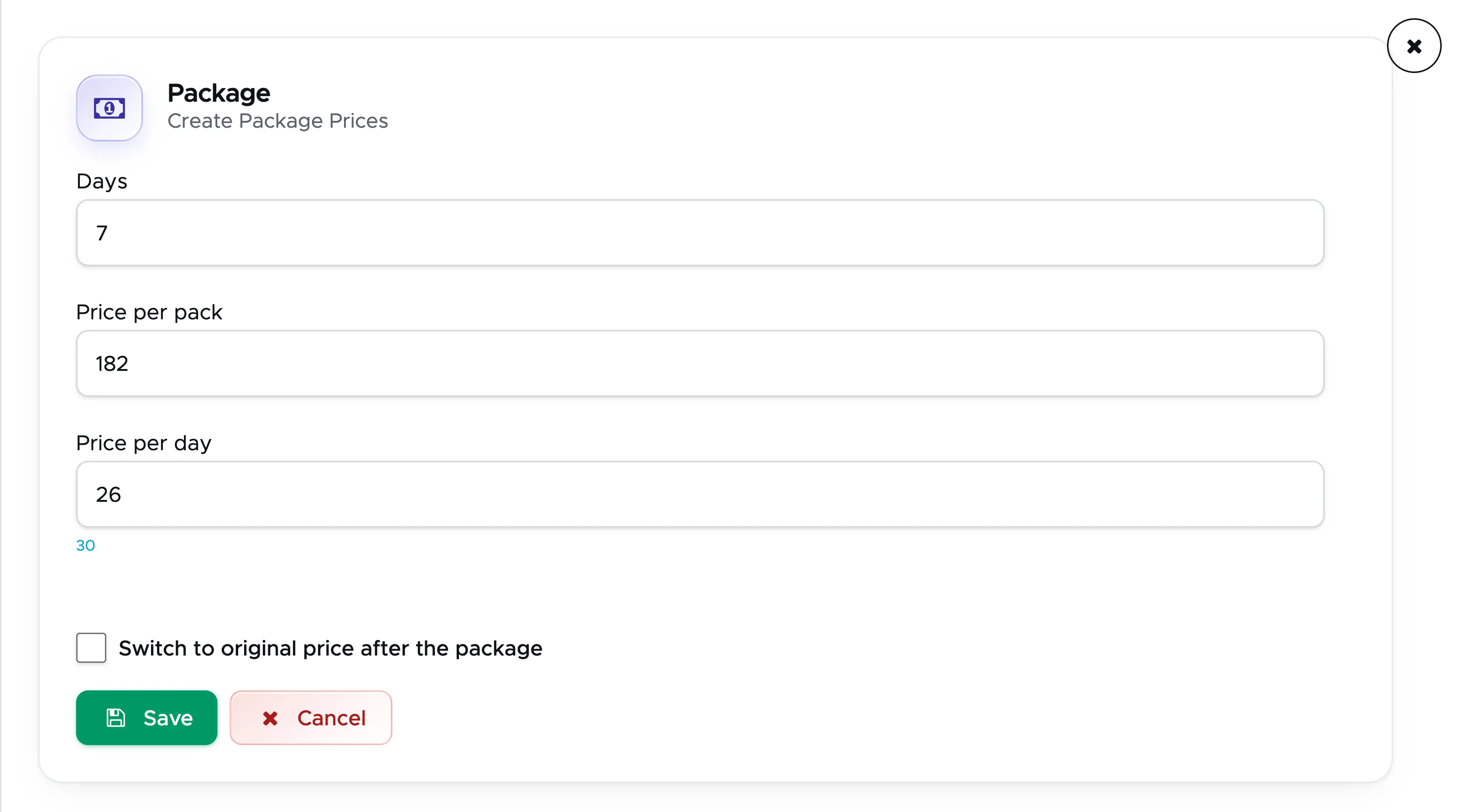
In the sidebar, fill out the number of days and either the price of the package or the discounted price per day in the package. Geek Divers will automatically calculate the other price.
Tick the checkbox Switch to original price after the package if you wish to charge the regular price after the number of days in the package. In the example above a room booking for at least 7 nights will receive a discounted price of 26 EUR per night instead of the regular 30 EUR. If the checkbox is ticked, for a reservation of 8 nights the room will be charged 26 EUR per night for the first 7 nights and 30 EUR for night number 8.
Click on button Save to save your package and see it in the matrix.
Repeat the steps above to set up all your package prices in your room prices matrix. You can set up as many package prices as you need.
In case of mistakes or if a package price is outdated, click on the package line to edit it or on the trash bin icon to delete it. Once a package price is modified or deleted, the new definitions will be available in future reservations. Existing reservations won’t be updated.
Repeat the room prices definition and package prices definition for all your room types with price per room.
Before leaving this page don’t forget to click on button Save at the bottom of the page.
16.2 Calendar Settings
Section titled “16.2 Calendar Settings”You can set up your accommodation calendar only if you’ve already defined your seasons in menu Accommodation - Room Settings - Price Levels. See chapter Price Levels to find out how.
Click on Accommodation and Calendar Settings in the menu on the left.
Now that you’ve defined your seasons (Price Levels in Geek Divers), you need to apply them to your accommodation calendar.
In this page you will see the price levels that you’ve defined and the calendar for the current year. Initially your calendar is set to gray: no reservation possible.
To assign a price level to your calendar, in the card Assign price level on the left select a price level, define a start date and an end date. Click on Assign and you will see the selected time frame changing colour in the season calendar on the right.
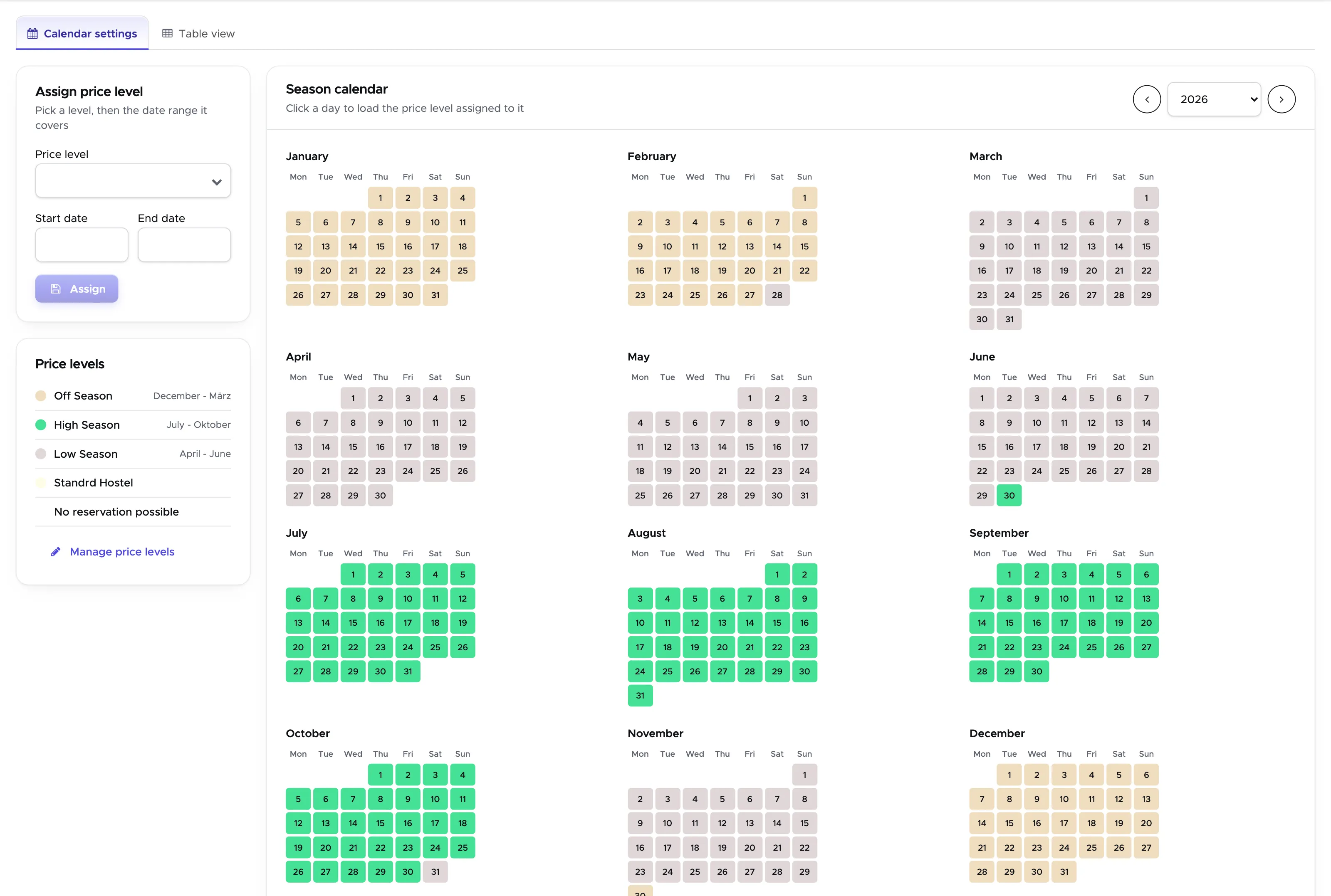
If you wish to set a period to “closed” (no room reservations possible) you can leave it in gray or choose “No reservation possible” from the drop-down menu Price level. If one or more days in your calendar are set to “No reservation possible”, in your Accommodation Calendar you won’t be able to make any reservation.
16.3 New Room
Section titled “16.3 New Room”Now that you’ve completed your settings for the accommodation module, you can define all your rooms.
Click on Accommodation and New Room from the menu on the left.
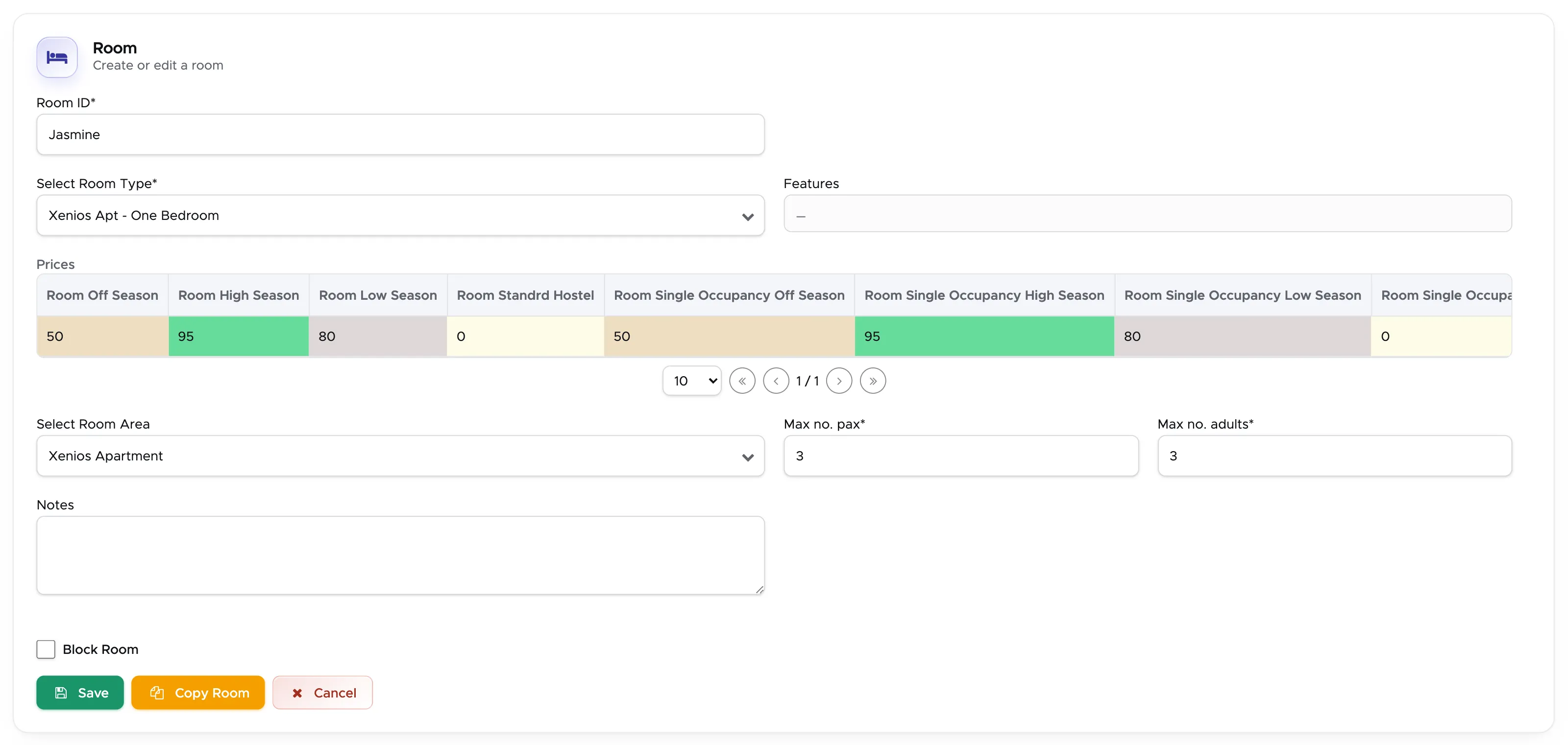
Fill out at least:
-
Room ID (room number or name)
-
Room Type
-
Max no. pax
-
Max no. adults
As soon as you select the room type you will see the room features that you’ve set up in Room Settings and the prices according to the price levels that you’ve set up in Room Prices.
Additionally you can set the Room Area (if you’ve set it up in Room Settings) and write some notes. Notes are only for internal use.
You can now click on button Save.
Your first room is now saved and you will find a button Copy Room at the bottom of this page. If you have other rooms with the same features you can click on this button to copy your selections to the next room. If you use button Copy Room you will only need to enter the new room ID.
If you wish to enter a different type of room you can click on menu New Room or you can change the type in the copied one.
Before saving the copied room, please make sure that all the data is correct.
16.4 Rooms
Section titled “16.4 Rooms”To view the complete list of your rooms you can click on the menu Accommodation and Rooms.
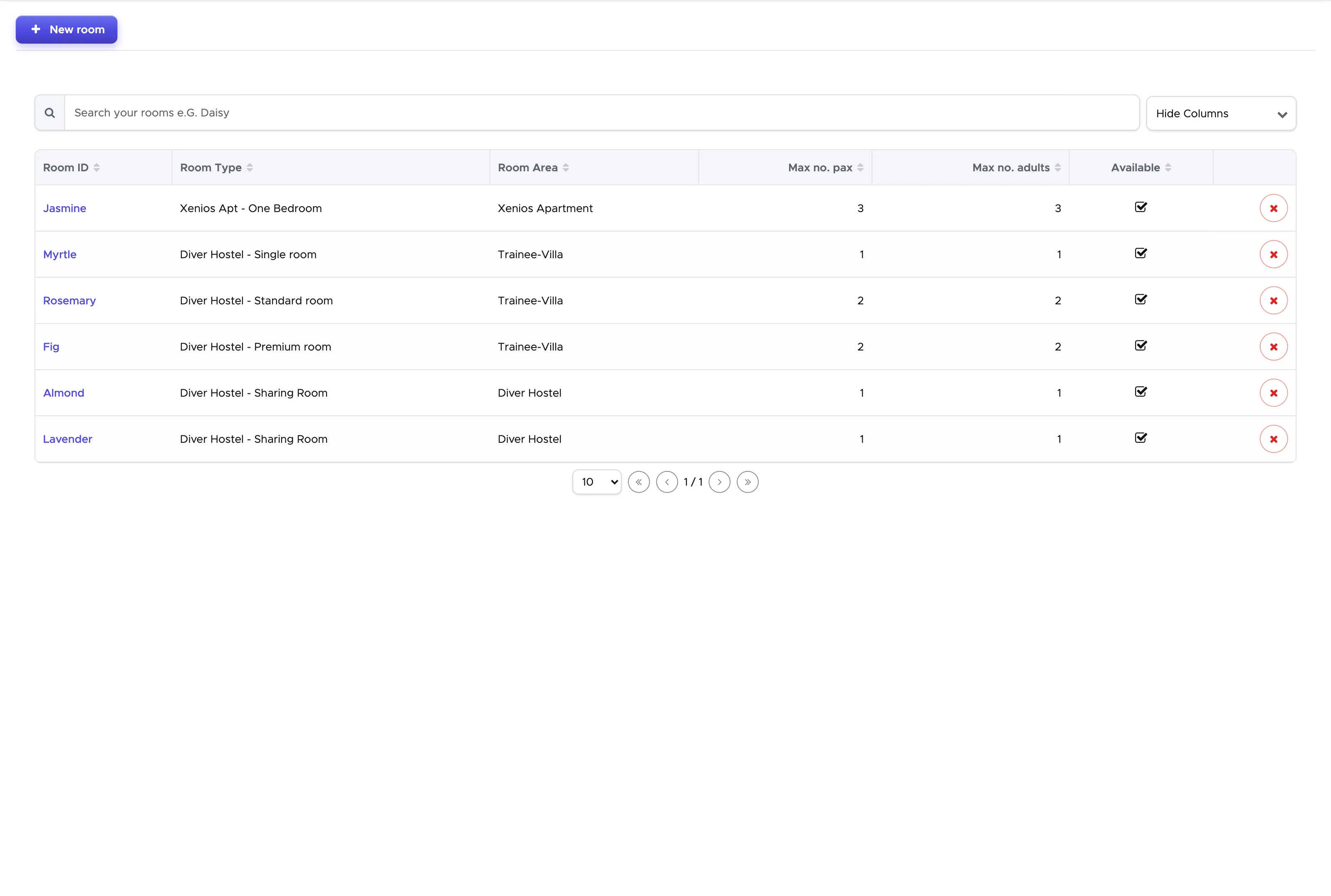
If you wish to see the room details you can click on the room ID.
If you wish to delete a room you can click on the X icon next to it. Please consider that if you delete a room, this will disappear from the Accommodation Calendar. If the room is reserved in the future you won’t be able to delete it. You will need to modify the existing reservation and assign them to another room.
If you wish to temporarily remove a room from your offer without setting an availability date in the future, click on the room ID (in blue) and tick the checkbox Block Room at the bottom of the page. Before you can click on button Save, you will need to enter something in the Notes. It is recommended to enter the reason why the room is not available. The room will not be visible in the accommodation calendar anymore.
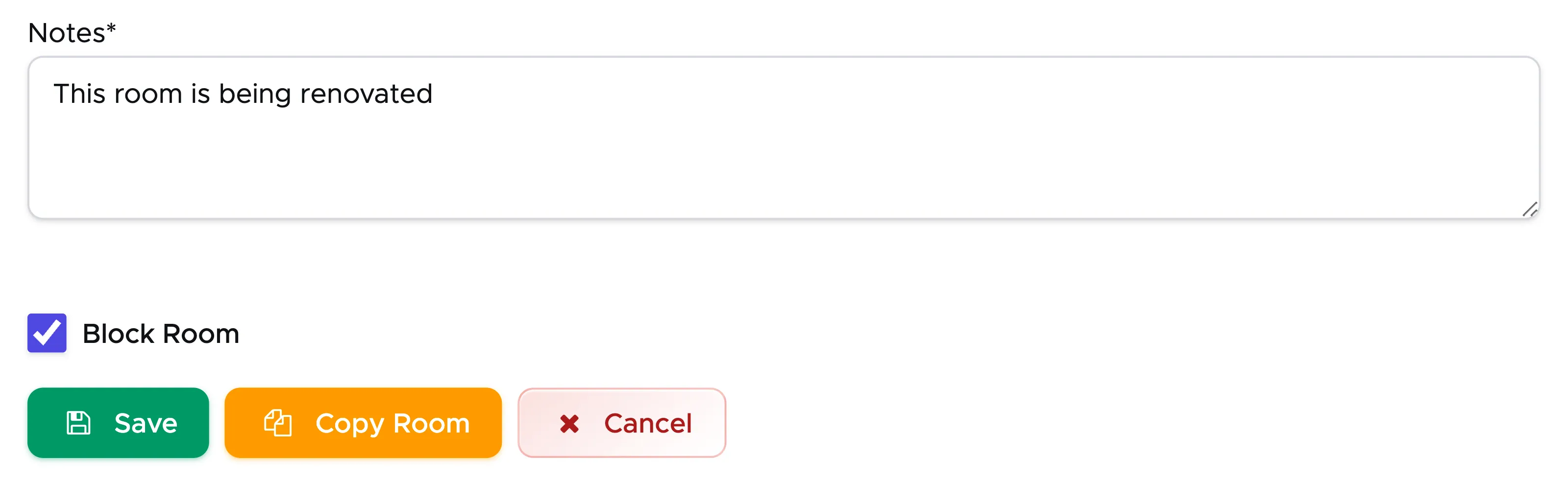
As for the room deletion, if there are existing reservations in the future, you won’t be able to mark this room as not available. See chapter Block a room to see how you can mark a room as unavailable in a specific period of time.
If you wish to unblock the room you need to go back to menu Rooms, click on the room ID and untick the checkbox Block Room.
16.5 Accommodation Calendar
Section titled “16.5 Accommodation Calendar”Click on menu Accommodation and Rooms, then open the Calendar tab.
If you’ve completed your room settings and calendar settings you will see the background color of your choice for the price levels.
If it’s the first time that you go to your accommodation calendar you won’t see any room reservation. However, if you’ve created your rooms in menu New Room, you will see the complete list of them on the left.
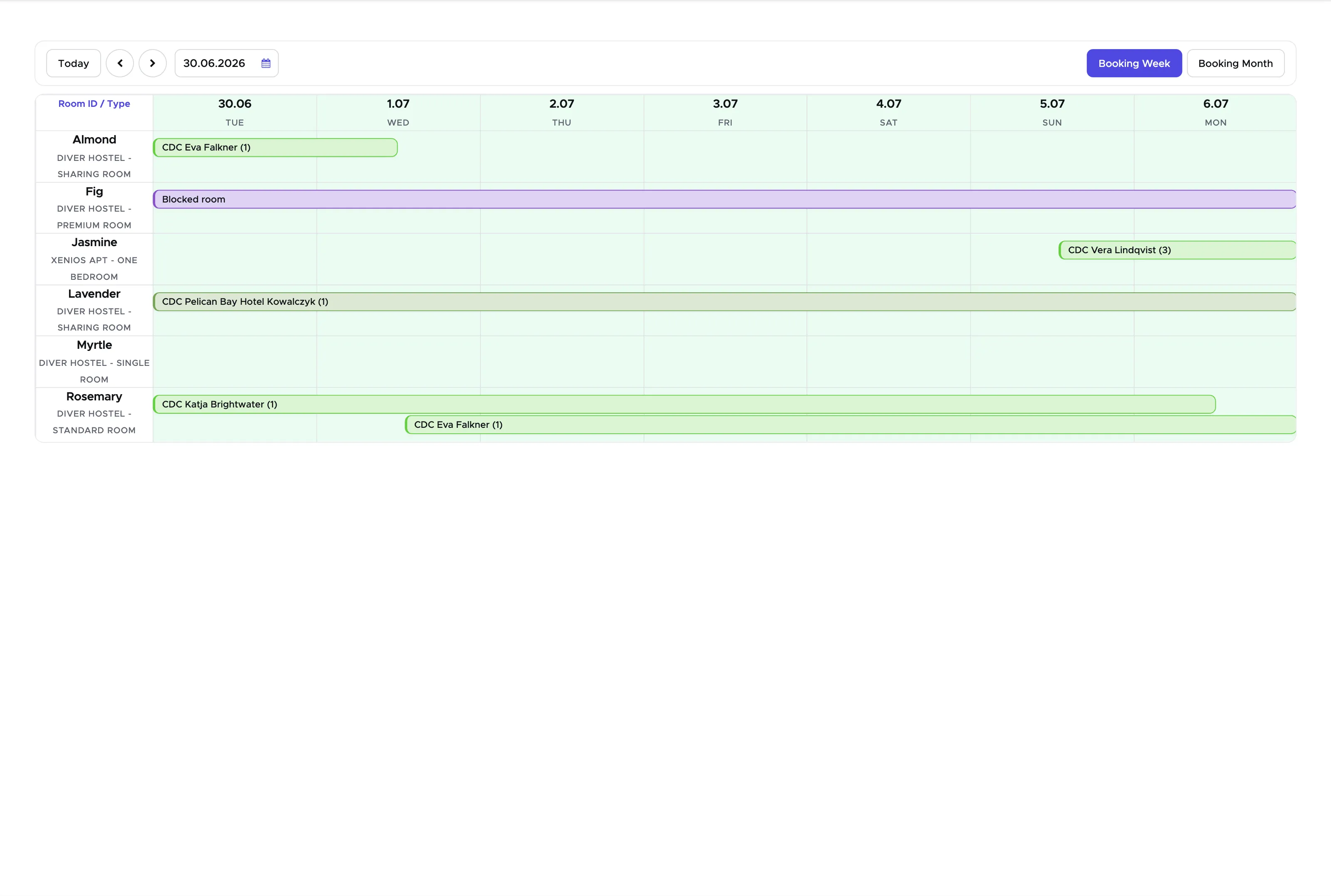
Use button Today, the arrows or the date field at the top left to choose the dates you see. You can choose to display your calendar in different views. Click on the buttons at the top right to switch between the available views: Booking Week and Booking Month.
16.5.1 Make a room reservation
Section titled “16.5.1 Make a room reservation”You can make a room reservation and add it to a quote (for both partners and customers) or to a customer bill, skipping the quote step if the customer is already on site.
Click on the calendar on a room and day corresponding to the desired check-in date. You will see a sidebar containing more information.
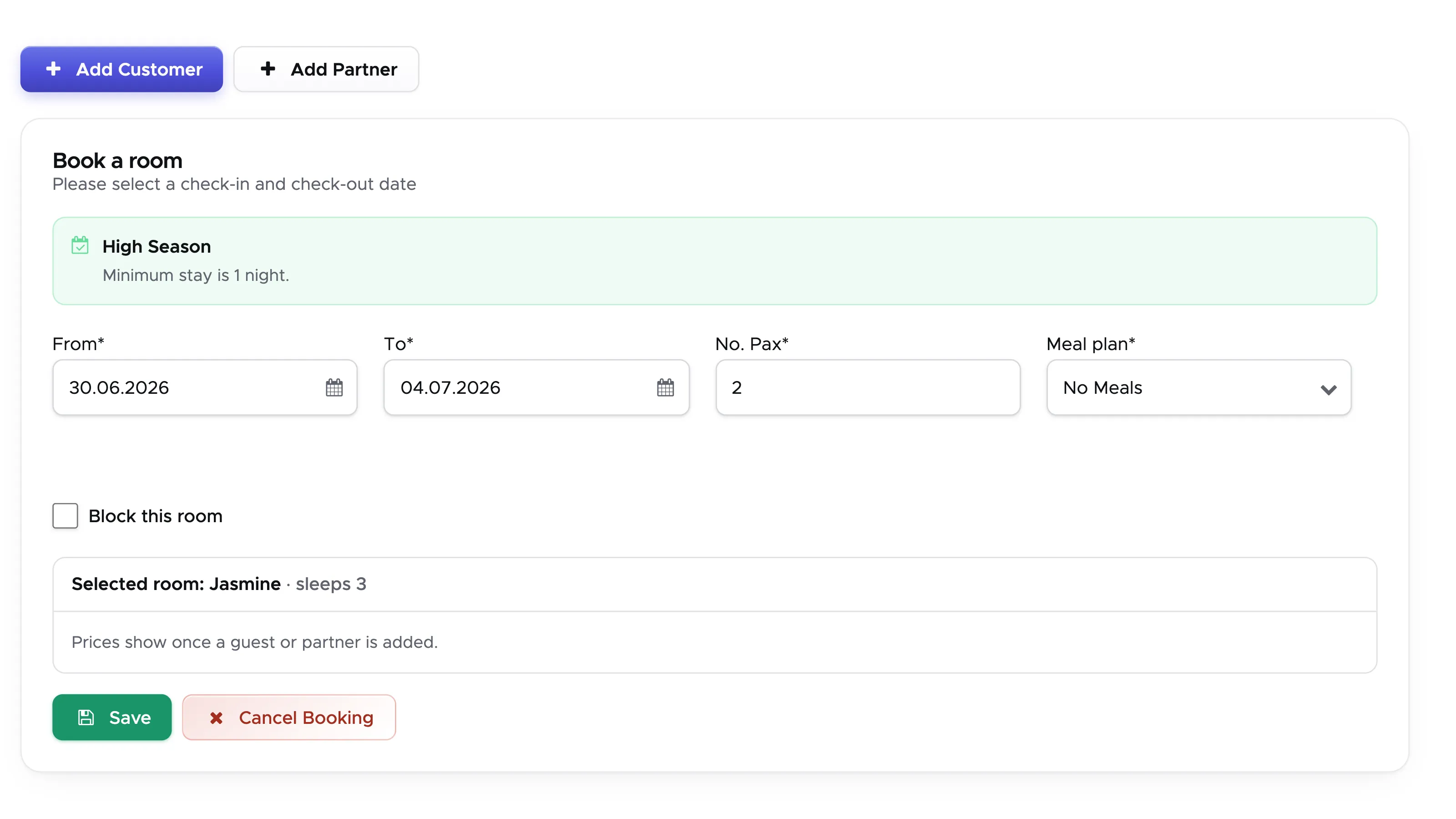
The check-in date is already written and it’s taken from your click on the calendar. Enter a check-out date and the number of guests. If the room is set up with a price per person, you will see your guest types. If the room is set up with a price per room, you will be asked to enter the number of persons.
Your default meal plan is pre-selected and you can change it, providing that you’ve set up more than one.
As long as no customer or partner is assigned to this room reservation, you won’t see any prices.
You can click on buttons Add Customer or Add Partner to assign this room reservation to a customer or to a partner.
16.5.1.1 Room reservation for one or more customers
Section titled “16.5.1.1 Room reservation for one or more customers”If the room reservation is for a customer, click on button Add Customer. If the customer is already in the system, enter the first few letters of their name and last name to view the suggested matches. The system will show you the first 10 matching results. Alternatively, enter the customer’s email address and move to the next field with the TAB key.
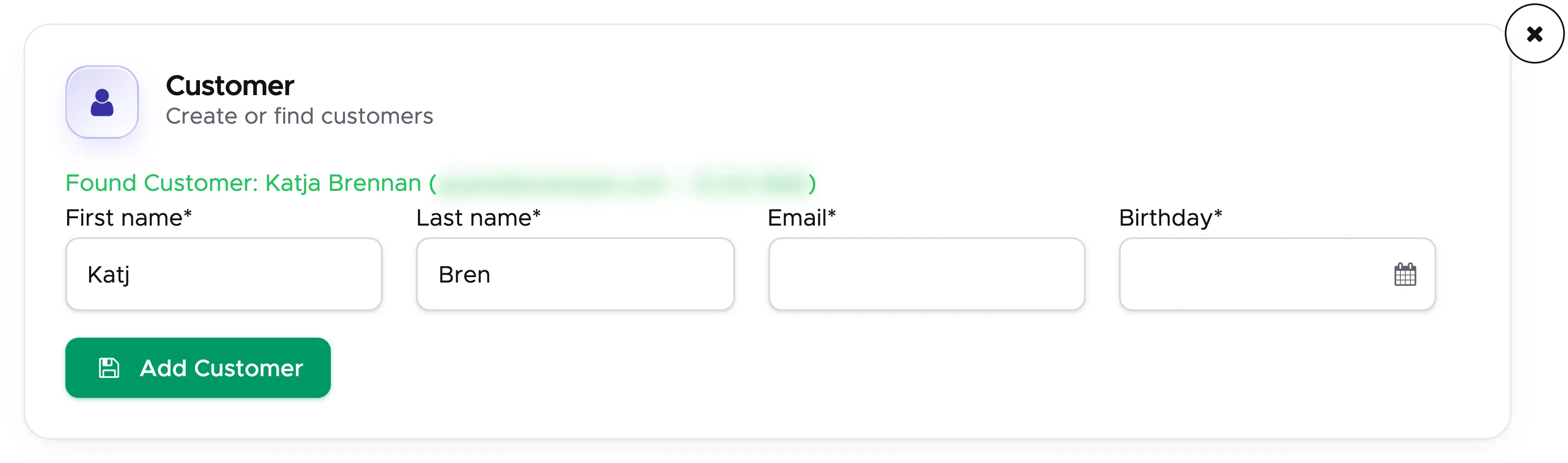
Click on the correct customer (in green) among the suggested ones.
If the customer is not yet in the system, you will need to type the customer’s name, last name, date of birth and email address to save it.
Click on OK to confirm the customer or enter more customers above and click on OK when you see the correct list of customers.
👀 Important!
Please consider that you can fill out just the 4 mandatory fields in case of a new customer. If and when the customer chooses to confirm the room reservation, you can send them the online registration form and thanks to the customer merge feature, their profile will be updated in Geek Divers, providing that they enter the same name, last name, date of birth and email address.
Now the customer is assigned to the room reservation and you will see the prices in the table next to the list of guests.
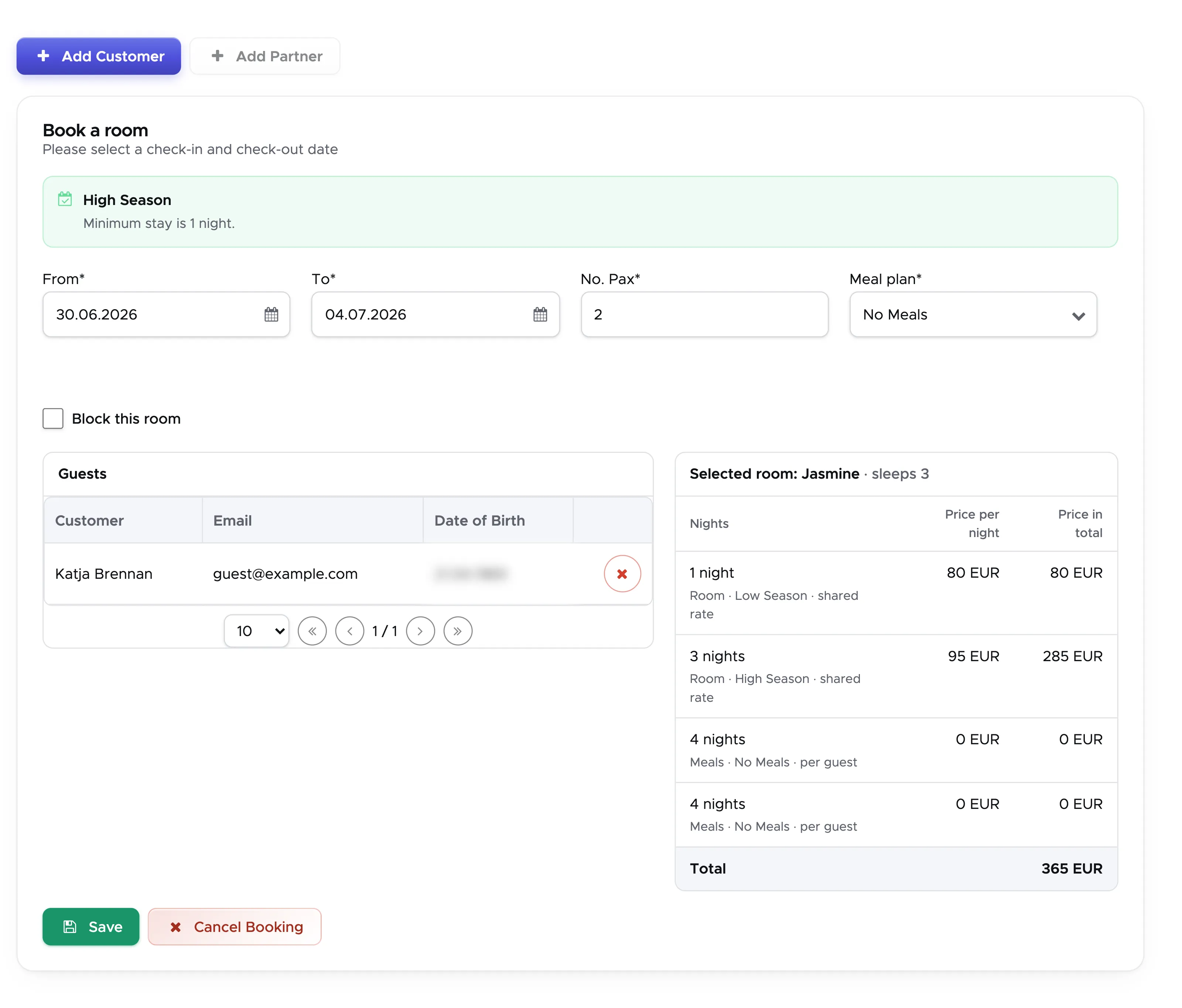
If you’ve set up package prices for rooms and meal plans, these will be automatically shown in the table. Additionally, if you’re making a reservation for a number of nights that is lower than the minimum stay for that season, the table will show you the charges for at least the minimum number of nights according to your setup in Room Settings. If you wish to modify the prices and add a discount, you can do so within the quote or the bill.
If the default meal plan needs to be changed, please do so.
If you realize that there’s a mistake you can click on button Cancel Booking and nothing will be saved in the Accommodation Calendar. If everything looks fine, click on the Save button. You now have the choice of adding the room reservation to a quote or to a bill.
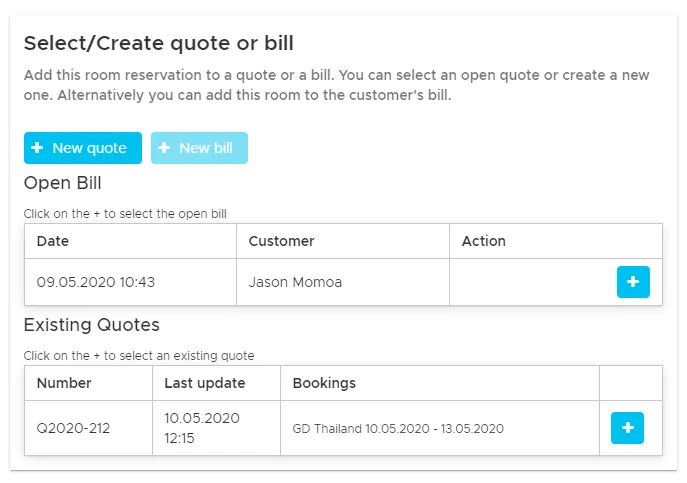
If you wish to add the room reservation to a quote, you can choose to create a new quote or select an existing one. If the customer has existing open quotes for the same location and same dates, you will see them in the sidebar. You can select one of the existing quotes to update it with the room reservation. If you wish to create a new quote, click on button New quote.
The sidebar will show you the content of the quote, including the room reservation and meal plan.
Alternatively, if the customer is already standing in front of you or they will come shortly, you can choose to add the room reservation to their bill. If the customer already has an open bill for this location, you will see it in the sidebar. If you click on the blue button in the existing bill the room reservation will be added there. If no bill is shown in the sidebar and you choose to click on button New bill, a new bill will be created and assigned to all the customers selected and the room reservation will be added to the bill positions section.
The sidebar will disappear and you will see a confirmation message that the bill was successfully updated.
16.5.1.2 Room reservation for a partner
Section titled “16.5.1.2 Room reservation for a partner”If the room reservation is for a partner, click on the calendar on a room and date to view the reservation sidebar. The check-in date will be preselected according to your click on the calendar. Set a check-out date and type the number of guest types (if the room has a price per person) or the total number of guests (if the room has a price per room). Modify the default meal plan, if appropriate.
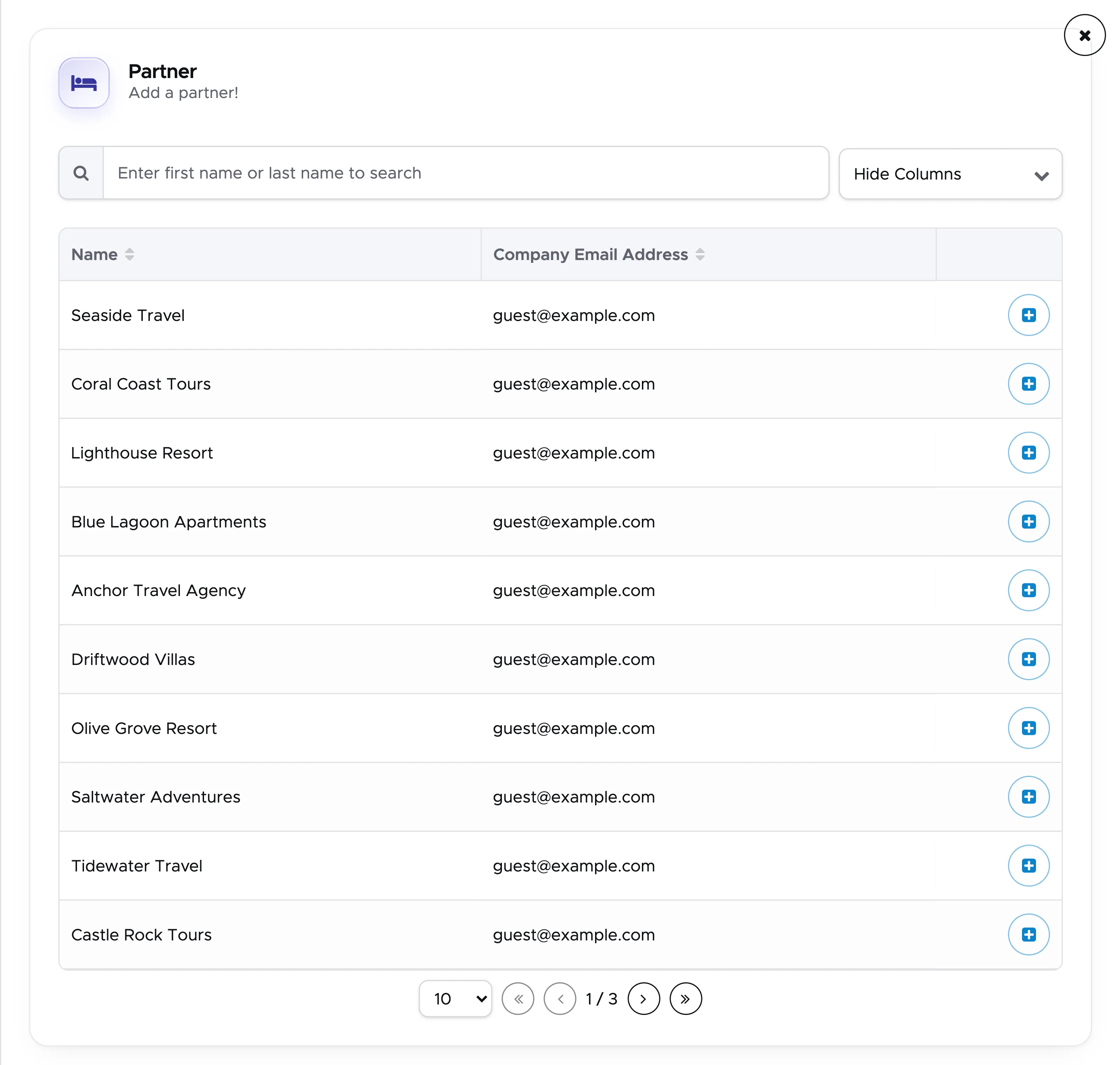
Click on button Add Partner to select one of your partners. In the sidebar search for the partner’s name and click on the plus button next to the partner’s name.
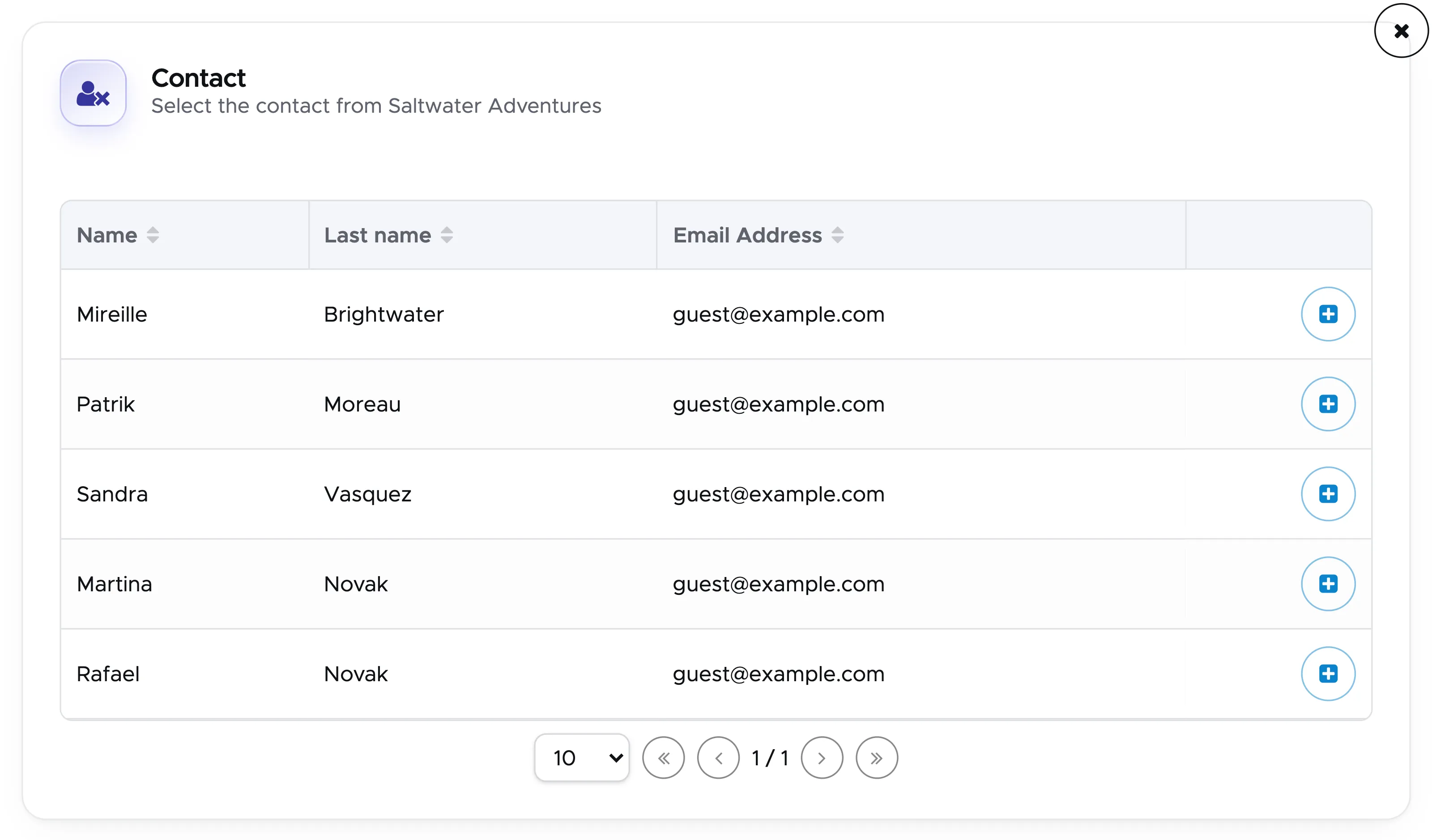
If you’ve entered any contacts in your partner’s profile, select the correct one with the plus button next to it.
At this point, if you’ve assigned at least one partner price list to this partner, you will see the room prices in the table in the sidebar.
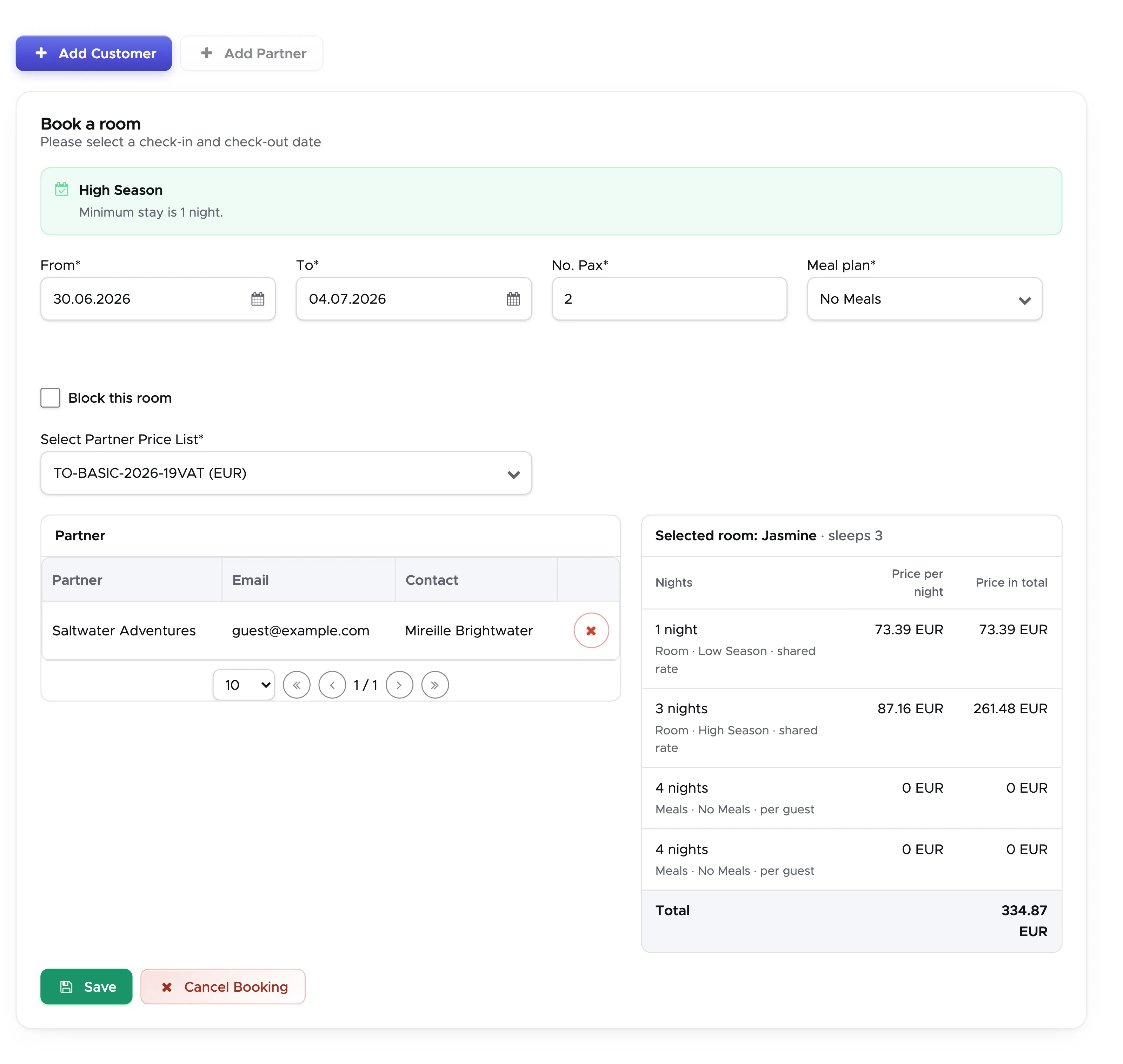
If you’ve assigned more than one price list to the partner, you can choose the price list that you wish to use in the field “Select Partner Price List”.
If you’ve set up package prices for rooms and meal plans, these will be automatically shown in the table. Additionally, if you’re making a reservation for a number of nights that is lower than the minimum stay for that season, the table will show you the charges for at least the minimum number of nights according to your setup in Room Settings. If you wish to modify the prices and add a discount, you can do so within the quote.
Before you click on the button Save, please make sure that dates, meal plan, no. Pax or no. of Guest Types and price list are correct.
In the next step, similarly to the room reservation for a customer, the sidebar will ask you if you wish to add the room reservation to an existing quote (if there’s any partner quote still open and matching the same dates, location and partner) or if you wish to create a new one. Button New Bill is disabled because a partner cannot have a bill.
Select an existing quote or click on button New Quote to add the room reservation to a partner quote.
The sidebar will show you the content of the quote, including the room reservation and meal plan.
16.5.1.3 Block a room
Section titled “16.5.1.3 Block a room”In the Accommodation Calendar you can temporarily block a room without assigning it to a customer or a partner. You can choose to block a room for maintenance or because you need to use it for a staff member or for any other reason.
Click on the calendar on the room that you wish to block and on the date the block should start.
The date in From is set to the date you clicked on in the calendar. Set the To date and tick the checkbox “Block this room”. To block a room you need to provide some notes in the Notes text field below. This is because any of your colleagues checking the Accommodation Calendar needs to know why this room is blocked.
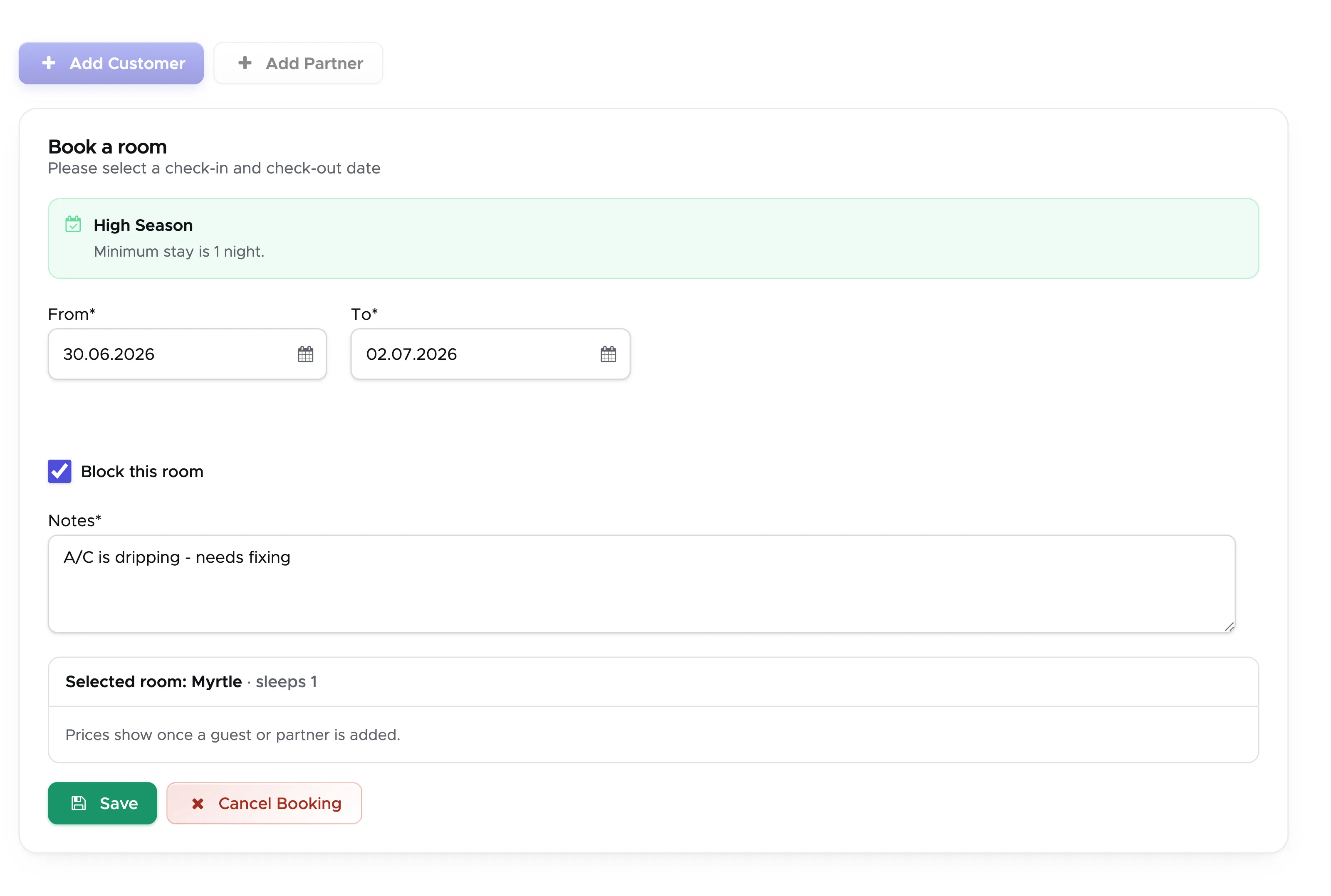
Click on the button Save to confirm.
16.5.2 Color-coded room reservations
Section titled “16.5.2 Color-coded room reservations”In the accommodation calendar you will see room reservations in different colors. Most of the room reservation colors match the colors of quotes.
Yellow - the room is in an Open quote.
Orange - the room is in an open quote in status Due.
Light-blue - the room is in a Confirmed customer quote.
Pink - the room is in a Confirmed customer quote and the customer has a recorded credit on their profile.
Blue - the room is in an open customer’s bill and there are no recorded payments.
Dark green - the room is in an open customer’s bill with a recorded payment.
Bright green - the room is in a partner invoice or in a customer’s bill that is fully paid.
Purple - the room is temporarily blocked.
Gray - the room is currently selected by a user who’s making a reservation.
You can click on any room reservation to open the sidebar and view the content of the quote or the link to the bill.
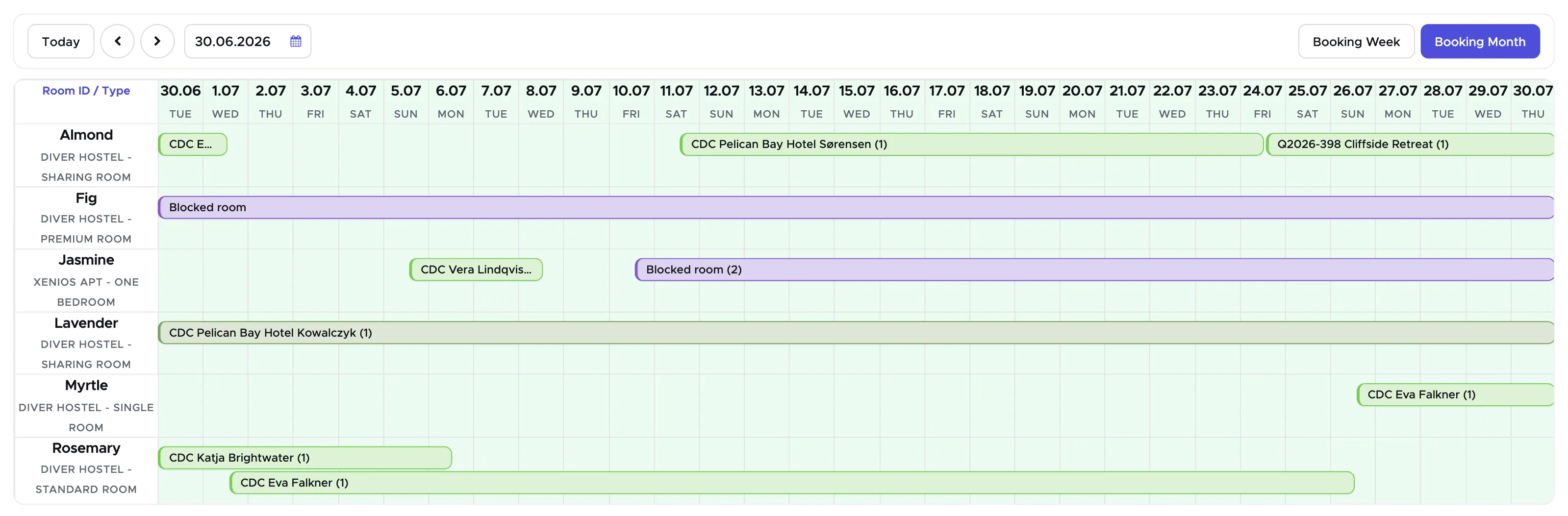
The Accommodation Calendar will allow you to overbook your rooms. Please check your reservations before confirming a quote.
16.5.3 Add position to a quote in the Accommodation Calendar
Section titled “16.5.3 Add position to a quote in the Accommodation Calendar”Whether you created or updated a quote for a customer or a partner to include a room reservation, in the sidebar you can click on the button Add Position to add your diving services.
If you’ve already closed the sidebar, you can click on a room reservation to open it again.
If the quote is not yet confirmed, you can still add your services. To do so, click on the button Add Position.
The sidebar will ask you to select a location (or your only location will be preselected) and show you either your default price list if you’re adding services to a customer quote or your partner price list if you’re adding services to a partner quote. In case of a partner quote, you might need to select the price list of your choice if you’ve assigned more than one to your partner. You can only select partner price lists with the same currency of the quote that you’re modifying.
Update the quantity and click on button Select next to the item of your choice to add it to the temporary cart on the right-hand side.
When you’re satisfied with your selection, click on button Save to add the selected services to the quote.
In case of mistakes you can click on the X button at the end of a quote position to delete that position from the quote.
Click out of the sidebar to go back to the Accommodation Calendar.
16.5.4 Move a reservation
Section titled “16.5.4 Move a reservation”A guest changes their dates, or you need the room for somebody else. Rather than deleting the reservation and making it again, drag it: pick the reservation up on the calendar and drop it on the night and the room where it belongs. Dragging it sideways moves the stay to other dates, dropping it on another row moves the guest to another room, and both at once works too.
The reservation keeps everything it already had — the guest, the prices, the meal plan, the bill it belongs to. Only the room and the dates change.
Take note: the calendar deliberately does not stop you dropping a reservation on a room that is already taken. Double bookings happen on purpose often enough — a room being handed over on the same day, a guest moving in as another moves out — that refusing them would get in the way more often than it would help. The colours on the calendar show you straight away where two reservations overlap.