
Reporting
The Reporting menu holds the reports about your centre as a whole:
- Finance - money in, money out and the result, from the cash book
- Financial - profit and loss, and the exports your accountant asks for
- Equipment
- Accommodation
- Customer Tags - where your guests found you
- Trip capacity - how many places on your trips were booked
- Guest value - what a guest is worth and what they buy
Each report has its own permission, so you can give somebody the day sheet without giving them the takings. The last three read money or the cash book and need Cash flow: Details (all) on top of their own entry - the Users & Permissions screen marks them with an asterisk. See Users for granting permissions.
14.1 Finance
Section titled “14.1 Finance”Did the centre make money, and where did it go? Click on Reporting and Dashboard.
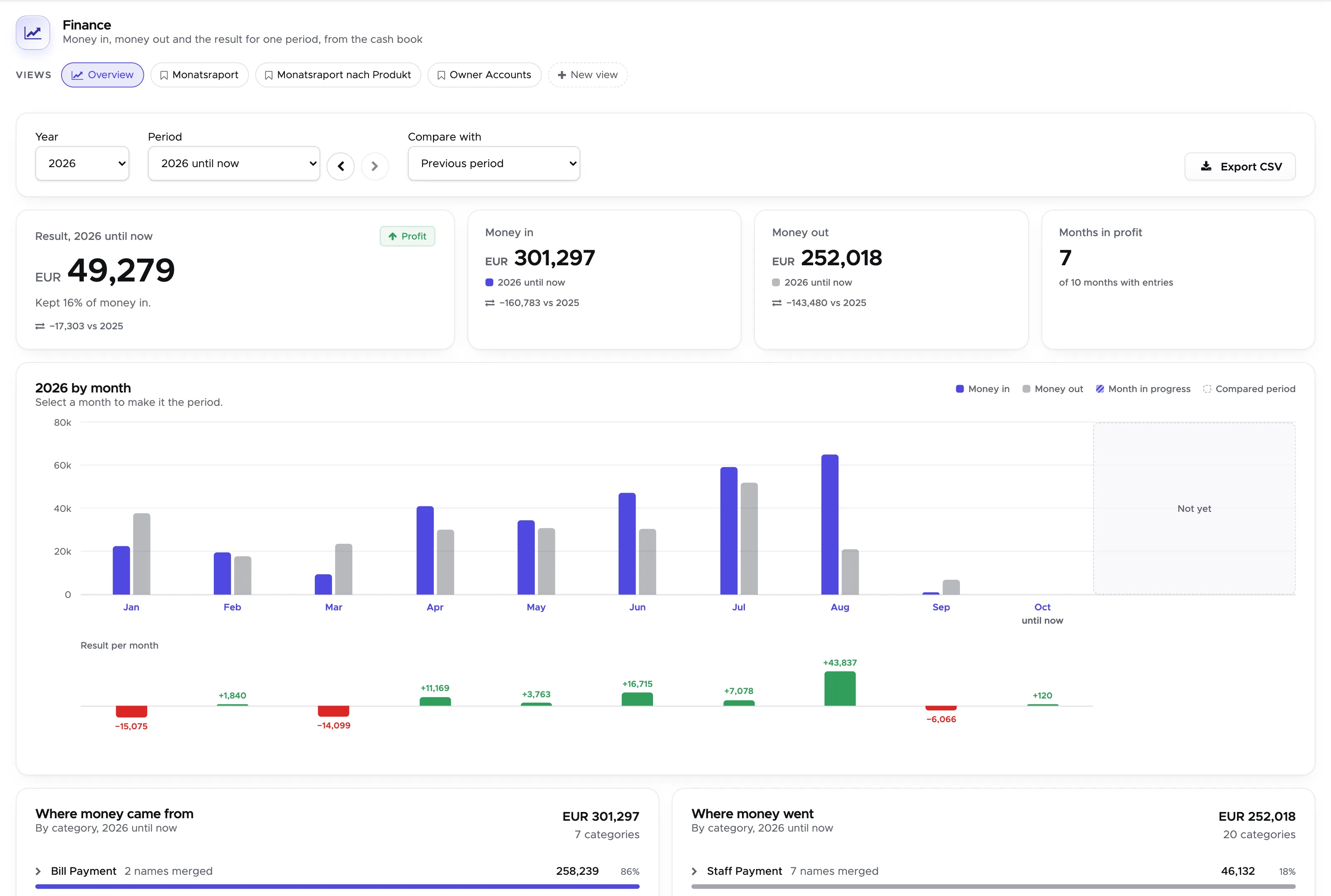
Everything on this page is read from the cash book (see Cash Flow), so it tells you what actually moved, not what has been invoiced. The two differ by whatever a guest has been billed for and not yet paid. Transfers between your own cash boxes are left out everywhere: the money leaves one box and arrives in another, so counting it would make both sides of the page look bigger without changing the result.
One period governs the whole page. Pick a Year, then a Period - a single month, a quarter, or the year until now - and the arrows beside it step to the month or quarter before and after. Everything below follows that choice. Compare with puts a second period beside it: the previous one, or the same one a year earlier. The comparison shows up as the small “vs” line under each figure.
The four cards at the top are the answer. Result is money in minus money out, labelled Profit or Loss in words, with the share of money in that you kept. Money in and Money out are the two halves it is made of, and Months in profit counts how many months of the year ended up on the right side, out of the months that have any entries at all.
Year by month draws money in and money out side by side for each month, with the result underneath - green above the line, red below. Two things it deliberately does not do: a month still running is drawn with a striped bar and marked “until now”, because it has not finished earning yet, and months that have not happened are left blank behind a “Not yet” panel rather than drawn as zero. Click any month to make it the period.
Where money came from and Where money went break the period down by cash book category. Categories are typed by hand, so the report tidies them: names that differ only by a capital letter, or only by the document number or the name on the end, are counted as one row. “Staff Payment (Anna Vogel)” and “Staff Payment (Peter Lang)” are both Staff Payment; five partner invoices with their own numbers are one Partner Invoice row. Click a row with a chevron to see the original names underneath it.
Expenses by account ranks your accounting codes by amount. Only manually booked cash book entries carry a code - anything the system books itself, like a bill payment or a payslip, has none - which is why the entry counts are usually lopsided, with one code carrying most of them. The amount is the ranking here; the counts are only a summary.
Export CSV gives you the whole page as a spreadsheet: the year by month, both category lists and the codes.
14.2 Financial
Section titled “14.2 Financial”14.2.1 Profit & Loss
Section titled “14.2.1 Profit & Loss”Click on Reporting - Financial to view the financial reporting page.
At the top of this page you will find the Profit & Loss section.
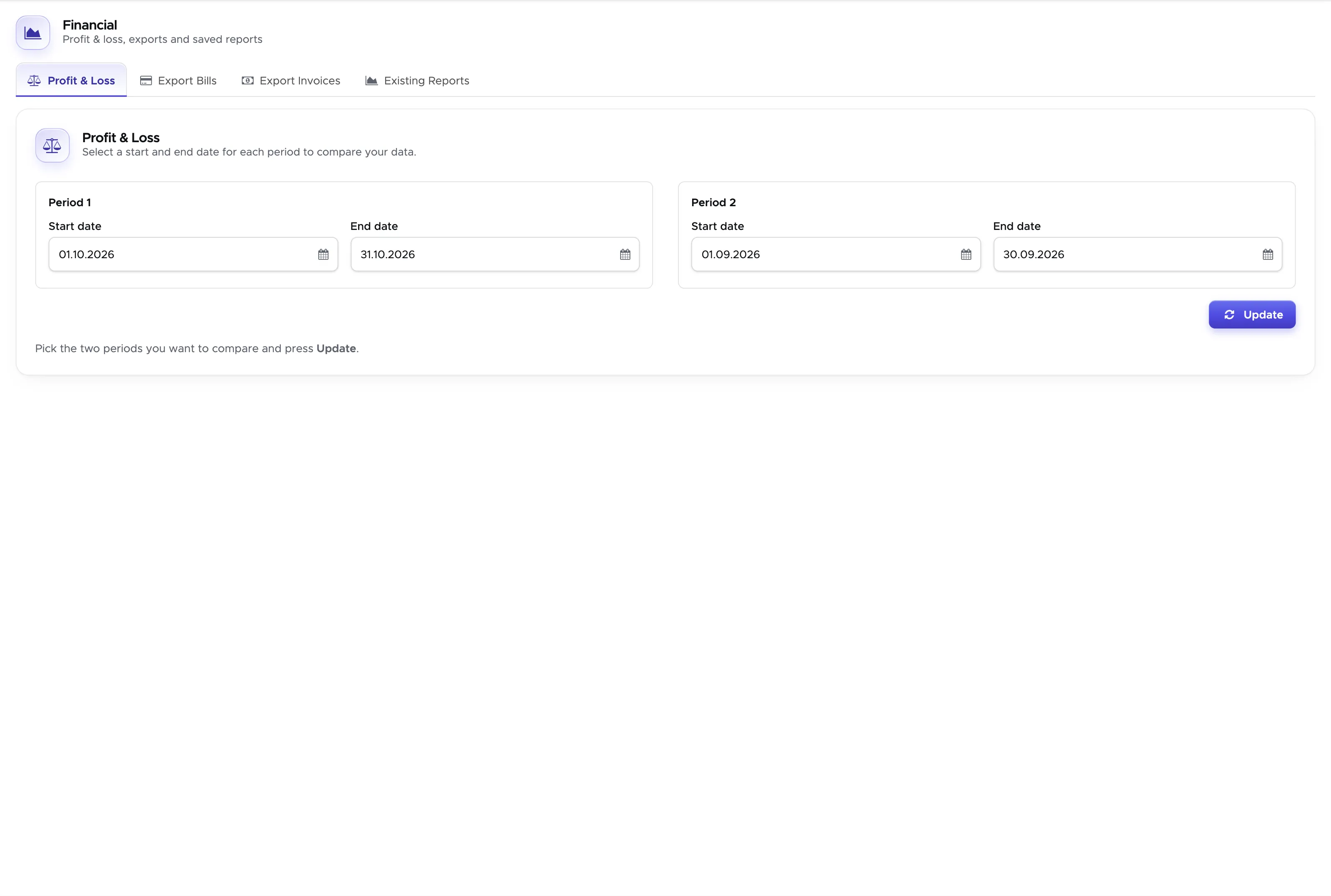
This section has two period boxes, Period 1 and Period 2, so you can compare two periods of time. By default Period 1 is set to the current month and Period 2 to last month. Feel free to adjust the dates and change the periods of time that you wish to compare. Both periods need a start and an end date, but you don’t have to compare them: if you only care about one period, read its column and ignore the other.
Once you’ve set the dates of your choice, click on button Update to view the sums of your financial data.
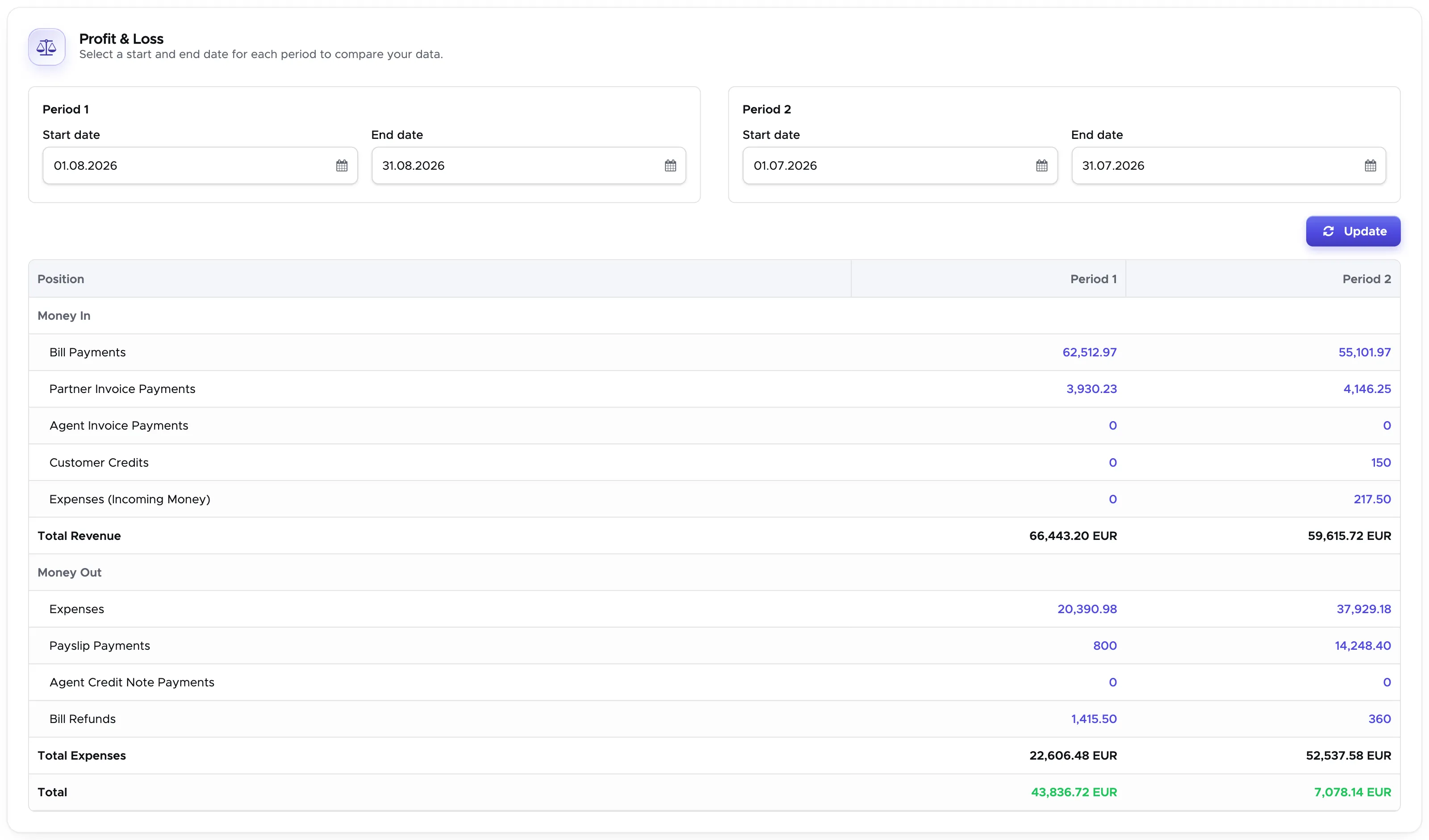
The result is one table with a column for each period. Your recorded transactions are listed under Money In and Money Out, each with its total. The last line, Total, is your Total Revenue minus your Total Expenses. It is shown in green if it’s positive and in red if it’s negative.
Money In
-
Bill Payments - this is the sum of all the bill payments (including payment fees) that were recorded in customers bills on a date between the start and end date.
-
Partner Invoice Payments - this is the sum of all the payments (including payment fees) recorded in partner invoices on a date between the start and end date.
-
Agent Invoice Payments - this is the sum of all the payments (including payment fees) recorded in agent invoices on a date between the start and end date.
-
Customer Credits - this is the sum of all the customer credits (including payment fees) recorded on customers profiles on a date between the start and end date.
-
Expenses (Incoming Money) - this is the sum of all the expenses (as Incoming Money) recorded on a date between the start and end date.
Money Out
-
Expenses - this is the sum of all the expenses recorded on a date between the start and end date.
-
Payslip Payments - this is the sum of all the payments recorded in payslips on a date between the start and end date.
-
Agent Credit Note Payments - this is the sum of all the payments recorded in agent credit notes on a date between the start and end date.
-
Bill Refunds - this is the sum of all the refunds recorded in customers bills on a date between the start and end date.
Each amount in the table can be clicked to view the list of transactions that make up the sum shown in the table.
You will see a sidebar in the bottom part of the screen showing all the appropriate transactions. You can export the transactions by clicking on button Export. Save the .csv file on your computer and open it as a spreadsheet.
14.2.2 Export Bills
Section titled “14.2.2 Export Bills”Click on Reporting - Financial to view the financial reporting page, and open the Export Bills tab.
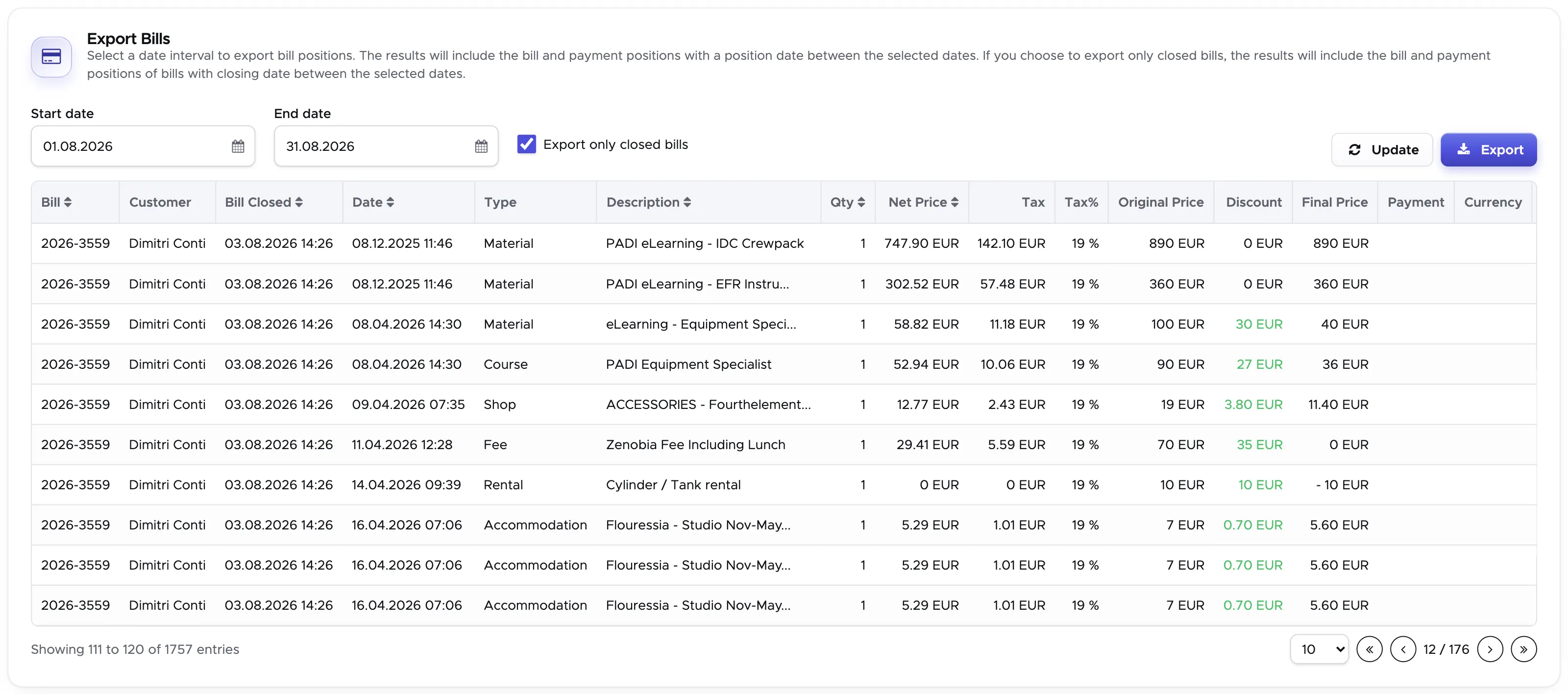
You can export every bill position and payment position of any bill in a specific date range. Select a start date and an end date of your choice and choose if you wish to export all* your bills or just the closed* ones using the checkbox.
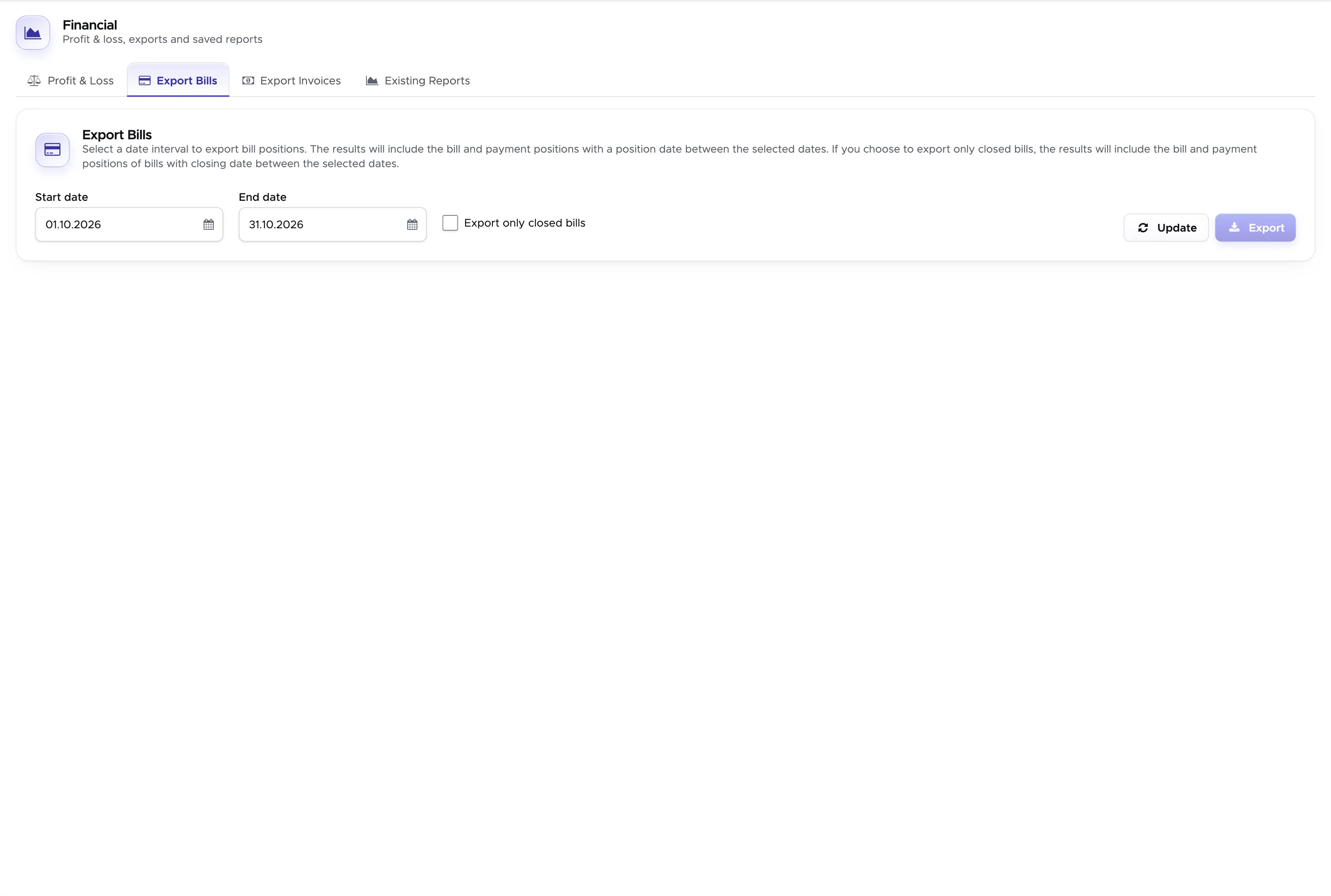
*Before version 2.0, the bill export feature was divided into Export Closed Bills and Export All Bills. You will now find the exact same feature grouped into one tab of the financial report page. Leave the checkbox “Export only closed bills” empty to export all your bills. Tick it if you wish to consider only closed bills.
Once you’ve set your dates and ticked or cleared the checkbox, click on button Update. You will see a table containing the complete list of bill positions and payment positions matching your filter. If you wish to export this list to a .csv file to open as a spreadsheet, click on button Export.
Export All bills
The results will include bill positions and payment positions with a date between your start and end date.
Export Closed bills
The results will include bill positions and payment positions that belong to bills closed on a date between your start and end date.
For every bill you will also find an extra position with type ‘Open’ that shows you the amount written in ‘Open’ in the closed bill. This list does not consider archived bills.
14.2.3 Export Invoices
Section titled “14.2.3 Export Invoices”Click on Reporting - Financial to view the financial reporting page, and open the Export Invoices tab.
You can export every partner invoice position and payment position of any invoice in a specific date range. Select a start date and an end date of your choice and choose if you wish to export all* your partner invoices or just the closed* ones using the checkbox “Export only closed invoices”.
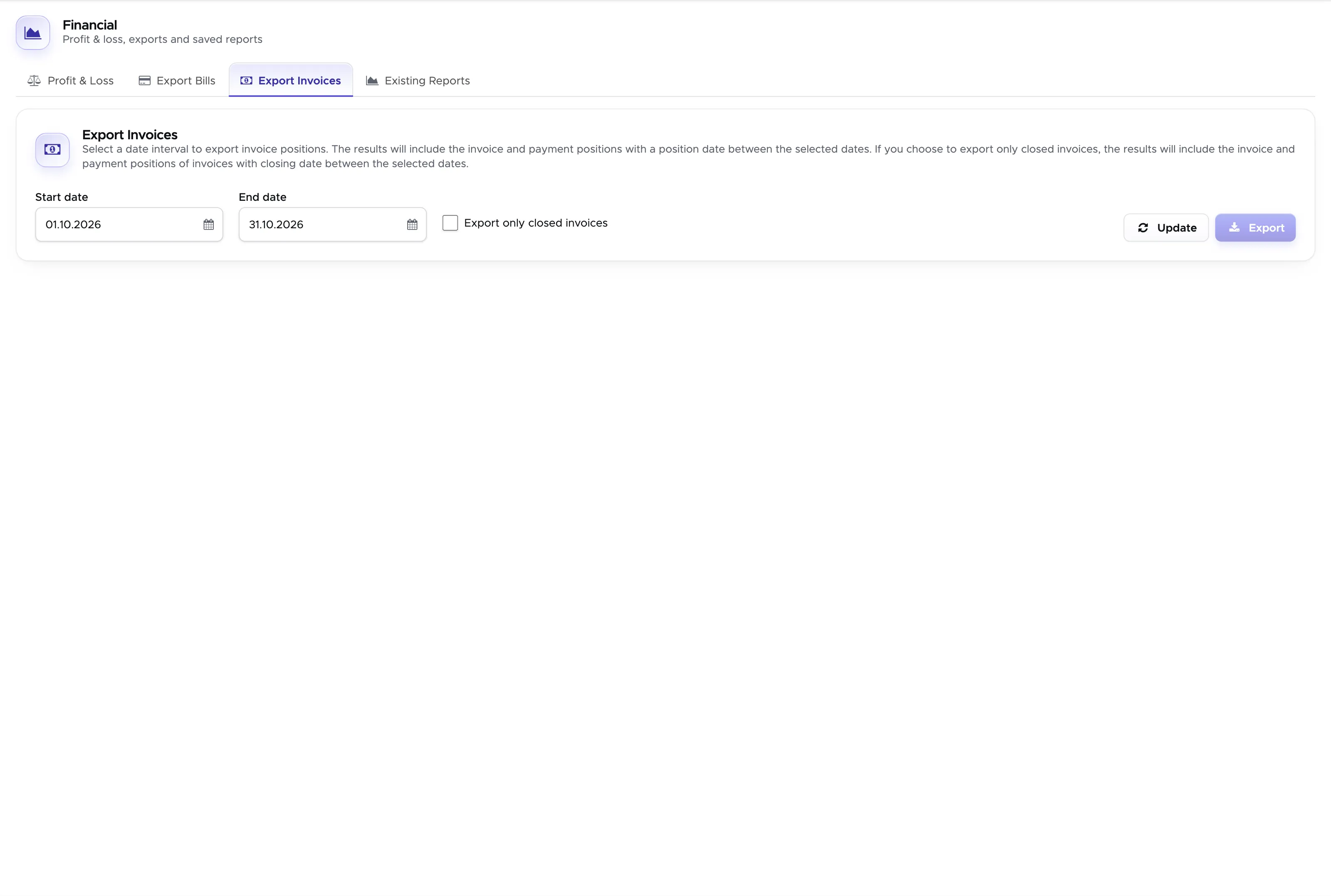
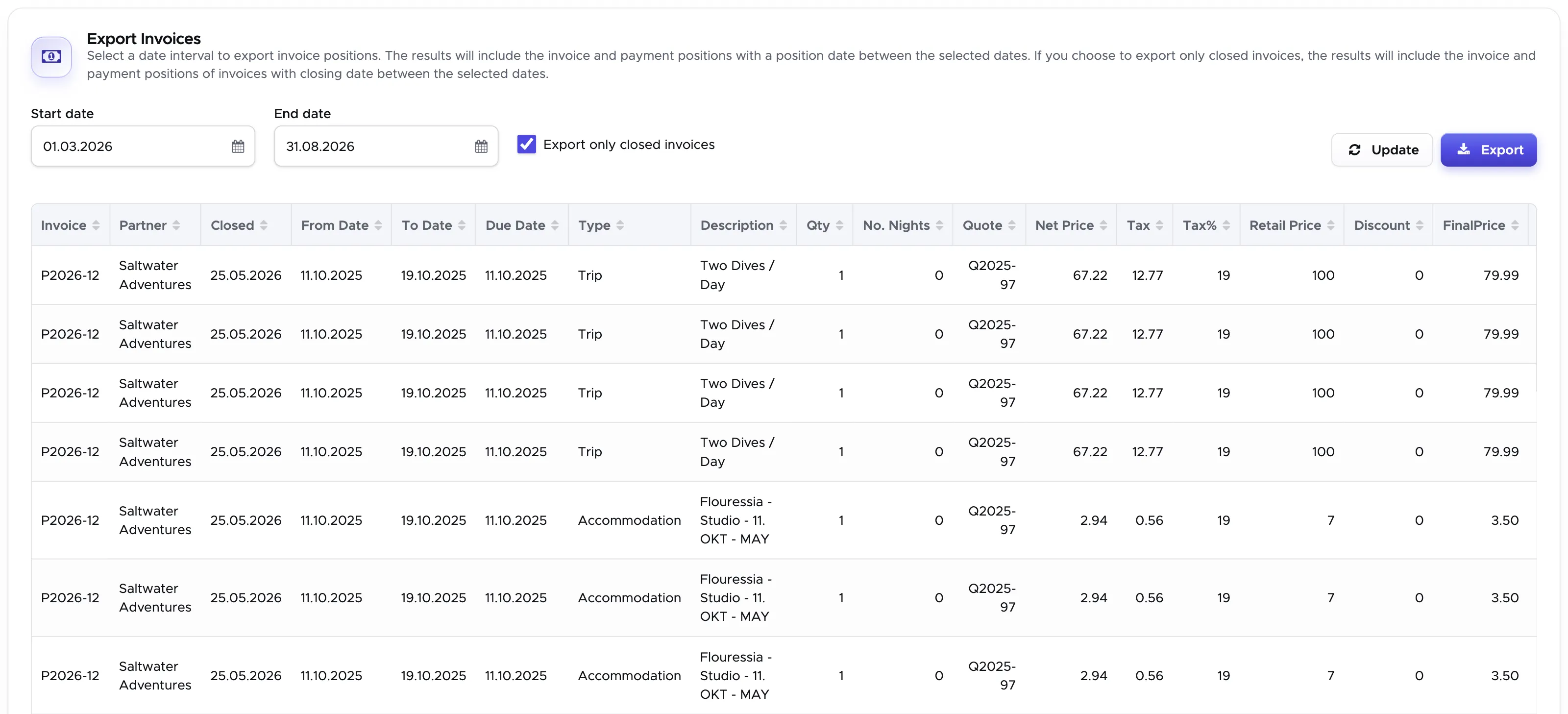
Once you’ve set your dates and ticked or cleared the checkbox, click on button Update. You will see a table containing the complete list of invoice positions and payment positions matching your filter. If you wish to export this list to a .csv file to open as a spreadsheet, click on button Export.
Export All invoices
The results will include invoice positions and payment positions with a date between your start and end date.
Export Closed invoices
The results will include invoice positions and payment positions that belong to invoices closed on a date between your start and end date.
For every invoice you will also find an extra position with type ‘Open’ that shows you the amount written in ‘Open’ in a closed invoice. This list does not consider archived invoices.
14.2.4 Existing Reports (Deprecated)
Section titled “14.2.4 Existing Reports (Deprecated)”Starting with version 2.1 this part will no longer be maintained and turned off in a future release.
Click on Reporting - Financial and open the Existing Reports tab.
If you’ve already created your financial reports, you will see their names and the action buttons.
14.2.5 Create New Report (Deprecated, will not be maintained anymore starting with Version 2.1)
Section titled “14.2.5 Create New Report (Deprecated, will not be maintained anymore starting with Version 2.1)”Click on button Create New Report to open the sidebar that will guide you through the creation of your report.
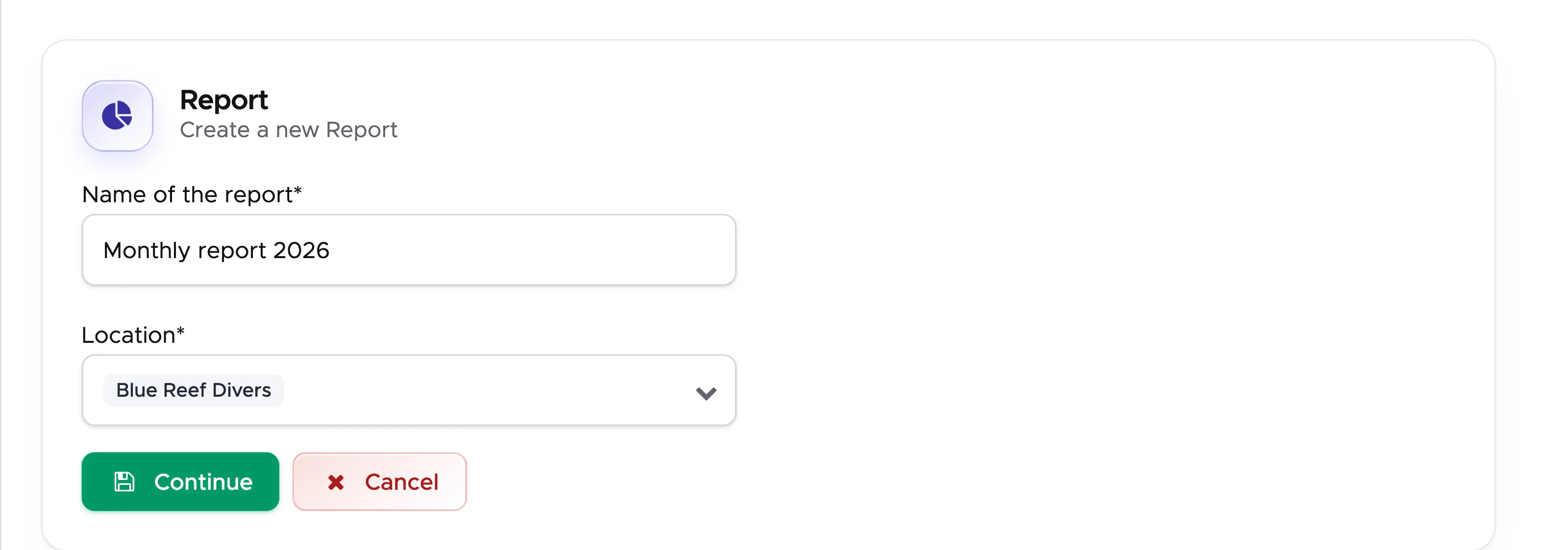
Start: Name and Locations
Section titled “Start: Name and Locations”Write a name for your report and select the locations that you want to include. Please consider that you can always edit every report that you create, but you won’t be able to change the name of the report or add/remove locations. Also please consider that users who have access to the Reporting menu but do not have access to one or more locations included in the report, won’t see it.
Click on the button Continue.
Step 1: Expenses
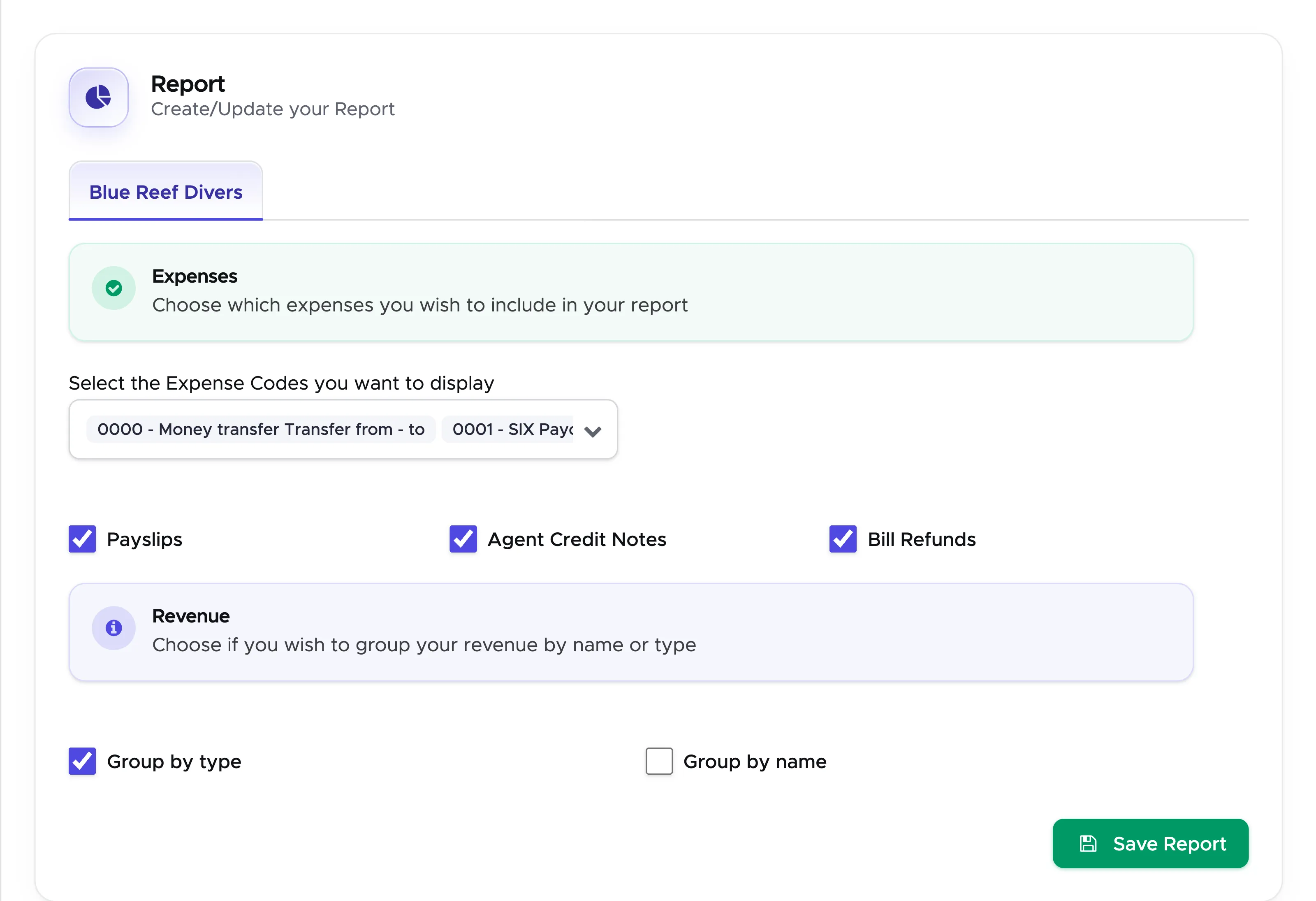
Section titled “Step 1: Expenses”The next form holds both the expenses and the revenue of your report. In the Expenses section at the top you can select all the expense codes that you wish to include in your report. You will see a ‘No code’ at the bottom of your list of expense codes. In case somebody has entered an expense without selecting a code, you will see it in the report as ‘Manual’. If you wish, you can select three more checkboxes: Payslips, Agent Credit Notes and Bill Refunds. As it happens for the expenses, the payment or refund date will be considered in the report.
Please consider that your first location is automatically selected. If you wish to change location and repeat the same ( or different) selection for another location, you can do so by clicking on the location tab at the top of the sidebar.
After your selections, scroll down to the Revenue section of the same form.
Step 2: Revenue
Section titled “Step 2: Revenue”Below the expenses, in the Revenue section, you can choose to view your revenue grouped by type or name. Ticking one of the two checkboxes clears the other. The results will show either the types of price list items that you’ve sold or the names. The revenue will be calculated based on your customers’ bill positions. The bill closing date will be considered for the revenue calculation. If you report on more than one location, switch to the next location tab and define your selection there too.
If you wish not to view revenue data for this report, leave the checkboxes empty.
Once you’re ready you can click on button Save Report.
You will be redirected to the Reporting - Financial page and your new report will be visible among the Existing Reports.

You have now 4 options: Preview, Edit, Run, and Delete (the red bin button).
Show Preview
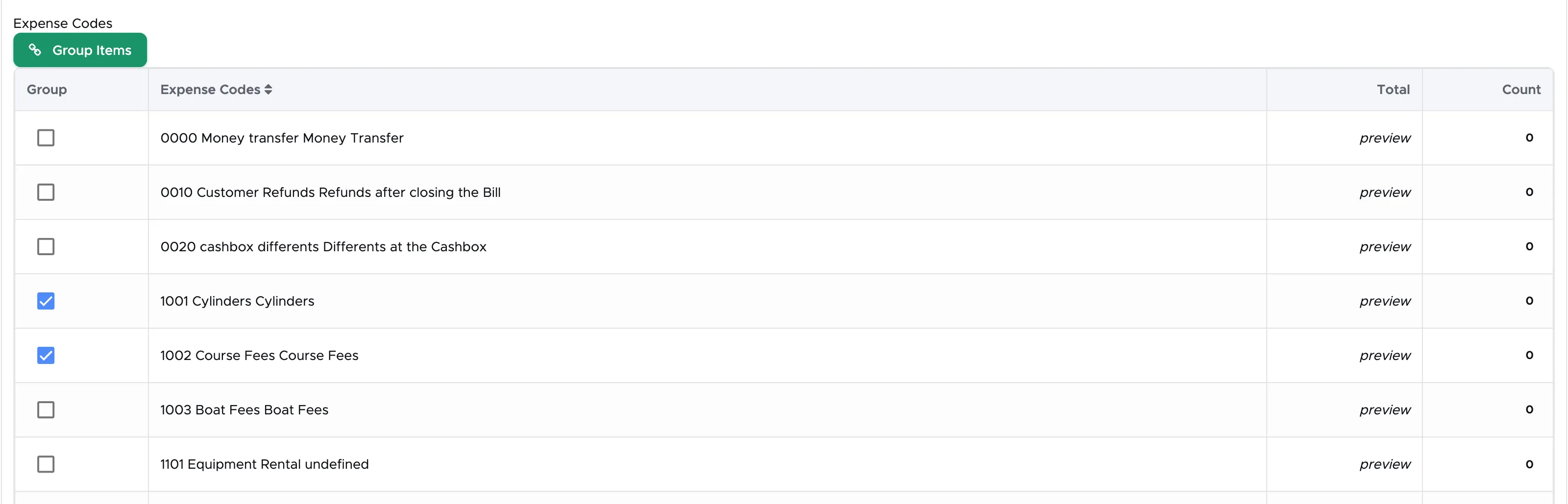
Section titled “Show Preview”By clicking on this button you can preview your report and group your expense codes.
If you wish to group some items, please tick their checkbox and click on button Group Items:
You’ll be asked to enter a name for the group:
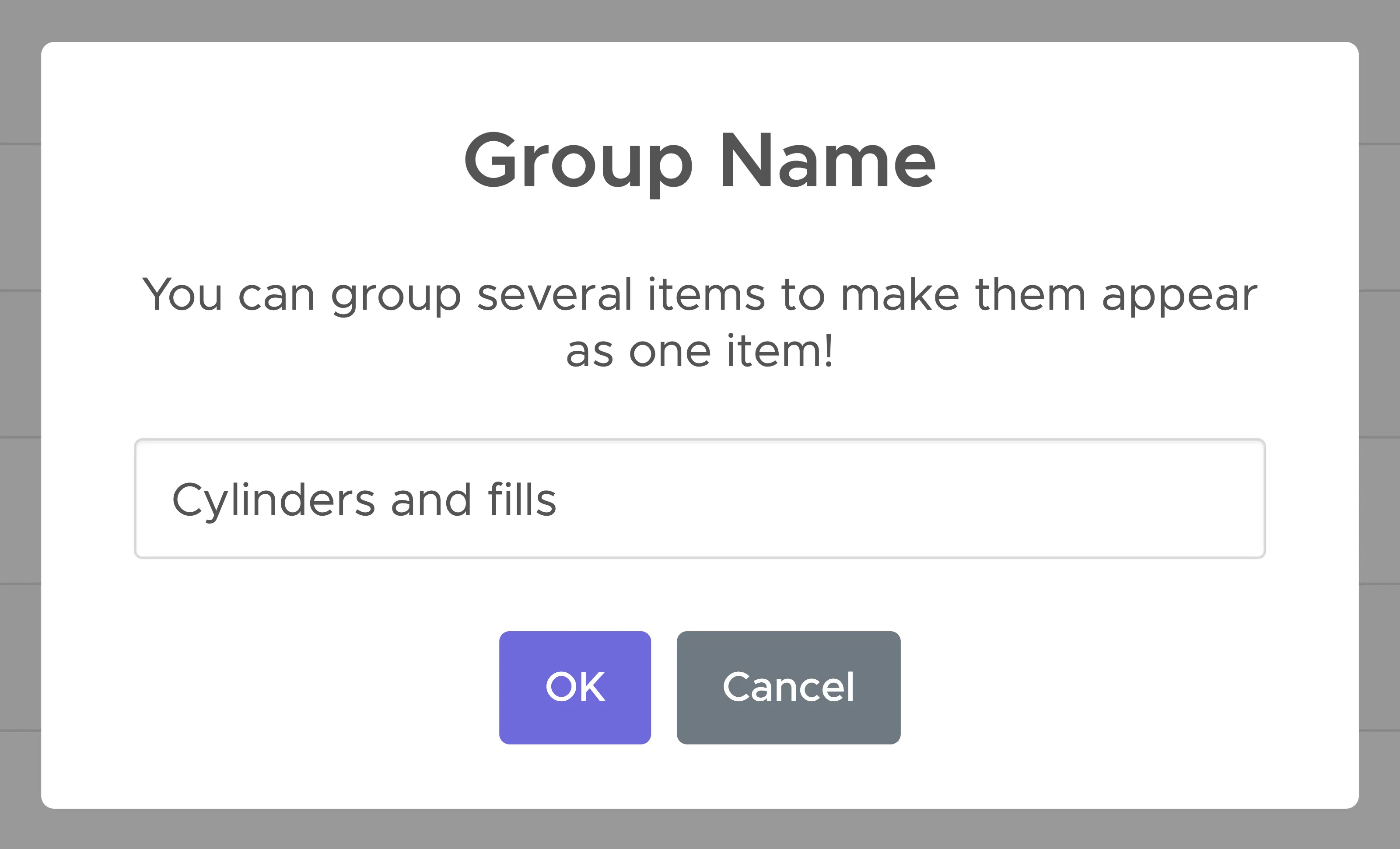
Enter a name of your choice and click on button OK. The grouped codes now appear as one row with an Ungroup button.
You can always Ungroup items by clicking on button Ungroup. Repeat the Group Items feature for all your Expense Codes.
Edit Report
Section titled “Edit Report”Should you need to modify your report, you can always click on button Edit. The form with your expenses and revenue choices opens again, and you can move between locations with the tabs at the top to make the appropriate changes. Please follow the instructions in chapter Create New Report. In case you make changes to the selection of your expense codes you might need to click on Show Preview to readjust the groups.
Run Report
Section titled “Run Report”Whether you have created only 1 or more reports, you can choose to run any of them at any time. Click on button Run next to the report that you wish to generate.
A sidebar will ask you to select the date range for your report:
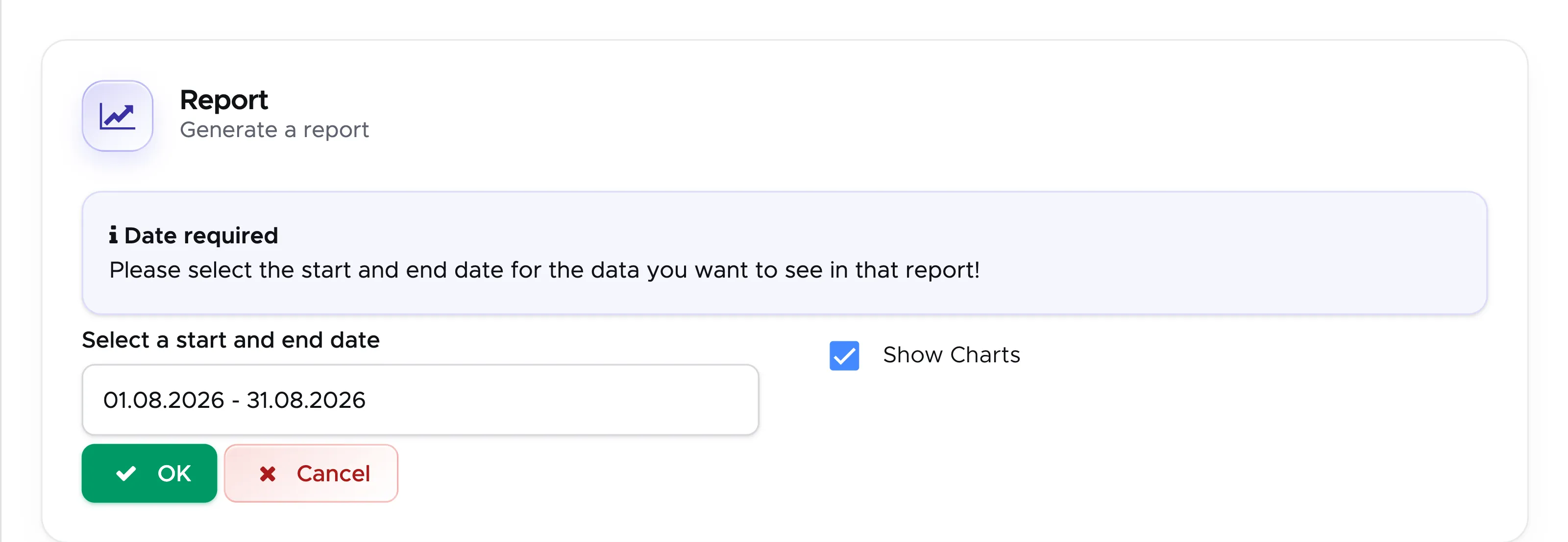
By default the current month will be selected, but you can pick another start and end date in the date range field. You can also choose to run your report with or without charts. If you wish to exclude charts, please untick checkbox Show Charts. Once you’re ready, click on button OK.
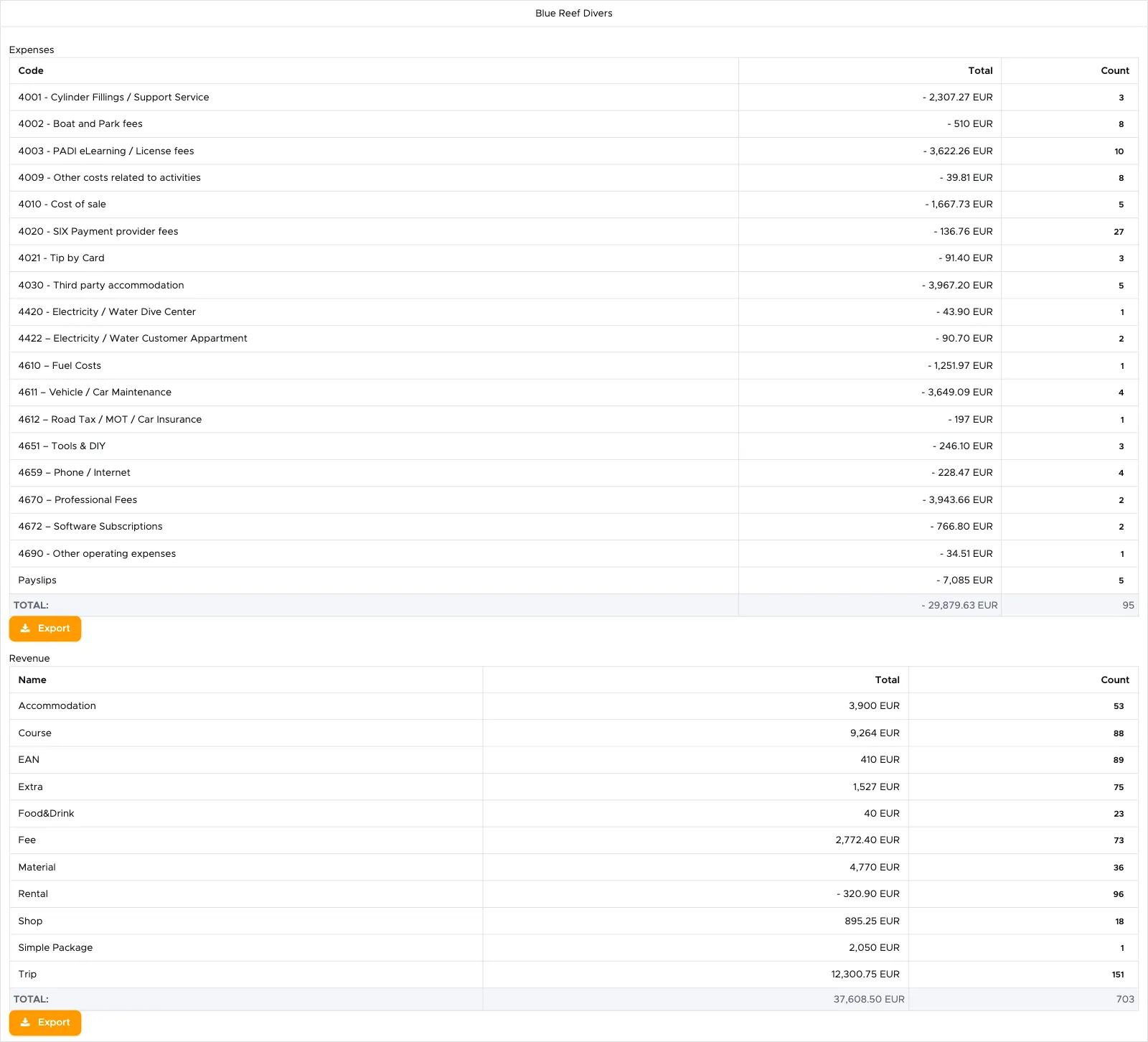
The above is an example of how the report looks like per location. In case of more locations, you will see them one next to the other. In that case you will need to scroll to the right to view the reports for all your locations.
The count column shows how many occurrences of the same item or type were found in the system.
Every section of the report can be exported in a .csv file for your records.
👀 Important!
The revenue section of this report will show either price list items or price list item types, depending on your choice in the second step of the creation/editing of your report. Only bill positions of closed bills with closing dates between the interval of dates of your choice will be considered for this report. If you wish to compare the numbers in this section of the report, you should have a match with Export Bills - Export only Closed Bills. The numbers in this section cannot be compared with the Profit & Loss report because they consider different sets of data: bill positions in this Revenue section compared to recorded payments in the Profit & Loss report. Both reports are correct and show the real data in the system. It’s up to you how you wish to consider your revenue data: by recorded payments or by closed bills.
Delete Report
Section titled “Delete Report”Click on the red bin button next to the report. You will see the following message.
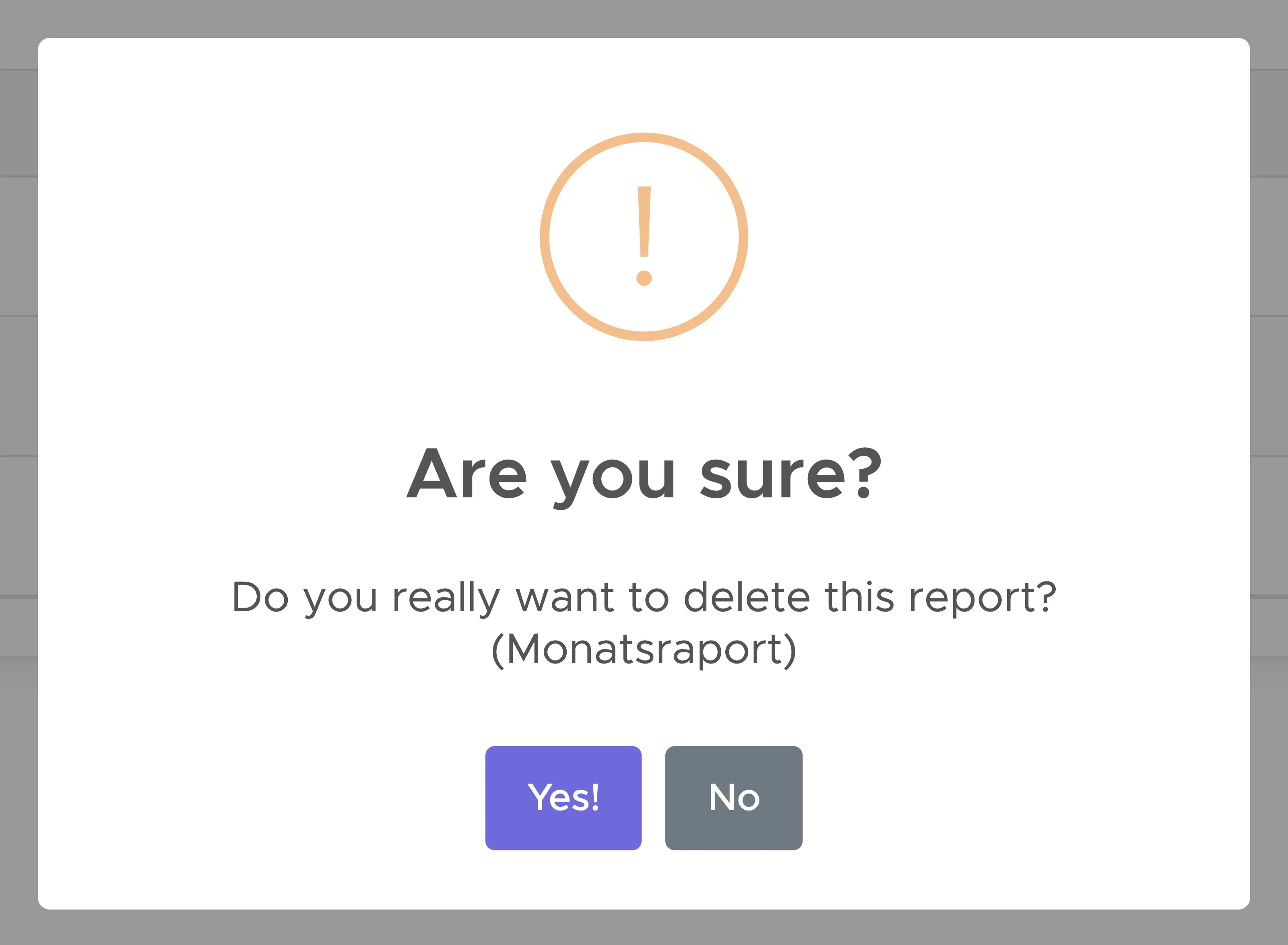
If you choose button Yes! the report will no longer be available.
14.3 Equipment
Section titled “14.3 Equipment”Here you can find out how many times you rented a piece of equipment and where it is for a specific date.
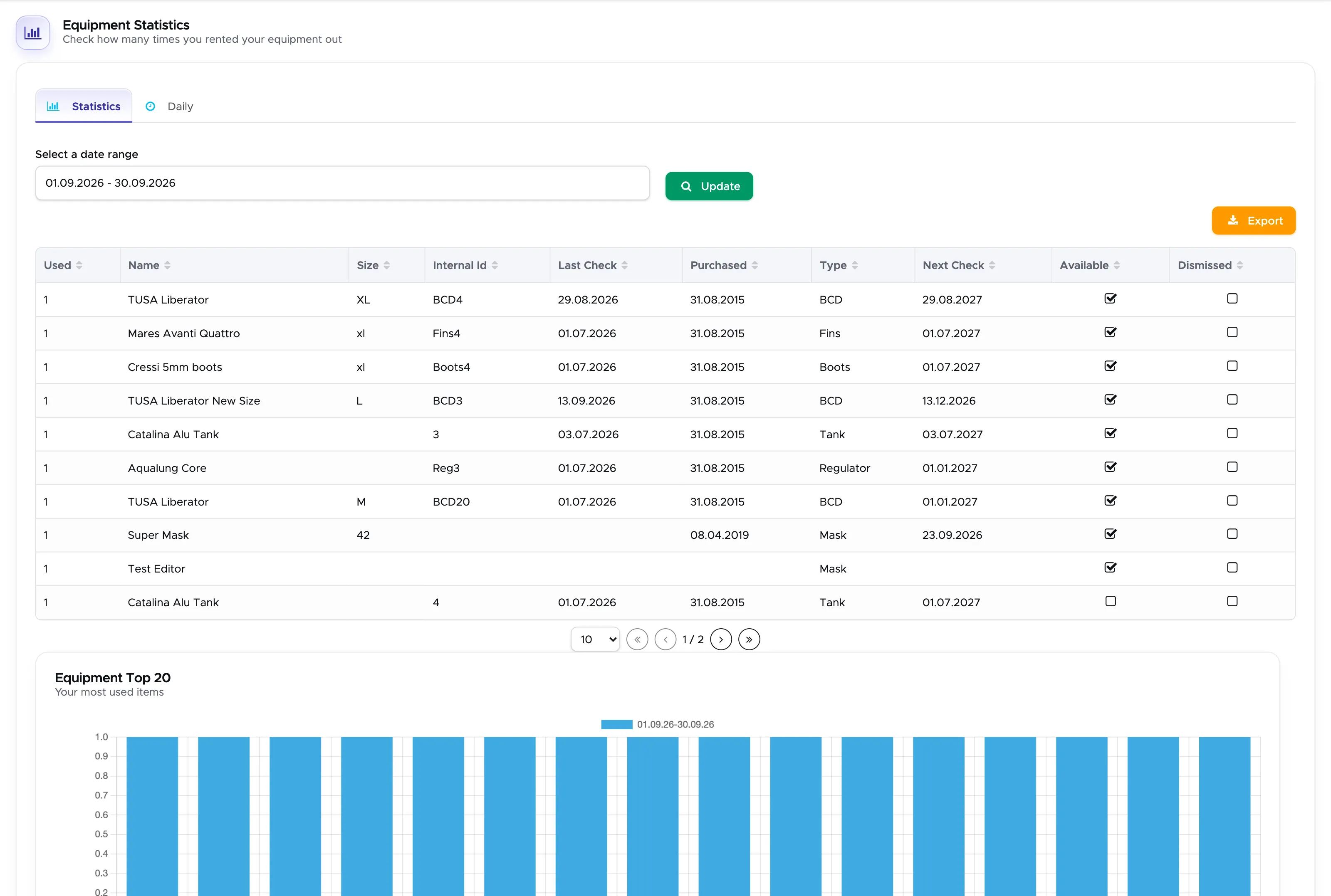
You can change the date range and export the data to view it as a spreadsheet.
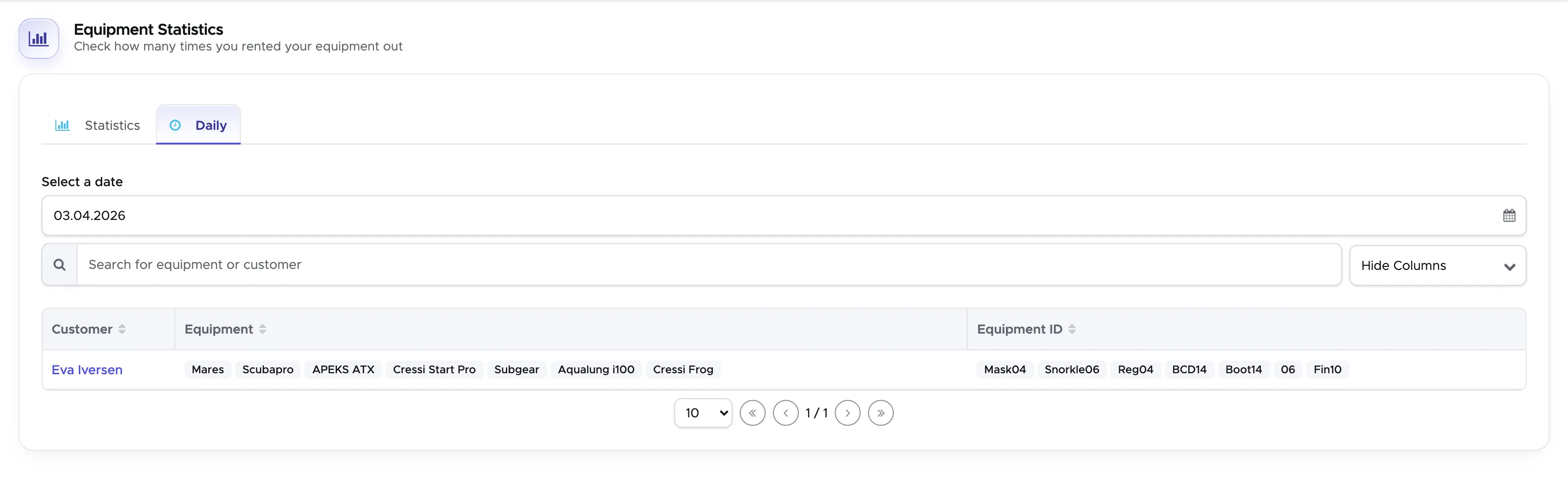
On the Daily - Tab you can see who rented which equipment on a given day. It opens on today; pick another date to look back.
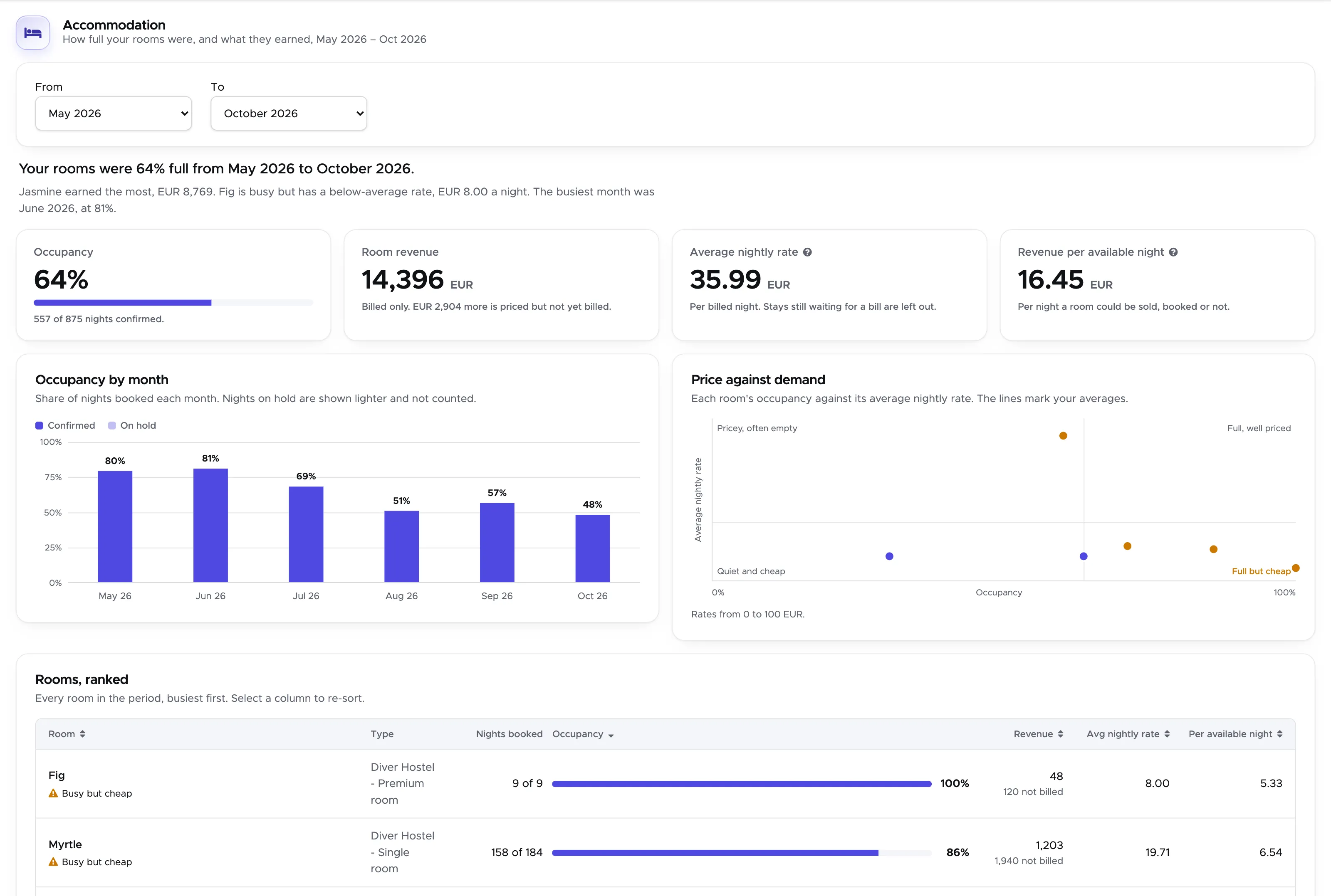
14.4 Accommodation
Section titled “14.4 Accommodation”If you are using the accommodation module, you will find some statistics about your room rental here.
14.5 Customer Tags
Section titled “14.5 Customer Tags”Where your guests found you, month by month. Click on Reporting and Customer Tags.
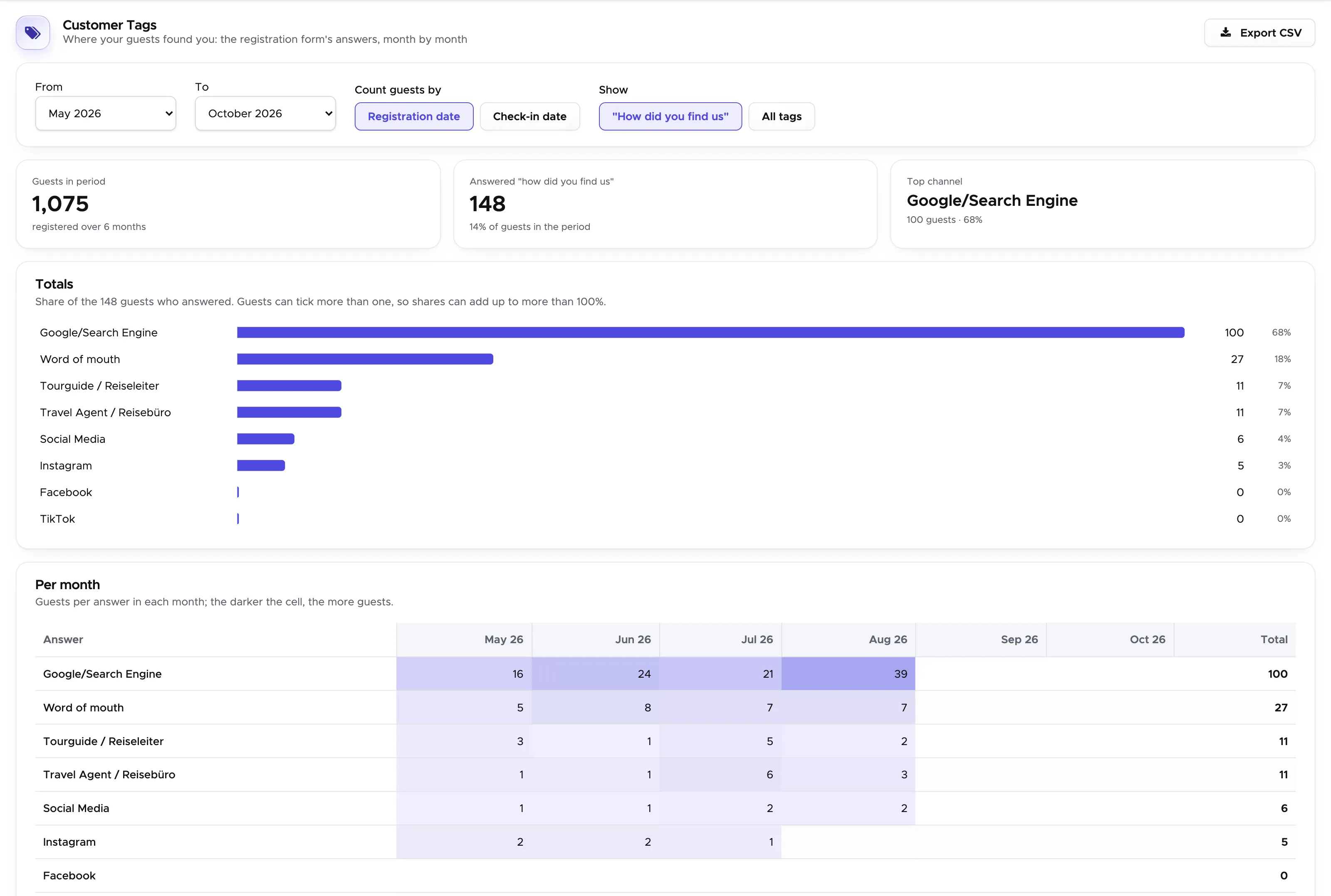
The answers come from the “How did you find us?” question on the online registration form (see Registration Form for turning that question on and editing the list of answers). Pick a From and To month at the top, and choose whether guests are counted by the date they registered or the date they checked in — the two give different months for the same guest, and which one you want depends on whether you are measuring the campaign or the season.
Three figures sit above the report: how many guests fall in the period at all, how many of them answered the question, and the answer given most often. The share is always of the guests who answered, not of every guest, and because a guest may tick more than one answer the shares can add up to more than 100%.
Below, Totals ranks the answers over the whole period, and Per month breaks the same numbers down into a month per column — the darker the cell, the more guests. Export CSV gives you the table as a spreadsheet.
Switch Show from “How did you find us” to All tags to run the same report over every tag your customers carry rather than only the marketing question.
A low “answered” figure is not a fault in the report: it counts the guests who actually filled the question in.
14.6 Trip capacity
Section titled “14.6 Trip capacity”How many of the places on your trips were booked. Click on Reporting and Trip capacity.
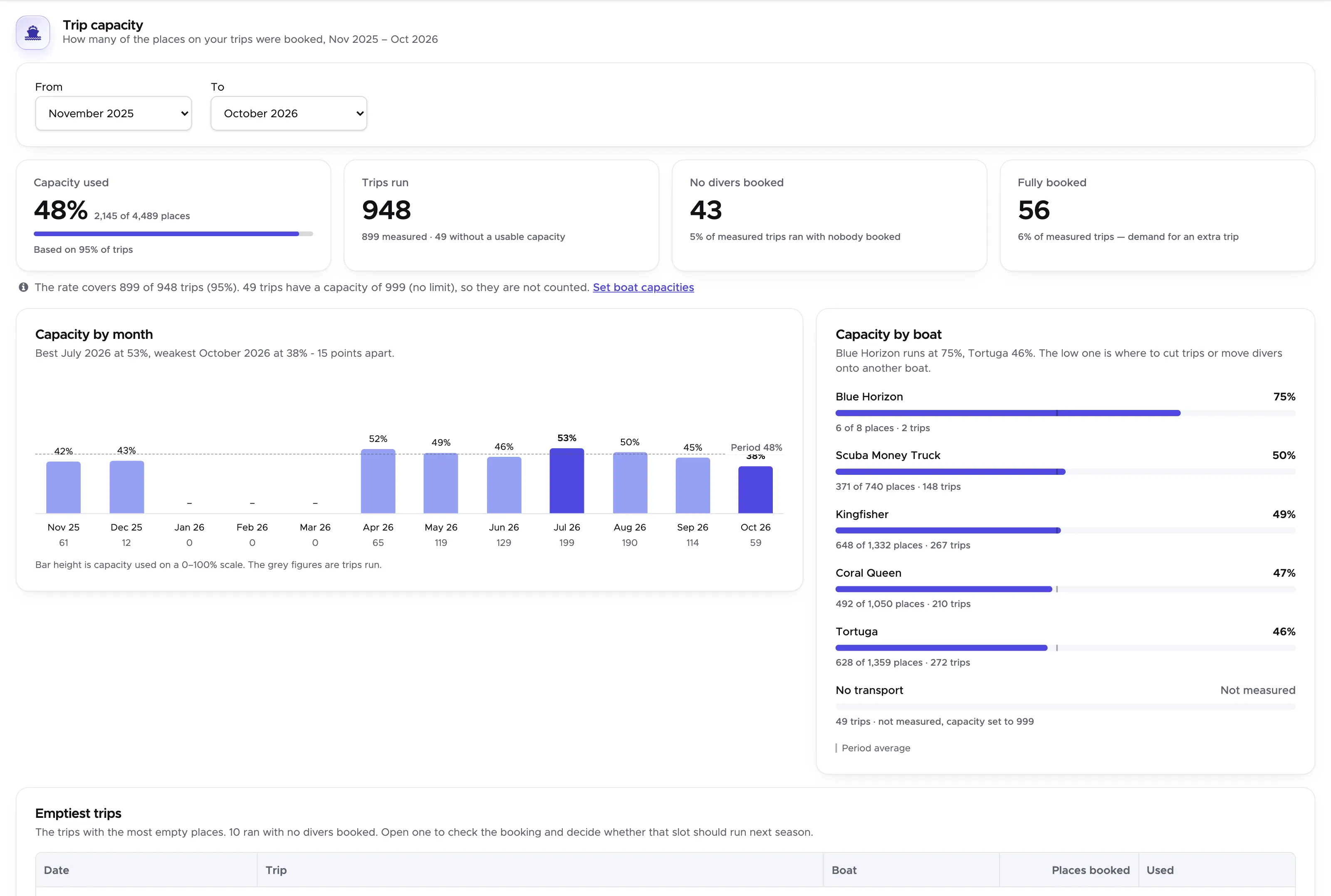
Pick a From and To month at the top. The places come from the boat on the trip - its capacity on the equipment record - narrowed by the dive site’s own limit where the trip has one, so a twenty-place boat going to a site that takes eight is an eight-place trip. The divers are the customers on the trip’s events; staff on board are crew, not a booked place.
Read the coverage before the rate. Many centres type 999 into a boat’s capacity to mean “no limit”, and leave shore dives with no capacity at all. Those trips cannot be measured, so they are left out of the percentage and reported separately. The bar under Capacity used shows what share of your trips the figure is actually based on, and the line underneath says it in words. If coverage drops below 90% the page says so in a panel at the top and names the boat carrying most of the unmeasured trips, because that is the one to go and fix. If nothing at all can be measured, no rate is shown rather than a misleading one.
No divers booked counts trips that ran with nobody booked; Fully booked counts the ones with every place taken, which is where an extra trip would have earned money.
Capacity by month puts the whole period’s rate on a dashed line so each month can be read against it, with the busiest and weakest months picked out. Capacity by boat ranks the boats, with the period average marked on each bar. A boat with no usable capacity is still listed, named and marked “Not measured” - it is the thing to fix, not a bad number.
Emptiest trips is the part you can act on: the ten trips with the most empty places, by date and dive site. Click a row to open the trip and see who was on it.
14.7 Guest value
Section titled “14.7 Guest value”What a guest is worth, and what they spend it on. Click on Reporting and Guest value.
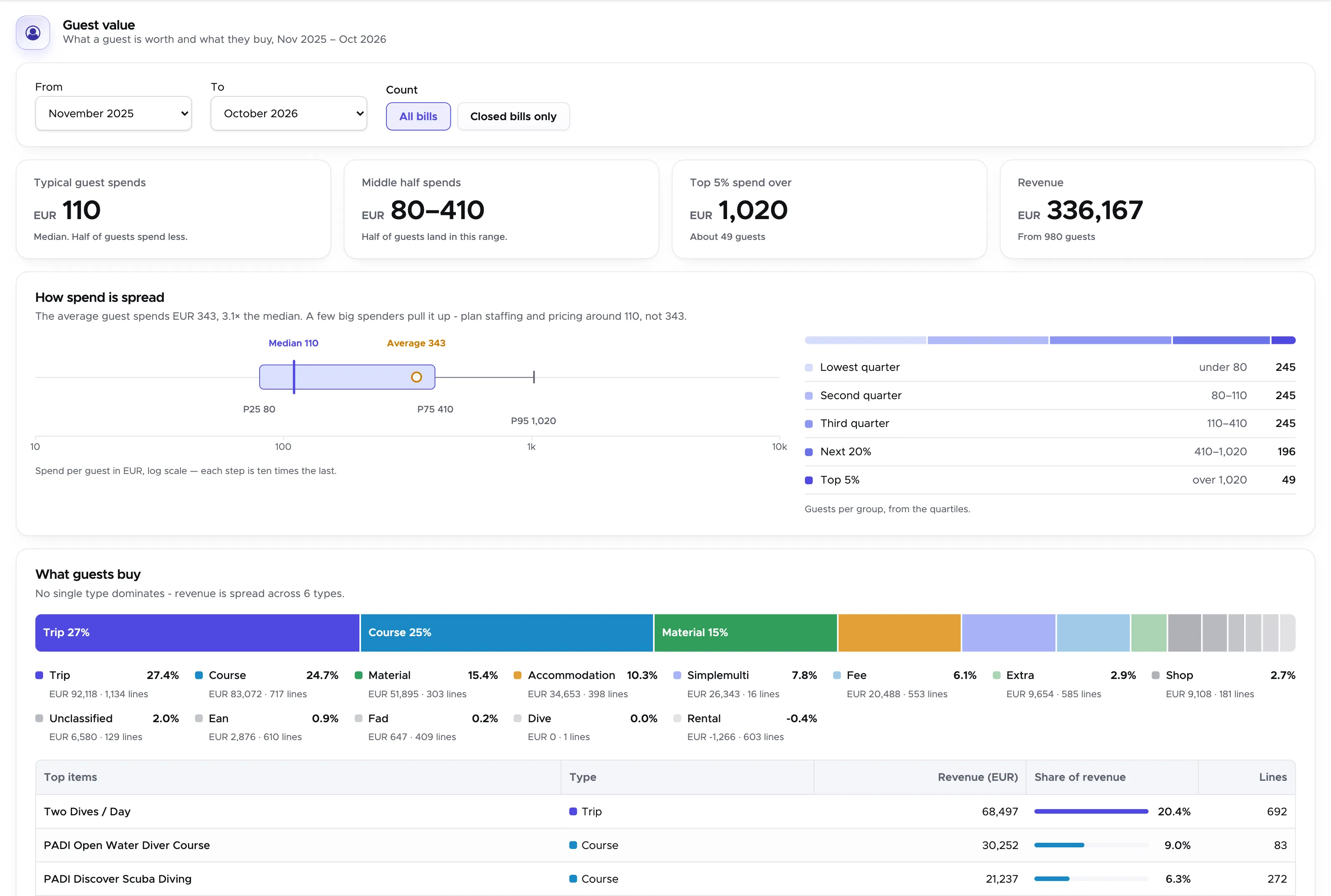
Pick a From and To month. Count decides which bills are included: All bills, which is everything charged whether or not it has been settled, or Closed bills only, which is what has actually been invoiced - in theory none of an open bill has been paid yet. The two also use different dates. All bills files each line under its own date; closed bills only files a whole bill under the month it was closed in, because that is when the money was earned. That is the same rule Export Bills follows, so the two reconcile.
Some lines never count on either setting: cancelled lines, partner voucher lines, and the dives inside a package or multi-pack. The pack itself is a line on the same bill, so counting its contents as well would have every pack guest spend their money twice.
The median leads, not the average. On every centre we have measured, a handful of course students pull the average well above what a typical guest spends, so the four cards show the median, the range the middle half of guests fall in, what the top 5% spend over, and the total. The How spend is spread chart draws the same figures on a log scale - each step is ten times the last, because spend per guest runs from a single fill to a full instructor course - and marks the average in orange where it actually falls, so you can see how far it sits from the middle. Beside it, the quartiles say how many guests are in each band.
What guests buy is the shape of your business in one bar: revenue by price list item type, then the items themselves. A centre that is 80% courses and one that is half courses and half trips are two different businesses, and this is where that shows. The item types are the ones you set up in your price list, so they read in your own words. A type can come out negative when refunds outweigh sales in the period; it keeps its row, because the minus sign is the point.
Revenue by month closes the page, with guests and revenue per guest under each bar. If revenue per guest stays flat while revenue moves, your season is about how many guests arrive rather than what they spend.