
Booking
Starting from release 2.0 you will see a new menu: Booking. This menu can be used to manage the quotes that you generate for your customers and partners.
Every quote that you manually generate must be assigned to one partner or at least one customer (the assignment to more than one customer is possible) or to a partner and one or more customers. Every quote has a progressive number, e.g. Q2020-25 and therefore they are uniquely identifiable. Quotes are “global” documents in Geek Divers: they can contain your offer for one or more of your locations, providing that the default currency is the same. A quote represents a list of services that you wish to offer to your customers or partners (e.g. travel agents): you can modify it as many times as you need (as long as it’s still open), cancel or confirm it and track its status. You can generate as many quotes as you wish for the same customer or partner at any given time and proceed with the confirmation of only one or cancel them all.
A quote is not a bill or invoice and therefore you cannot record a payment linked to it in case you request a deposit from your customer. However you can do so in section Customer Credit. A quote that is assigned to a partner will automatically generate or update a partner invoice with the due date of your choice once it is confirmed.
All the above and more is described in detail in the following paragraphs.
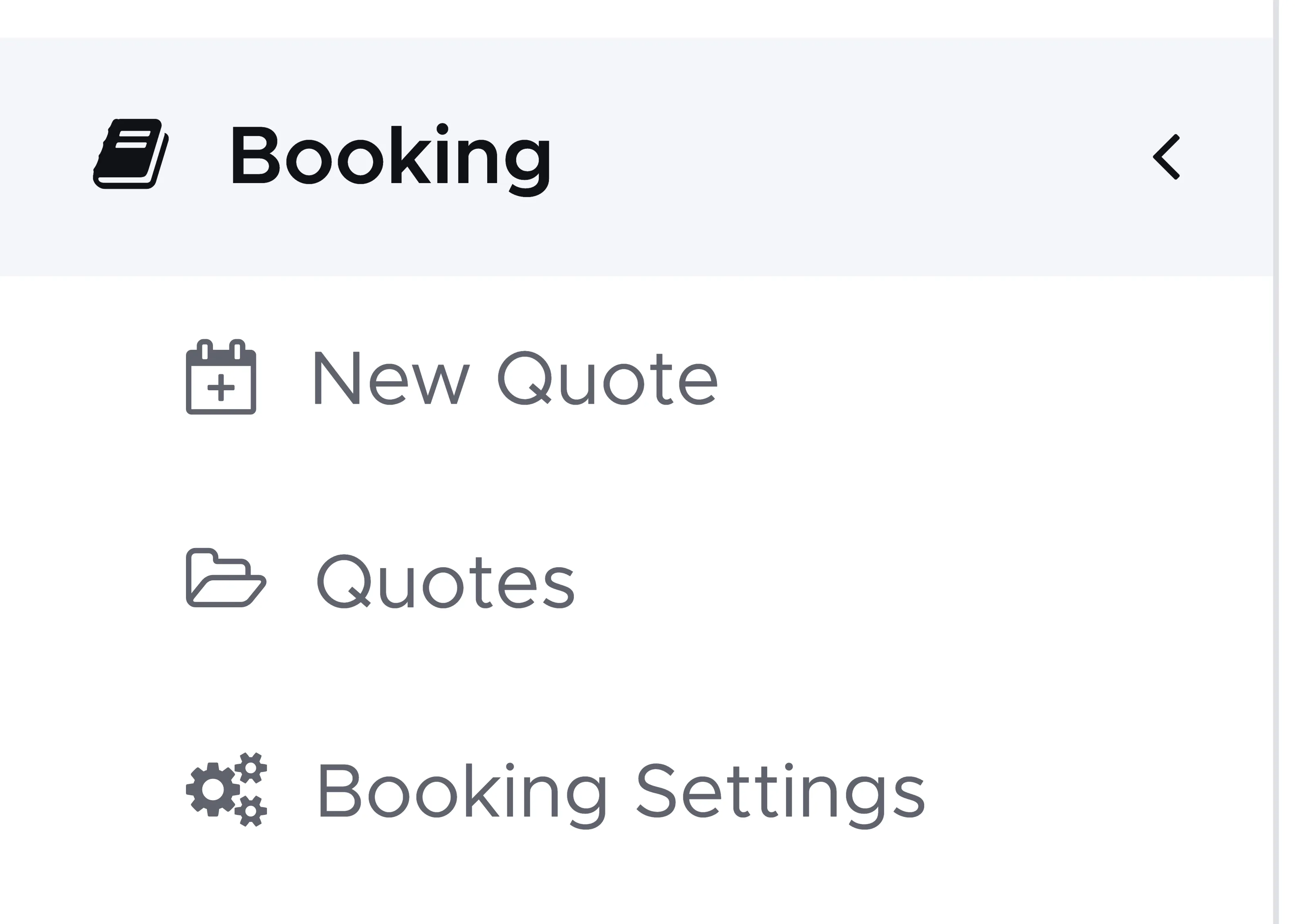
The menu Booking has the following entries. Quotes opens one list with the tabs Open, Confirmed and Completed:
The explanations that follow in this paragraph are related to the kinds of quotes that you can find in each of these menus, their color-coded status and the possibility to cancel or archive a quote. The first time that you read this chapter it might sound a bit complicated. If this is the case, please jump to chapter 15.1 and the following ones first. Once you start working with your quotes, their status will start making sense and you can come back to this chapter for more information. In case you wish to have more details or explanations about this, please feel free to send a message to info@geekdivers.com.
New Quote
Click on this menu to create a new quote, either for your partners or customers. See chapter New Quote.
Open
Open this tab to view the list of all your open quotes. The quotes in this page are all in status Open or Due. If they are in status Due, they’ve reached their validity period and it is recommended to take some actions like contacting the partner or the customer to ask if they’re still interested or cancel them.
Confirmed
Open this tab to view the list of all your confirmed quotes. The quotes in this page are all in status Confirmed or In Progress. If the quote is in status Confirmed, all its positions will have status Confirmed.
If the quote is in status In Progress, its positions might have different status.
- Confirmed - the quote position is confirmed and not yet used by a customer in their bill.
- Voucher - the quote position has been applied to a bill as voucher (Apply Voucher button within a customer’s bill), but there’s no bill position matching this voucher position yet.
- Applied - the quote position has been applied to a bill as voucher and there’s a match among the bill positions. The bill position is marked as a voucher (blue and green icon).
The positions of a quote In Progress might all have status Applied. This is because the bill(s) related to them are not yet closed. When the bills are closed, this quote will automatically change its status from In Progress to Applied and it will be available on the Completed tab.
Completed
Open this tab to view the list of all your completed quotes. The quotes in this page can be in status Cancelled, Applied or Archived. These quotes can no longer be modified, but you can always click on the quote number to view its content.
A quote in status Cancelled is a quote that was manually cancelled when it was in status Open or Due. Its quote positions are all in status Cancelled.
Cancelling a quote is an irreversible operation: the quote status cannot be changed back to its previous status. If you accidentally cancel a quote you can create a new quote with the same content and assign it to the same customer or partner.
A quote in status Applied is a quote that was confirmed, all its positions were applied to one or more customers bills as vouchers, all the voucher positions matched bill positions and the bills are now closed.
A quote in status Archived is a quote that was manually archived when it was in status Confirmed or In Progress. A quote can be archived only in one of the following scenarios:
- All the quote positions are in status Confirmed, but you realise that the quote can no longer be used as a voucher because the check-in date is too old (older than 5 days).
- Not all the quote positions are in status Applied and the remaining Confirmed quote positions will never be used in a bill (check-in date older than 5 days) or they are in status Voucher in a closed bill. The bills containing applied quote positions are closed.
In any other scenarios the quote cannot be archived. If you wish to archive a quote that is currently in menu Confirmed Quotes, please check that all the bills containing the quote positions are closed.
In general, you might want to archive a quote because you want to see a clean table on the Confirmed tab. Here you only want to see confirmed quotes that belong to customers and partners who have booked for the future or quotes that are really being used right now by the customers currently checked in. Everything else should not belong to this tab. It is therefore recommended to do some spring cleaning here and archive the quotes that are not going to be used in a bill.
What happens when you manually archive a quote:
-
The quote status will be set to Archived.
-
The quote positions in status Confirmed, Voucher or Applied will not change their status.
-
In case of a partner quote, the quote positions were copied into a partner invoice when you clicked on button Confirm. If the partner invoice is still open, when you click on button Archive the quote positions will be marked as deleted in the open partner invoice.
-
If the partner invoice is closed, when you click on button Archive, the quote positions cannot be deleted from a closed invoice. In this case, if you wish to refund your partner you need to manually add a position to an open partner invoice and write an amount < 0 to balance the content of the archived and unused quote. Geek Divers will not do it automatically.
Archiving a quote is an irreversible operation. The unused quote positions cannot be applied to bills as a voucher and the quote status cannot be changed back to its previous status.
15.1 Booking Settings
Section titled “15.1 Booking Settings”Before you start creating quotes you need to define your settings. Click on menu Booking and on Booking Settings and select Customer Quotes.
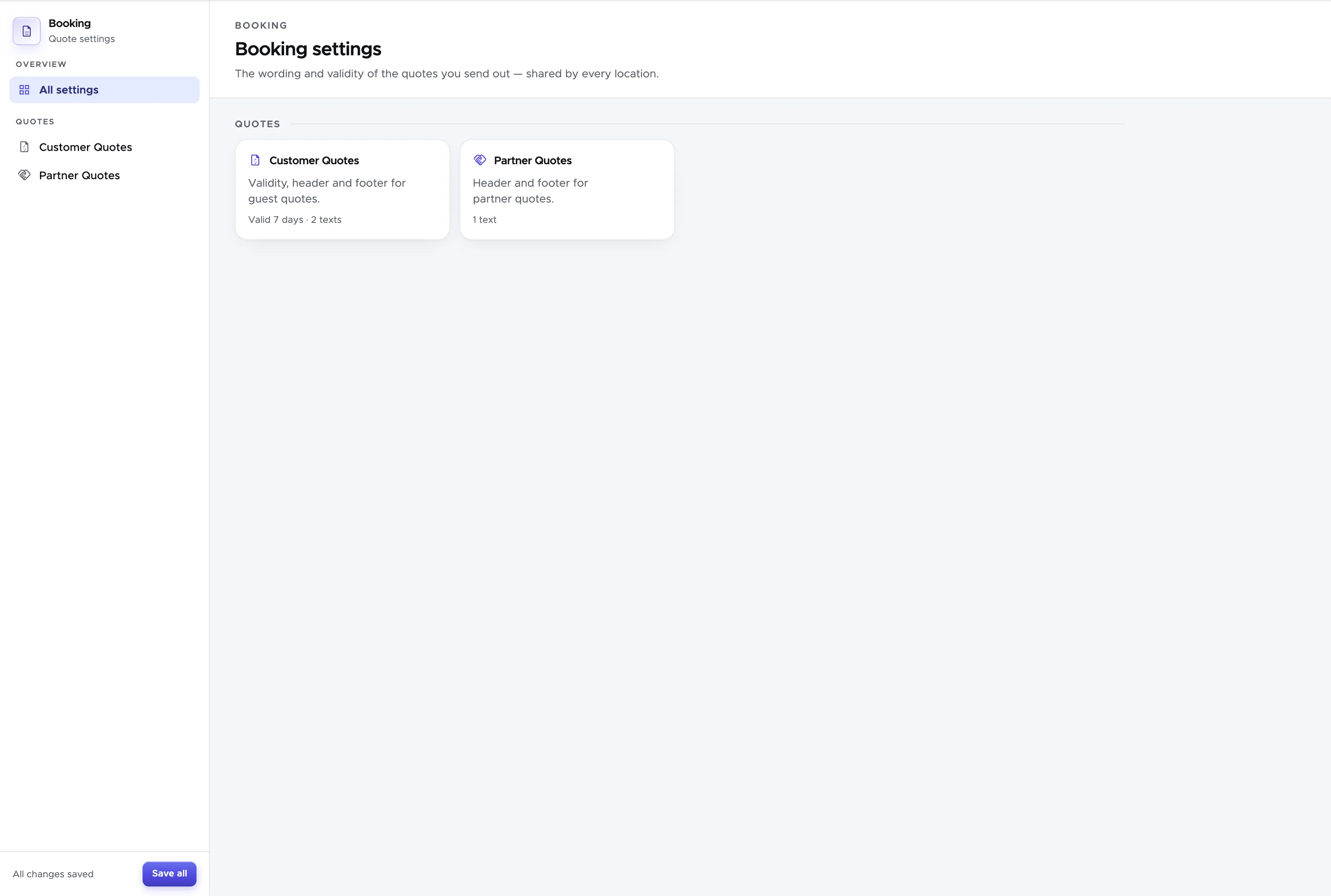
Here you can define the quote validity in days, the headers and footers.
The quote validity defines the color of a room reservation in the accommodation calendar (more on that in chapter Accommodation) and the color of an open quote. When you create a quote, this will initially be in status Open. As soon as the validity period is reached, the quote will turn to Due. There’s no substantial difference between a quote in status Open and a quote in status Due. However, the color-coding will give you a better idea of what to do with quotes that are open for too long.
The quote headers and footers will be available in the printed version of every quote. You can define a global Quote Header and a global Quote Footer. These will be printed respectively at the very top and at the very bottom of your quotes.
Starting with version 2.1 you can now also give a different name for the printout of your location.
Below the global header and footer, the table Per-location text has one row for each of your locations, with the name to print for that location, a Header and a Footer. This is useful if your Geek Divers account has more than one location. The local header will be written above the quote content for that location and the local footer will be written below the quote content for that location.
Please consider that one quote could include multiple locations. On the printed quote the global header comes first, then for every location in the quote its local header, its positions and its local footer, and the global footer closes the quote.
Feel free to play with these settings and create quotes for a test customer to view the printed format.
Don’t forget to click on the button Save all once you’re done.
If you wish to use the booking module to send quotes to your partners, please click on Partner Quotes and repeat the steps described above. To test your settings you will need to create a new quote for a partner with an assigned price list. If you haven’t done it already, please check chapter Partner Price Lists.
15.2 New Quote
Section titled “15.2 New Quote”To create a new quote click on menu Booking and New Quote. Please consider that menu New Quote should be used only if you wish to add price list items. If you wish to make a room reservation, the quote should be created from the Accommodation Calendar.
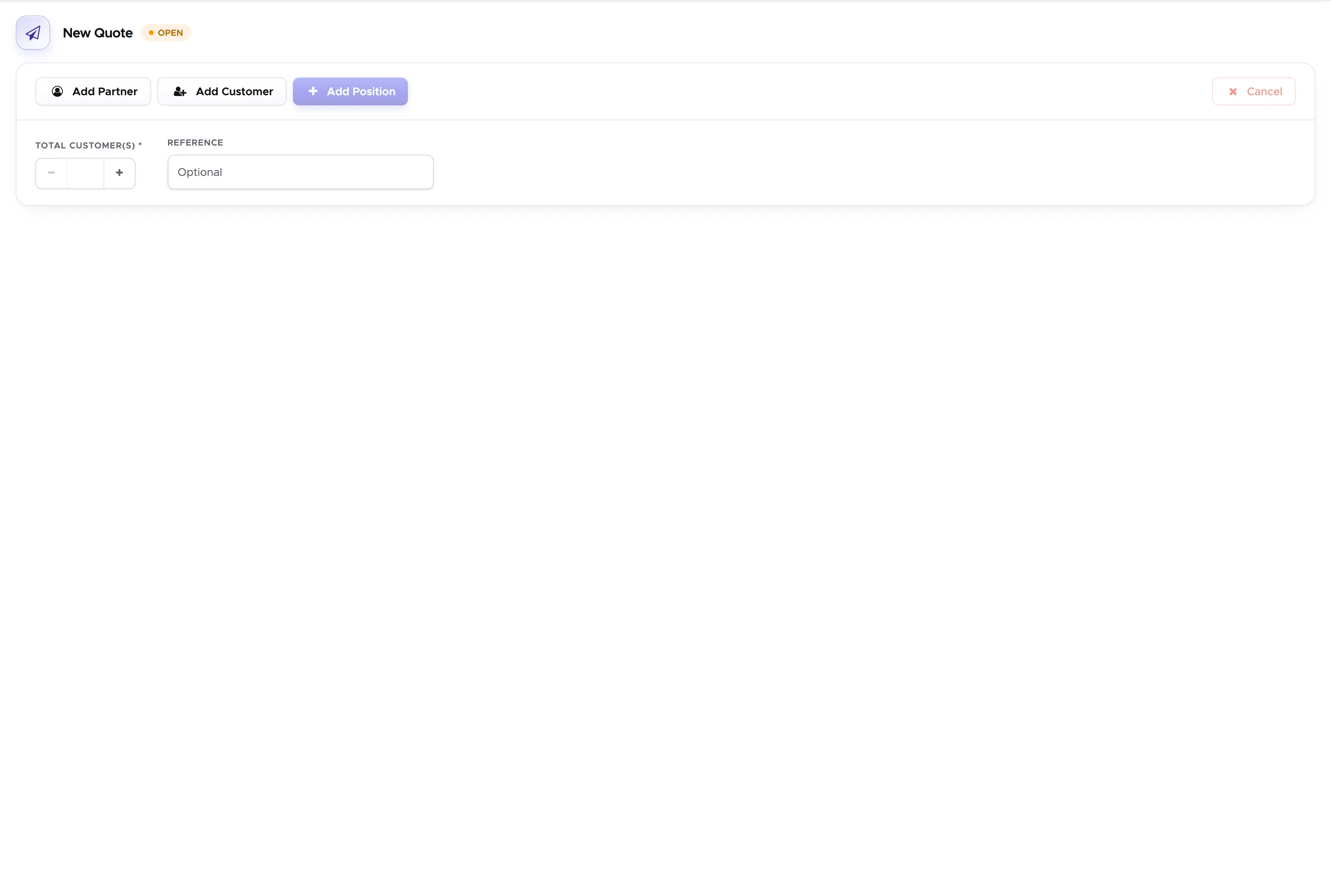
At this point you need to make a choice: is this a quote for a customer or for one of your partners?
If the quote is for a customer, Geek Divers will consider your default price list, while a quote for a partner will ask you to choose one of the partner price lists that you’ve assigned to your partner. If you haven’t done it already, please set up your partner price lists and assign them to your partners. See how in chapter Partner Price Lists.
15.2.1 Customer Quote
Section titled “15.2.1 Customer Quote”Type the total number of customers that you wish to include in this quote in the field Total customer(s), or use its “+” and “-” buttons, and then click on the button Add Customer.
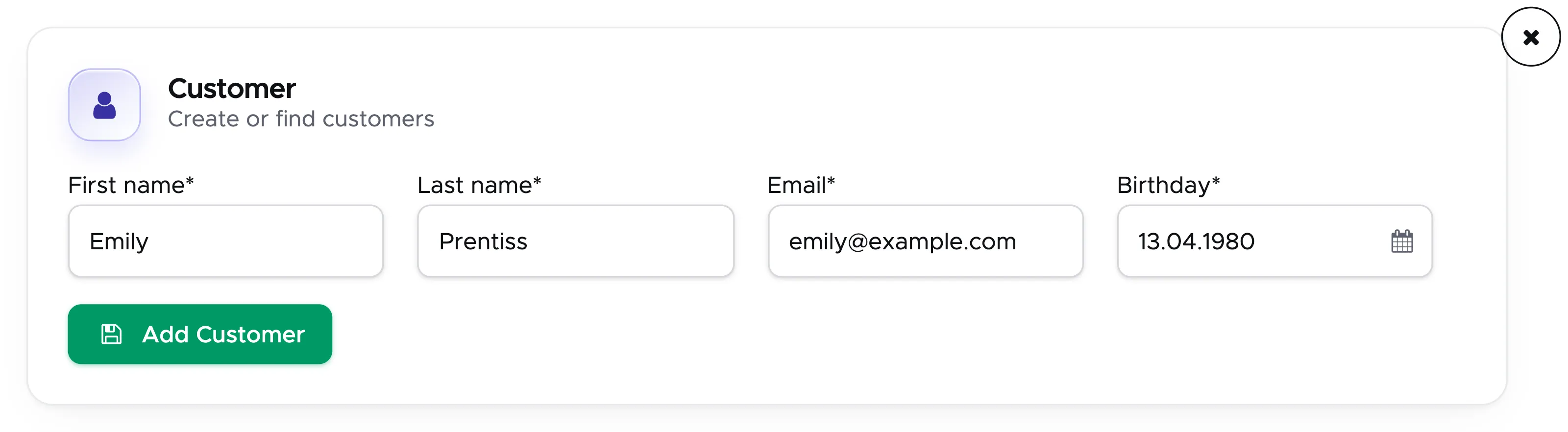
If the customer is not yet in the system, fill in the four mandatory fields (first name, last name, email and birthday) in this sidebar and click on Add Customer. This creates the customer straight away.
If the customer is already in the system, you just need to type a few characters for the name and last name and Geek Divers will show you the matching results.
Example:
-
Click on First name and type “e”
-
Use TAB key on your keyboard to move to Last name
-
Type “p”
-
Use TAB key on your keyboard to move to Email
At this point Geek Divers will show you the first 10 existing customers with an “e” in their first name and a “p” in their last name. If you don’t see the customer that you’re looking for, you might need to add some more information to restrict the results. Repeat the steps above typing more characters.
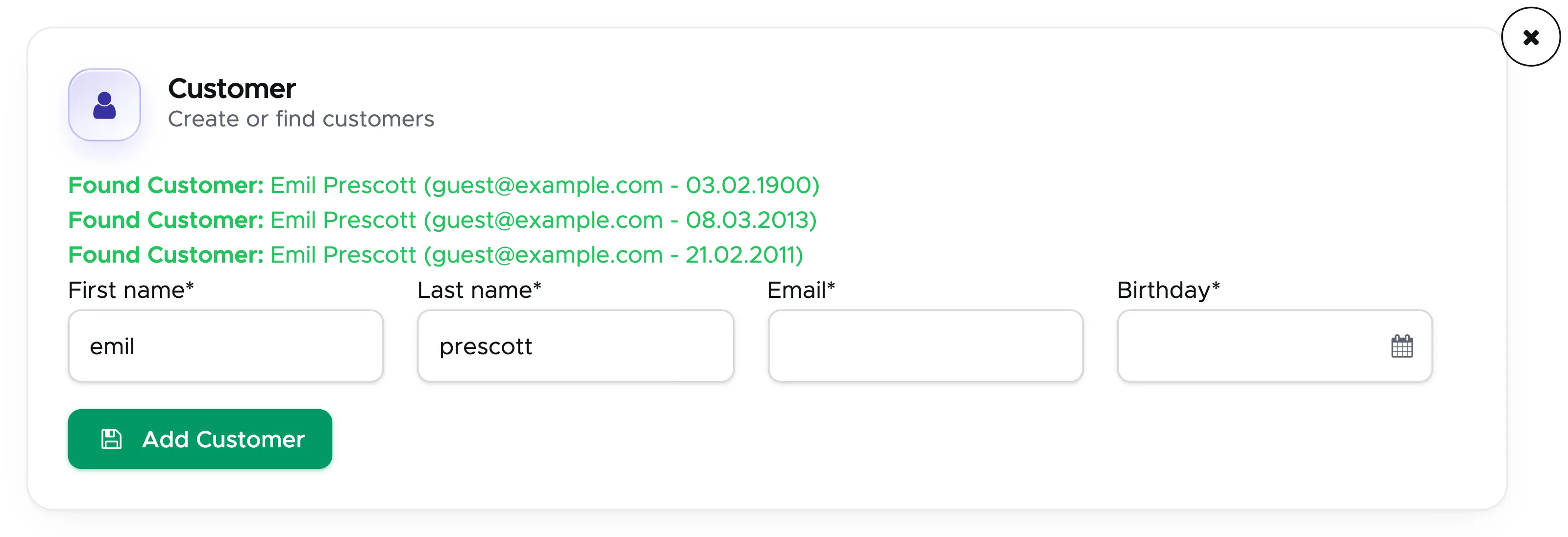
Alternatively, you could type the customer’s email address and move to the next field with the TAB key.
Click on one of the found customers and confirm it by clicking on the OK button.
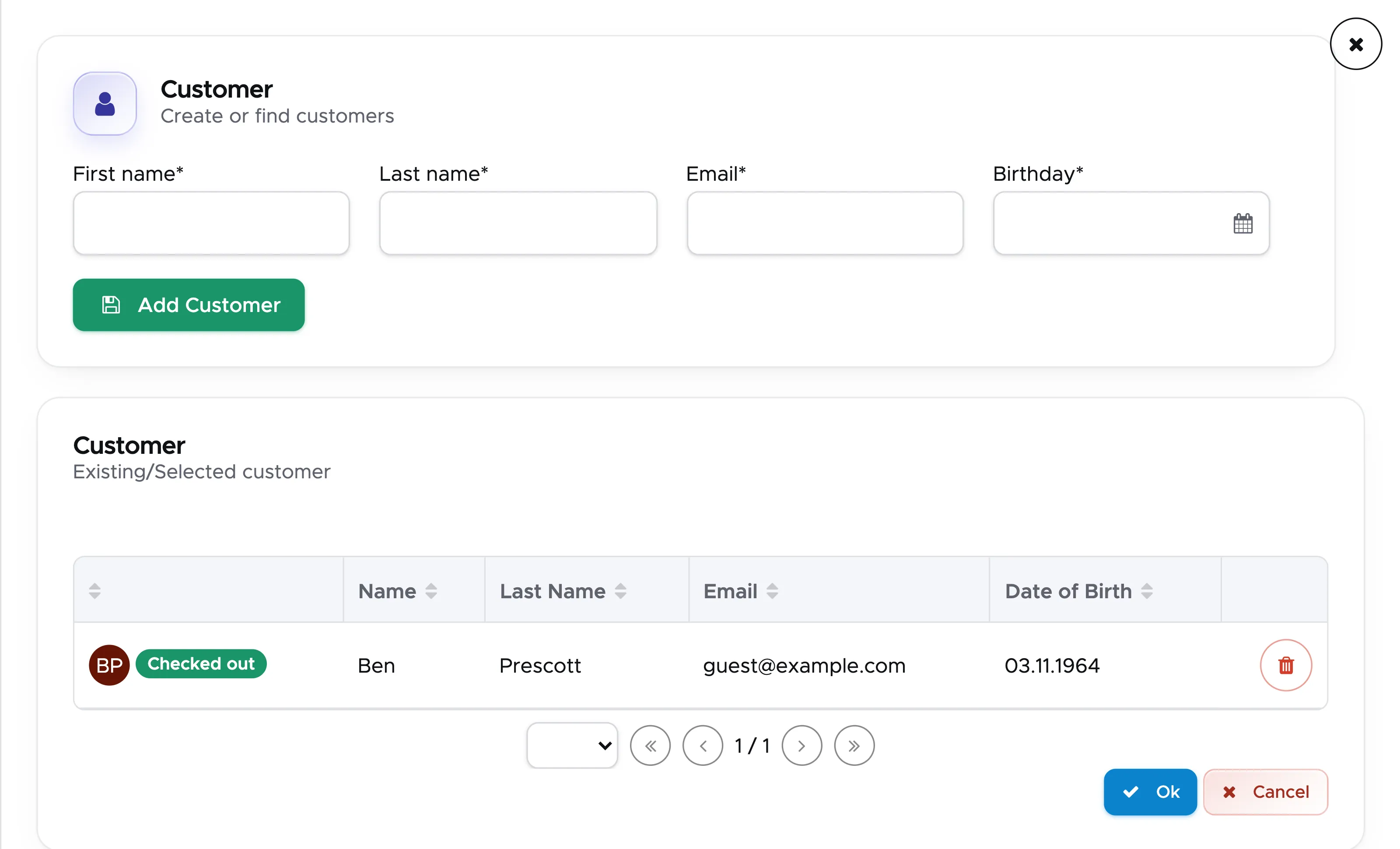
The customer is now assigned to the quote. You can repeat the above steps to assign more customers to the same quote. The first customer assigned will be considered the group leader. Even if you typed 2 in the total number of customers, you don’t necessarily need to add two customers to the quote.
You can now click on the button Add Position to enter items from your customer price list.

If your Geek Divers account includes more than one location, select the first (or only) location that your customer wishes to visit, a check-in date and a check-out date.
As soon as you select the location, you will see the customer price list (Default Price List). Don’t forget to set the correct check-in and check-out dates.
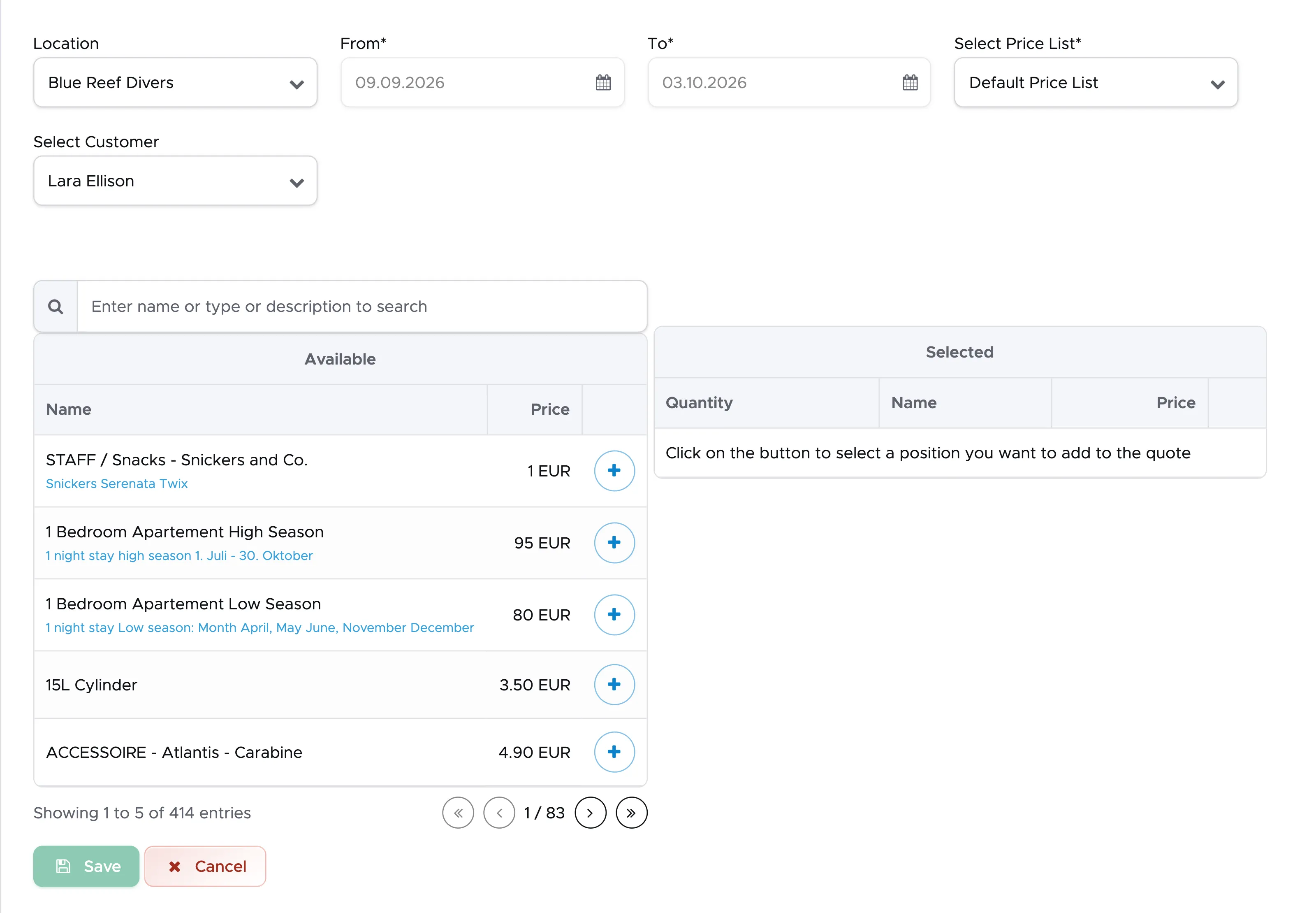
At the top of the sidebar, in the field “Select Customer”, select the customer. Customers already assigned to the quote are listed by name; the places without a name yet are listed as the generic “Customer 1”, “Customer 2”…etc. Search for the items that you wish to add to the quote in the Search string. Once you’ve identified the items that you are looking for click on the “+” button. You will see the selected items on the right-hand side.
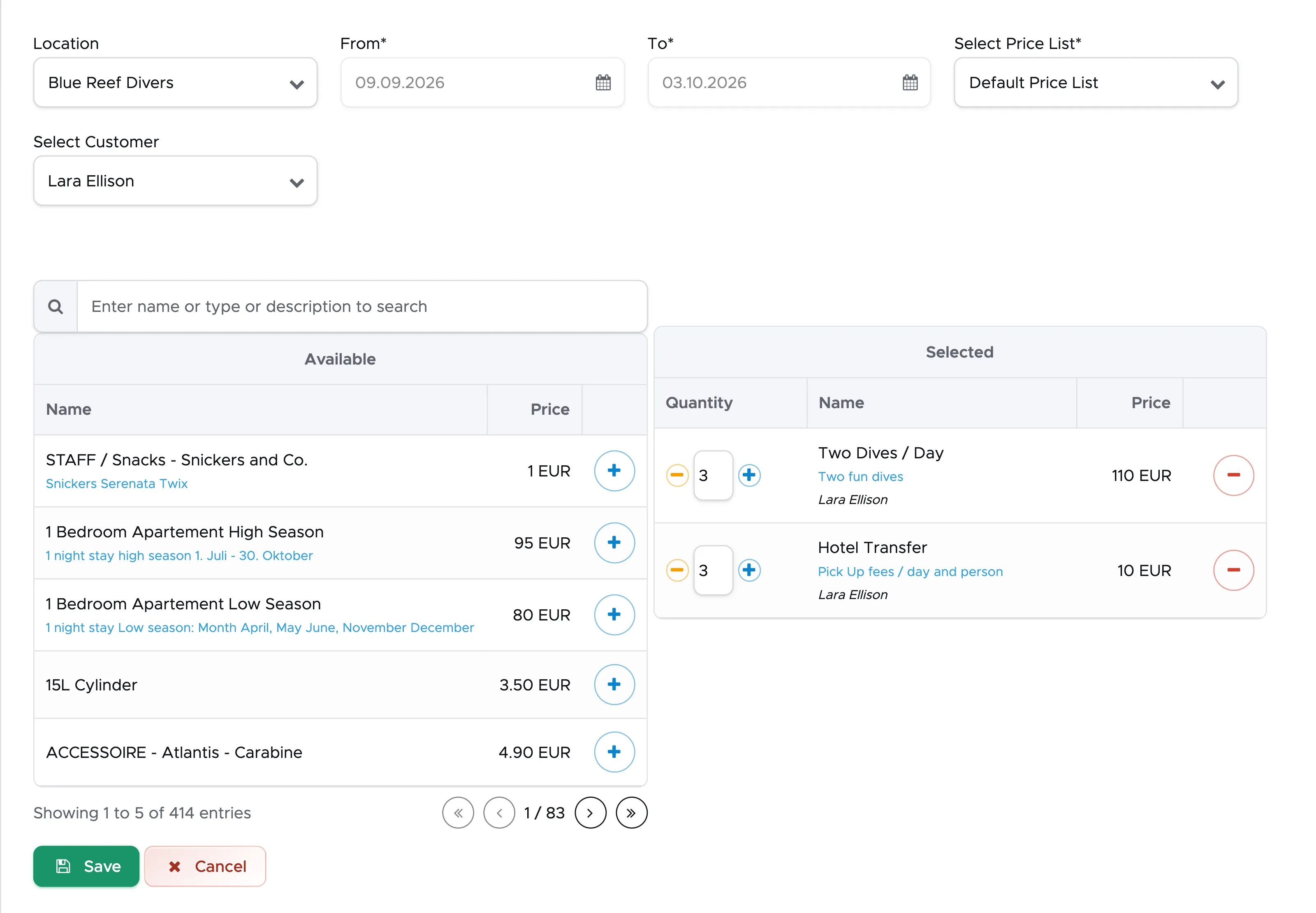
On the right side adjust the quantity (if needed) by clicking on the “+” or “-” button, or type it in the field between them.
Select all the items that you need for the first customer, then switch to another customer and select all the items to assign to them.
Review the selected items on the right-hand side of the sidebar and in case of mistakes, click on the red “-” button at the end of the row to delete that item.
When you’ve added all the items that you need, scroll down and click on button Save.
You will see the items in the quote.
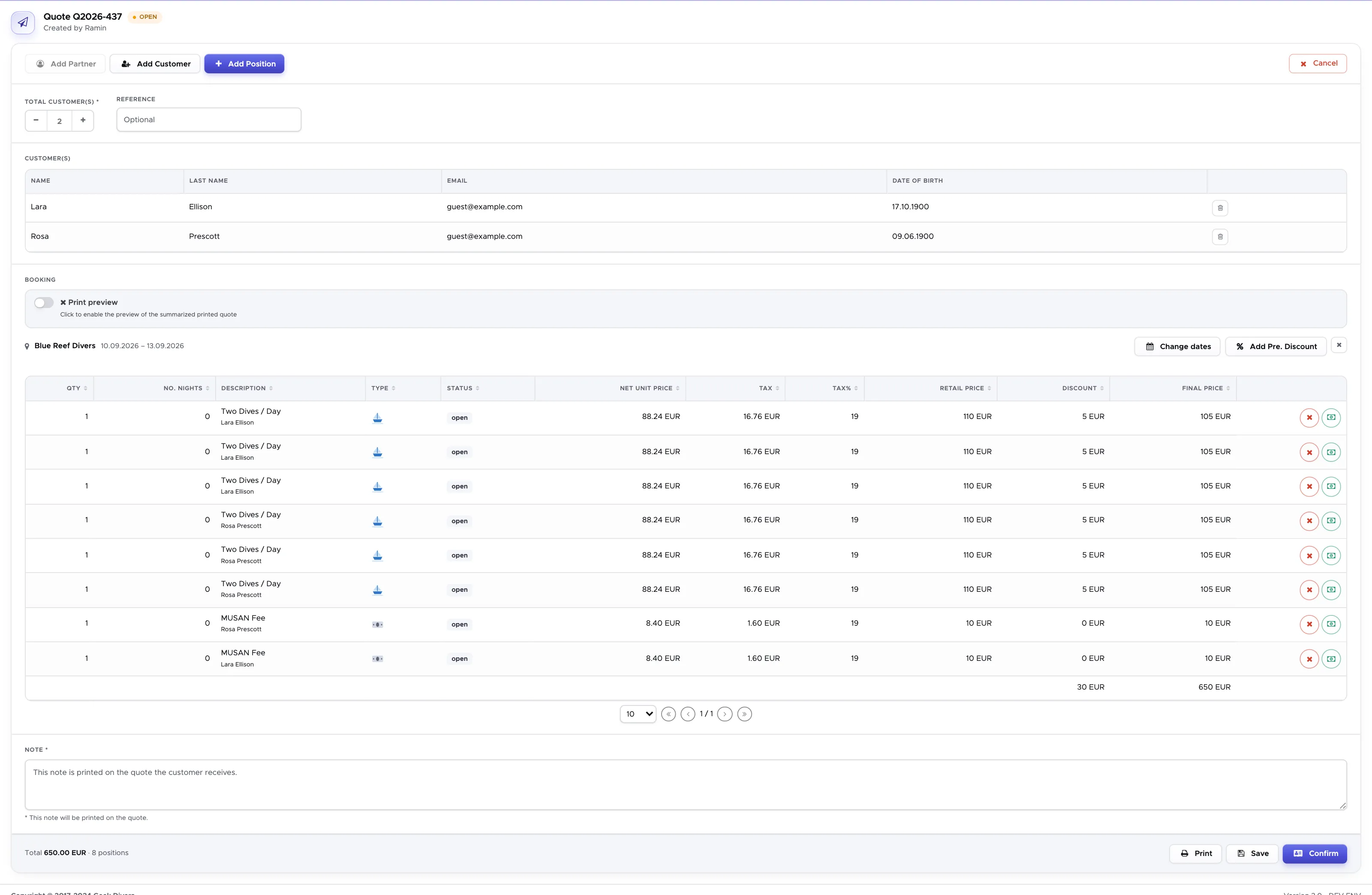
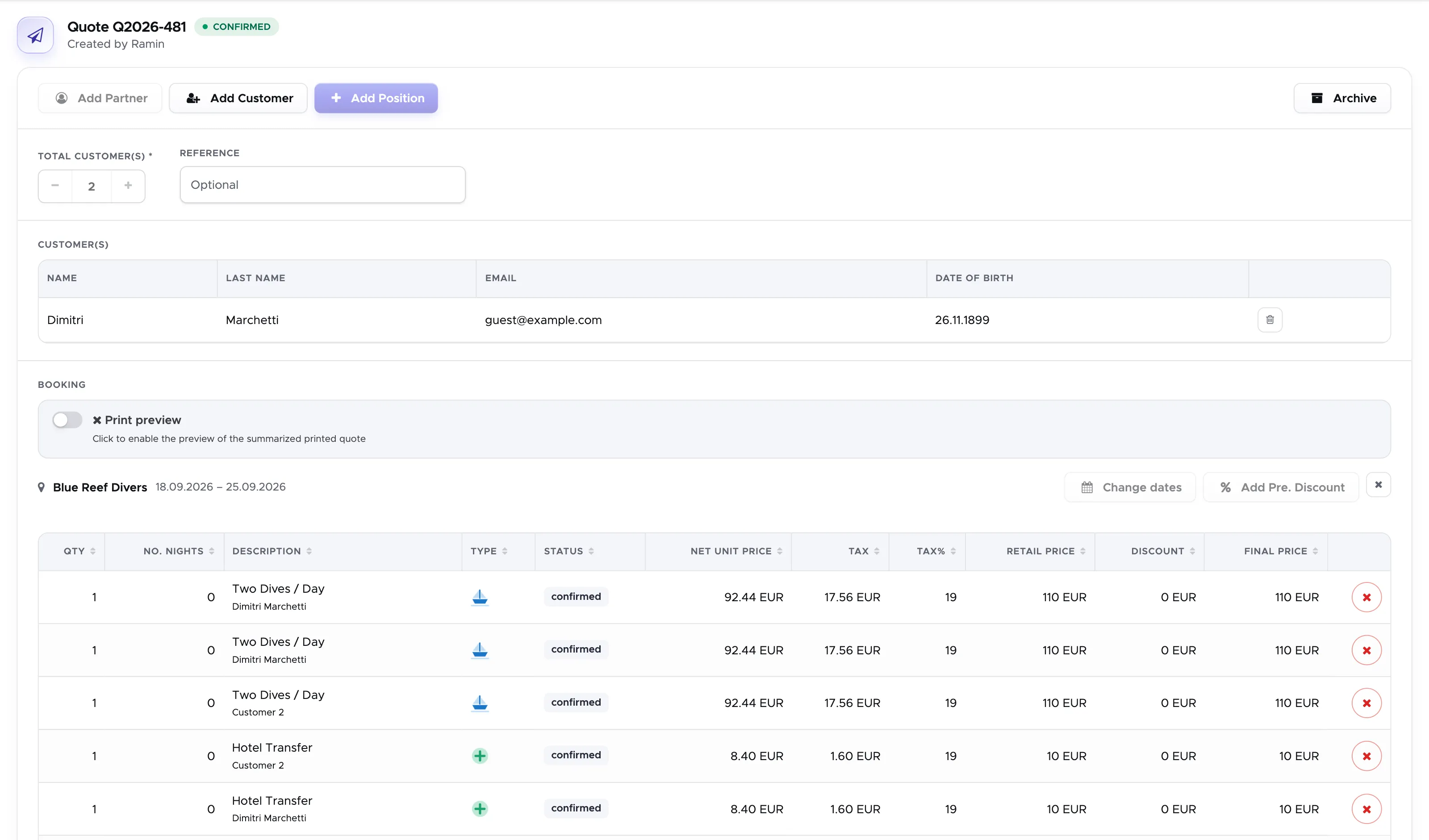
Each position in the quote will be assigned to the customer that you’ve selected and this will guarantee that the item package discounts won’t be shared.
E.g. in the quote above, Two Dives / Day has a retail price of 110 EUR. Each of the two customers gets it three times, and each of these positions shows a package discount of 5 EUR. To guarantee that these discounts are not shared among the customers in the quote, assign 3x Two Dives / Day to the first customer and 3x Two Dives / Day to the second. If you realize that something is missing, you can click on the button Add Position once again, select the same location and add other services.
If you wish to add another location, click again on button Add Position and repeat the above steps selecting a different location. You can select another location to add to the first one within the same quote only if both locations are set up with the same default currency. If your locations have different default currencies, you will need to create two separate quotes for your customers.
If you’ve made a mistake you can click on button ‘X’ at the end of a quote position to remove it. In case of automatic item discounts, these will be recalculated accordingly.
If you wish to add a discount to the quote, you can use the green button at the end of every quote position or button Add Pre. Discount at the top of each quote section, next to the location name. This button will show you all your predefined discounts that you’ve set up in menu General Settings - Predefined Discounts.
Once your quote is complete you can click on button Print at the bottom of the page. Choose your print options in the sidebar and click on Print Quote to generate a pdf to send to your customer. The quote was saved when you saved its positions and it is available in menu Booking - Quotes, on the Open tab.
15.2.1.1 Apply a predefined discount
Section titled “15.2.1.1 Apply a predefined discount ”If you’ve set up your predefined discounts in General Settings (Predefined discounts) you can apply them to your customer quotes.
Click on the button Add Pre. Discount at the top of a quote section and you will see a sidebar with the list of predefined discounts that you’ve set up in your General Settings. Please consider that predefined discounts are location-specific: the selected predefined discount will be applied only to the quote section that contains items for one location. If you wish to apply the same or similar predefined discount to other quote sections with items that belong to another of your locations, you will need to select the button Add Pre. Discount at the top of the other quote section.
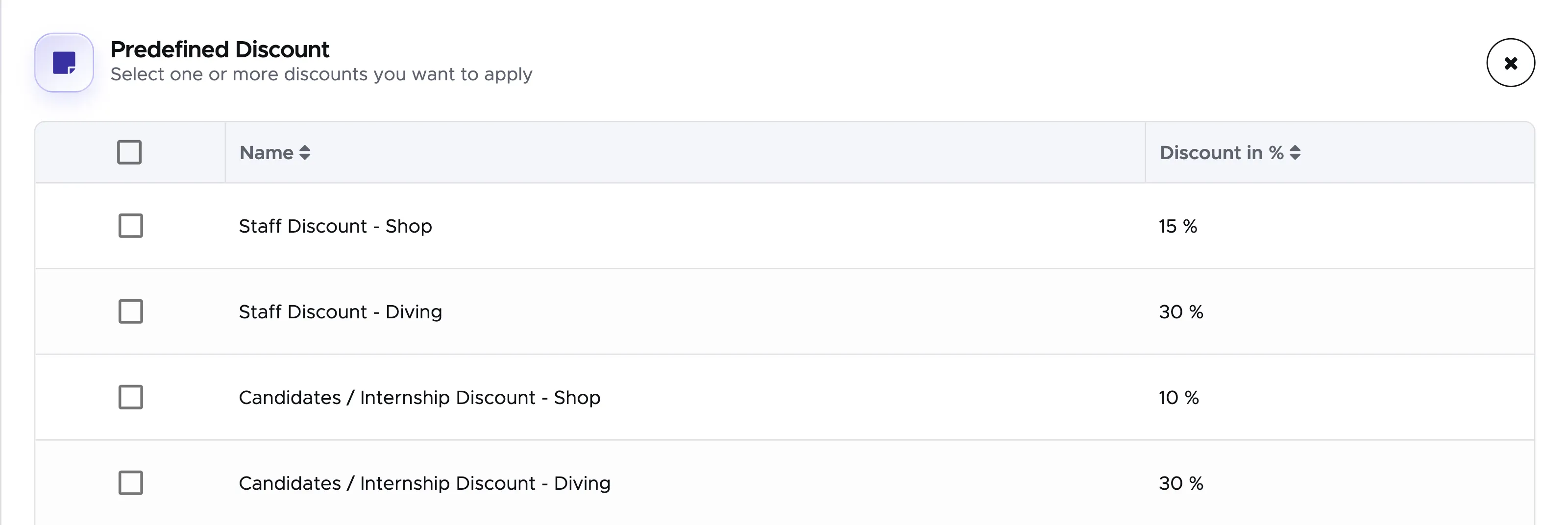
Tick the checkbox related to the discount that you wish to apply and click on Apply Discounts at the bottom of the sidebar.
You will see the applied predefined discount above the positions of that location.
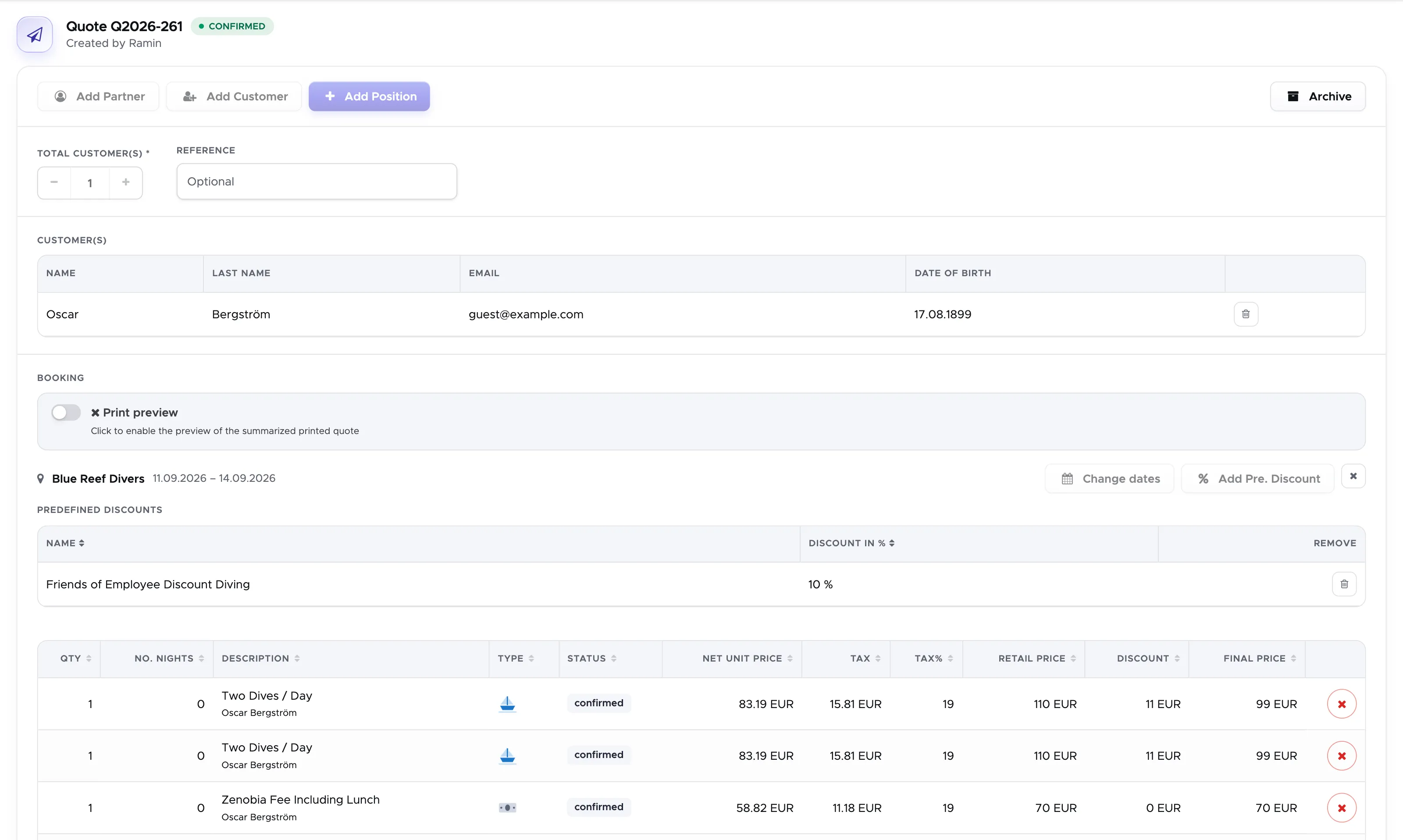
Additionally, all the quote positions that should be discounted according to your definition of predefined discount will show a calculated discount in column Discount. The predefined discount is always calculated on the final price. If a quote position already has an automatic or manual discount, the predefined discount will be calculated and applied to the discounted final price.
You can apply more than one predefined discount and the system will apply them in the order that you’ve selected them.
If the quote is for more than 1 customer, the predefined discount will be calculated on all the matching quote positions, regardless of which customer they’re assigned to.
If you wish to remove the predefined discount, click on the trash bin icon.
15.2.2 Partner Quote
Section titled “15.2.2 Partner Quote”Click on menu Booking and New Quote. Click on button Add Partner to select a travel agent.
If you’ve added more than one contact in your Partner profile, Geek Divers will ask you to select one of them with the plus button at the end of the row.
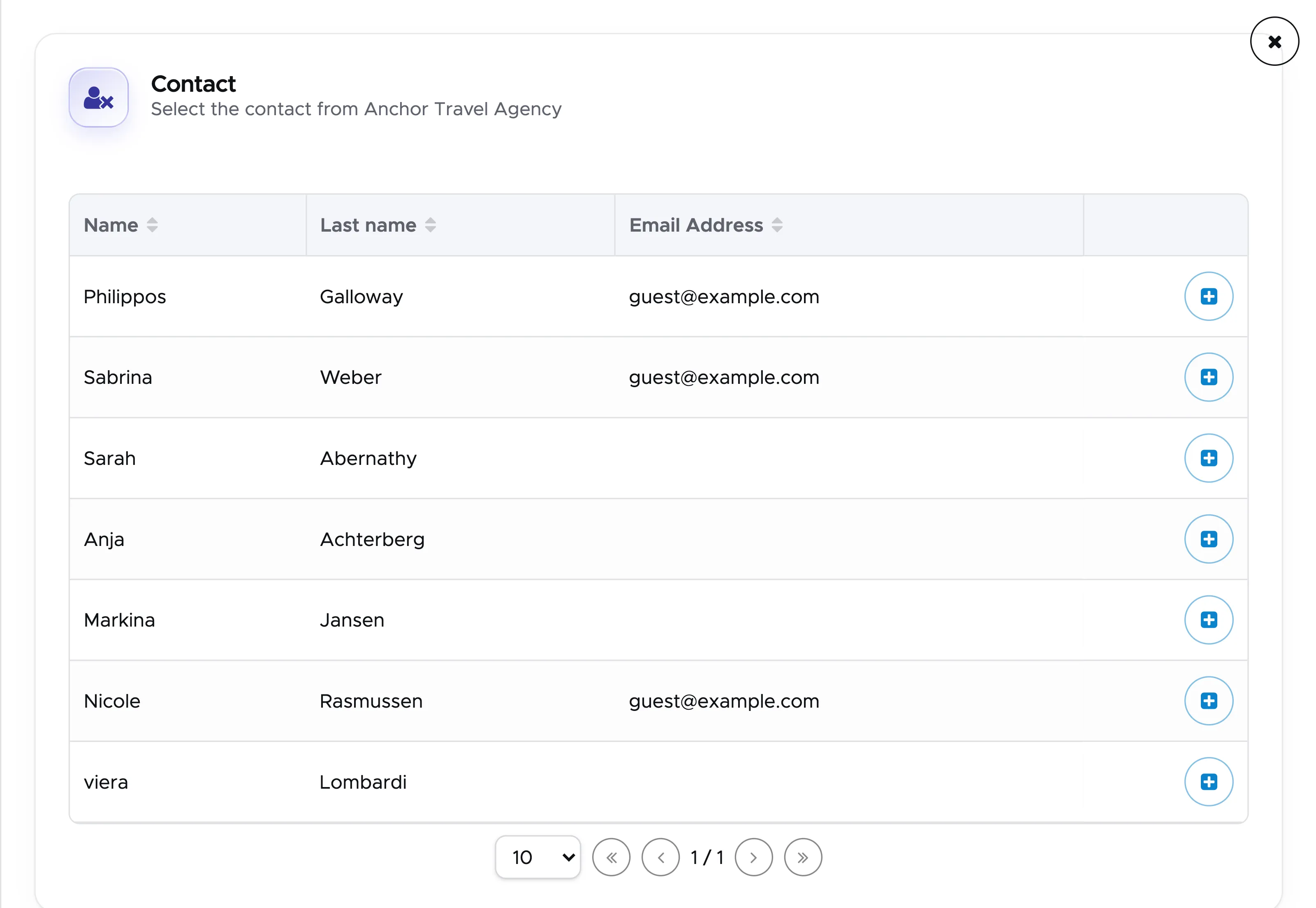
If your partner has shared the customer’s data (name, last name, email address and date of birth), you can click on the button Add Customer. This step is not mandatory.
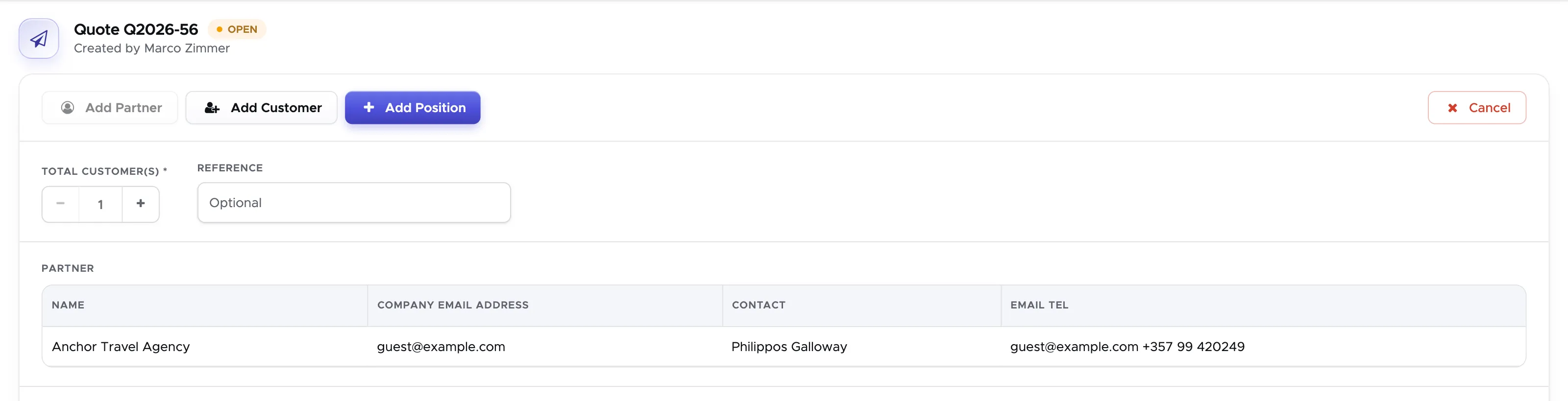
Type the number of customers that you wish to include in the quote and click on button Add Position. Geek Divers will show you a sidebar to select one of your locations, the check-in and check-out date and the partner price list that you wish to use. If your Geek Divers account has only one location this will be automatically selected. If you have assigned only one price list to your partner for the selected location, this will be automatically selected.
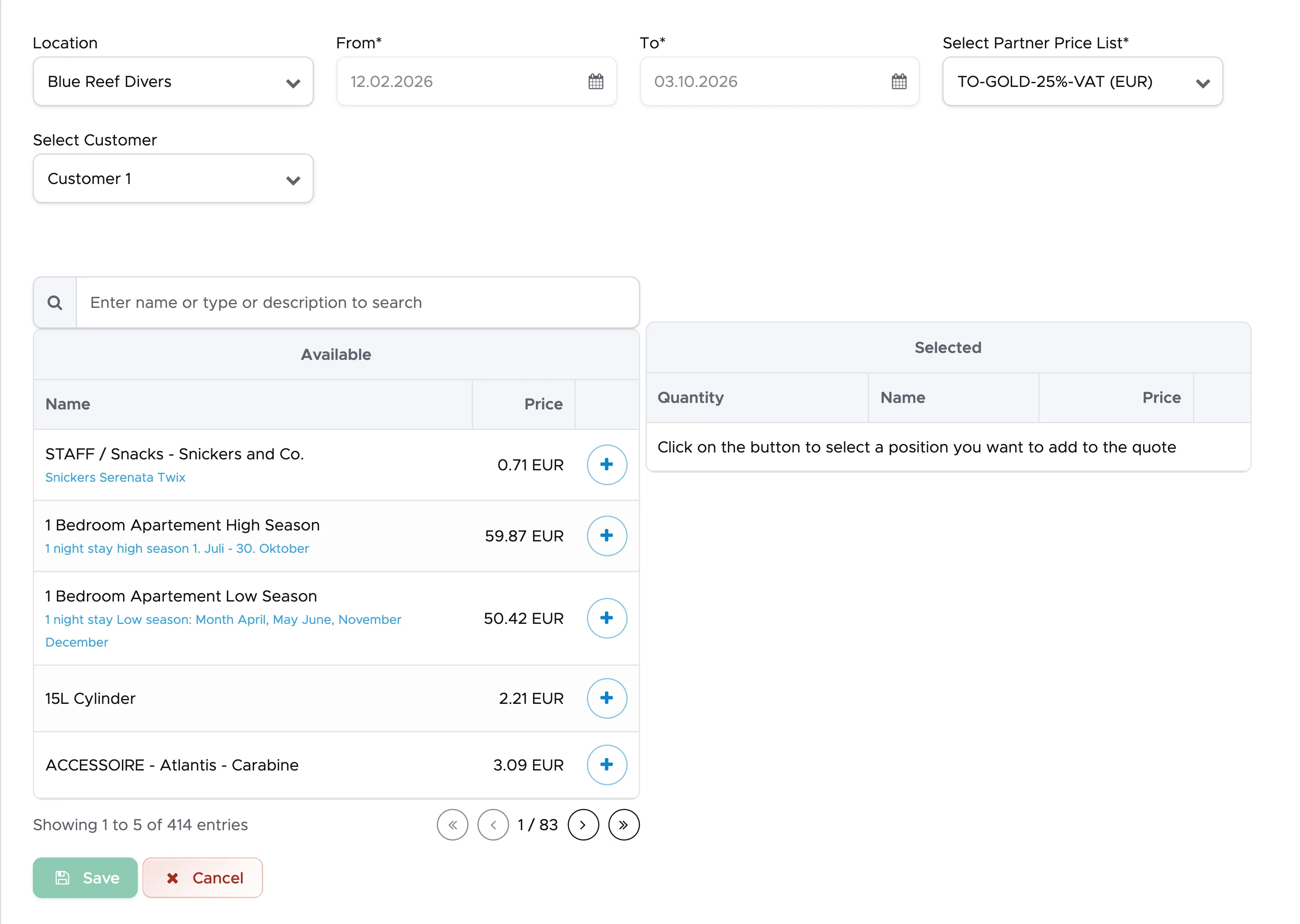
As soon as location and price list are selected, you will see the price list items that belong to the price list.
Select one of the generic customers from menu Select Customer at the top of the sidebar, search for the items that you wish to add to the quote and click on the “+” button. You will see the selected items on the right-hand side.
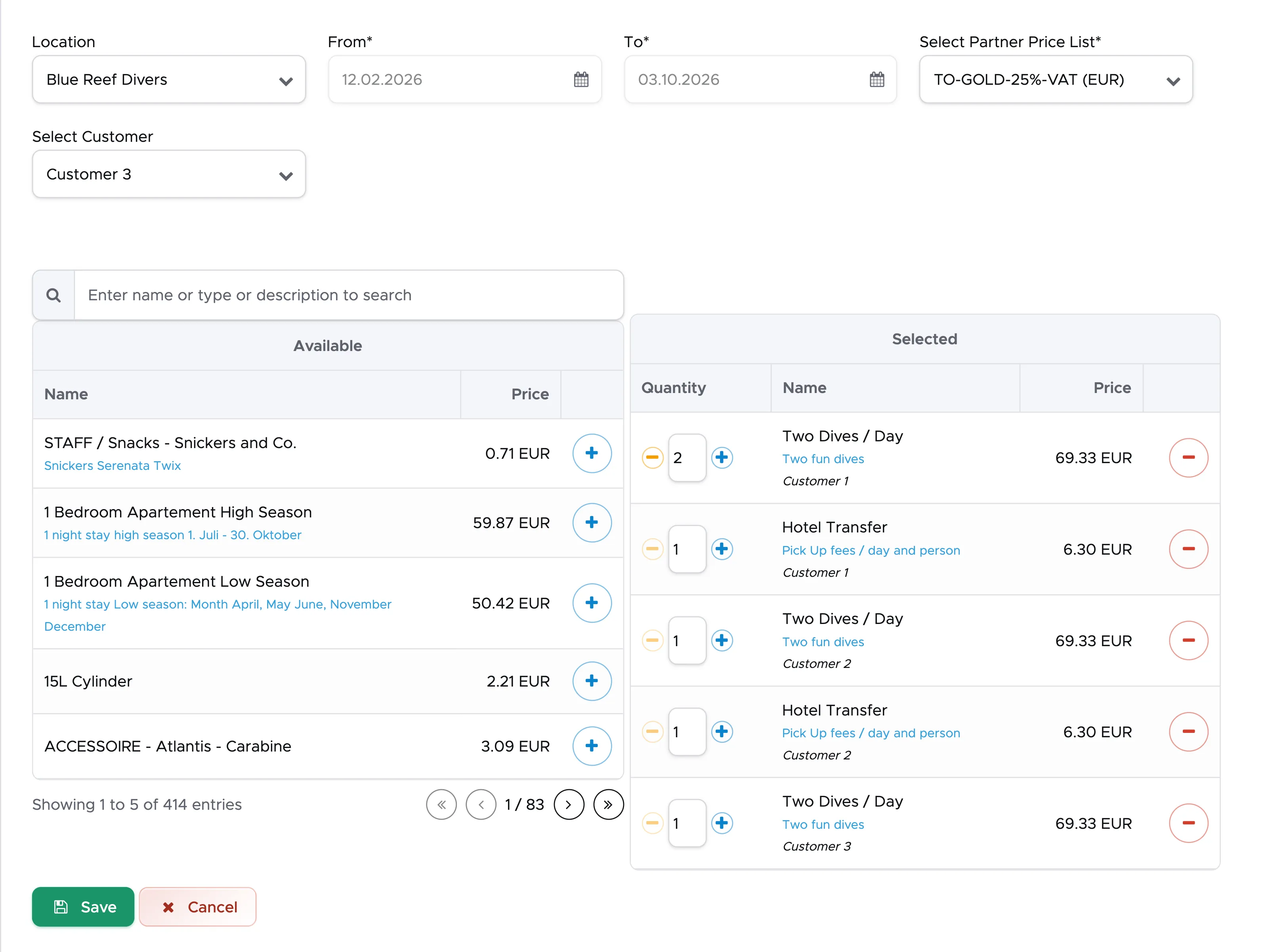
Select a different generic customer from the menu at the top and select items for them. Repeat for all the customers in the quote.
When you’ve added all the items that you need, scroll down and click on button Save. You will see the items in the quote.
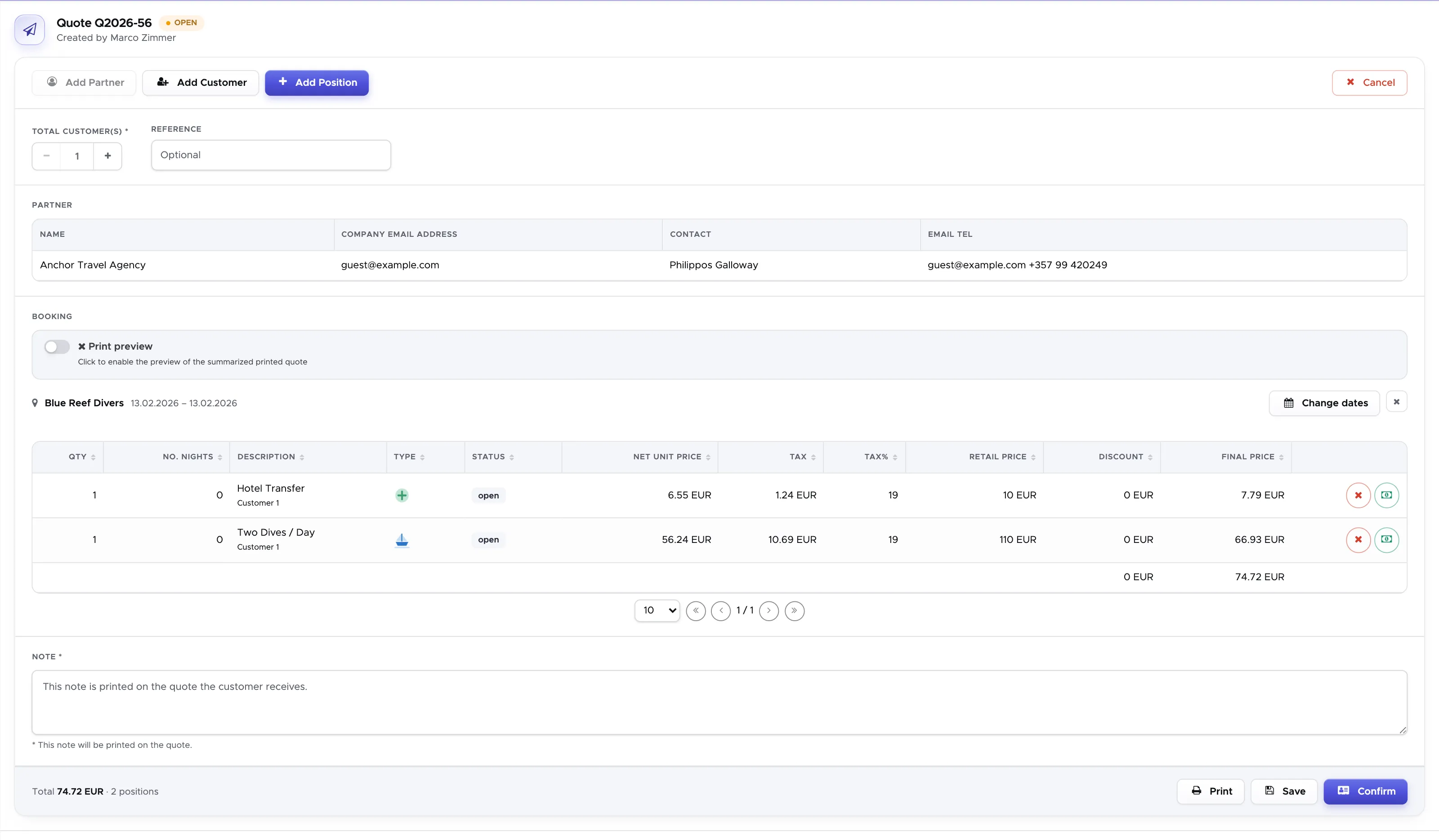
Each position in the quote will be assigned to the generic customer that you’ve selected and this will guarantee that the package discounts won’t be shared.
E.g. in the Add Position sidebar shown earlier, Two Dives / Day costs 69.33 EUR in the partner price list. Customer 1 gets it twice, Customer 2 and Customer 3 once each. Any package discount for the same item booked more than once is then worked out for each customer separately and not shared among the customers in the quote.
If you wish to add another location, click again on button Add Position and repeat the above steps selecting a different location. Please consider that within a partner quote you need to have the same currency. If you wish to add a location, you need to make sure that you’ve assigned a price list with the same currency to this partner.
If you’ve made a mistake you can click on button ‘X’ at the end of a quote position to remove it. If something is missing, click on button Add Position once again and select the same location to add more services to the quote.
Your partner discounts should already be defined in the partner price list that you’ve created and assigned to this partner. However, if you wish to apply an extra discount on the net price, you can use the green button at the end of every quote position.
Once your quote is complete you can click on button Print at the bottom of the page. Choose your print options in the sidebar (for example whether to print the retail price) and click on Print Quote to generate a pdf to send to your partner. The quote was saved when you saved its positions and you can find it in menu Booking - Quotes, on the Open tab.
15.3 Modify a Quote
Section titled “15.3 Modify a Quote”Click on menu Booking and Quotes, on the Open tab, to view the list of open or due quotes, both for your customers and partners.
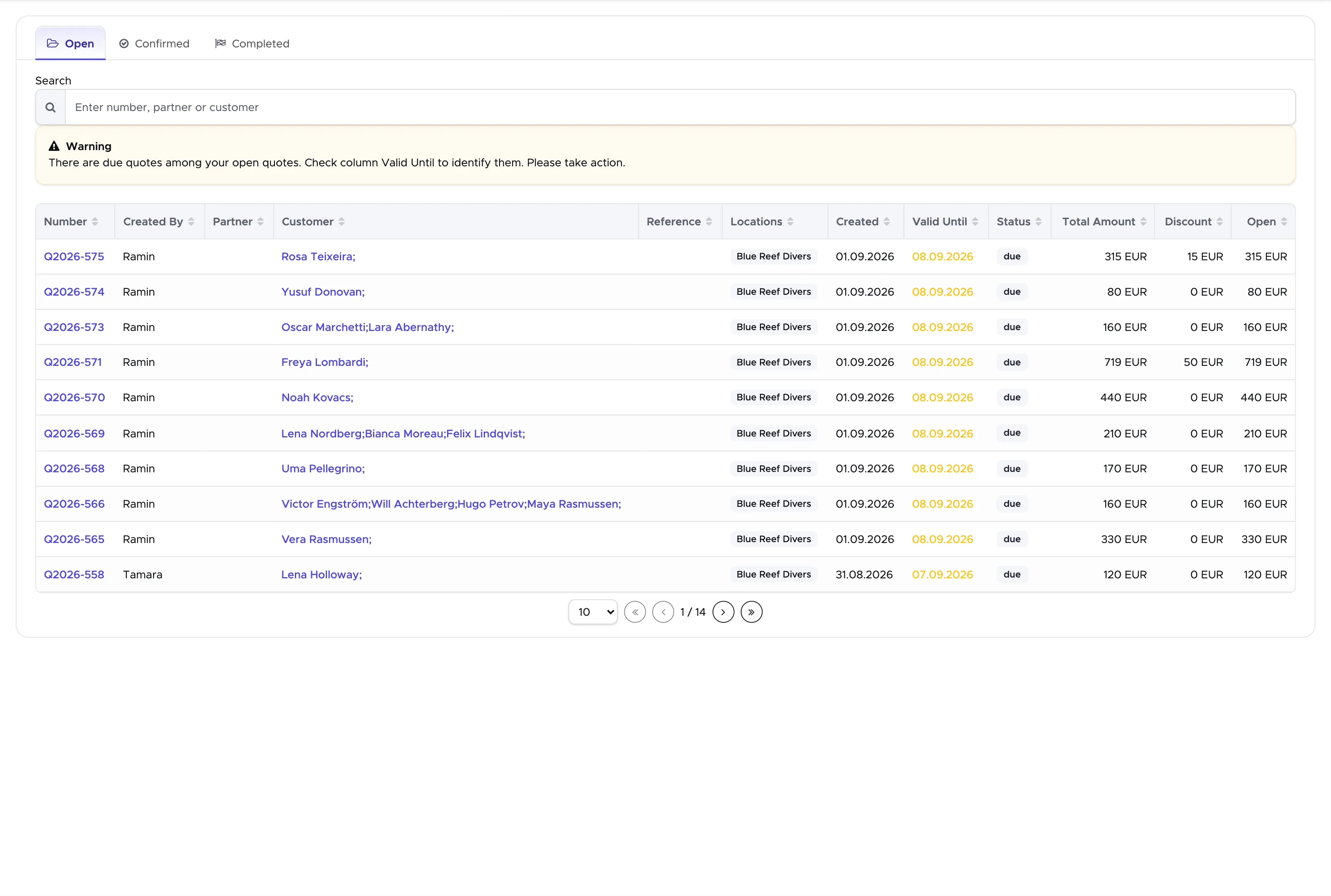
To find the quote that you wish to edit you can use the Search string at the top of the page and enter either the customer’s name or last name, the partner’s name or the quote number.
Alternatively you can click on a column name to sort its content.
Once you’ve identified the quote that you wish to modify, click on the quote number to open it and view its content.
In an Open or Due quote you can modify the following:
-
Remove a quote position by clicking on button “X” at the end of the position.
-
Add more positions for one of the quoted locations or add positions for another location by clicking on button Add Position.
-
Add a customer by clicking on button Add Customer.
-
Remove a customer by clicking on the trash bin icon.
-
Add or remove a manual discount by clicking on the green button at the end of every quote position.
-
Apply a predefined discount or remove it.
-
Change the check-in and check-out dates of a location by clicking on button Change dates next to the location name. This is possible as long as none of the quote positions has been added to a bill.
What you cannot modify in an Open or Due quote:
- You can’t change the quantity of a position. You can click on the button Add Position and select the same item if you wish to increase the quantity or you can delete one or more items if you wish to decrease the quantity.
- You can’t change the assigned partner. If the assigned partner is the wrong one, you can click on the button Cancel. The quote will be set to status Cancelled and you can view it in menu Booking - Quotes, on the Completed tab. You can then proceed to create a new quote for the correct partner.
-
You can’t turn a customer quote into a partner quote or turn a partner quote into a customer quote. This is because once you’ve added positions to a quote, these reflect the content of a partner price list or a customer price list.
-
You can’t change the locations of a quote. You can either remove all the quote positions and then click on the X next to the location check-in and check-out dates or cancel the quote and create a new one.
- You can’t add services for the same location in different periods of time. E.g. if you’ve already added an Open Water course in your location 1 from 1st Feb to 4th Feb, when you click on button Add Position to add more services in location 1, you can’t change the dates as they are already set to 1-4 Feb.
15.4 Confirm a Quote
Section titled “15.4 Confirm a Quote”When your customer or partner confirms a quote that you’ve sent them, you need to follow two slightly different procedures according to who the quote is assigned to. Every confirmed quote will be visible in the Activity Calendar by clicking on the blue and green icon at the top.
15.4.1 Confirm a Customer Quote
Section titled “15.4.1 Confirm a Customer Quote”When you manually confirm an Open or Due quote you’re making the content of the quote available to be used as a voucher in one or more customer’s bills. Every Confirmed quote position in a quote in status Confirmed or In Progress will be considered in a customer’s bill when you click on button Apply Voucher, providing that the customer’s check-in date and the quote check-in date match (±5 days). Without this passage, you won’t be able to use vouchers in a customer’s bill.
To confirm a quote, go to menu Booking - Quotes and open the Open tab. In this list identify the quote that your customer has confirmed. You can use the Search string to type the quote number or the customer’s name or last name.
Click on the quote number, scroll down and click on button Confirm. This will automatically set the quote to status Confirmed. Once the quote is confirmed, it can no longer be cancelled. You can however remove a quote position in status Confirmed. In case the quote is no longer needed, you can click on the Archive button. An archived quote can be found in the Completed tab. If you need to modify the content of a confirmed quote, create a new quote with the correct content and then archive the old confirmed quote.
If you’ve received a deposit payment or a full payment from your customer, go to the customer’s profile and on tab Bill/Agents. In the Credits section click on button Add Payment to record the payment that you’ve received. Once the payment is recorded you can print it in pdf to send it to your customer as payment receipt.
15.4.2 Confirm a Partner Quote
Section titled “15.4.2 Confirm a Partner Quote”Go to menu Booking - Quotes and open the Open tab. In this list identify the quote that your partner has confirmed. You can use the Search string to type the quote number or the partner’s name.
Click on the quote number, scroll down and click on button Confirm.
At this point Geek Divers will search through your partner’s open invoices. If there is at least one matching the currency of your quote, you will see it at the top of the sidebar.
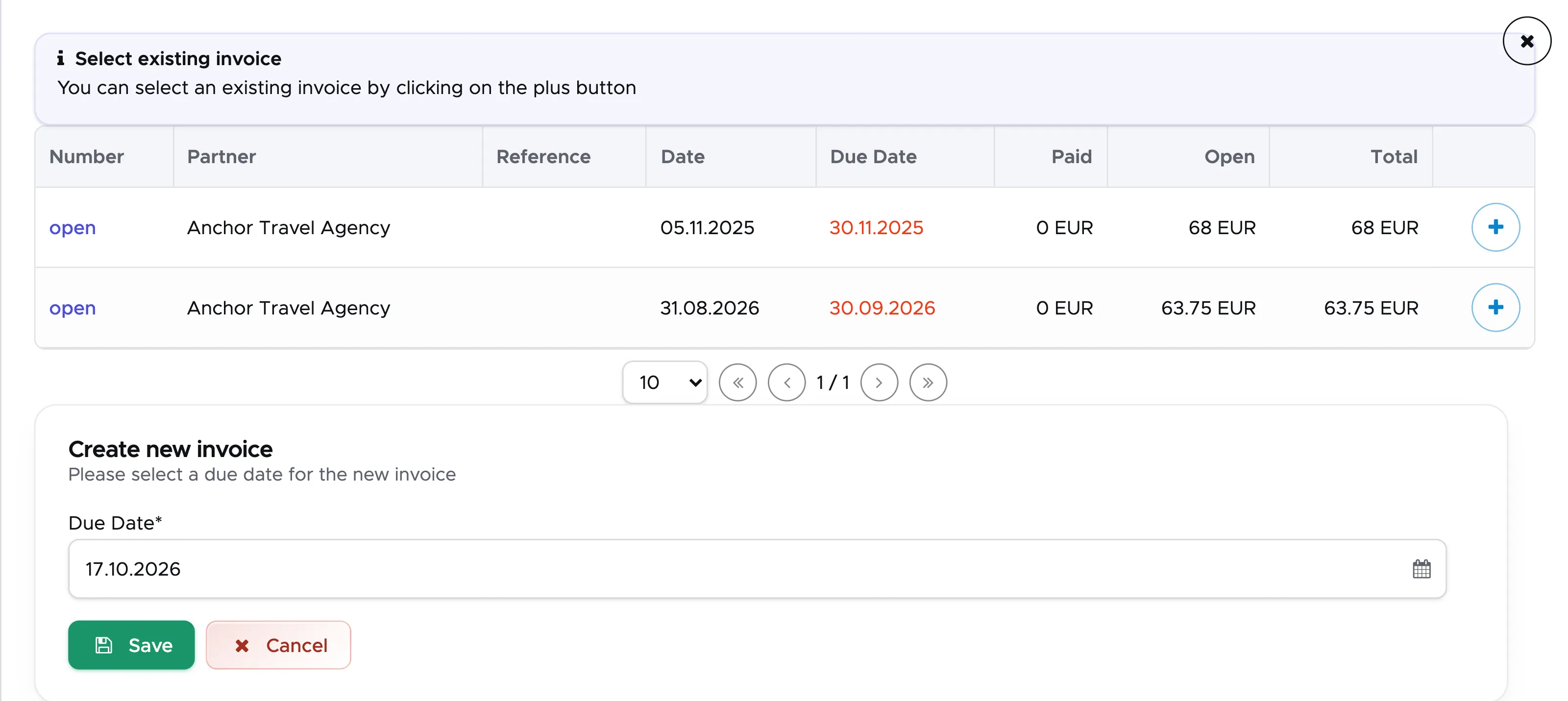
If you choose to add the content of the confirmed quote to an existing invoice, select the invoice of your choice by clicking on the plus button at the end of the row.
If there is no open invoice or if you wish to create a new one, you will be asked to enter a due date. The due date provided in the sidebar is 14 days from today. You can select the due date of your choice and click on Save.
Either way the sidebar will disappear and you will see the quote changing status to Confirmed.
Geek Divers will either create a new invoice with the due date that you’ve entered and copy the exact content of the quote into the invoice or add the content of the confirmed quote to an existing invoice of your choice.
To check your partner’s invoices go to menu Partners - Open Invoices.
👀 Important!
Partner invoices cannot be merged. When you confirm a partner quote and select an existing invoice or a new one, the content of the quote will be copied to the selected invoice and it cannot be moved to another invoice. You can however change the due date of an open invoice.
A Confirmed quote cannot be cancelled. You can however remove a quote position in status Confirmed. If the removed quote position was copied to an invoice that is still open, the corresponding invoice position will be removed as well. If the removed quote position was copied to an invoice that is now closed, no changes will be applied to the closed invoice. In case you need to modify the content of the quote or if the quote is no longer needed, you can click on button Archive. An archived quote can be found on the Completed tab. If you need to modify the content of a confirmed quote, create a new quote with the correct content first and then archive the old confirmed quote.
When you confirm a partner quote, the content of the quote is copied into a partner invoice. When you archive a confirmed partner quote, Geek Divers will identify the quote positions that were copied in a partner invoice and if the invoice is still open, those invoice positions will be automatically marked as deleted (red strikethrough). If the partner invoice is already closed, no change is possible. In this case, if you wish to refund your partner for those confirmed quote positions that you are archiving or removing, you will need to do so manually. One possibility is to go to one of your partner’s open invoices and add a manual position with a negative amount matching the content of the archived quote.
15.5 Cancel a Quote
Section titled “15.5 Cancel a Quote”Only quotes in status Open or Due can be cancelled. Go to menu Booking - Quotes and open the Open tab, identify the quote that you wish to cancel, click on the quote number and click on button Cancel. The cancelled quote will not disappear: it will be available on the Completed tab in status Cancelled. All the quote positions will show status Cancelled.
You might want to cancel a quote because:
-
It’s been in status Due for quite some time and you haven’t heard from the customer or partner.
-
You’ve generated a few quotes for your customer or partner and they’ve chosen one of them. You can safely cancel the others as they will not be confirmed.- The quote is in status Open or Due and your customer or partner have declined your offer.
-
The quote has a check-in date in the past.
The Open tab should be “clean” at all times: keep only the quotes that have a chance to be confirmed.
15.6 Archive a Quote
Section titled “15.6 Archive a Quote”Only quotes in status Confirmed or In Progress can be archived. Go to menu Booking - Quotes and open the Confirmed tab, identify the quote that you wish to archive, click on the quote number and click on button Archive. The archived quote will not disappear: it will be available on the Completed tab in status Archived. All the quote positions will maintain their status: Confirmed, Voucher or Applied.
You might want to archive a quote because:
-
In column Upcoming you see an X icon - this means that all the check-in dates in the quote are in the past (5 days in the past).
-
The customer or partner has requested a change in their confirmed quote and you’ve generated and confirmed a new quote. You can now safely archive the old confirmed quote.
The Confirmed tab should be “clean” at all times: keep only the quotes that are really going to be used as vouchers in your customers bills.