
Getting started and Settings
Version 3.0
Geek Divers 3.0 is a major release: a new design with dark mode, a planning board, screens that update live while your team works, and many new features. The changelog lists everything that is new.
You will see the version at the bottom of every page within Geek Divers. Please make sure that you have the correct version.
A new version of Geek Divers can come with additional menu items. If you have an administrator login you will see all the available menu items. If your login was created by an administrator, you will not see new menu items by yourself. Please ask your administrator to modify your login to access the pages that you need to perform your tasks, see 1.6 Users.
Lists that used to be separate menu items are now tabs
Section titled “Lists that used to be separate menu items are now tabs”Several pages that used to be one menu item each are now a single menu item with tabs across the top of the list. The pages themselves have not changed - only the way you reach them:
| Menu item | Tabs |
|---|---|
| Customers - Customers | All, Current, Upcoming |
| Staff - Staff list | All, Current |
| Partners - Partner list | All, Current |
| Partners - Invoices | Open, Closed, Archived |
| Equipment - Equipment | All, Checks, Calendar |
| Financial - Bills | Open, Current open, Closed, Archived |
| Booking - Quotes | Open, Confirmed, Completed |
| Accommodation - Rooms | Rooms, Calendar |
Your access rights have not changed: you only see the tabs you were already allowed to see, so a login that could only reach Current Customers still sees exactly that one tab.
How to use this user guide
Section titled “How to use this user guide”The chapters are listed on the left, and the sections of the chapter you are reading on the right. The search box at the top finds a word anywhere in the guide. Every new version of Geek Divers brings new features or improvements to the existing ones; the changelog explains what is new in the current version. Feel free to contact us at info@geekdivers.com if you need any additional explanation or if you can’t find what you’re looking for.
0. Intro
Section titled “0. Intro”As an Administrator, the first time you log in to Geek Divers there are a few steps that you need to follow in order to make it work properly:
- Set up your General Settings
- Enter your price list
- Add your cost centers and accounting codes
- Set up your payment methods
- Add staff members and their commissions/salary
- Add your Agents and their commissions (not mandatory)
- Add your Partners and their price lists (not mandatory)
- Add your transportation (boats, vans, golf carts…)
- Add your dive sites
- Add your rental Equipment (not mandatory)
- (AM) Add your Room settings, your accommodation calendar settings and your rooms (only if you choose to use the Accommodation Module)
These are the minimum steps required to start using the system. The chapters in this user guide will help you step by step. However, in case you’re not sure about how to set up your discounts, which type to choose for your price list, how to make sure that you set up the correct commissions for your staff or anything else, please feel free to contact us at info@geekdivers.com or on WhatsApp, or schedule a video call.
0.1 Setting up your centre
Section titled “0.1 Setting up your centre”You do not have to keep the list above in your head. Click on Dashboard and open the Setup tab: Geek Divers watches your account and tells you which of these steps are done and which are still waiting.
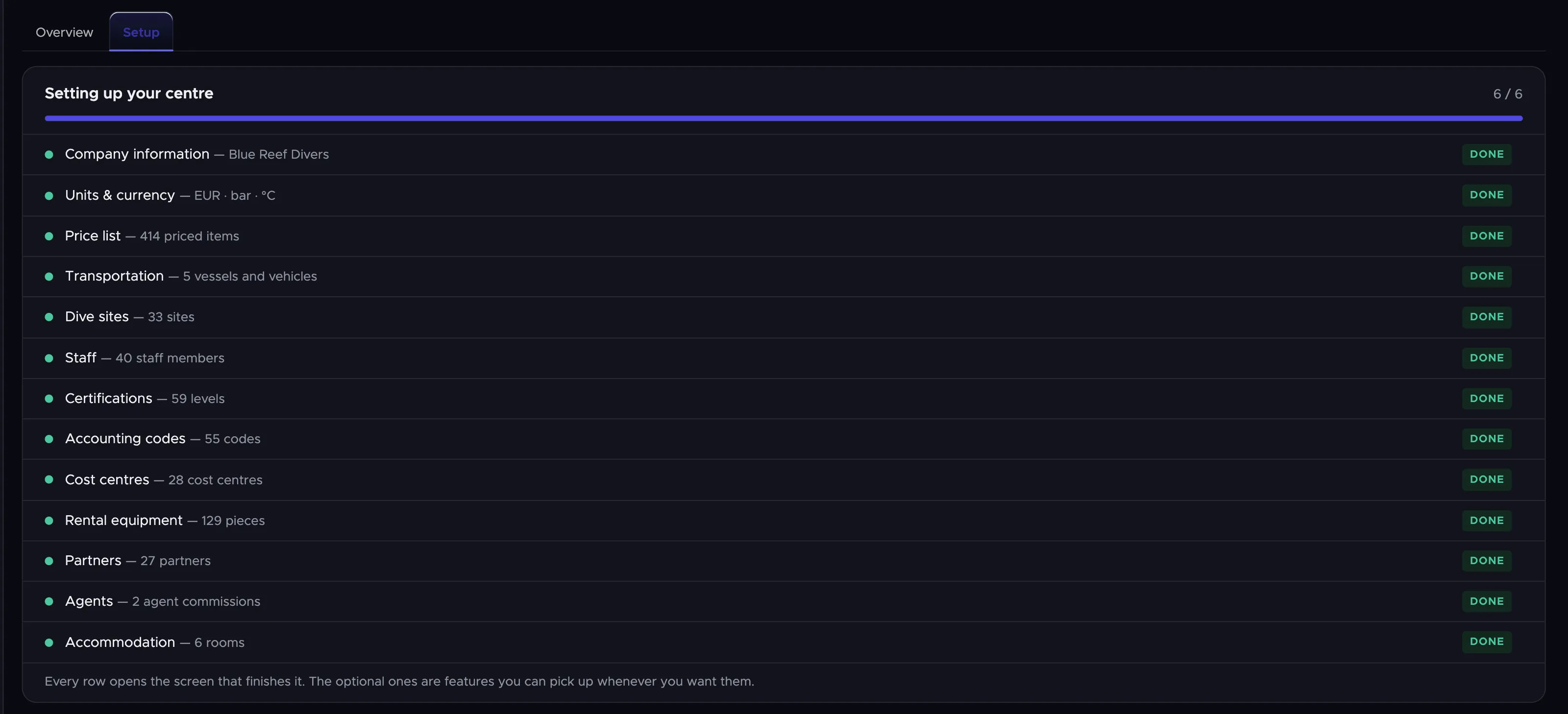
Every row shows what it is waiting for and what you have so far — “Price list — 66 priced items”, “Dive sites — 9 sites” — and clicking a row opens the screen that finishes it, so you can work down the list without looking anything up. The counter at the top right counts only the steps a centre really cannot work without; the rest are marked optional, and they are features you can pick up whenever you want them rather than jobs you have to do now.
The tab disappears from your way once everything is done. Partners, agents and accommodation are on the list too, so a centre that does not rent rooms simply leaves that row alone.
0.2 Your dashboard
Section titled “0.2 Your dashboard”The Overview tab is the screen to leave open in the morning.
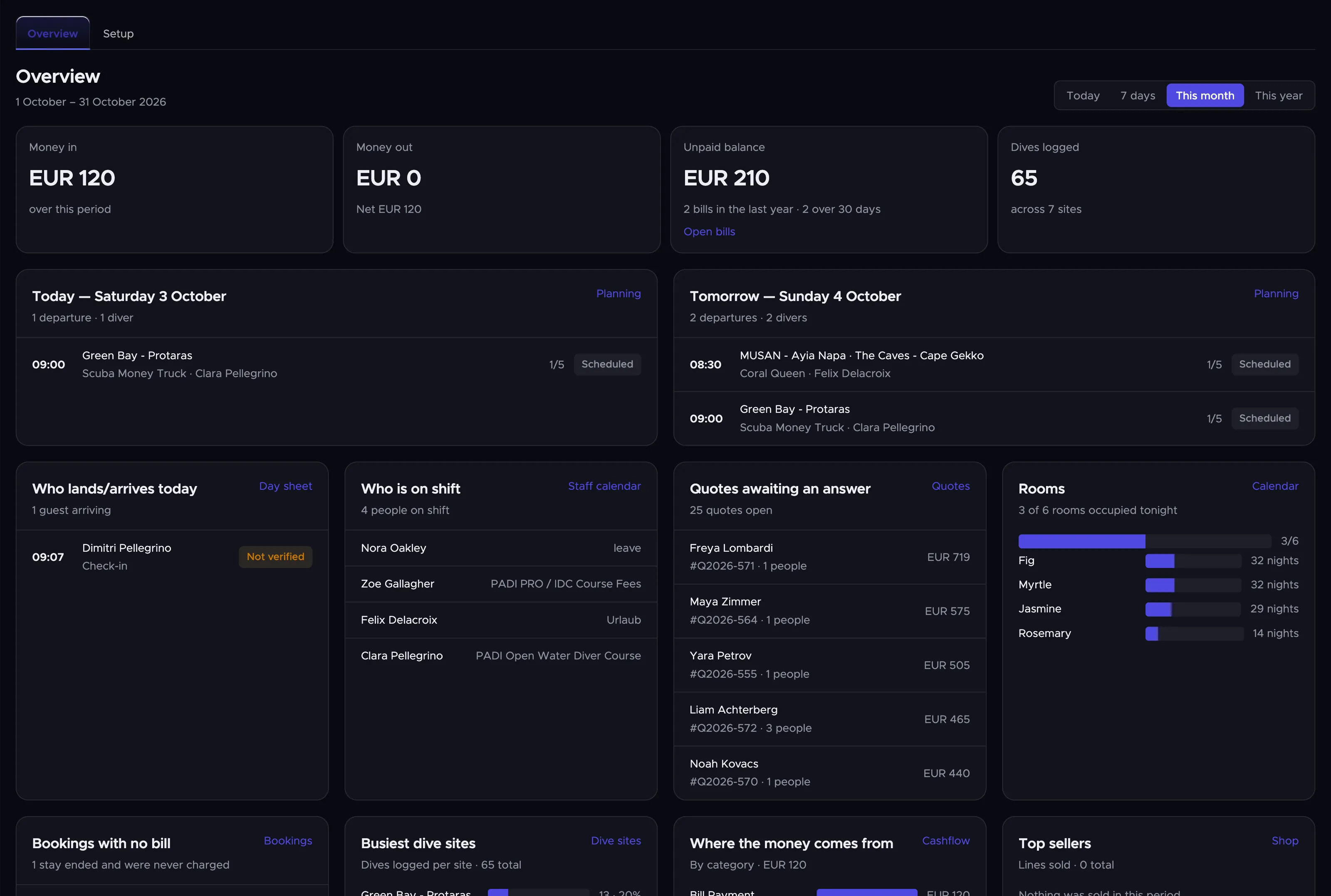
Across the top are the figures for the period you pick on the right — today, seven days, this month or this year: what came in, what went out, what is still unpaid and how many dives were logged. Underneath, today and tomorrow side by side, with every departure, its boat, its guide, how many divers are on it and whether the roll call has been done. Tomorrow is there on purpose: a boat with no guide is a rota problem the evening before and a crisis on the morning itself.
The row below answers the questions the morning actually asks. Who lands or arrives today, and at what time. Who is on shift. Which quotes are still waiting for an answer, and for how much. How many rooms are occupied tonight. Anything that needs a person — an arriving guest who has not been verified, a bill unpaid for more than thirty days, equipment past its test date, a guest checking in within three days who has not filled in the registration form — appears as a line in Needs a look rather than as a number you have to notice.
Every card is a way in, not just a display: the title of a card opens the screen behind it, and a single row opens its own record. You only see the cards your user is allowed to see, so a staff member without the financial rights simply does not get the money figures.
0.3 Light and dark
Section titled “0.3 Light and dark”Geek Divers comes in a light and a dark theme. The three small buttons in the top bar switch between them: Light, Dark and Match system, which follows whatever your computer is set to and changes with it. The choice is remembered on that computer and it is yours alone — it does not follow your dive centre, and your customers never see it. The public booking and registration pages your guests open always stay light.
0.4 When a new version is released
Section titled “0.4 When a new version is released”Geek Divers is updated regularly, and you do not have to do anything for it. A browser that is open while a new version is released learns of it by itself: a notice appears at the bottom of the screen, “A new version of GeekDivers is ready.”, with a Reload button.
You can click on Reload right away, or simply carry on working. The page reloads by itself the next time you change to another screen, or once it has been left untouched for half an hour. It reloads only once for each new version.
The notice does not appear the very second we release. Geek Divers first waits until the new version is completely in place, which takes a few minutes, so that a reload never lands you on a half-updated page.
1. Settings
Section titled “1. Settings”1.1 General Settings
Section titled “1.1 General Settings ”Click on Settings in the menu on the left and choose the submenu General Settings.
You will see a page with 14 sections, in four groups:
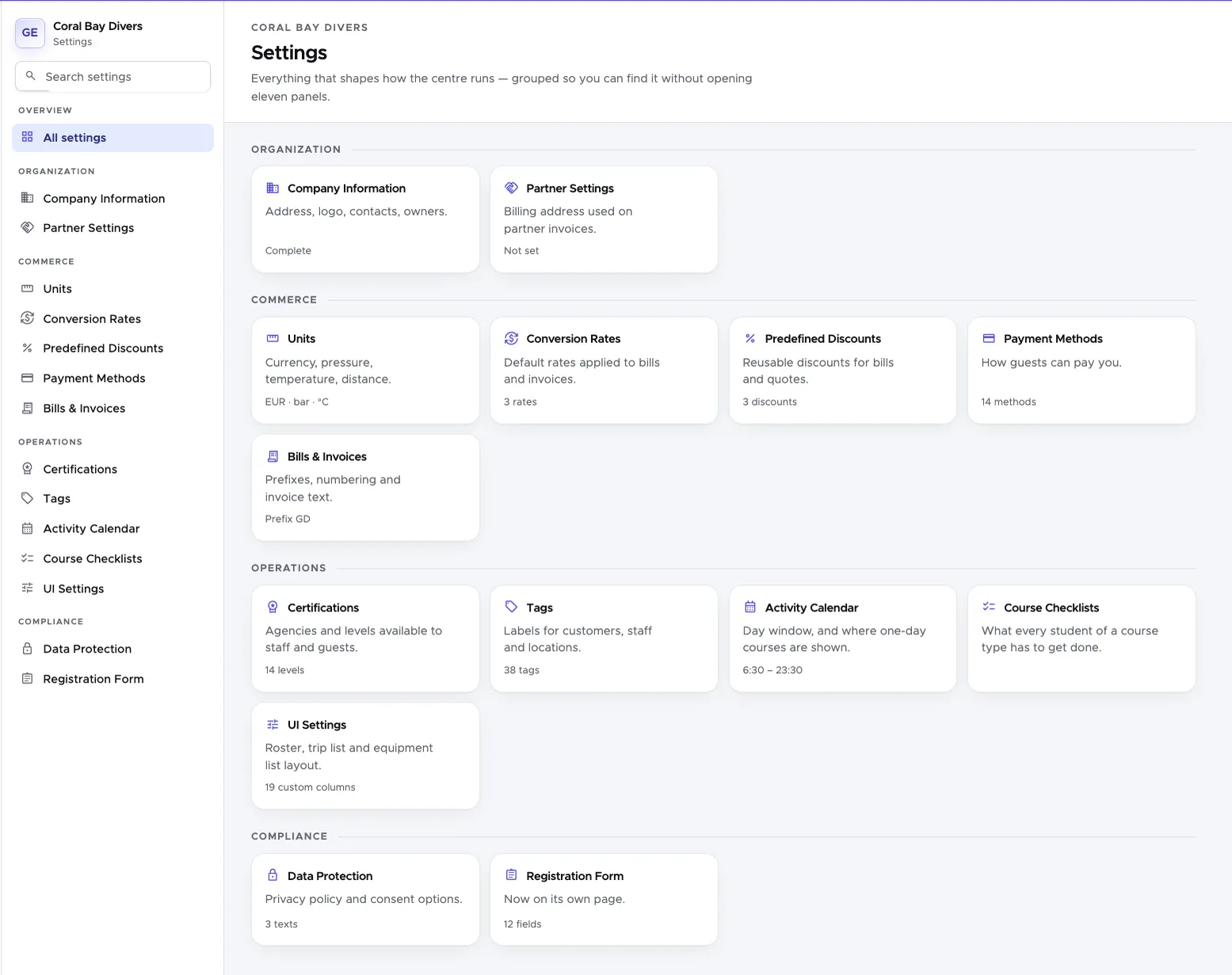
Unless specified, each of these sections refers to the current location. If your Geek Divers account has more than one location, please remember to switch to your other locations and complete the General Settings there as well.
1.1.1 Company Information
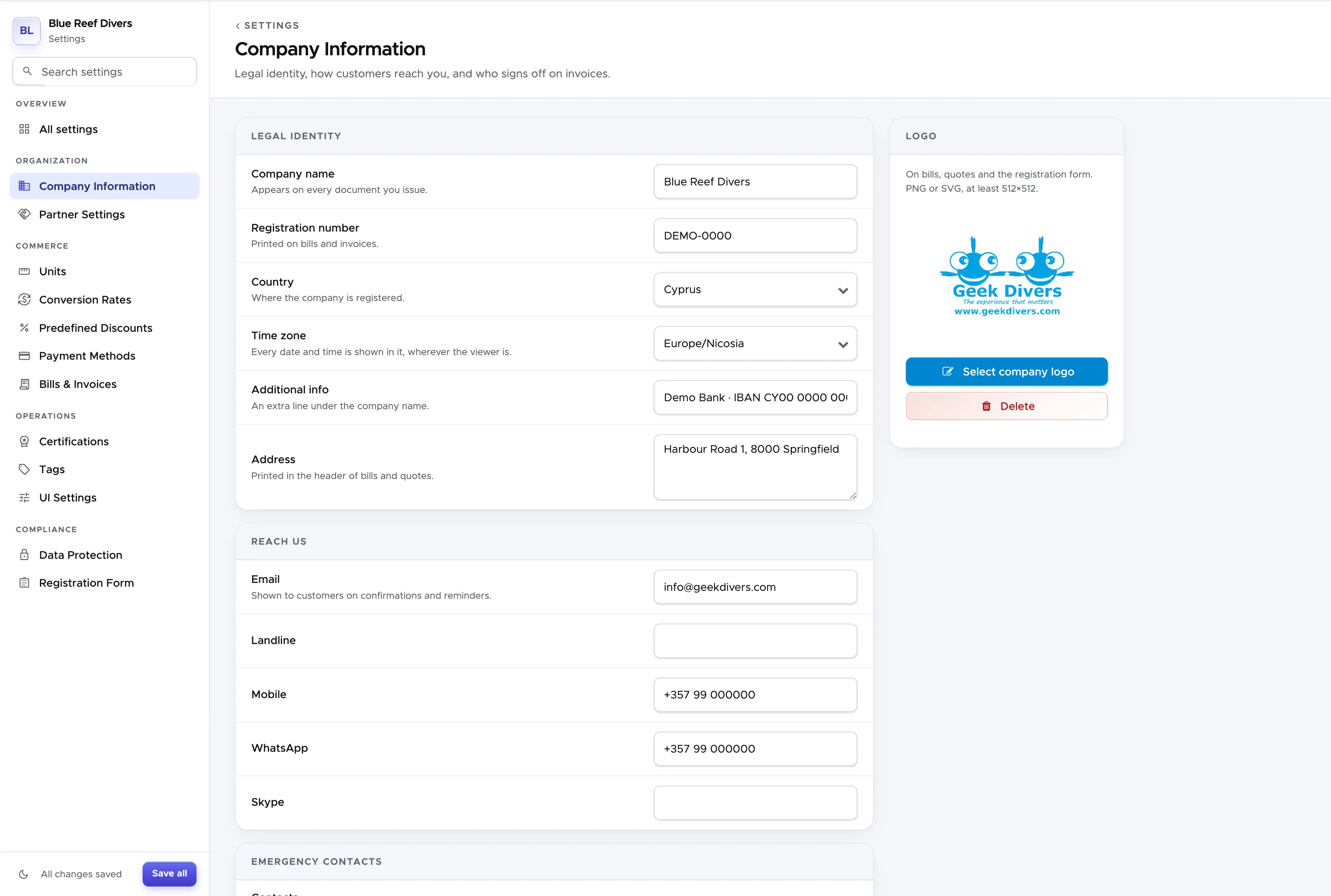
Section titled “1.1.1 Company Information”Click on Company Information to enter your company details and upload your logo. These will be used when you print a bill, a payslip or an invoice/credit note. Add all the details that you wish to see in a customer’s bill. Select your time zone and scroll down the page to click on Save Settings.
1.1.2 Units
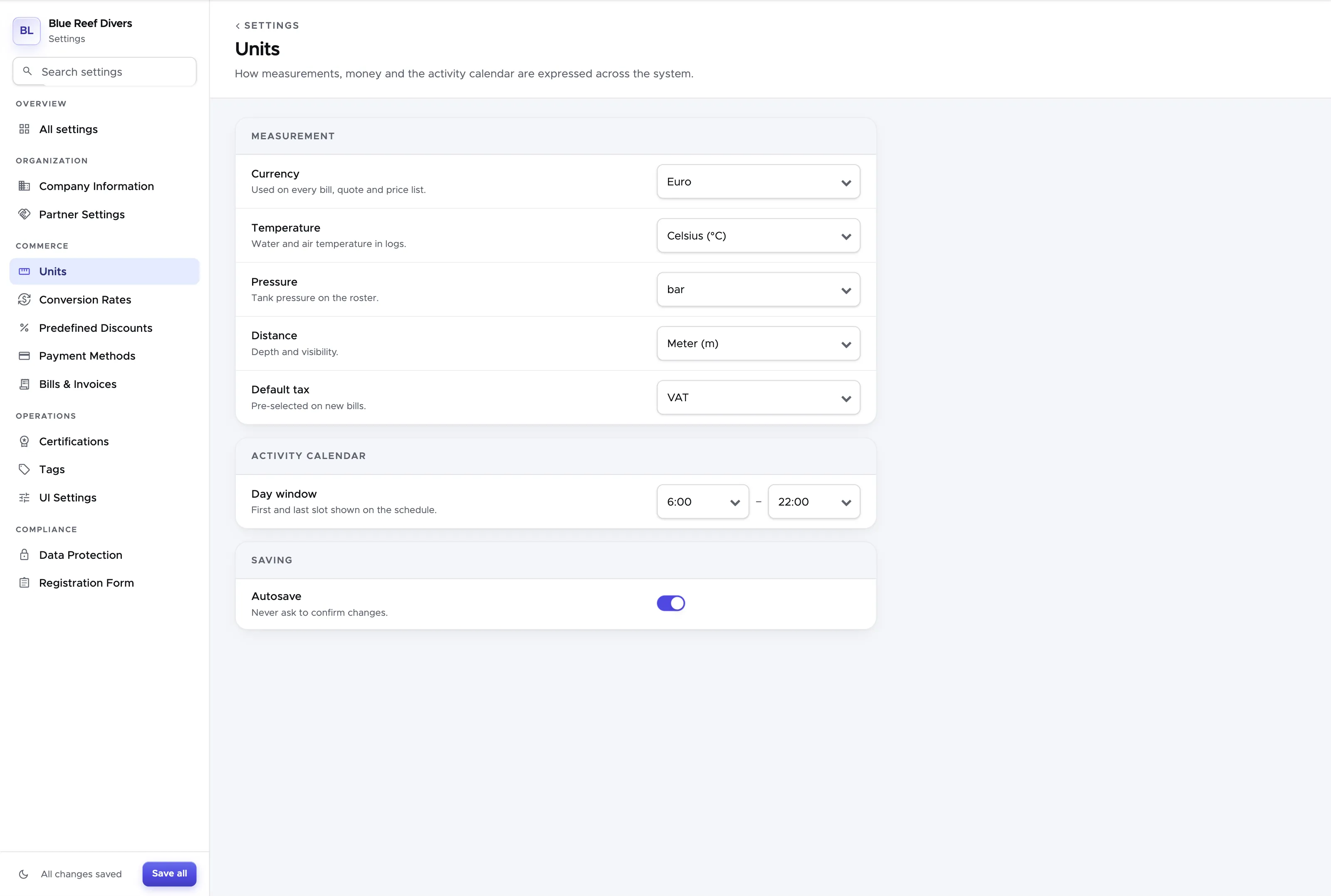
Section titled “1.1.2 Units”In Units you need to set your favorite units of measurement.
The start and end time of your activity calendar used to be set here as well. They now have a section of their own: see 1.1.13 Activity Calendar.
On this page you can also choose if the sales tax in your location is called VAT or GST.
Scroll down the page to click on Save Settings.
👀 Important!
Before you start setting up your price list or before you click on your cash flow, the default currency must be set. This is the reason why your currency is already set. Once the currency is saved, it cannot be changed. In case you wish to change your default currency, please contact the Geek Divers support.
1.1.3 Conversion Rates
Section titled “1.1.3 Conversion Rates”Here you can set the most frequently used conversion rates. Prerequisite: you need to set a default currency in General Settings - Units. These conversion rates will be proposed every time you wish to record a payment or enter an expense in a currency that is different from your default one. The proposed exchange rate can be manually changed in every recorded payment or expense.
You can come back to this section every time you wish to update your standard conversion rates.
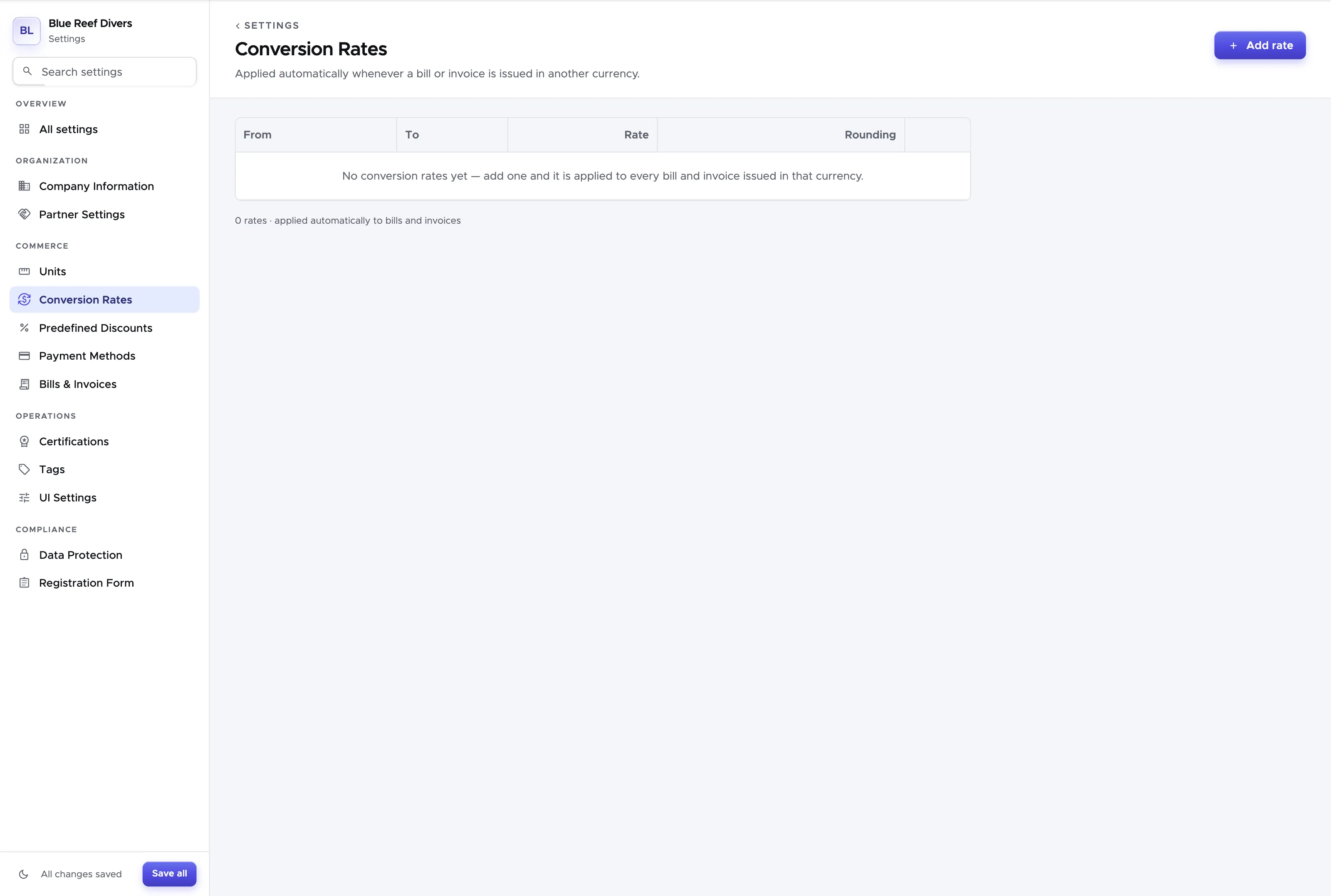
Click on the button Add Conversion Rate. Select a frequently used currency, type the exchange rate that you wish to use and the rounding. As soon as you type the rounding, you will see an example in a table, taken from your default price list. Feel free to adjust the rounding to match your preferences. If you haven’t set up your price list yet, feel free to do that first and come back to this part of the settings later.
As a rounding guideline, please consider the following:
-
Rounding 2 means 2 decimals - commonly used for EUR, UDS, AUD, GBP, CHF. E.g. €29.99.
-
Rounding 1 means 1 decimal - not very commonly used for currencies.
-
Rounding 0 means that the prices will be rounded to the unit - commonly used for THB, PHP, MYR. E.g. 450THB.
-
Rounding -1 means that the prices will be rounded to the tens - not very commonly used for currencies.
-
Rounding -2 means that the prices will be rounded to the hundreds - not very commonly used for currencies.
-
Rounding -3 means that the prices will be rounded to the thousands - it might be used for IDR. E.g. Rp375,000.
Please consider that the rounding will apply the mathematical rounding: floor rounding for digits from 0 to 4 and ceiling rounding for digits from 5 to 9.
Scroll down the page to click on Save Settings.
1.1.4 Certifications
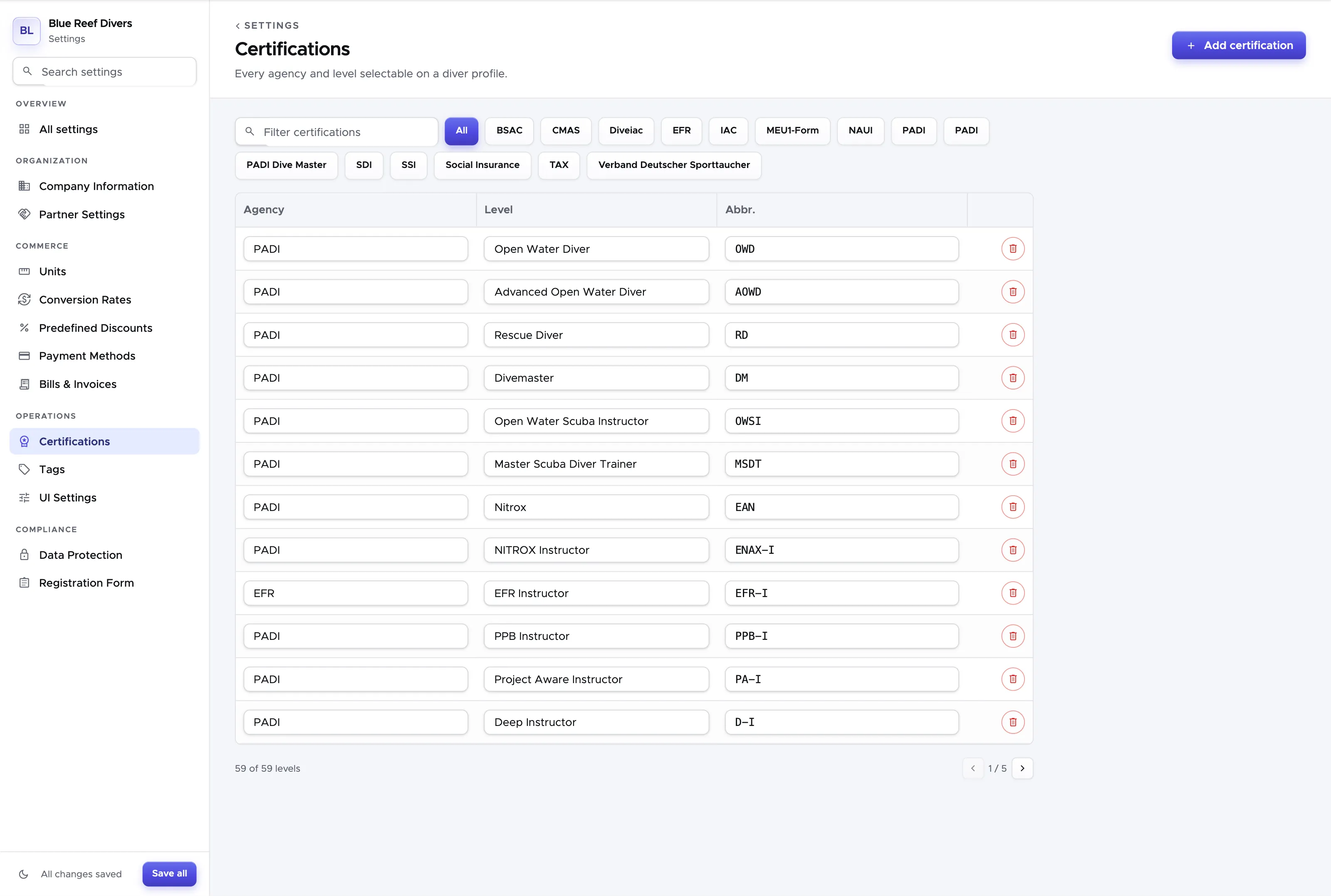
Section titled “1.1.4 Certifications”In Certifications you don’t necessarily need to do anything at the beginning. When you enter a new customer or staff member and write their certifications, Geek Divers will ask you if you want to save them. If you click Yes, they will be saved here. You can always come back to this tab in case you realise that there’s a typo and you want to remove or edit a wrong certification.
Scroll down the page to click on Save Settings.
1.1.5 Manage your Customer and Staff Tags
Section titled “1.1.5 Manage your Customer and Staff Tags”In this section you don’t need to do anything at the beginning. As a matter of fact, if you’ve just started using Geek Divers, this section will probably be empty. However, once you work with tags for a while, you might want to delete some tags that you’re no longer using. In this case, please make sure that the tag that you wish to delete is no longer in use. To do so you can go to the All tab of Customers or of the Staff list and filter by the tag that you wish to delete. If you see “No results found”, then you can be sure that the tag is not assigned to any of your customers or staff. You can then click on this section of your Settings (you can do it from any of your locations as your tags are global) and click on the X button to delete a tag that you no longer need.
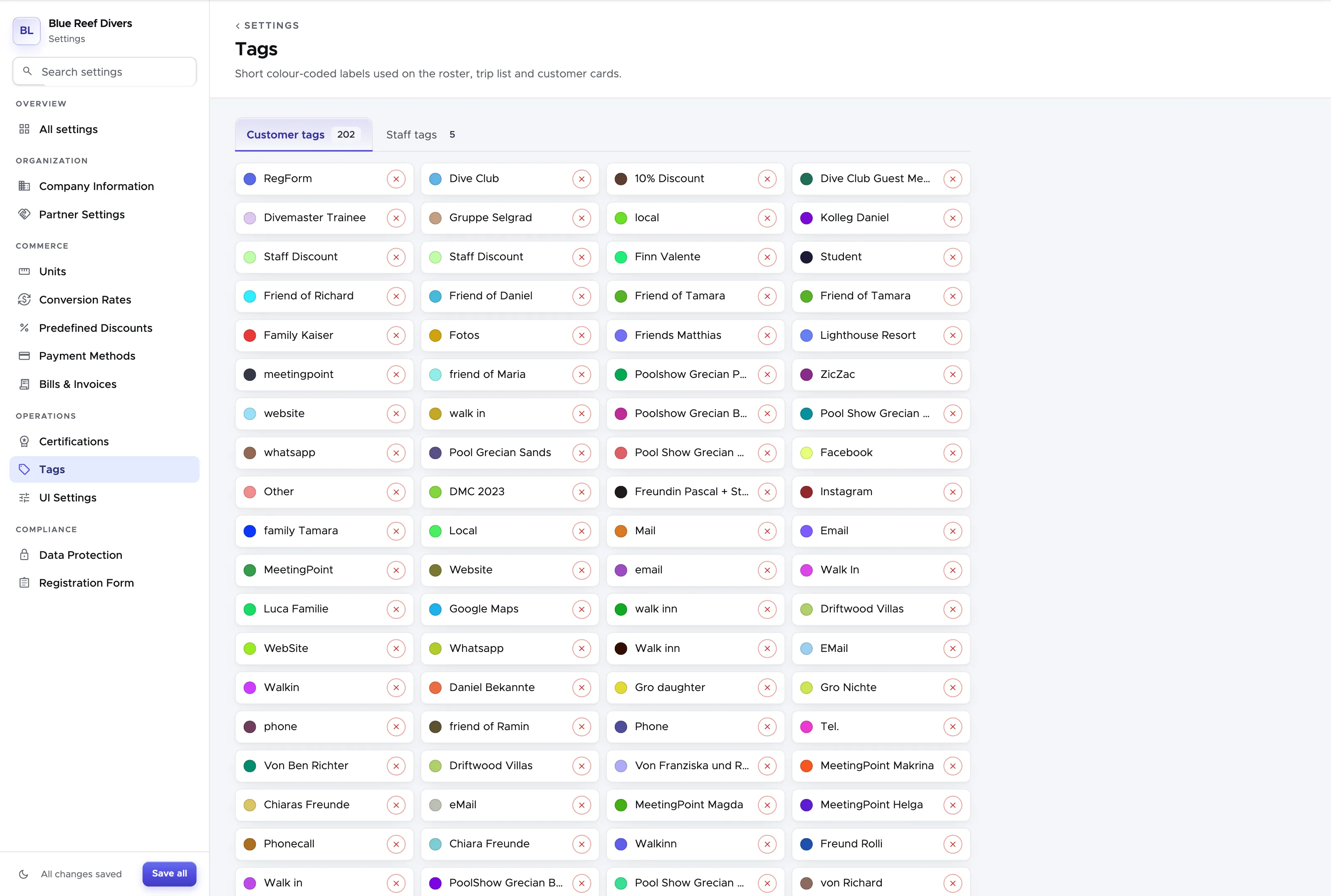
In case you skipped the first step and you try to delete a tag that is still assigned to one or more customers, Geek Divers will refuse and show the message “Tag could not be deleted.” Remove the tag from all your customers (or staff) first and try again.
You can also set a color for a tag to identify the customer’s tag directly in a trip. In a trip your customers with a tag now have a symbol next to them with the color you selected.
1.1.6 Predefined discounts
Section titled “1.1.6 Predefined discounts ”The prerequisite to work on this section is that you’ve already entered your complete price list. If you haven’t done it yet, please go to chapter 2 and follow the instructions.
In this section you can define the most common discounts that you regularly offer to your customers. E.g. an early bird discount, a shop sale, a returning customer discount.
These predefined discounts will be available in every customer’s bill and quote and you only need to select them once: every existing or future bill position that matches the conditions that you defined in the settings will receive the appropriate discount.
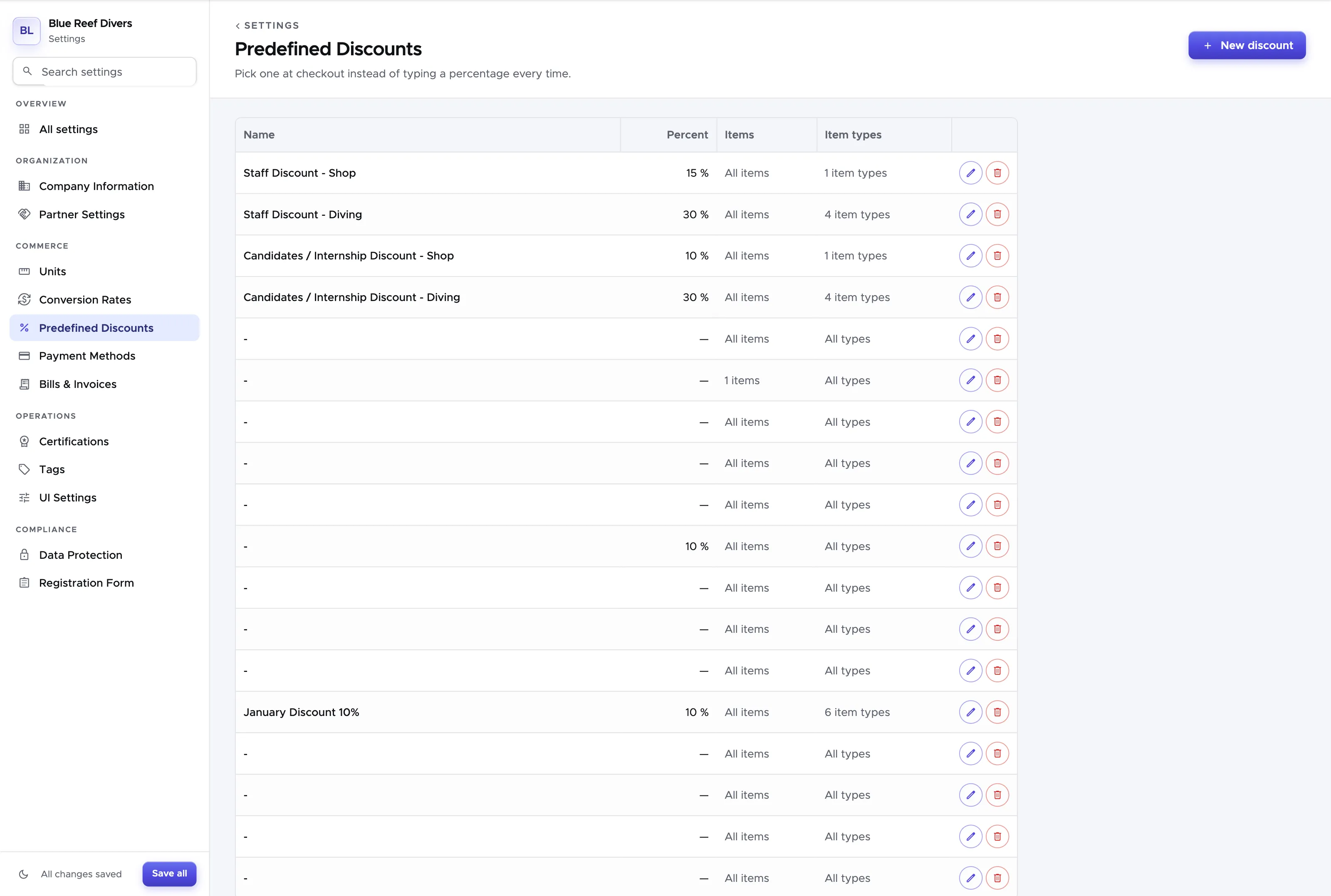
To create a new discount, type the name of your discount in Name and the percentage of discount that you wish to apply in Percent. You then have the choice to select specific items in your price list or one or more types. In the menu ‘Price list items’ you will see your complete price list. In the menu ‘Item types’ you will only find types. You can use one of the two menus, not both: as soon as you select something in one, the other is switched off. Select your choice of price list items or price list item types and click on button Save discount.
In case you choose to use the Accommodation Module and you wish to set up a predefined discount for room rates and meal plans, you can select Type Accommodation.
Suggestion: the menu ‘Price list items’ is one long list of all your items, and you select them one by one. If you wish to discount a lot of price list items, it is quicker to select their types in ‘Item types’ instead.
If you wish to delete a predefined discount you can click on the bin icon at the end of its row. To edit an existing predefined discount click on the pencil icon next to it. Please consider that once a predefined discount is deleted, this will no longer be available in bills and quotes. However, if it was already applied, it will not be removed.
Scroll down the page to click on Save Settings.
In chapter Apply a predefined discount you can find out how to apply a predefined discount to a bill. In chapter Apply a predefined discount you can find out how to apply a predefined discount to a customer quote.
1.1.7 Payment methods/Bill Settings
Section titled “1.1.7 Payment methods/Bill Settings”Before you customize your payment methods, you need to set up your cost centers (see chapter Cost Center). If you’ve already set up your cost centers, please follow the instructions below here.
The first time you click on this tab you will see the standard payment methods with payment fees for credit card and PayPal.
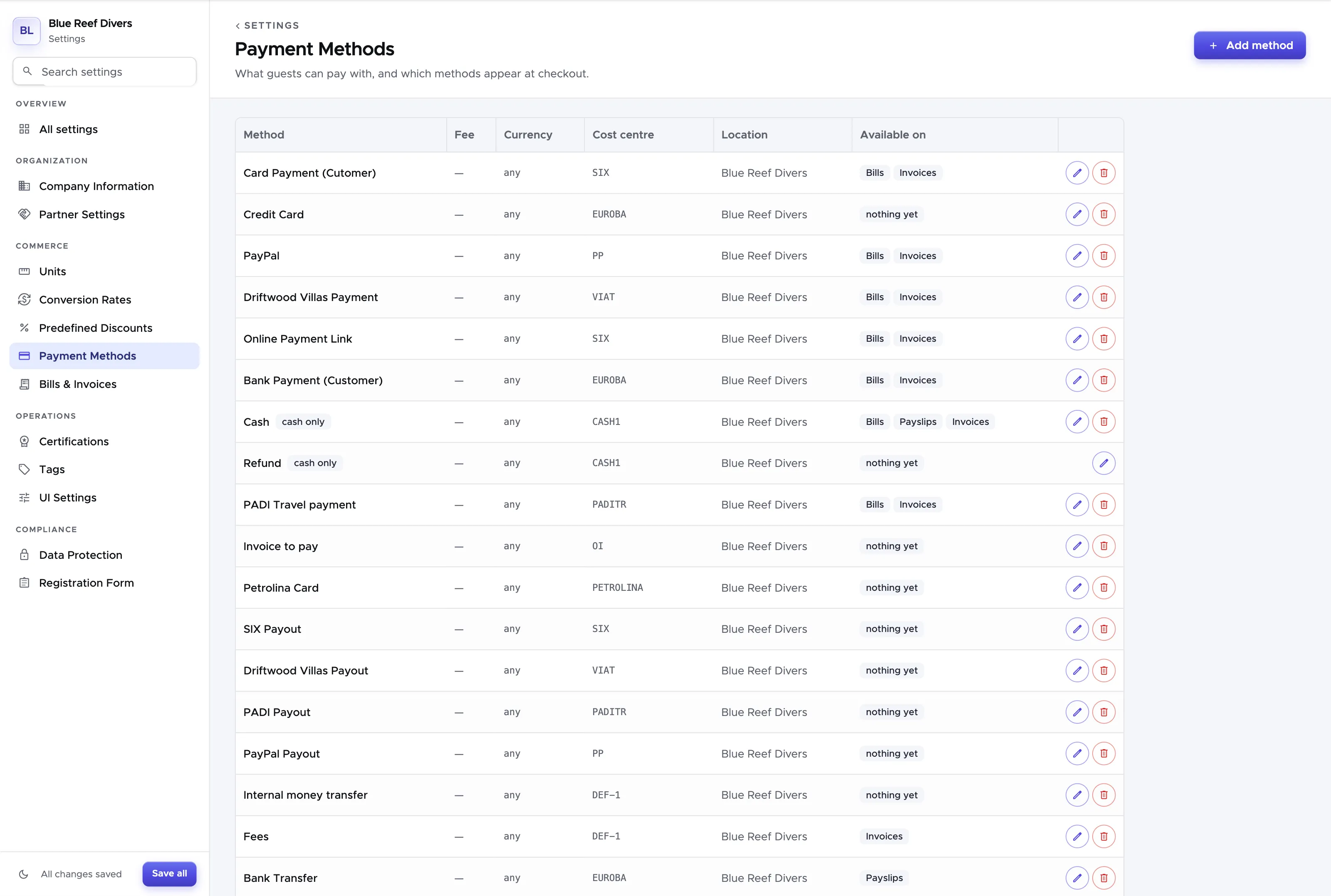
By clicking on the pencil icon at the end of a payment row, you can edit the payment method.
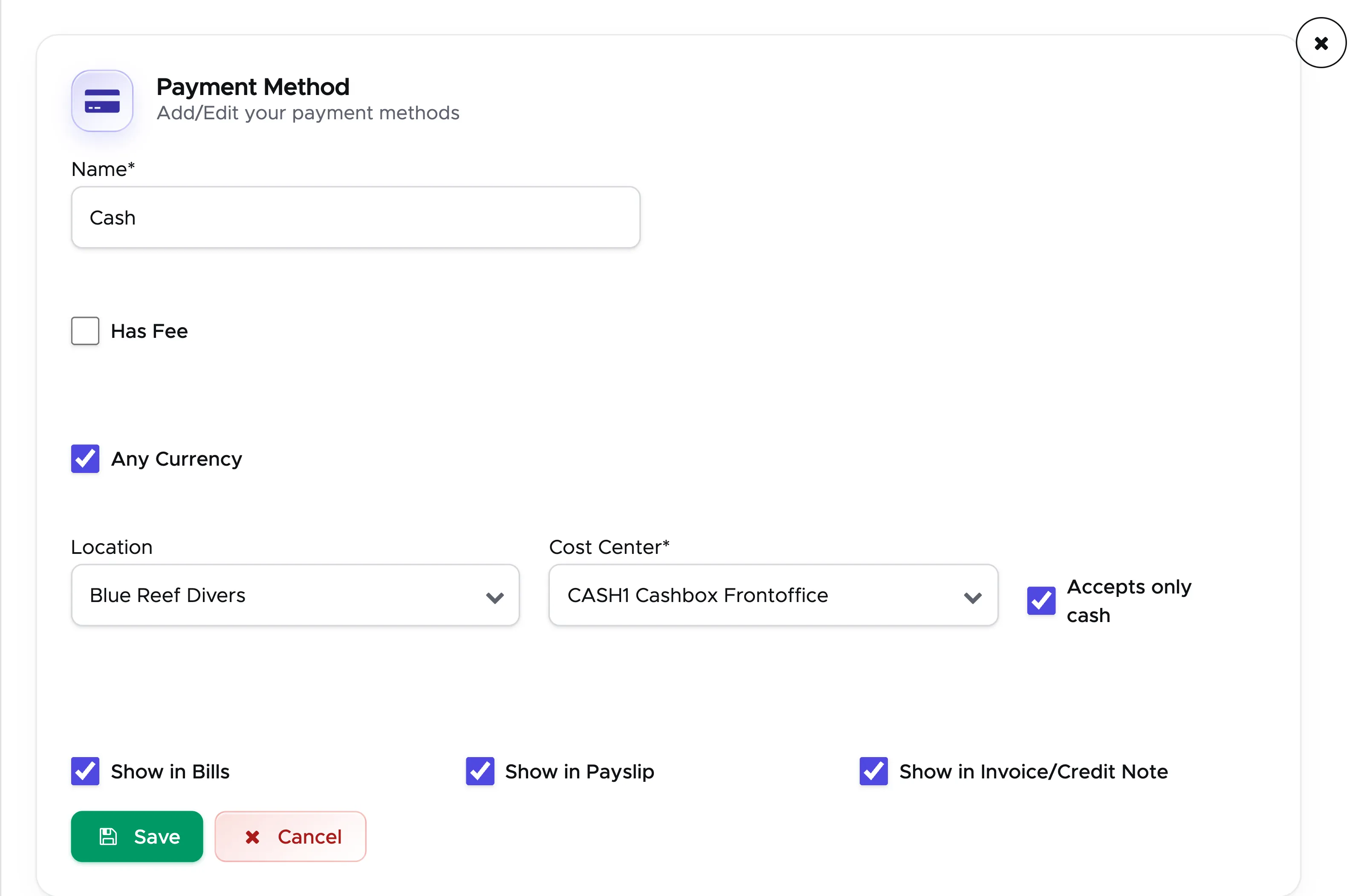
You can change the Name, add/remove a Fee, assign a cost center and choose where you wish to see the payment method: Bills, Payslips, Invoice/Credit Notes.
The cost center that is assigned to every payment method by default is the default cost center or DEF with a number - e.g. DEF-1 or DEF-2 and so on - that is related to your locations. Before version 1.0.6l this cost center was the ‘empty’ one.
The example above is for cash payments. Every time a customer pays cash, where do you store it? In the cashbox behind the counter? Then this should be the cost center to assign to this payment method. Every time you pay a payslip or a credit note or you record an expense in your cash flow and considering that you use cash, where does it come from? The same cashbox behind the counter? Then this should be the cost center to assign to this payment method.
Please consider that the changes that you make will only affect the new transactions. Every past transaction will not be updated with the new configuration.
It is recommended to create a cost center ‘Bank’ (or any other name that you prefer) that could be reserved for electronic transactions. E.g. bank transfers or credit card payments from your customers or partners and bank transfers to pay your staff members.
If you also use an online payment method like PayPal or Stripe or TransferWise, you might want to create a separate cost center for each of these payment methods.
Please consider that all the payment methods that you configure in one location will be available in the cash flow of the same location to record expenses and transfers.
In case you have more than one location you can configure a payment method that ‘feeds’ a cost center in another location.
E.g. Your headquarters is in Phuket and you have a second dive center in Koh Tao. Each location will have their own cash payment methods, but because your bank is in Phuket, all the bank transfers and credit card payments in both locations will show in your bank account.
In this case it is important that you first configure the payment methods in your headquarters location, Phuket, including the assigned cost centers. Once this is done, you can switch to your second location, Koh Tao, and do the same.
In Koh Tao (your additional location), go to General Settings and choose tab Billing. Click on the Edit icon of the payment method that uses a cost center in Phuket. Select the location of the cost center, Phuket.
At this point the field ‘Select Target Payment Method’ will show you the list of payment methods that you’ve configured in Phuket. Select one of the payment methods that is equivalent to the one that you’re configuring for Koh Tao. Click on the button Save.
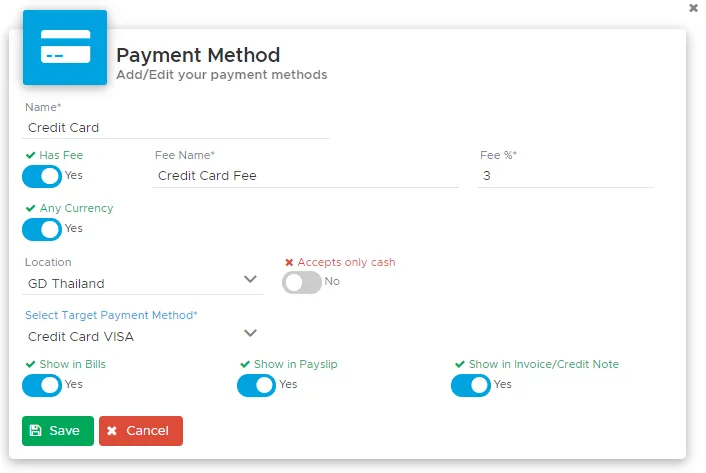
Every payment that you record in Phuket or Koh Tao will be shown in the cash flow of Phuket under cost center Bank.
If you configure a payment method with a target cost center in another location, in the payment methods table you will see N/A (= Not Available) in the cost center column. This is because the cost center is not available in the current location.
In Bills & Invoices you can change the bill settings and add a prefix to your bill numbers in each of your locations.
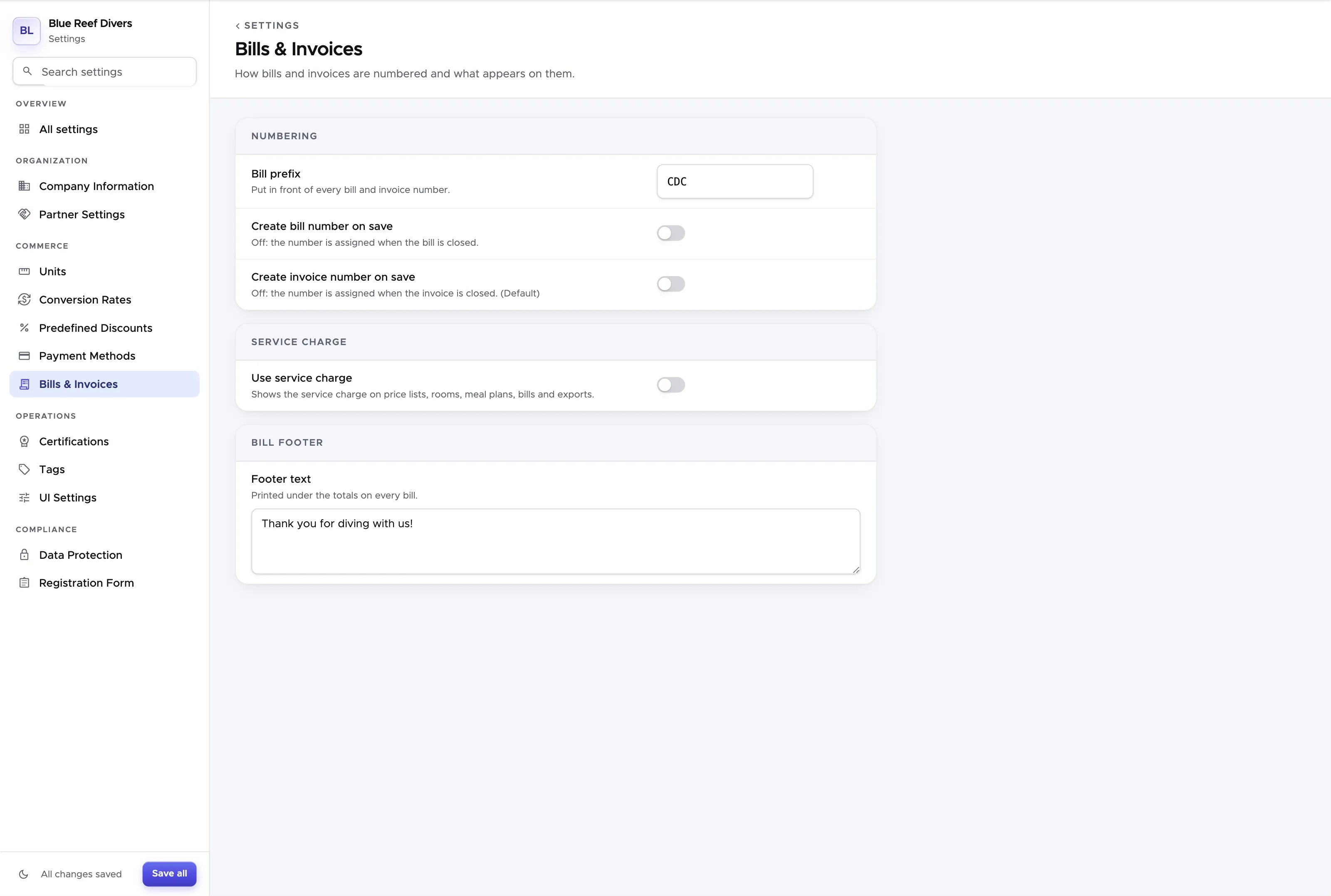
Enter a few characters or numbers that can easily help you identify the customers’ bills of one of your locations. In the example above, I entered S for Spain and my customers’ bills will have numbers: S2020-1, S2020-2…etc.
You can choose not to use a bill prefix, especially if you have only one location. However the bill prefix feature is particularly recommended if you have more dive centers under the same Geek Divers account. This will guarantee a unique bill number for your accountant.
Additionally you can choose to turn on the Bill Number toggle.
Leave it off if:
-
You don’t necessarily need a bill number when the bill is created, but only when it’s closed.
-
You need consecutive bill numbers for your accountant and tax office.
-
You don’t want to have closed bills with an amount of zero.
-
You want to be able to archive bills.
Turn it on if:
-
You need a bill number as soon as the bill is created.
-
You need to print (pdf) the bill whenever the customer pays a part of the open amount to provide an official payment receipt.
-
You don’t mind having bill no. 200 in Closed Bills and bill no. 12 in Open Bills.
-
You don’t need to use the archive bill feature (only bills without number can be archived).
Don’t forget to click on button Save Settings to record your changes!
1.1.8 UI Settings
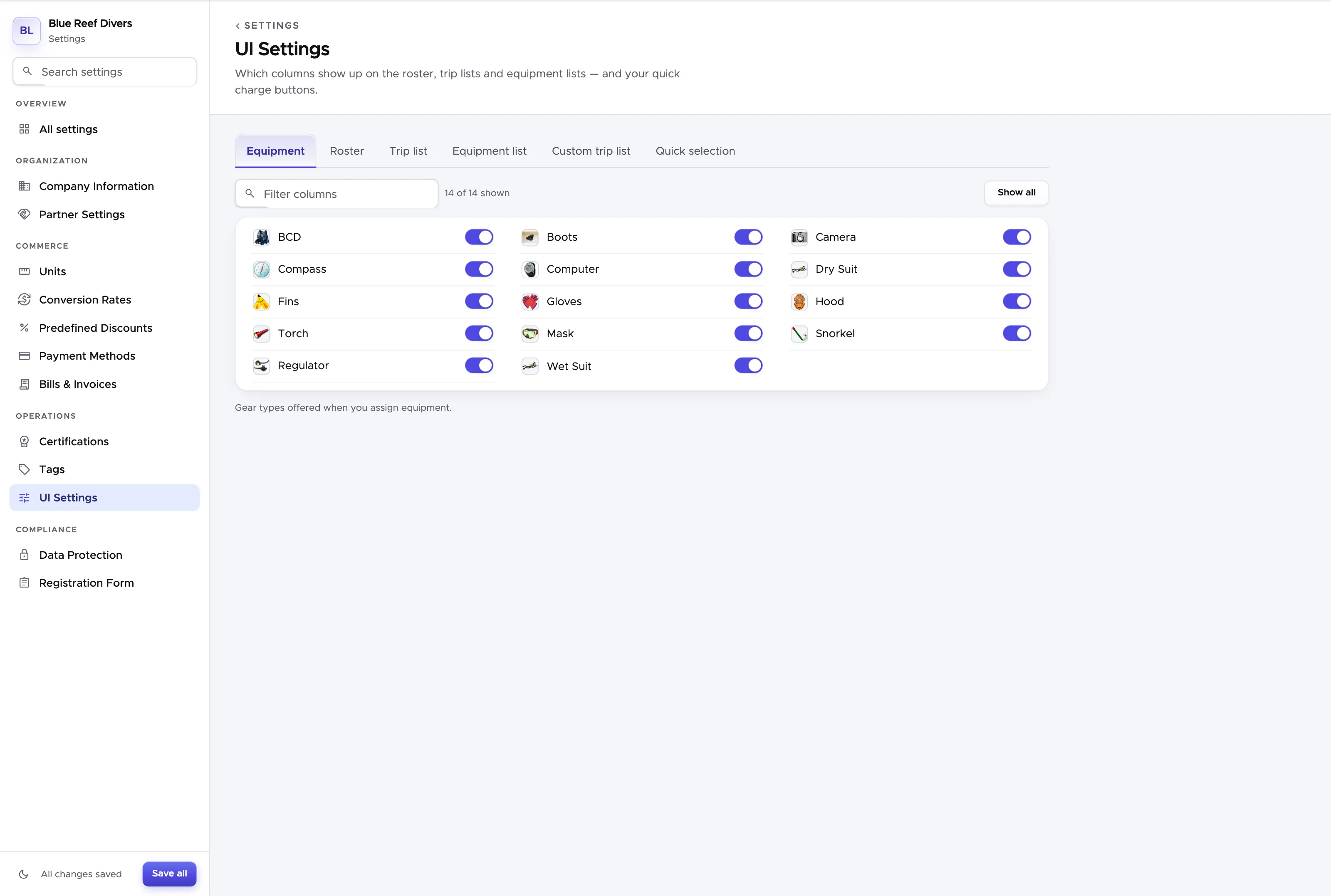
Section titled “1.1.8 UI Settings”In UI Settings you will see the following tabs:
Equipment
Section titled “Equipment”Here you can hide some pieces of equipment. E.g. If your dive center is in a tropical country it’s very unlikely that you will rent drysuits or hoods. Switch off the equipment types you do not offer. The remaining equipment types will be shown in the customer-equipment tab and in the online registration form and will be available for assignment.
Roster
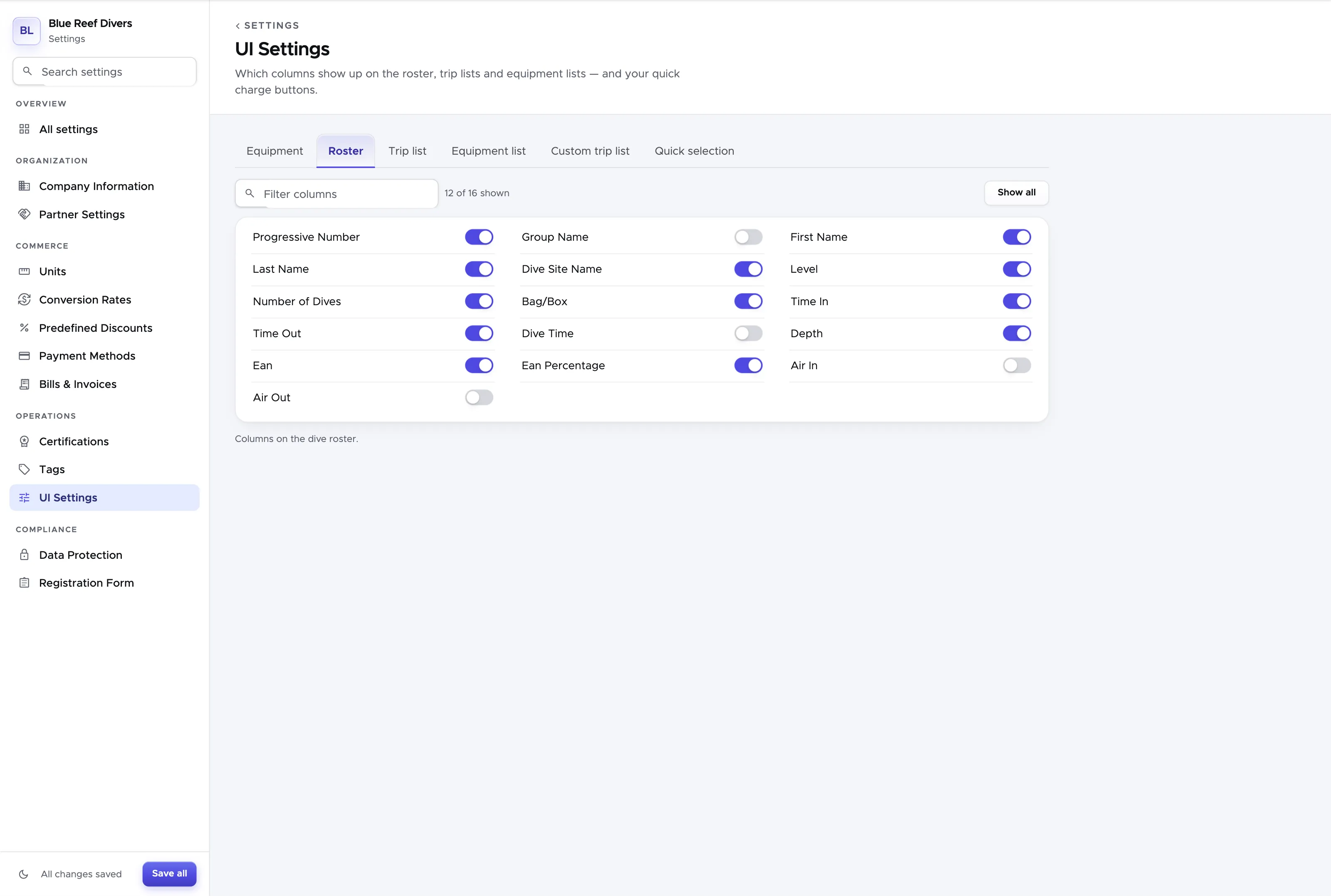
Section titled “Roster ”Here you can configure the columns to use in the dive roster in every trip. E.g. if you don’t offer EAN tanks you will probably want to hide EAN and EAN Percentage. Switch off the columns you do not need. The Roster will be available for every trip that you create in the Activity Calendar in section Documents. In version 2.0 columns Air In and Air Out have been added.
Custom Made Trip List
Section titled “Custom Made Trip List”Here you can configure a list of your choice using the available columns. This list will be shown in every trip in section Documents. Available columns are listed on the left, your list on the right.
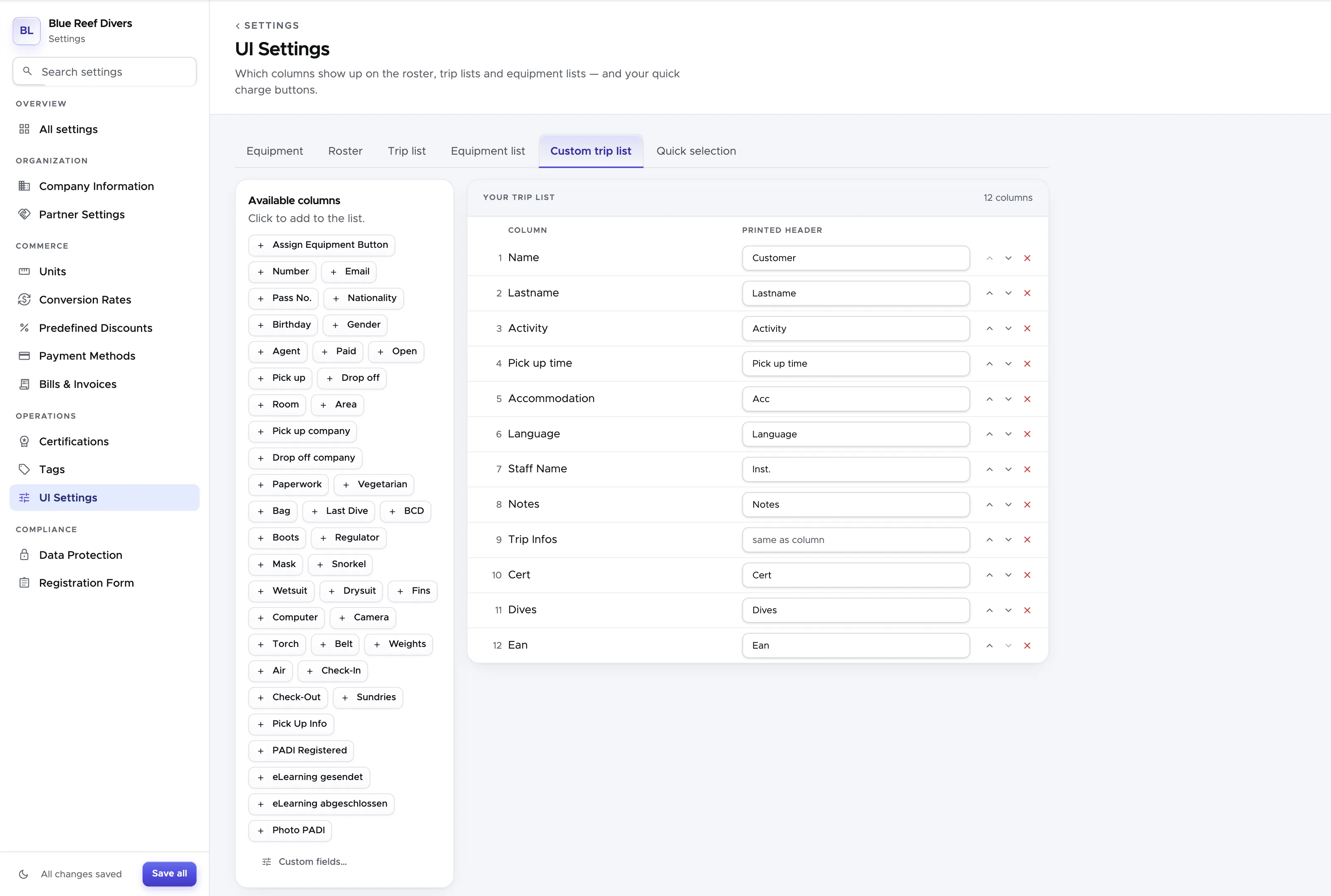
Click a column on the left to add it to your list. Use the arrows next to a row to move it up or down, and the × to take it out again - a column you remove goes back to the available ones on the left.
Each row in your list also carries a printed header. In the example above, column “Number” will be printed as “#” if you choose to print your Custom Made Trip List. Leave it empty and the column name is used as it is.
You can also create your own columns, with “Custom fields…” at the bottom of the available columns.
Type a name of your choice that will appear at the top of the column. To define the kind of content that you wish to see in this column you need to define a Type. The available types are: number, text, currency or checkbox. You need to write a name and select a type before you can click on button “Add”. If you wish, you can also define a default value that will be automatically written in every row of this column in every trip. The default value can be manually changed in the trip without affecting your chosen default value. Once you click on button Add, your column will be available among the other blue or green dots and you can drag it to the bottom to rearrange the order of your columns. If you change your mind and you wish to delete your custom columns, you can click on button “Remove” next to it.
Please consider that if you remove one of your custom columns, this will disappear from your list and from the available columns to select.
Trip list
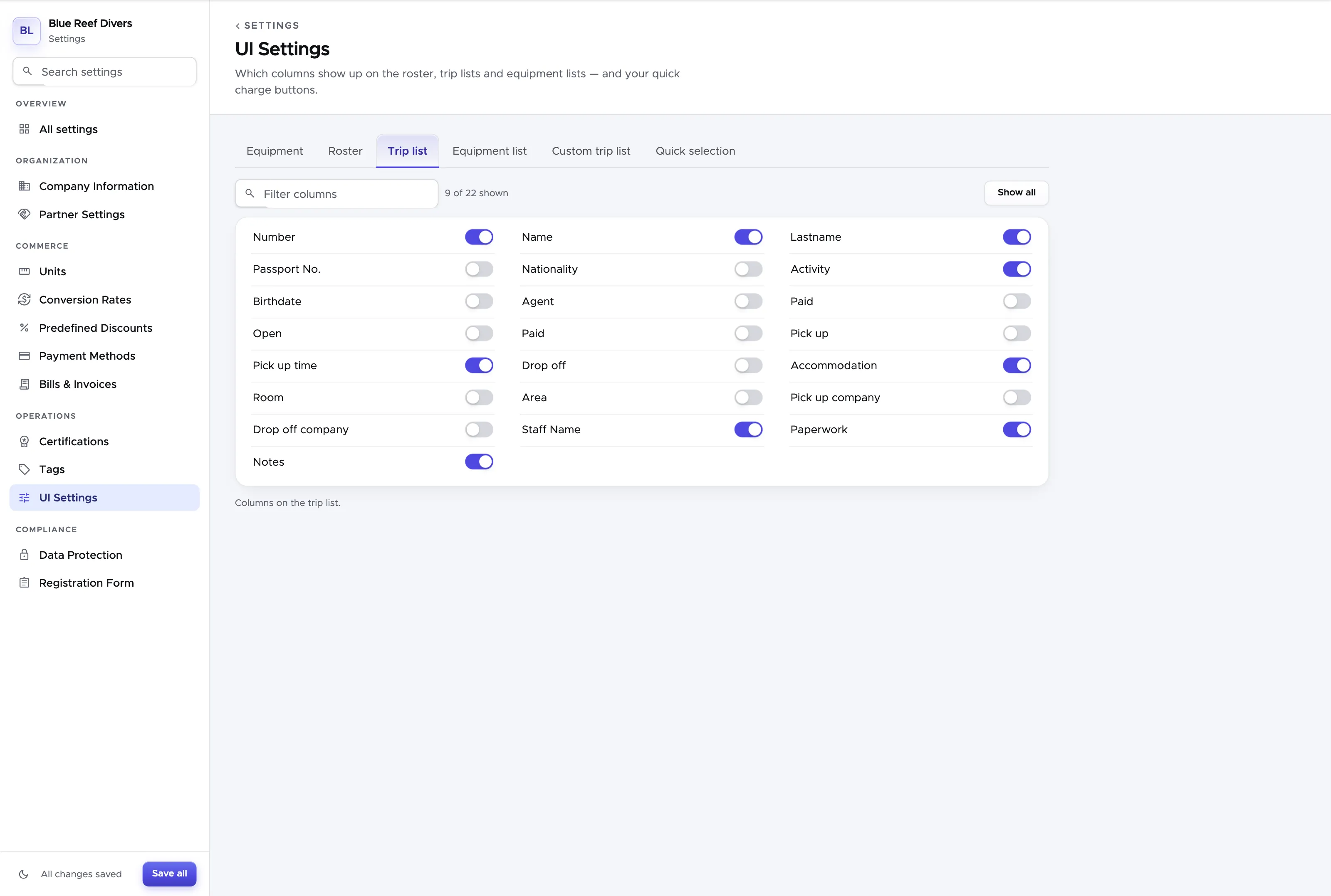
Here you can define the columns to view in the trip list in every trip in section Documents. Switch off the columns you do not need.
Equipment list
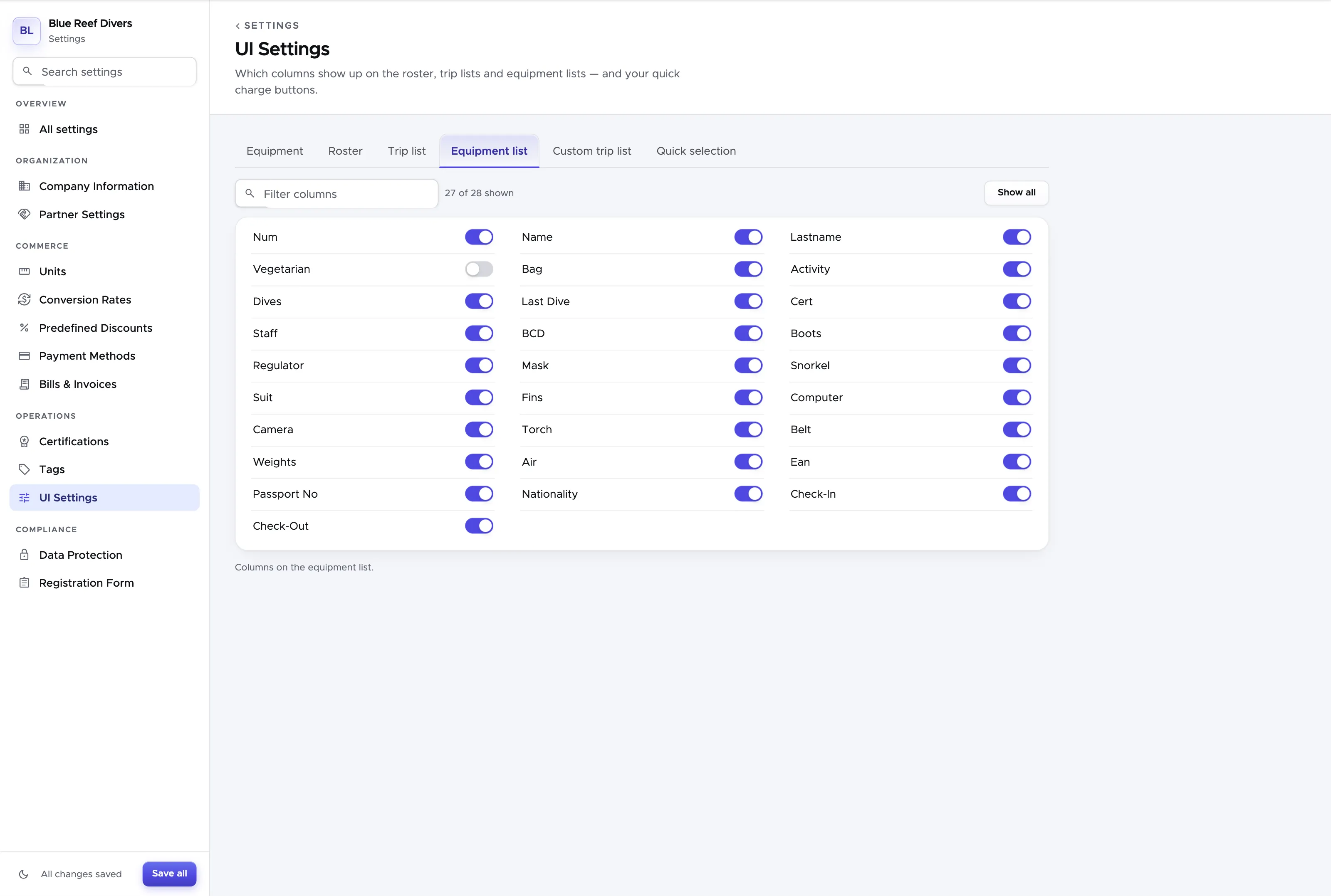
Section titled “Equipment list ”Here you can define the columns to view in the equipment list in every trip in section Documents. Switch off the columns you do not need.
Quick selections
Section titled “Quick selections”Before setting up this section you need to enter your complete price list. Please go to chapter 2 and follow the instructions.
Here you can define up to 5 quick buttons to add to the customer card in every trip. These quick selection buttons are supposed to help you select the extra charges for each customer in a trip. We recommend setting up a few buttons for the most frequently used extra charges. Any other extra charge can still be added to the customer’s card (and consequently to their bill), but you will need to search for the correct item using button Add Item on the customer’s card.
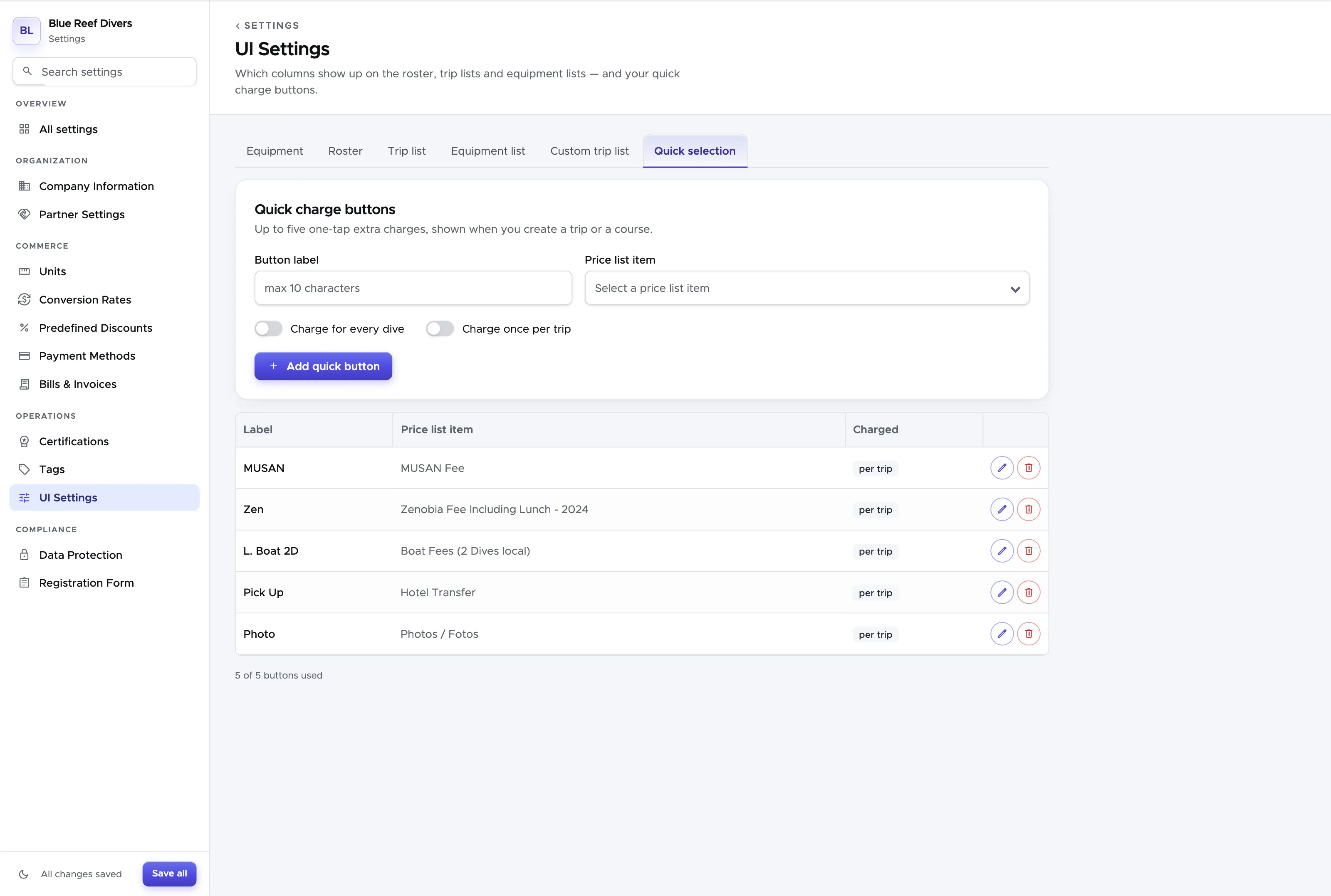
Select an item from your price list. In Name, type the name of the quick button. Please consider that only 10 characters are allowed due to the limited size of the button. Choose if the extra charge is per dive or per trip and click on the green button Add/Update Quick Button.
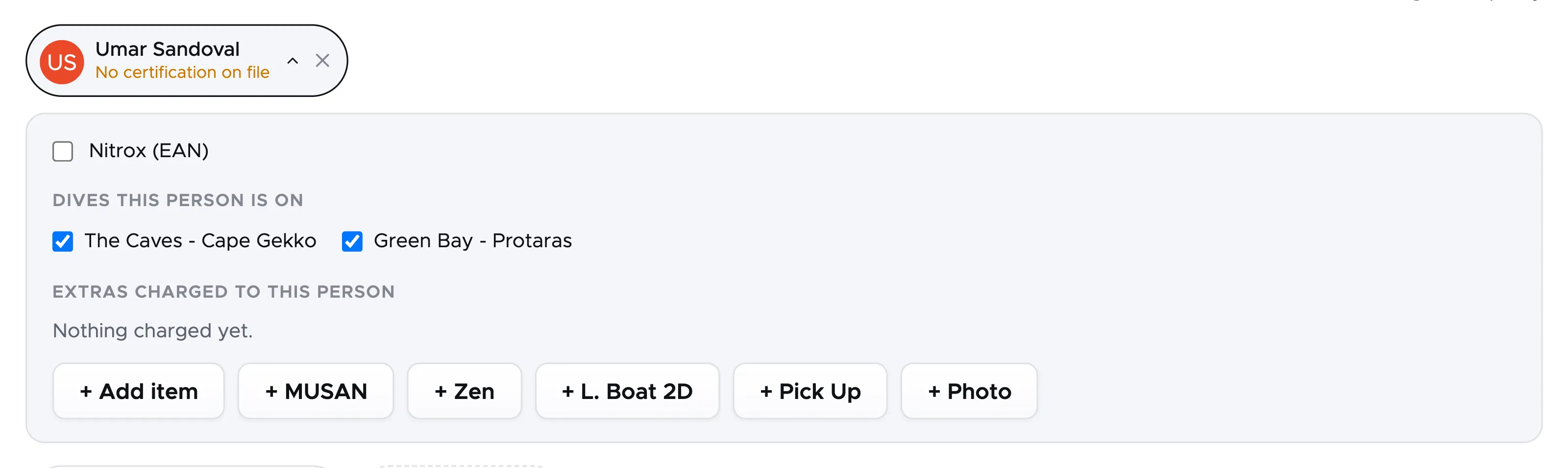
From the Activity Calendar create a new trip or open an existing one and go to People. Click on a customer’s name in a group: the panel that unfolds shows your quick buttons next to button Add item.
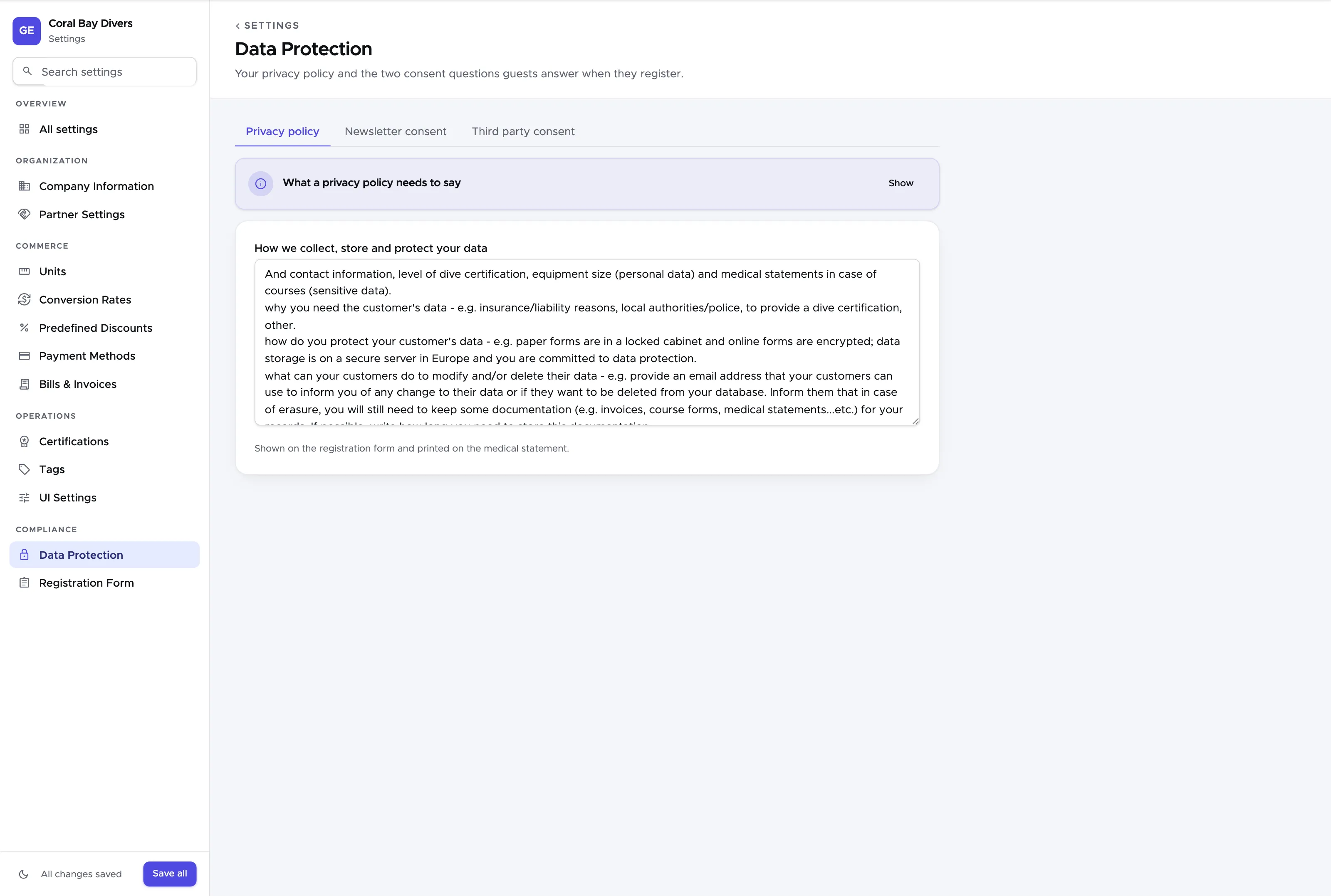
1.1.9 Tab Data Protection
Section titled “1.1.9 Tab Data Protection”In Data Protection you can inform your customers about what kind of data you collect, how you use it, store it, how long you need to keep your records and if you need to disclose some information to a third party. You’ll find some guidelines that can help you write easy sentences. In this section you can also find two paragraphs where you can ask your customer their informed consent to receive your newsletter or third party offers. The text that you write on this page will be visible in the online registration form.
Here you can find a template for your Privacy Policy:
At [dive center name] we take good care of your data! The personal data that we collect is needed to provide you with our best services, such as reservations and diving. We need to disclose some of your personal data to [SSI/PADI/other] in case you join a dive course to make sure that you receive your new dive certification. Your data is safe with us: all paper forms are stored in locked premises and the electronic data is on secure servers in Europe. If you wish to know which data we store about you or inform us about any changes to your personal data, you can send a message to [insert email address here] together with a copy of your picture ID.
If you choose to use this template, please replace the text in the square brackets with the most appropriate text for your business.
Please consider that the above is just an example and it needs to be verified by your legal department. If your customers are in Europe you might want to make sure that you follow the GDPR (General Data Protection Regulation). According to the GDPR, Geek Divers represent your Data Processor and we do everything in our power to comply with the current law. However we cannot be deemed responsible for customer data written on paper, white boards, emails, computer screens left unattended or not protected by a password, shared usernames/passwords or any other medium outside of Geek Divers. Geek Divers is hosted on protected and encrypted servers in Europe (in Frankfurt, Germany) and currently only 2 people have access to them (both people are the managing partners of Geek Techware, the company that offers Geek Divers as a service to dive centers). Please protect your customers and business data and try to implement the following in your business:
-
Never leave a device (laptop, desktop computer, tablet or phone) unattended.
-
Never share a username/password - each Geek Divers user should have their own credentials.
-
Protect your devices with a pin, password, face recognition or pattern.
-
Log out of Geek Divers before sharing the device with someone else.
-
Log out of Geek Divers before ending your shift and going home.
-
When you export data from Geek Divers, do not save the files on your local drive, but on a cloud drive that can be accessed only by trusted people.
-
If you use physical drives (USB sticks or external hard drives) to back up your data, including files exported from Geek Divers, do not leave the drives unattended, protect them with password and, if possible, encrypt them.
If you wish to read more about the European privacy law and how to apply it to your dive center, please read our blog posts here.
In this section you can also choose how you wish to ask your customers if they would like to receive your newsletter and/or some third party offers.
1.1.10 Registration Form
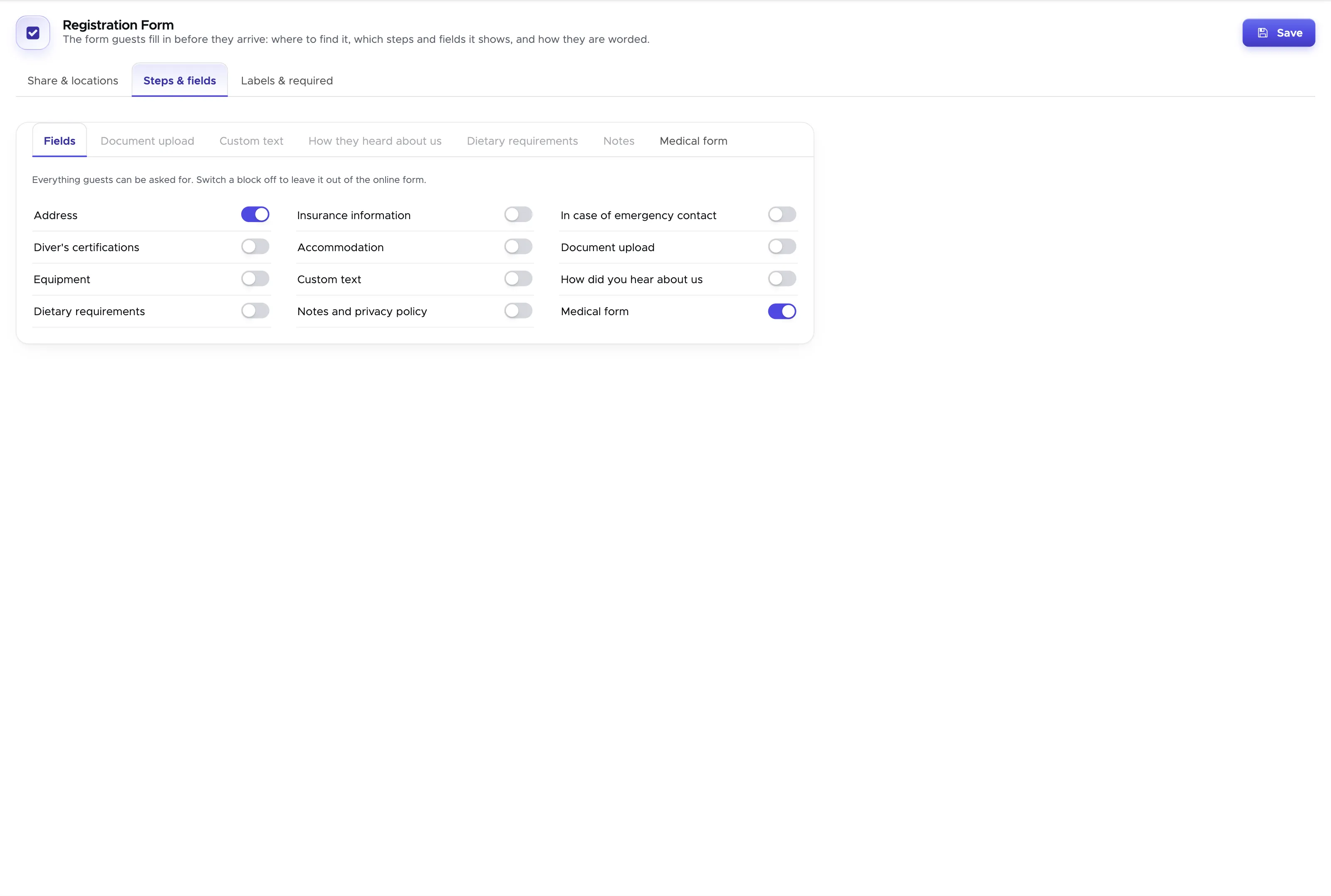
Section titled “1.1.10 Registration Form”Your online registration form has its own page: Settings → Registration Form in the menu. (The Registration Form entry inside the Settings screen only points there.) The page has three tabs:
- Share & locations - the link to send to your guests, with a Copy link button, and whether all your locations share one form or each location has its own.
- Steps & fields - which steps and blocks the form shows, and the texts of the Document Upload and Custom Text steps.
- Labels & required - a preview of every step, where you can rename fields, make them required or hide them.
One form for all locations - recommended for Geek Divers accounts with one or more dive centers (locations).
One form per location - recommended for Geek Divers accounts with more than one location where the dive centers are in different countries, especially if rules and regulations and equipment rental differ greatly. Switch on One form per location on the Share & locations tab (it only appears when you have more than one location). Each location then has its own link: change the location in the top bar to see it.
The setup is very similar, whether you choose to have one or multiple forms. The main difference is that if you choose to have one form, you only need to set it up once. If you choose to have different forms, you set up each one of them with that location selected in the top bar.
If you use one registration form for all your locations, the Share & locations tab also lists your locations: switch on the ones that should appear in your form. Next to them you will see the name of your locations, as written in Geek Divers at the top-right of the screen. Feel free to change their names if you wish to display them differently in the online registration form. This will not update the names of your locations in Geek Divers.
You can test your settings in real time: open your online registration form by clicking on its link. Changes on the Share & locations and Steps & fields tabs are active once you click Save at the top of the page; the Labels & required tab saves each step with its own button. Then refresh your online registration form to view the changes.
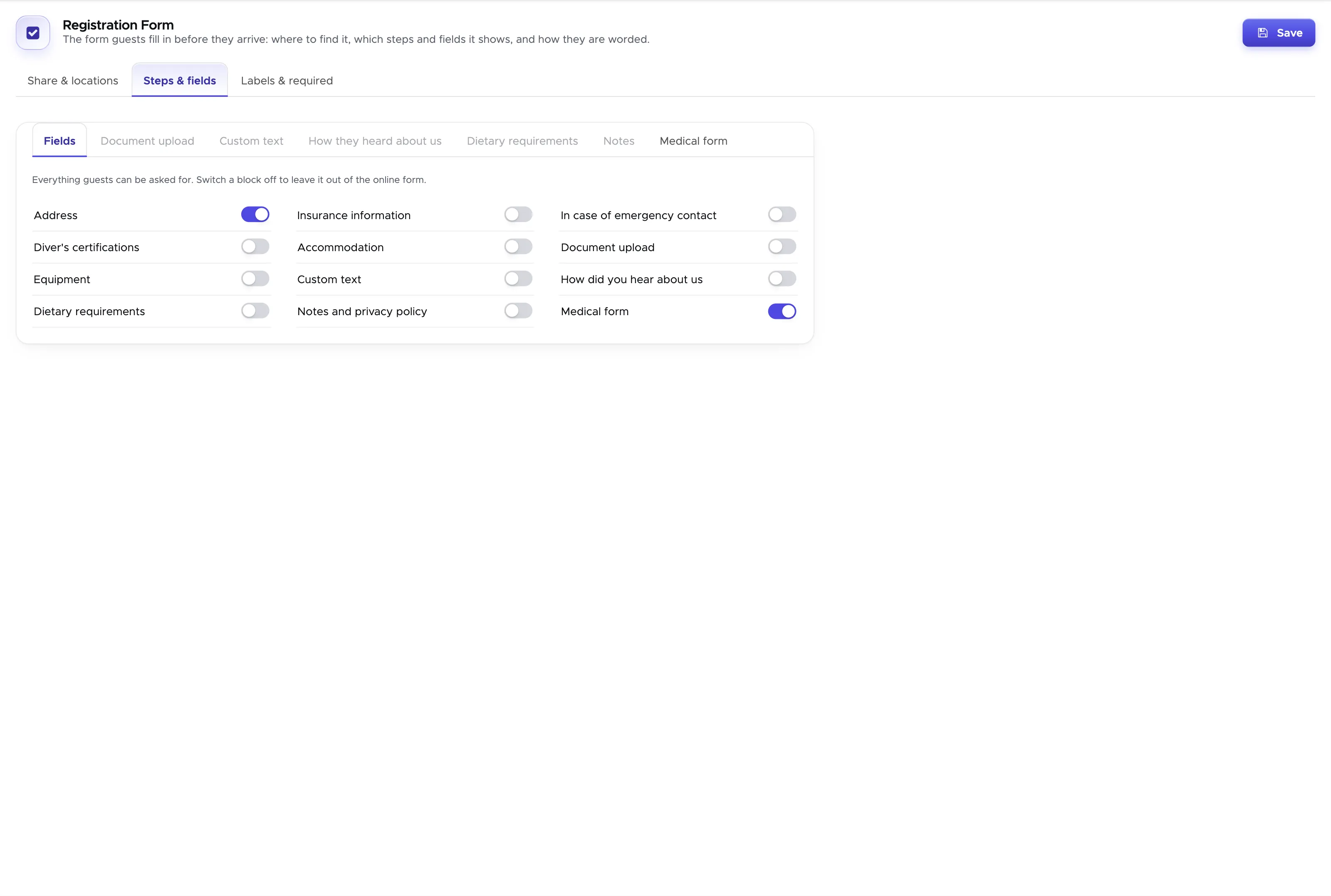
Use the toggles to hide or show sections in the form. Starting from version 2.0, you will find two more sections: Document Upload and Custom Text.
In Document Upload you can ask your customers to upload their medical statement, their certification cards and/or any other documents that you might need to offer your services. Feel free to customise the text in this section.
In section Custom Text you can be creative. If you wish to use this section you need to choose a title and the text that you wish to show to your customers. This could be your house rules, your liability statement, some general information that you wish to share with your customers before they come to your dive center or anything else. According to the text that you type here, you might want to add an ‘I agree’ checkbox or an electronic signature or both. Please check with your legal department if the electronic signature is legally valid in your country.
Most of the sections in the online registration form do not contain mandatory fields and your customers might just click on button Next without filling out the form. If you wish to force your customers to click on ‘I agree’ or sign or both, then you need to activate the third toggle button in this section.
If you use this section, once the customer completes the form, Geek Divers will generate a pdf document with the content of this section (the text that you used in Custom Text), the date, the customer information and the checkbox or the signature (or both). You will find this document in the customer’s profile, tab Documents.
If you choose to have a separate online registration form for each of your locations, remember to save the current settings, switch to another location and rework the Registration Form settings there.
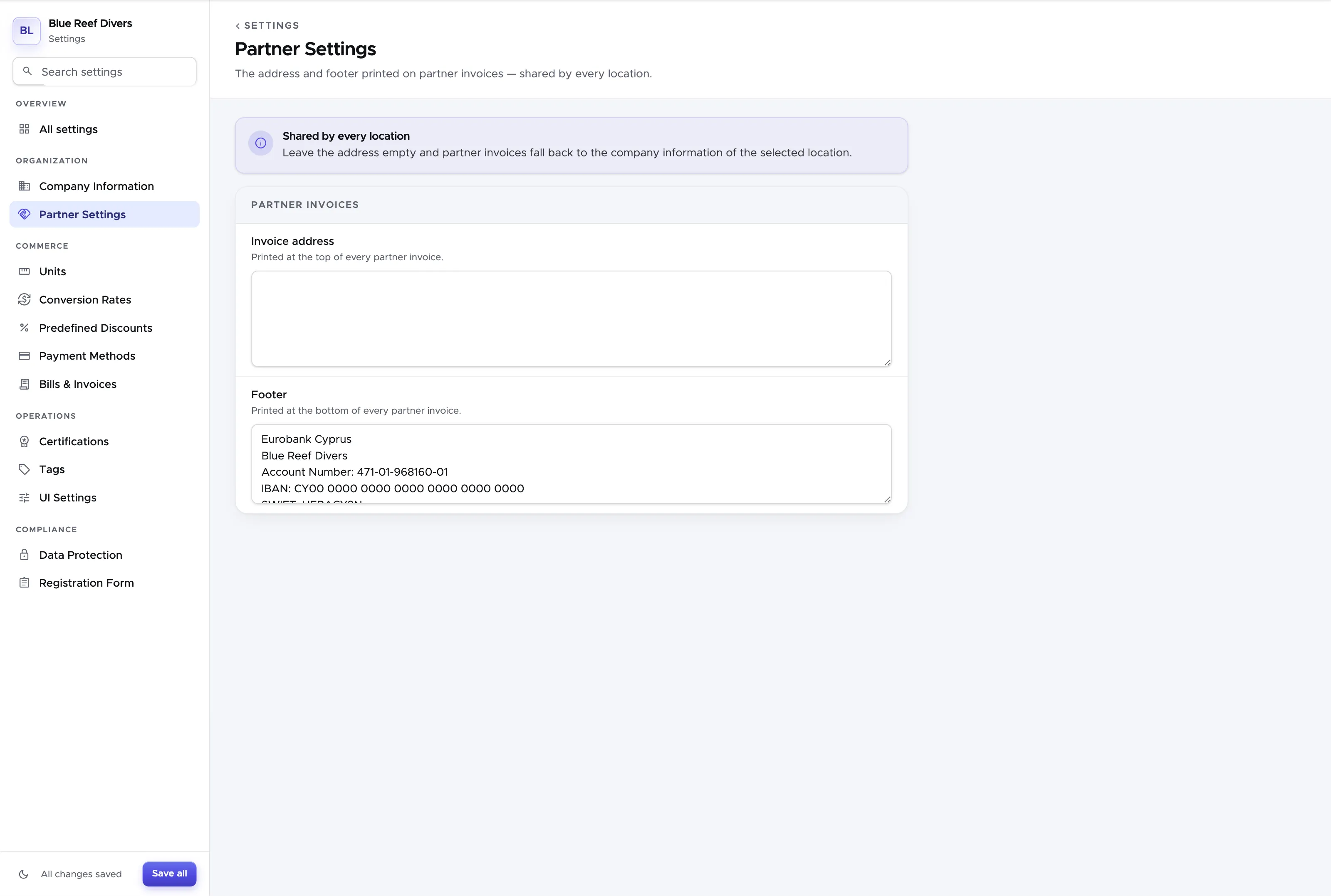
1.1.11 Partner Settings
Section titled “1.1.11 Partner Settings”In this section you can type your company details, which might differ from your location addresses. These details will be used for printed (pdf) Partner invoices.
1.1.12 Course Checklists
Section titled “1.1.12 Course Checklists”A course checklist is the list of things every student of a course has to get done: the medical form, the theory exam, the pool sessions. In this section you decide which list a new course of each type starts with.
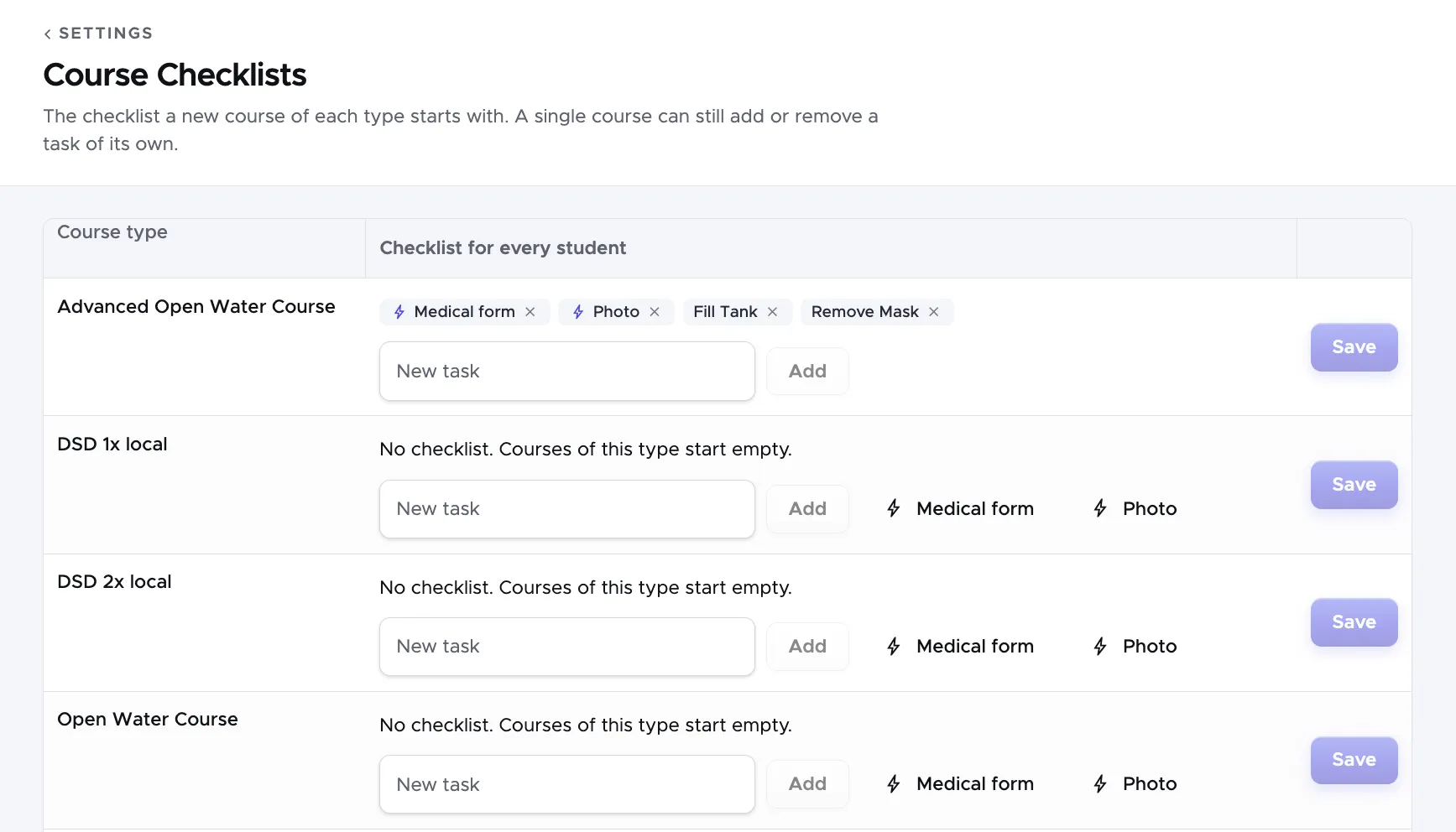
The table has one row for every course in your price list. Type a task in the field New task and click on Add, or press Enter. Add as many tasks as you need and click on Save at the end of the row. A task can be up to 80 characters long. Click on the x beside a task to remove it, and drag a task to change the order.
Two tasks are offered as buttons with a lightning icon, Medical form and Photo. These two tick themselves, so nobody has to remember them:
- Medical form is ticked as soon as the customer’s documents hold a medical form. The online registration form files one by itself. A file that you upload by hand counts when its name contains the word “medical”.
- Photo is ticked as soon as the customer’s profile has a photo.
A change in this section applies to the courses that do not have a checklist yet. A course that already has its list keeps it. How the checklist is used during a course is described in 8.2.7 Course checklist and staff jobs.
1.1.13 Activity Calendar
Section titled “1.1.13 Activity Calendar”This section decides what your Activity Calendar shows.
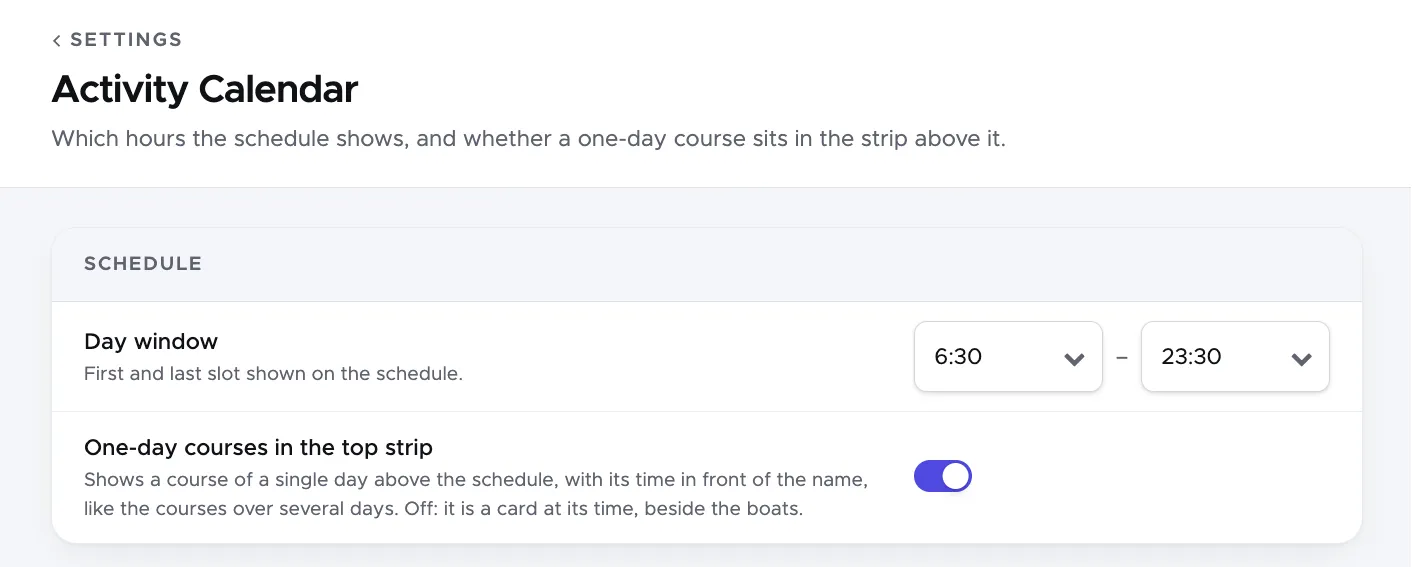
Day window is the first and the last time slot of the schedule. E.g. if the first dive of the day doesn’t start before 9am and you usually come back from your night dive at around 7pm, you might want to set 8:00 and 20:00. Keeping a buffer of one hour in the morning and in the evening is recommended.
One-day courses in the top strip decides where a course that starts and ends on the same day is shown. Courses over several days are always shown in the strip above the schedule. Switch this on and a one-day course is shown there as well, with its time in front of its name. Leave it off and a one-day course is a card at its time, beside your boats.
1.2 Online Settings
Section titled “1.2 Online Settings”Menu Online Settings is new with version 2.2 and you can now set up your online booking page.
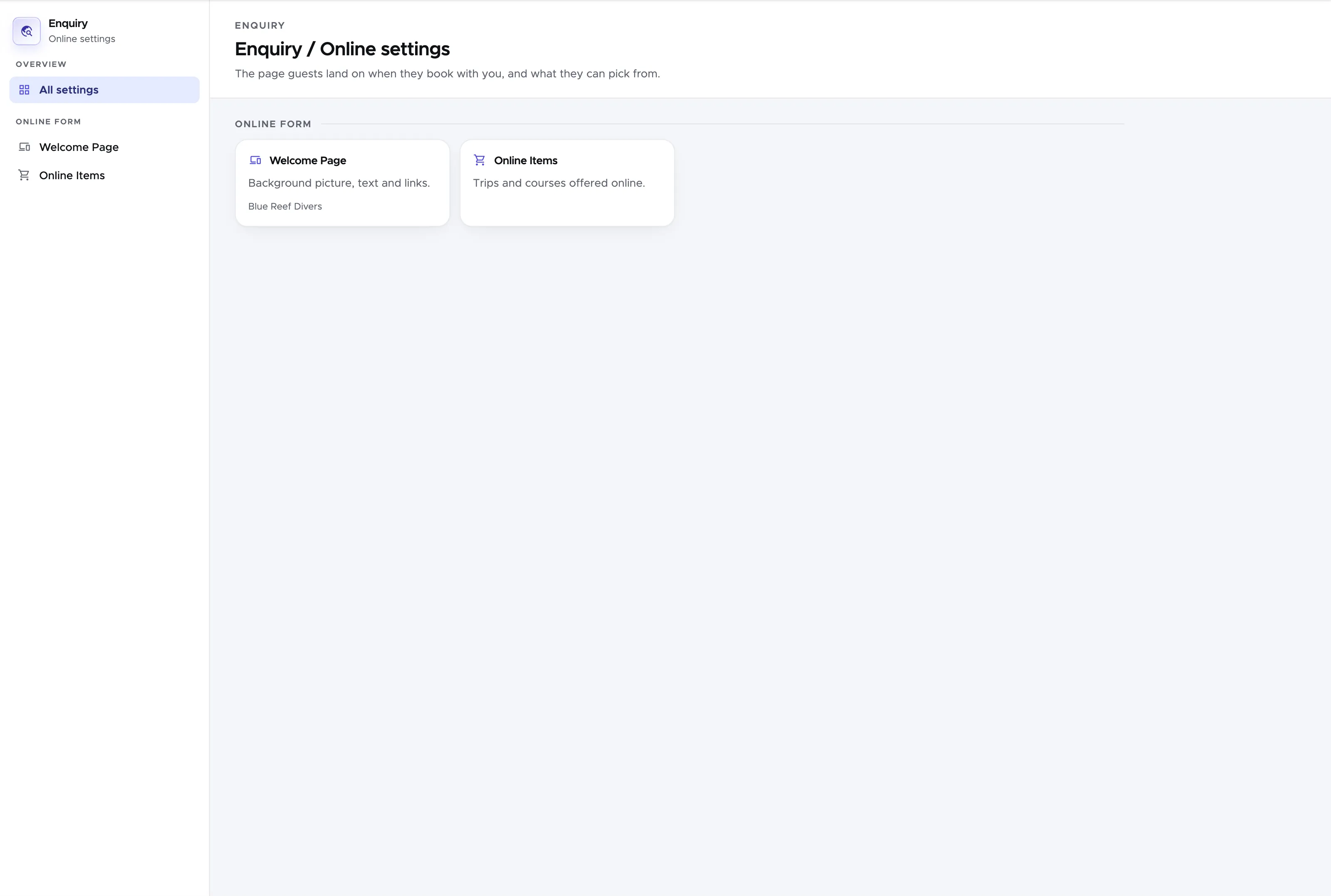
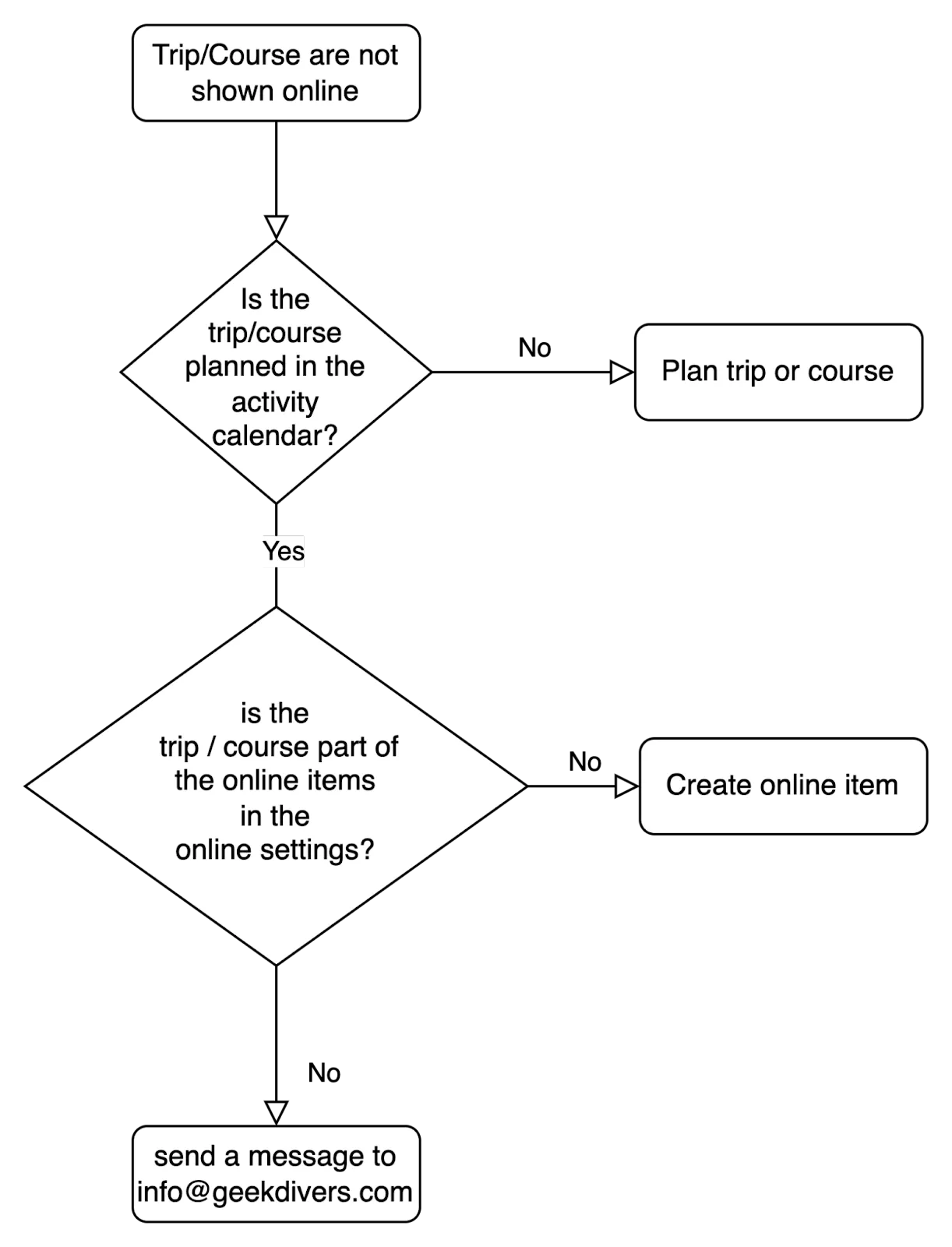
The courses and/or trips you want to offer online should be described here in 1.2.3 Online Items and you need to plan the courses and/or trips in the activity calendar so that they can be booked online.
You can also find a video with a complete setup on youtube.
Geek Divers Online Booking - The complete setup
1.2.1 Global
Section titled “1.2.1 Global”This Menu is only available to you if your dive center has multiple locations. Here you can describe your locations and give them a different name, add a description, and add a picture.
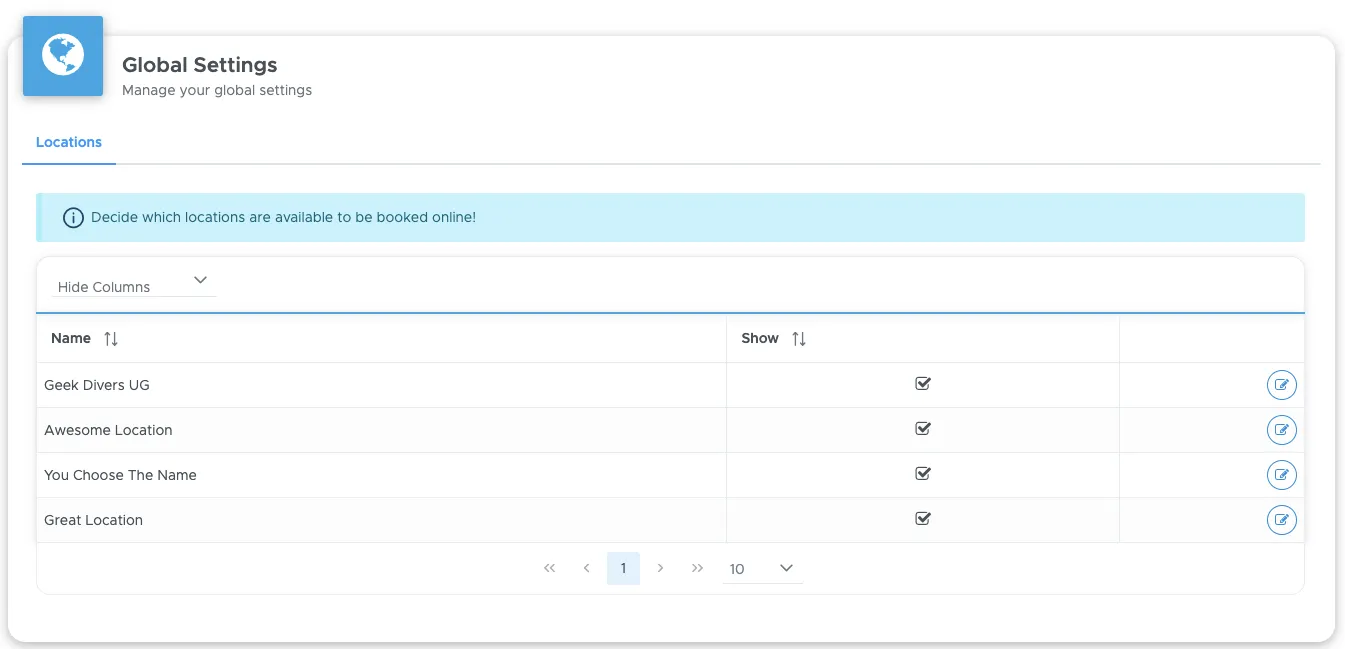
To see your location-specific settings, you can click on the edit button (pencil) at the end of the location’s row and a sidebar will open.
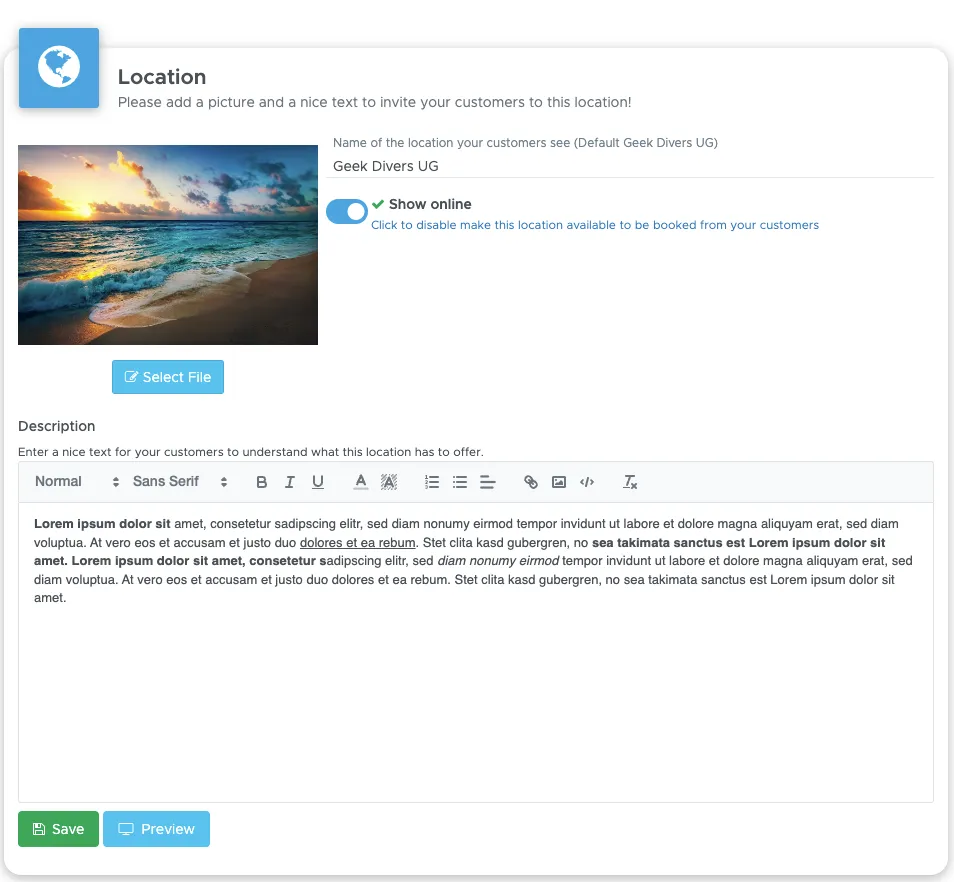
You can now decide if that location should be online and add a nice picture plus a description. Once that is done, you can click on “Save” to close the sidebar.
After you enter all your data, you can click “Online Settings for XYZ” and find a link to the page you just created.
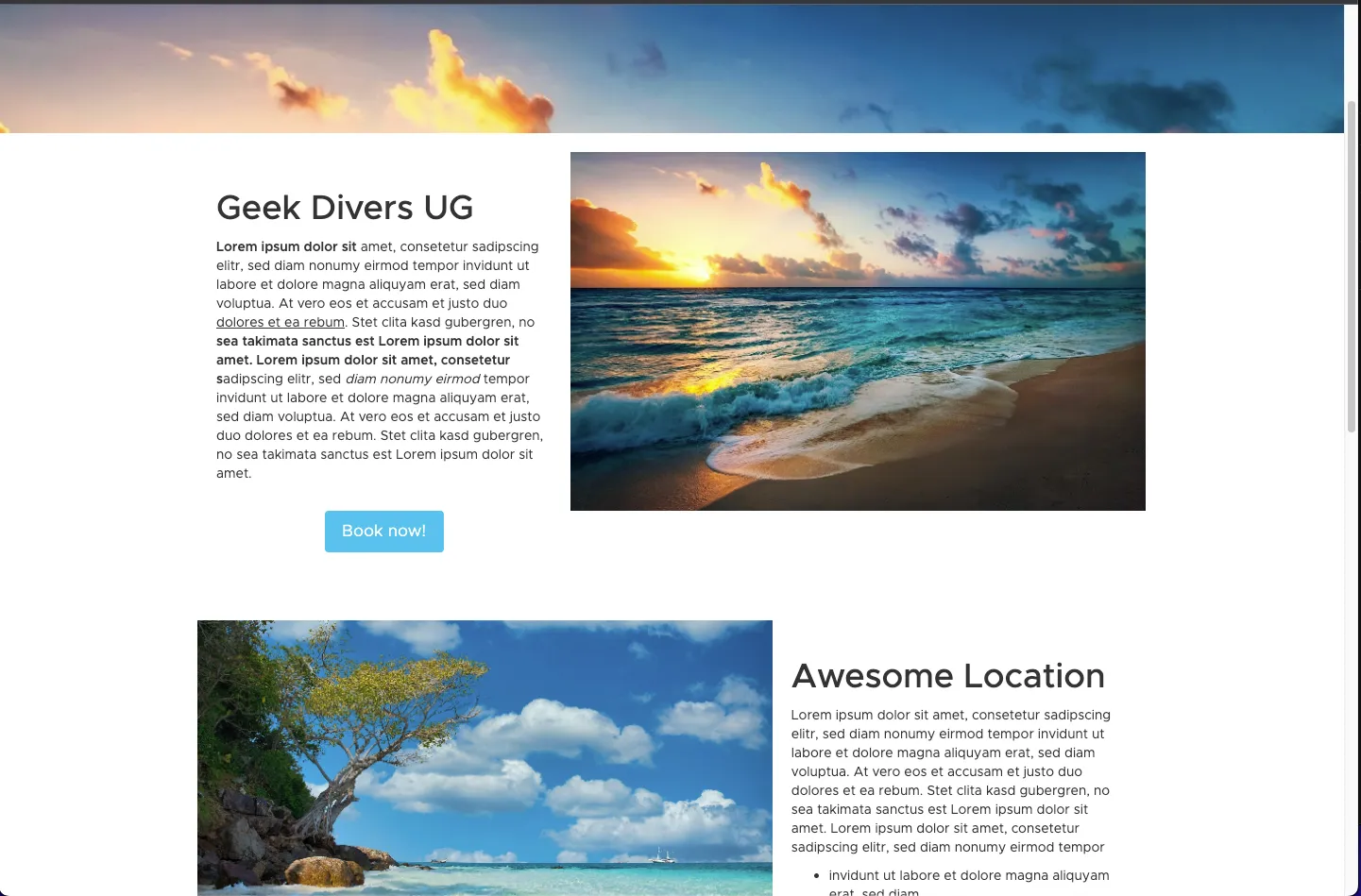
1.2.2 Online settings for “Your Dive Center”
Section titled “1.2.2 Online settings for “Your Dive Center””The first thing you will see is the URL to your personalized online page, in the box “Your booking links”. If you have multiple locations, you will see two links. The first is a direct link to the location you are currently logged in to. The 2nd link shows you a page containing all locations that you enabled in 1.2.1 Global.
If you do not have multiple locations, you will only see the first link.
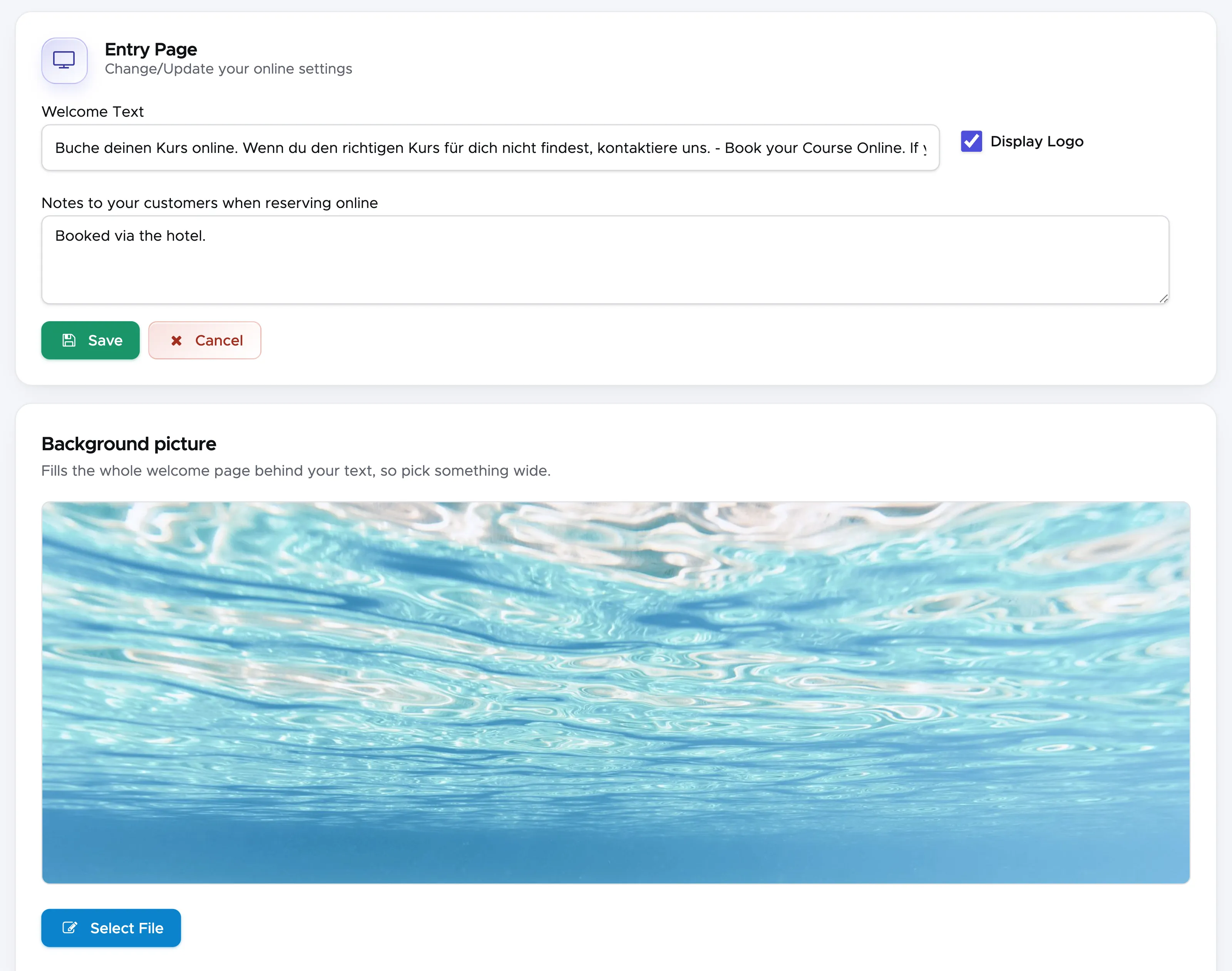
Here you can find some basic settings for your online page. You can add a welcome text, decide if you want to show your logo, and add a note to your customers that is shown when they finalize their online booking. Please keep in mind that Geek Divers does not support online payments.
You can also add a background picture to your page.
1.2.3 Online Items
Section titled “1.2.3 Online Items”Here you can decide which trips and courses you want to offer online.
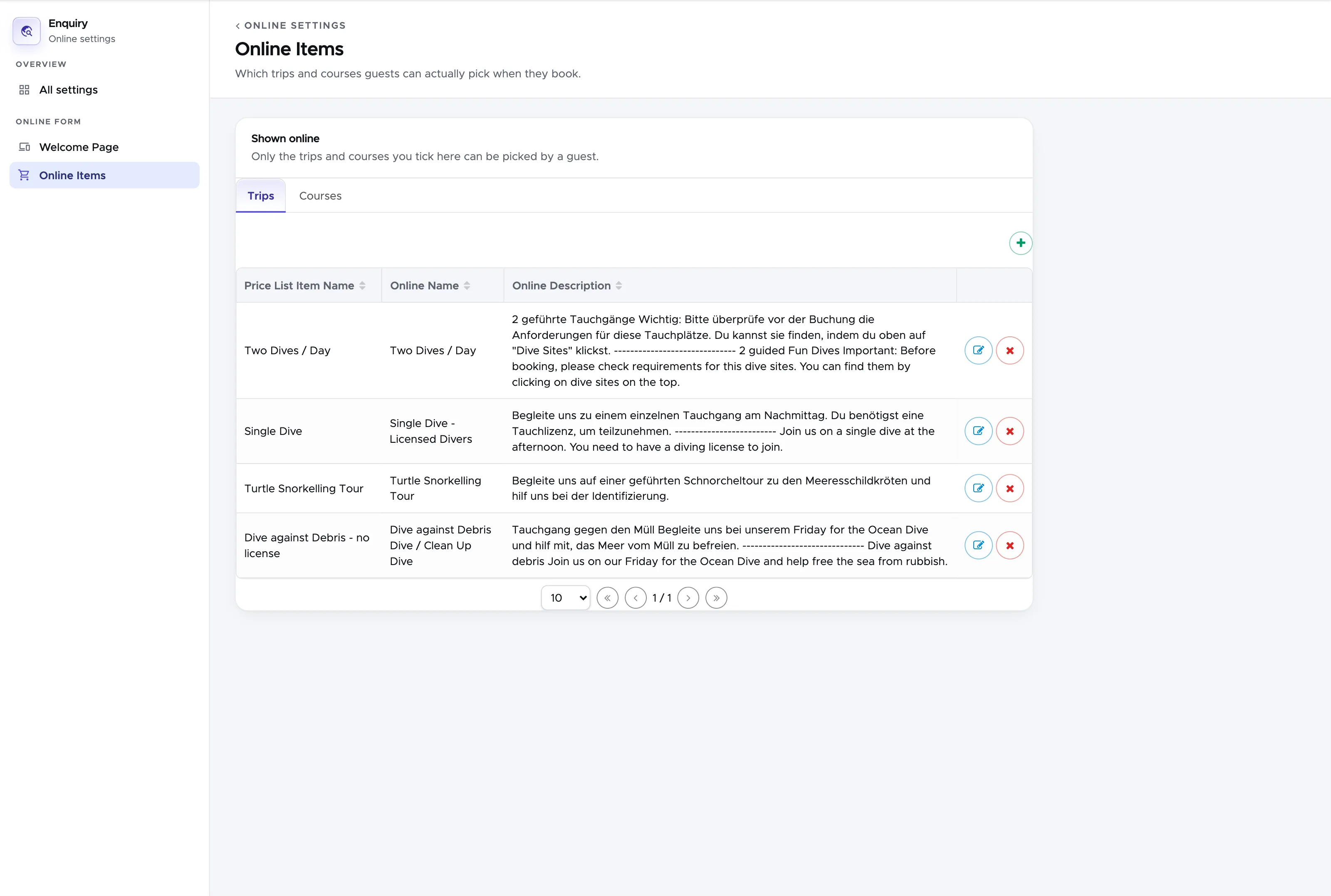
Click on the + button above the table to add an item to that list. Once you selected all your items, you can click on the edit button (pencil) at the end of a row to add a more detailed description for your customers. After you clicked the pencil, a sidebar will open and you will be able to add more details to your item.
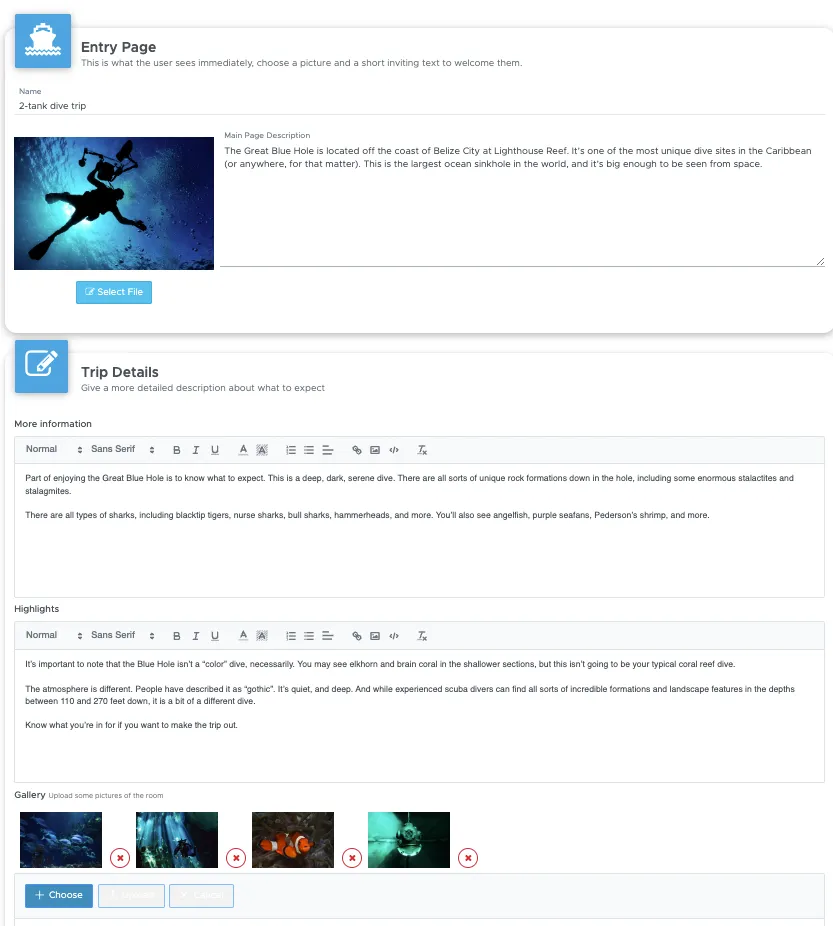
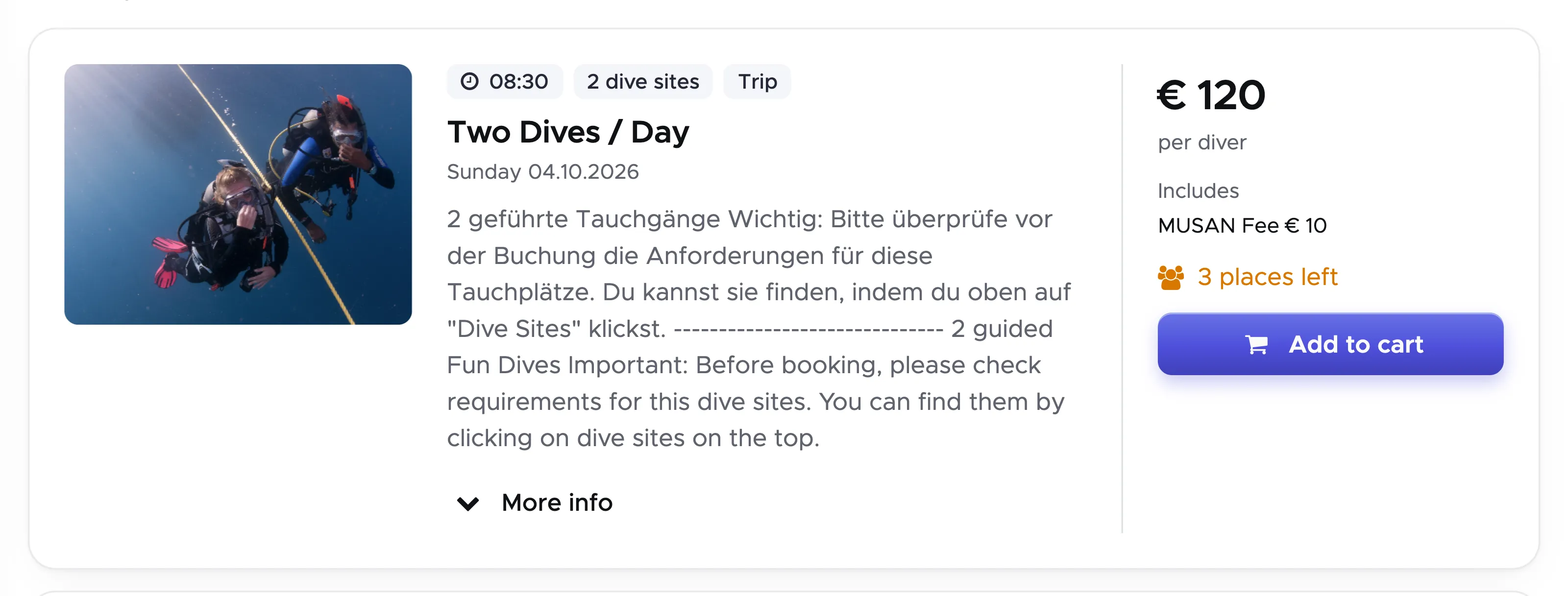
Please check the next pictures to see the reference to your online page. The card of a trip shows what you set up in the sidebar: the Name, the first picture and the Main Page Description.
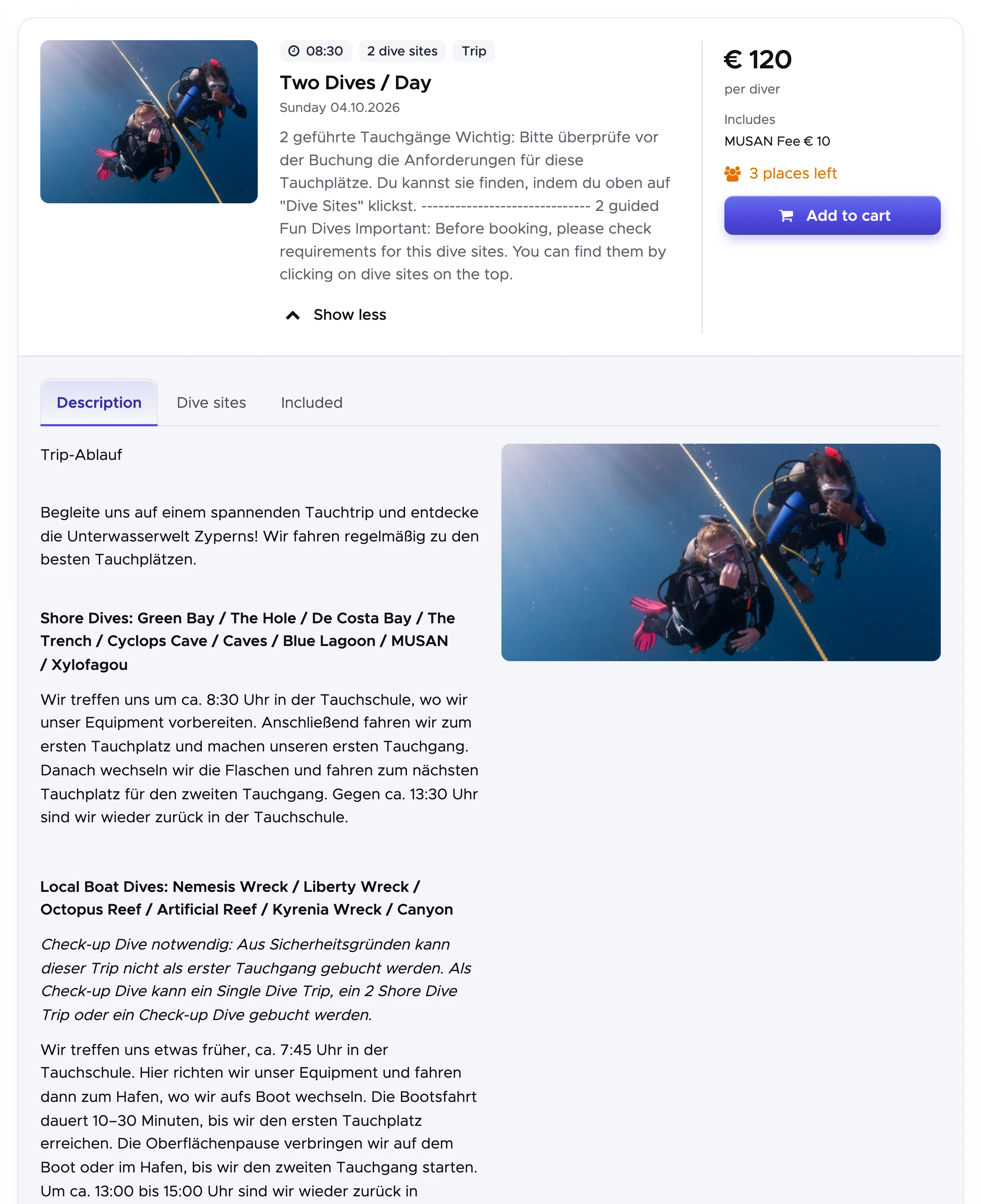
When your customers click on More info, they will see the following. Tab Description shows the text you entered in More information, with a picture from your Gallery next to it. If you filled in Highlights, they appear in a tab of their own.
1.2.4 Customers Perspective
Section titled “1.2.4 Customers Perspective”Please check out the following video to see how your customers will see the page and the items that you just created.
Geek Divers Online Booking - Customers Perspective
1.3 Accounting Codes
Section titled “1.3 Accounting Codes”Menu Accounting codes, previously named “Expense Coded” is the place where you can define your internal codes to record your expenses in the cash flow. In version 2.2 you won’t be able to define your Revenue Codes yet, but these are part of Geek Divers future development.
To enter an expense code click on Settings and Accounting Codes.
Type a code of your choice (e.g. 001), a Type and a Description. You can add more details in Additional info. If you’ve already created locations (read chapter Locations), please select in which location you want to use this code. If you wish to use the same code in all your locations, tick the checkbox Select All. Click the button Add Expense Code to see it in the table below.
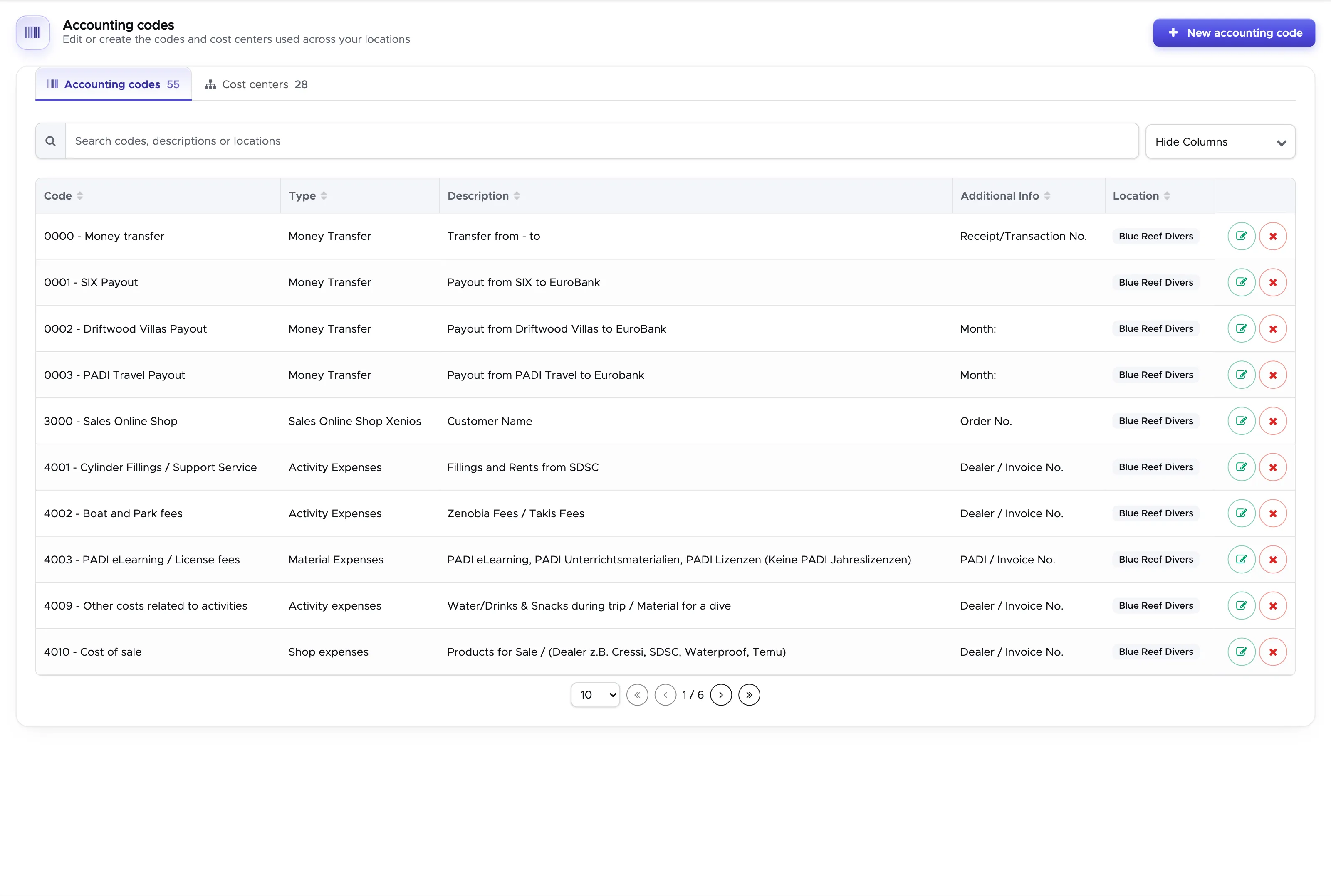
Example of codes could be the following:
100 - Office
200 - Diving
300 - Boats and transport
400 - Food and drinks
500 - Pool
600 - General maintenance
700 - Marketing
800 - Training
Etc.
Once you define the generic area of your 3 or 4 digit codes, you could then define more codes within the same area.
E.g. If code 100 refers to expenses related to the ‘Office’ in your dive center, then you could define some more specific codes as in the examples that follow:
101 - printing paper
102 - hardware (computers, tablets and printers)
103 - printer ink
104 - stationery
105 - office furniture
106 - phone bills
Etc.
Please consider that the above are just examples: your expense codes do not necessarily need to be composed by digits only: you can type any alphanumeric combination of your choice.
It is recommended to set up a code to transfer money from one cost center to another. Please read chapter 12.7 Transfer Money to know more about this feature.
It is also recommended to set up a code to adjust your cost center balance. E.g. 1111 - Balance Adjustment.
When you set up your cost centers, they will be empty. However, since they need to reproduce a real-life situation, you will need to set the initial balance. More info in chapter 12. Cash flow.
1.4 Cost Center
Section titled “1.4 Cost Center”Cost centers represent your bank accounts, your online payment accounts, your cash boxes, your safe and anything else that you regularly use in your business to receive or spend money.
To view and edit your cost centers click on Settings, Accounting Codes and select tab Cost Center.
On this page you will see at least your default cost centers, one per location. If you’re configuring them for the first time, you will see their abbreviation as DEF-1 for your first location, DEF-2 for your second location…etc.
Click on the description or abbreviation to edit them. You will see them at the top of the page. You can change their description and their abbreviation and click on button Update Cost Center.
You can create as many cost centers as you need for all your locations. To do so, type a description and an abbreviation at the top of this page, select the location the cost center belongs to (if you have more than one) and click on button Add Cost Center. You will see the new cost center in the table below. If the cost center that you’re creating is actually a cash box (used for cash only), tick the checkbox Cashbox.
For your ease of use it is recommended to choose different abbreviations for each cost center or cash box across all your locations.
If you wish to configure the standard payment methods available in Geek Divers (see chapter Payment Methods/Bill Prefix) you’ll be asked to assign a cost center to each one of them. The default cost center is initially assigned to each standard payment method and you can change it according to your needs.
E.g. you might want to collect all the cash payments (both incoming and outgoing) in a cash box behind the counter and your electronic payments (bank transfers and credit cards) in your ‘Bank’ cost center. Additionally, if you use online payment methods like PayPal, Stripe or TransferWise, you might want to set up a separate cost center for each of them to monitor their status.
Every transaction in and out of a cost center will be visible in your cash flow in tab Cashflow Details. Additionally, in cash flow Balance Report, you will see a summary per payment method. More on this in chapter Cash flow - Cash flow details and Cash flow - Balance Report.
If you wish to deactivate a cost center that you no longer need, click on the button deactivate at the end of the cost center row. Before you deactivate a cost center, please make sure that it is not assigned to any of your payment methods in any of your locations.
If you wish to reactivate a deactivated cost center, click on button reactivate at the end of the cost center row.
If you wish to hide a cost center from your cash flow reports (e.g. Balance Report), click on button Hide in Report.
It is not recommended to repurpose an existing cost center due to the history of transactions that have been recorded in and out of the cost center.
A good option is to deactivate a cost center that is no longer needed and create a new one. Please feel free to send us a message if you wish to discuss the best way to proceed in your specific scenario.
1.5 Locations
Section titled “1.5 Locations”Geek Divers supports multiple locations, i.e. several dive centers that belong to the same company or owner. Once you’ve completed the initial setup for one of your dive centers (General Settings, Expense Codes, Cost Centers, Price List), you can then create additional locations. Contact the Geek Divers support to request the creation of an additional location for your business. Please provide the name of the new location as you wish to view it in the menu on the top-right and the default currency. A new location can be created as a copy of the first location and you can choose if your price list should be copied as well.
Once the second location has been added (you will receive a message from the Geek Divers support), you can easily switch between locations using the drop-down menu on the top bar.

Please consider that the amount of your Geek Divers monthly fee depends on the number of locations that you wish to use in your account.
Menu Locations was available in previous versions of Geek Divers. Starting from version 2.0 this menu is no longer available.
1.6 Users
Section titled “1.6 Users”Geek Divers comes with an administrator user (Type: admin) that has full rights on the application. Among other features, this user has the power to create other users with the same rights or with restricted rights. You can create as many users as you need without affecting your Geek Divers monthly fee.
To maintain and create users click on Settings and select User.
In the top part of the screen you will find a table with the list of current users. If the users are administrators you won’t be able to Edit, Suspend or Delete them as the buttons are not available. If you wish to suspend or delete an admin user, please send a message to info@geekdivers.com. Every other user will be type user. In this case you can use the buttons on the right hand side to Edit the rights, temporarily suspend or permanently delete the login.
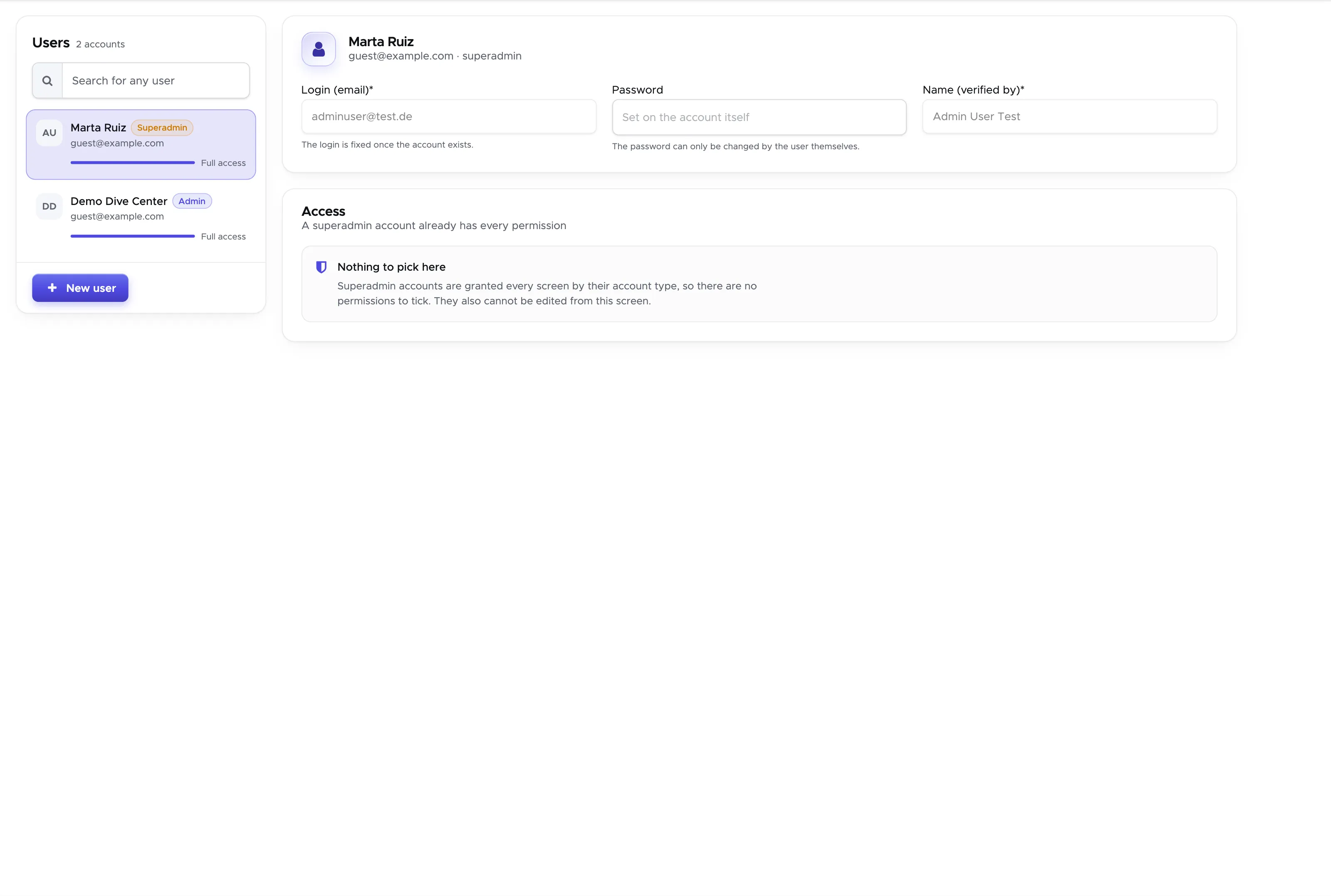
To create a new login go to the bottom part of the screen and enter a valid email address. It’s important that the entered email address is currently valid. In case the user forgets their password they can use the Forgot Password feature in the login screen and receive an email to reset their password. Geek Divers support won’t be able to access passwords and therefore cannot help in case of forgotten passwords.
Enter a temporary password, double check it by clicking on the “eye” and write a name.
E.g. Login: sam@awesomedivecenter.com Password: awesomedivecenter2020 Name: Sam
You can then proceed in the definition of how Sam’s menu in Geek Divers will look like. What you see in the bottom part of the screen is the representation in folders and subfolders of the Geek Divers menu that you see on the left. It is recommended to familiarize with what every menu item does before assigning it to a user.
To set up the rights of a new user, please select the first checkbox next to your location name: you will see that the complete location menu is selected. Proceed then by deselecting the menus that your user should not have access to. If your user should access one of your additional locations, please repeat the same procedure.
Once you’ve defined the user rights, click on the button Save at the bottom of the screen. Don’t forget to inform Sam of the username (her email address) and the temporary password that you’ve chosen. The first time Sam logs in to Geek Divers, she will be asked to choose a new password. To login to Geek Divers open a Google Chrome browser, go to www.geekdivers.com and click on button Login on the top-right of the page.
Among the rights you will also find two cards called Staff payroll and Cash flow. These are not proper menu items, but tabs in the staff profiles and in the cash flow. For example, if you wish your staff member to access staff profiles but they should not see payslips or the list of commissions and base salary, you can leave the two checkboxes of Staff payroll empty. In that case, please remember to leave an empty checkbox in Financial - Payslips as well.
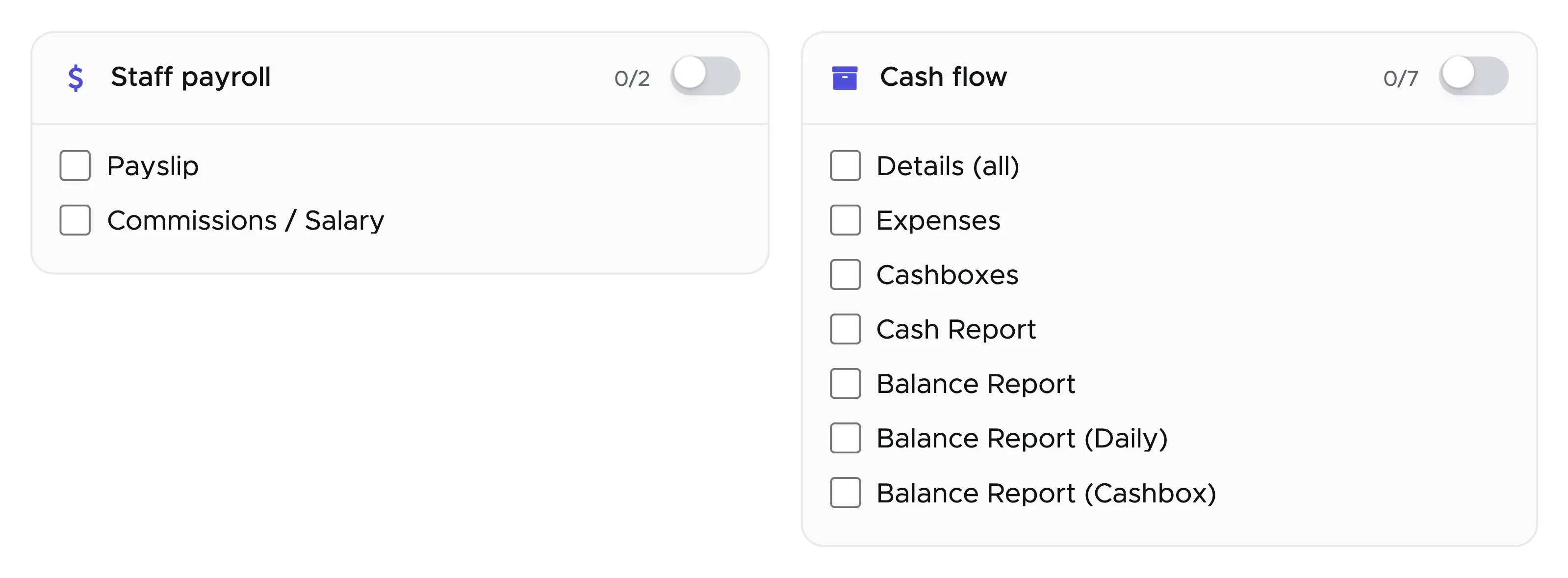
The Cash flow items that you see above here represent the available tabs in menu Financial - Cash Flow. For more details on the kind of data that is shown in these tabs, please refer to chapter Cash flow.
In case you need help to set up your users, please feel free to contact us at info@geekdivers.com. We will ask you the role of your staff members, their main tasks and what you wouldn’t want them to see. If you can answer these questions we will come up with some suggestions on how their login could look like.
Each right unlocks one screen or one tab of a screen. Screens that share a page appear as tabs: All, Current and Upcoming Customers; Open, Current Open, Closed and Archived Bills; the Open, Confirmed and Completed Quotes of the Booking module; the Open, Closed and Archived Partner Invoices. A user only sees the tabs they have the right for. The Partner Price Lists and the menus of the Accommodation module have their own rights too.
After you change a user’s rights, save the changes and ask them to log out and log in again.