
Price List
The price list in Geek Divers is the engine of the whole system and therefore it is important that the setup is done correctly.
The Default Price List contains all your retail prices for services, courses, items on sale and anything else that you would add to a customer bill. Please consider that your price list will use the currency that you’ve set in General Settings - Units and it will be used for your customers bills and customers quotes.
You can set up your price list items according to the available types:
- EAN
- Trip
- Food and Drink
- Course
- Rental
- Extra
- Shop
- Accommodation
- Package
- Fee
Material
Each of the above types is described in details throughout chapter 2 of this user manual.
You will find your customer price list in menu Financial - Price List. On this page click on Default Price List.
Already have a price list as a PDF? Geek Divers can read it and create the items for you, see Import a price list from a PDF.
2.1 Single dive
Section titled “2.1 Single dive”Single dive is a special price list item that you will see in your Geek Divers account as soon as you log in. You can only have one Single dive item due to the special treatment that single dives have in the automatic calculations in Geek Divers.
Single dive can be used to define the cost of one or more dives according to your price list. This price list item does not include any extra cost that you can include in the Trip. You can rename this item, but you cannot delete it.
Example: You charge your customers per dive with some levels of discounts (the more they dive the cheaper each dive). Maybe there’s no extra charge for a shore dive without a guide in a buddy system. On top of the price per dive, you charge them if they wish to be guided by one of your dive guides and/or if they choose to go to a dive site that is only reachable by boat and/or if there’s a marine park fee and/or if they choose to join a day trip that includes lunch.
If what is described in the example is similar to your price model, then it is recommended to set up your prices and packages in Single dive.
If you don’t offer single dives (or dive packages) unless they are in combination with a Trip, you can skip this chapter and proceed with chapter Define additional charges. In Geek Divers a Trip is a generic outing with your customers: a day out on the boat, a shore dive…etc. A Trip might include the costs of diving or just the transportation: you can define what is included in the price.
In the price list, click on Single dive and set the price for one single dive in the Price field. You can also add your sales tax in percentage and define if it’s included in the price or if it needs to be added to the price that you specified. Tick and untick the checkbox “VAT/GST included” to see what happens to the Total Price.
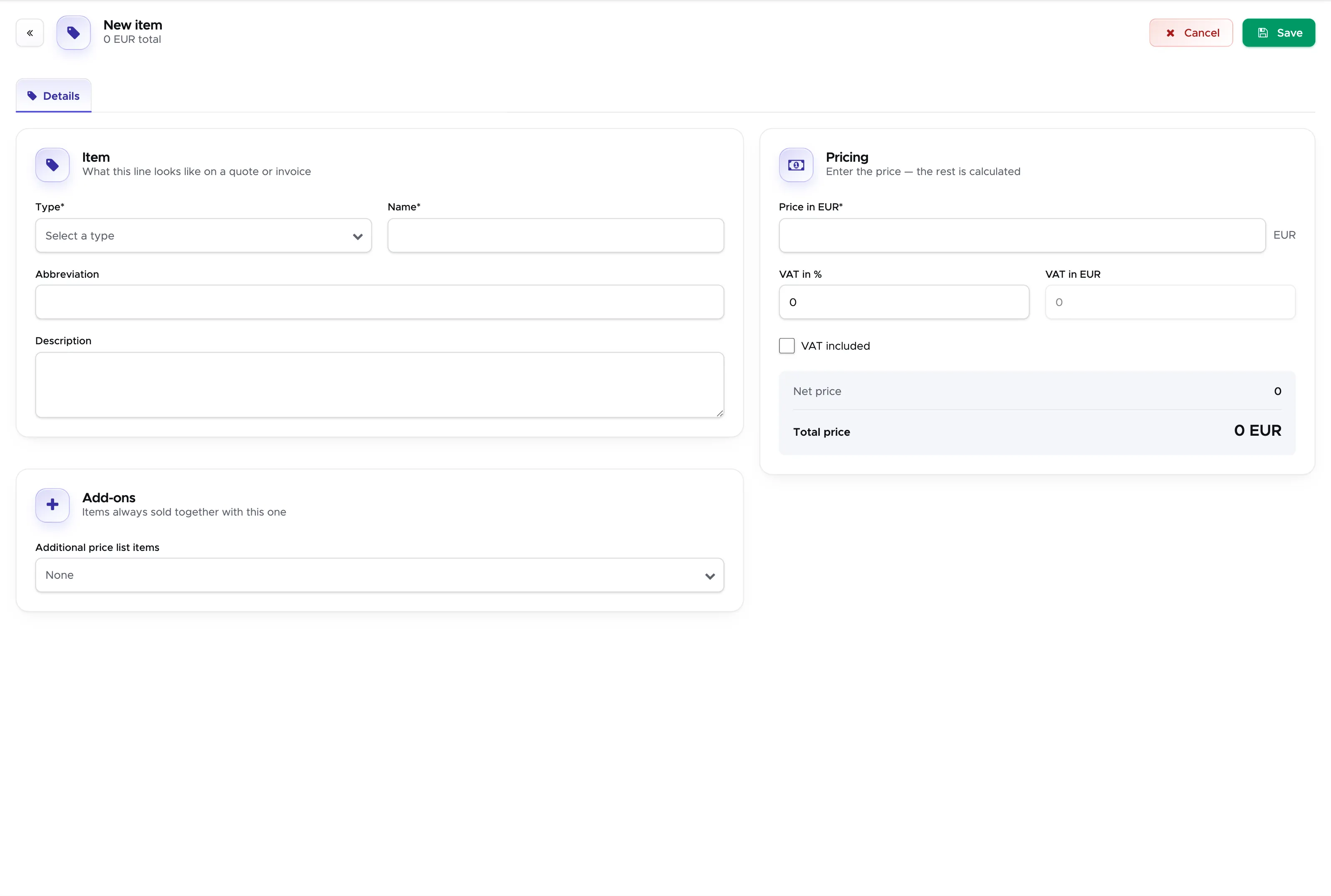
If you offer discounts after a certain number of dives, open the tab Packages & discounts and click on the Add package button to define the discounts. The package form opens in a sidebar.
Here an example: from 2 dives on, the new price is 55 EUR per dive, 110 EUR in total.
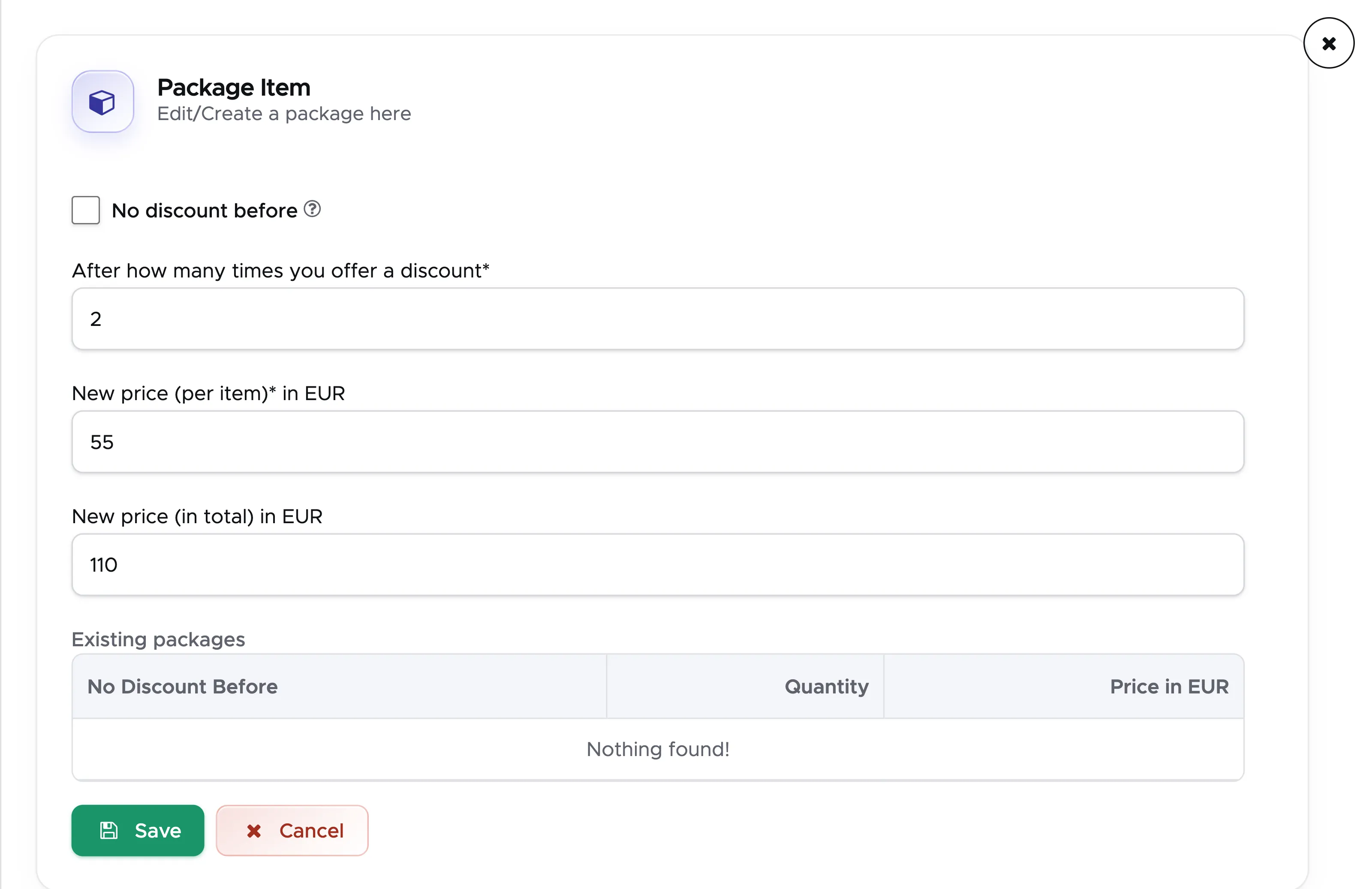
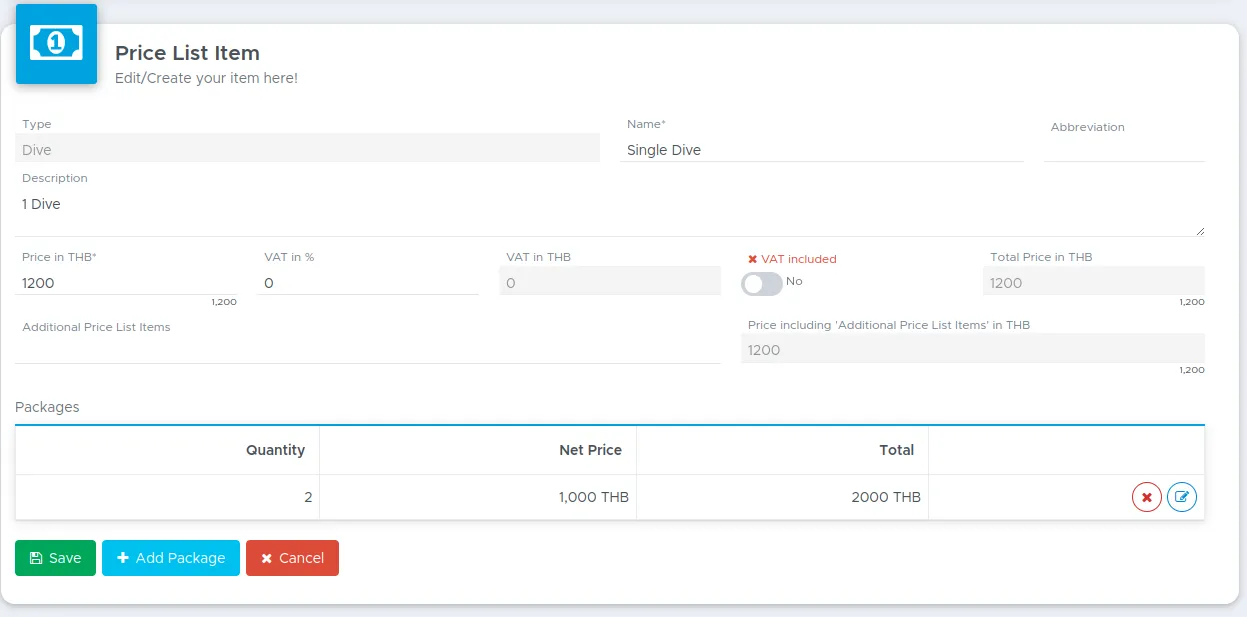
If you look at the two pictures above here, the customer will pay 1200 THB for the first dive, but as soon as there are 2 dives in his/her bill, each dive will cost 1000 THB. Geek Divers will calculate it automatically for you in the customer’s bill.
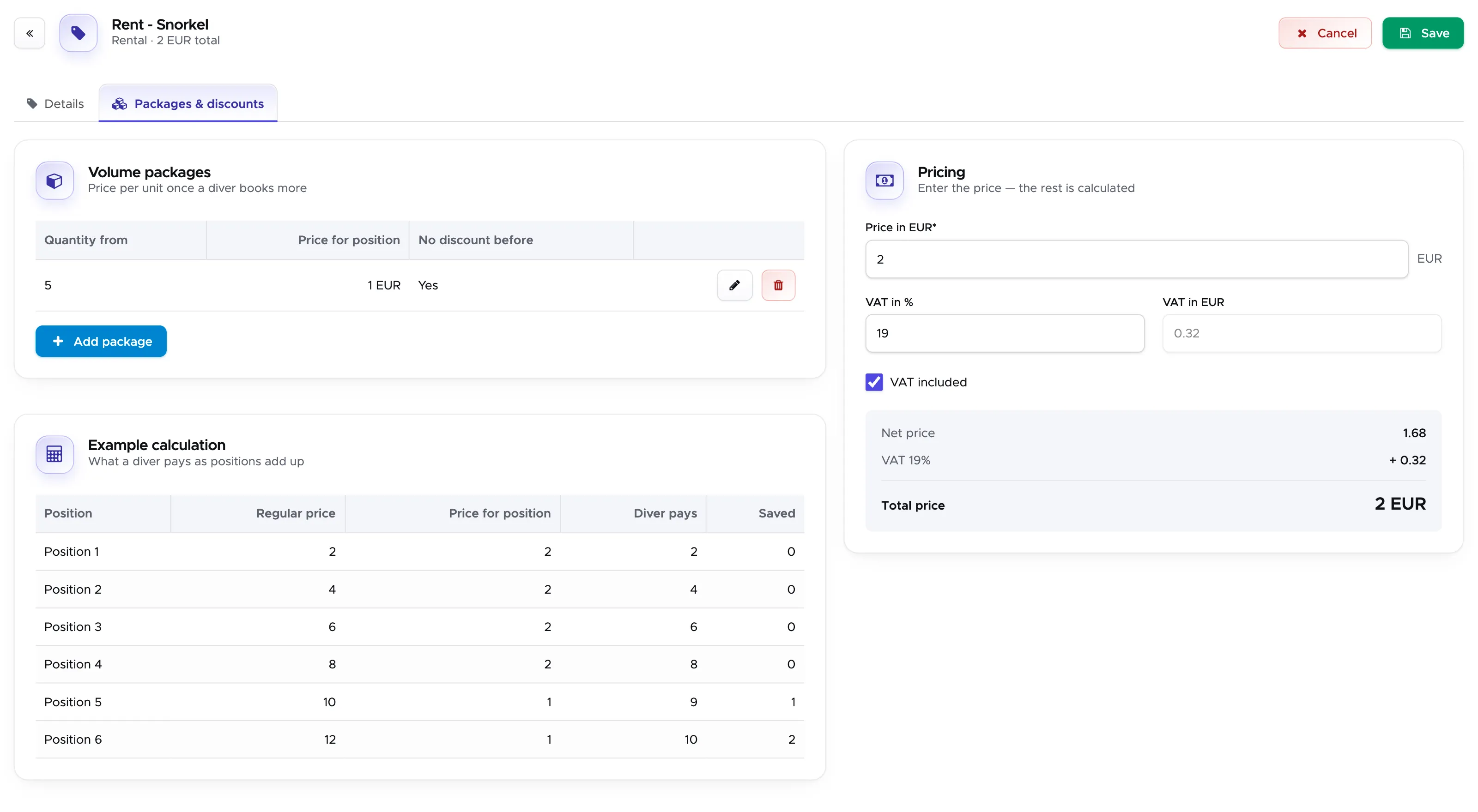
Do you want your customer to pay the full price for the first items and give them the discount only from a certain quantity on? Then you need to tick the “No discount before” checkbox in the package.
This is an example of what you will see, here on a rental item: a snorkel costs 2 EUR, and 1 EUR from the fifth one on. The package shows “Yes” in column No discount before. In the Example calculation the positions 1 to 4 stay at 2 EUR and only position 5 costs 1 EUR, so the customer pays 9 EUR for five (column Diver pays) and saves 1 EUR (column Saved).
If you offer an additional discount after 3 or more dives, you just need to click on the Add Package button to set up the additional discount logic.
Don’t forget to click on the button Save!
Clearly you can set up any kind of package (e.g. 5-10-20 dive packages) and if in doubt, please send us a message and we can suggest how to set up your specific model.
The next step is to create some more price list items in your price list.
2.2 Define additional charges
Section titled “2.2 Define additional charges”If there is a marine park fee or any extra services that you need to charge to your customers whenever they join a specific trip or course, it makes sense to have a price list item reflecting these costs.
The extra charges can be added to a trip or course in the Additional Price List Items field or in an Activity (more about the activities in chapter Activity).
Within the price list click on button Add New Item.
Depending on what kind of additional charges you need to set up, please follow these suggestions.
Type Food and Drink
Section titled “Type Food and Drink”This type can be used if you charge your customers for food and/or drinks during a trip or a course or for à la carte meals if you run a resort. Please consider that if you use the Accommodation module you don’t need to use type Food and Drink to set up meal plans as there’s a separate setup for these. These items in your price list won’t be considered in case of commissions in percentage to your staff members or external agents. You can enter items like “Soda” or “Lunch on the boat” or “Buffet dinner” or “Sandwich with fries” or anything else that you offer in your dive center or dive resort.
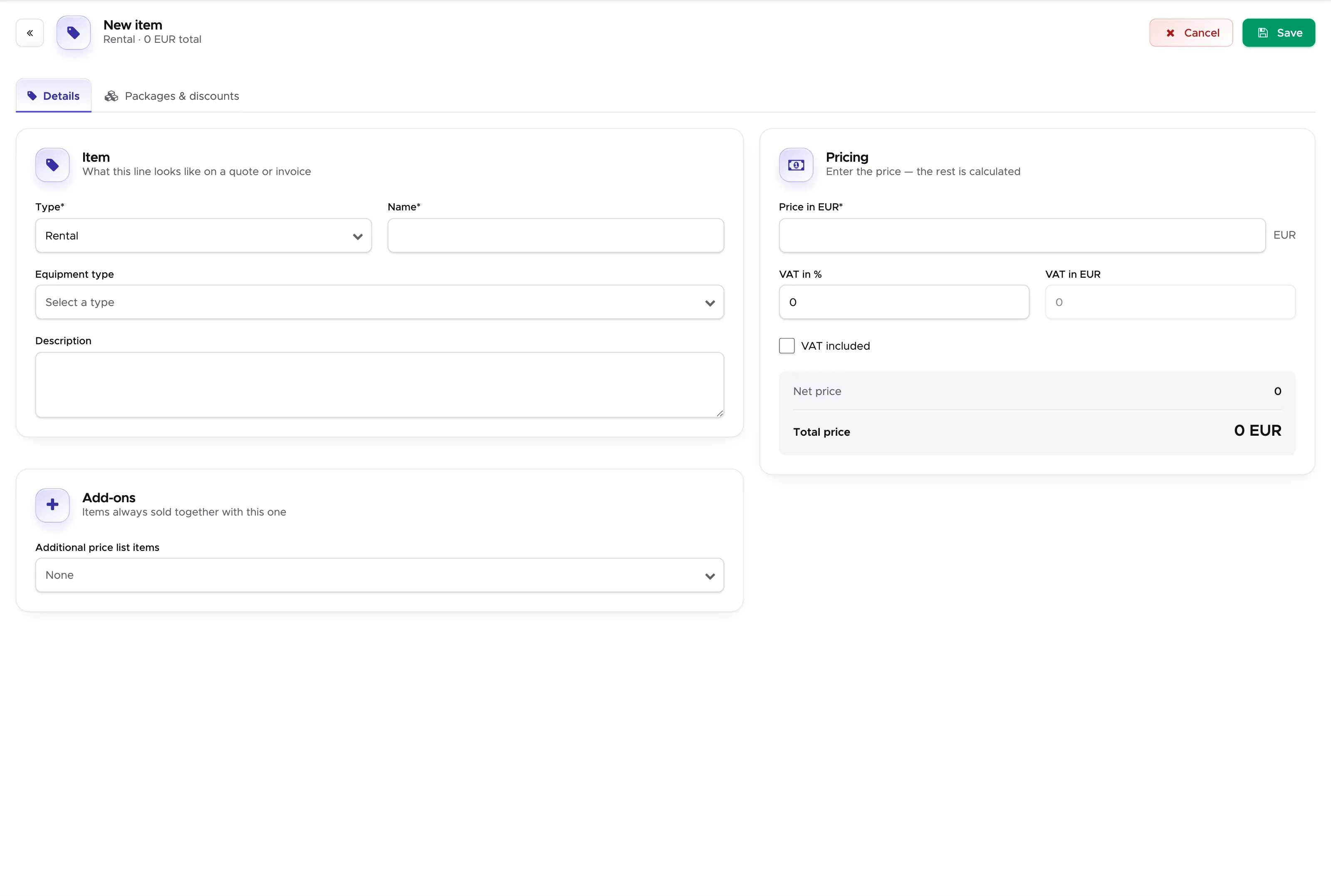
Type Rental
Section titled “Type Rental”If you charge your customers separately for equipment rental and/or your staff members receive a commission whenever your customers rent specific pieces of equipment (e.g. a computer, a camera or an underwater light), it is useful to set up price list items with this type. As you might have done for Single dive, you can set up packages for equipment rental. You can also specify the price for the rental of the full set of equipment by choosing Equipment type = Other.
Type Shop
Section titled “Type Shop”This type can be used for any item on sale in your shop. If you sell masks, BCDs, snorkel sets, mask straps, T-shirts…etc. you might want to enter their price (and sales tax, if appropriate) in your price list. You can add these items manually to the customer’s bill and you can also set up a sales commission for your staff members (more on this in chapter Commissions. Please consider that as of now (version 2.0), Geek Divers doesn’t offer a POS module yet.
Type Fee
Section titled “Type Fee ”This type can be used for certification fees, marine park fees and all those charges that could be considered a cost for you and therefore you need to charge your customers. These items in your price list won’t be considered in case of commissions in percentage to your staff members or external agents. Please consider that every price list item that you enter as type Fee generally does not generate revenue. For this reason you will find fees in a separate subtotal in the customer’s bill.
Type Material
Section titled “Type Material ”If you charge course material separately (physical books, e-learning modules, pocket masks, SMBs, lift bags…etc.), you can use this type to set the price of specific course material. These items in your price list won’t be considered in case of commissions in percentage to your staff members or external agents.
Type Accommodation
Section titled “Type Accommodation”If you own a dive resort or if you offer accommodation services, you can use this type to define the description and price of the accommodation that you offer. As you might have done for Single dive, you can set up discount packages. The price list items with type Accommodation will have to be used entirely manually (e.i you need to manually enter them in the customer bill). Starting from version 2.0, Geek Divers offers an Accommodation Module available on demand. If you wish to use this module you don’t need to use type Accommodation in your price list. Your hospitality offer will be defined in detail in the Accommodation menu. See chapter Accommodation to find more information.
If your choice is to not use the Accommodation Module, you can still use this type Accommodation to add your room rates to your customers bills. Please consider that using this type in your price list has no connection to the Accommodation Module.
Type Extra
Section titled “Type Extra ”You can use this type for any extra charge to your customers. E.g. a 1-on-1 fun dive supplement or a 1-on-1 course supplement, a cost in case your customers lose or break a piece of equipment, an extra fuel charge in case you take your customers to a more remote dive site…etc. Items with type Extra can be used to assign commissions to your staff and local agents.
If you’re not sure about the type to choose, please feel free to send us a message!
2.3 Price list item type Trip
Section titled “2.3 Price list item type Trip”Regardless of your kind of transportation (e.g. you go to your dive site on foot or by boat/car/van/bus) you need to set up a Trip in your price list. A Trip represents a generic outing with your customers.
If you charge your customers for transportation costs and separately for the number of dives (according to your dive packages, as explained in chapter Single dive, then follow example no.1. If you charge your customers for the complete package that includes transportation and dives (and anything else), follow example no.2.
In the Price list click on button Add New Item.
Example no. 1: Trip that does not include dives
Section titled “Example no. 1: Trip that does not include dives”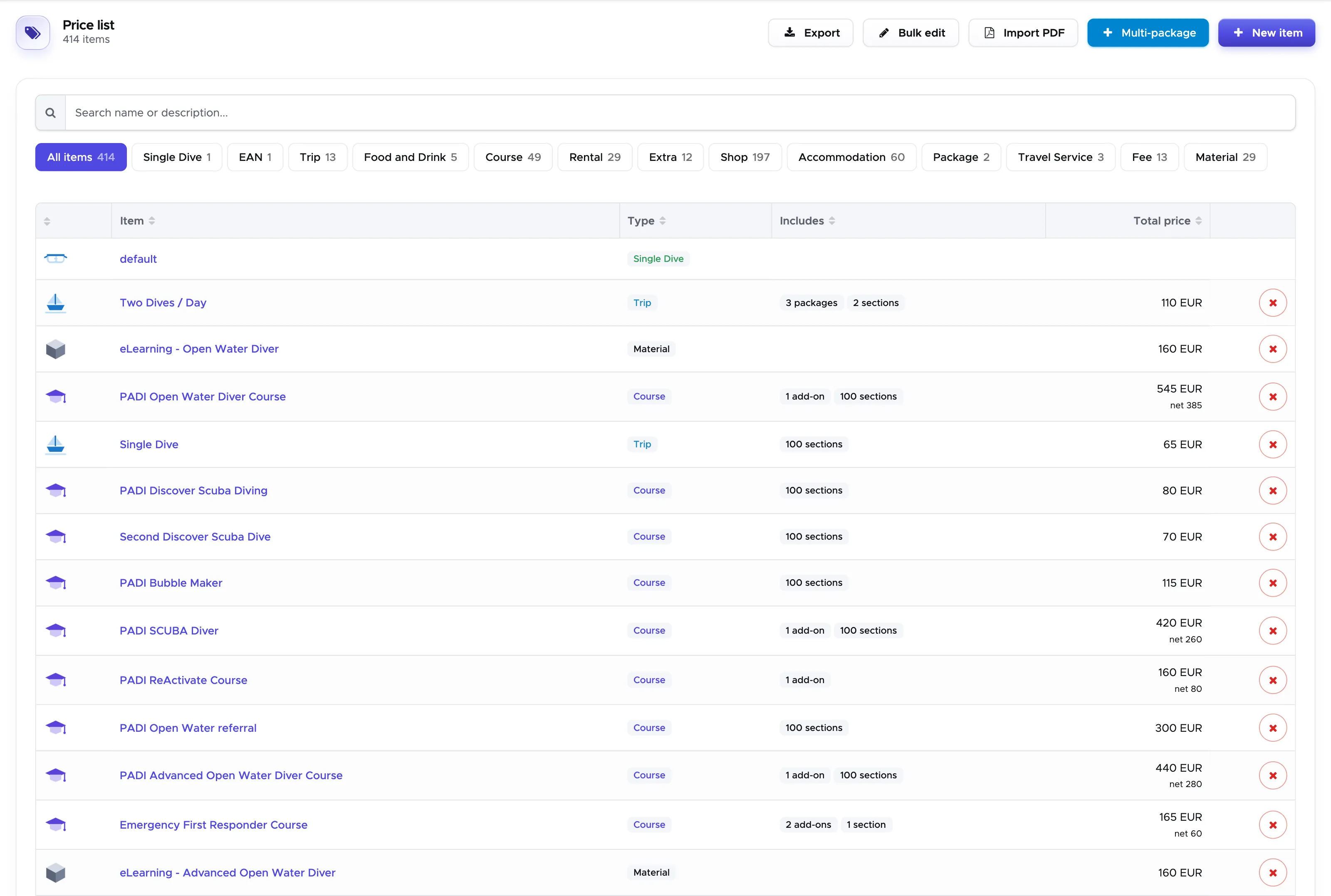
In the picture above here you can see that the Type is Trip. Write a name that lets you immediately understand what kind of trip it is and a short description (you can edit the description later if you prefer). Please consider that the name of your choice will be shown in the customer’s bill. The description will be visible in the Activity (more on this in chapter Activity.
In the Abbreviation field you can type a few characters and/or numbers that specify the activity of this trip. In the example above you can see “FD” that stands for Fun Dive. This will be shown in the Activity Calendar, in the Trip pop-up and in the Trip List that is available for every Trip that you will create (more on this in chapter Activity).
Write a price and a tax percentage (if applicable) and choose if the tax is included or excluded from your price. The trip can also have a price of 0 if you want to charge your customers just for the dives. Remember that in this case you have to set up the Single Dive prices.
If you offer discounts on the trip price you can use the button Add Package to select your preferences as you did for the dive packages.
This trip, as it is setup, does not include the costs for the dives that will be charged separately according to your dive packages written in Single dive. Geek Divers will do that automatically in the customer’s bill.
In case you need to add extra costs to this trip and you’ve already set them up in your price list, you can add them in the Additional Price List Items field. E.g. lunch on the boat (type Food and Drink), marine park fee (type Fee). Just click on this field and start typing: Geek Divers will show you the names of the price list items that you’ve already created. The items that you add in field Additional Price List Items will be automatically written in the customers bills whenever they join this trip.
If you set up a diving trip leaving the checkbox “Item includes diving” empty and you’ve set up your Single dive item, every time a customer joins this trip their bill will show one position with the name and the price of the trip and one position with the dive site and the price of your Single dive for every dive that they do. If you’ve set up packages for your Single dive item and/or for your diving trip, these prices will be automatically calculated in the customer’s bill.
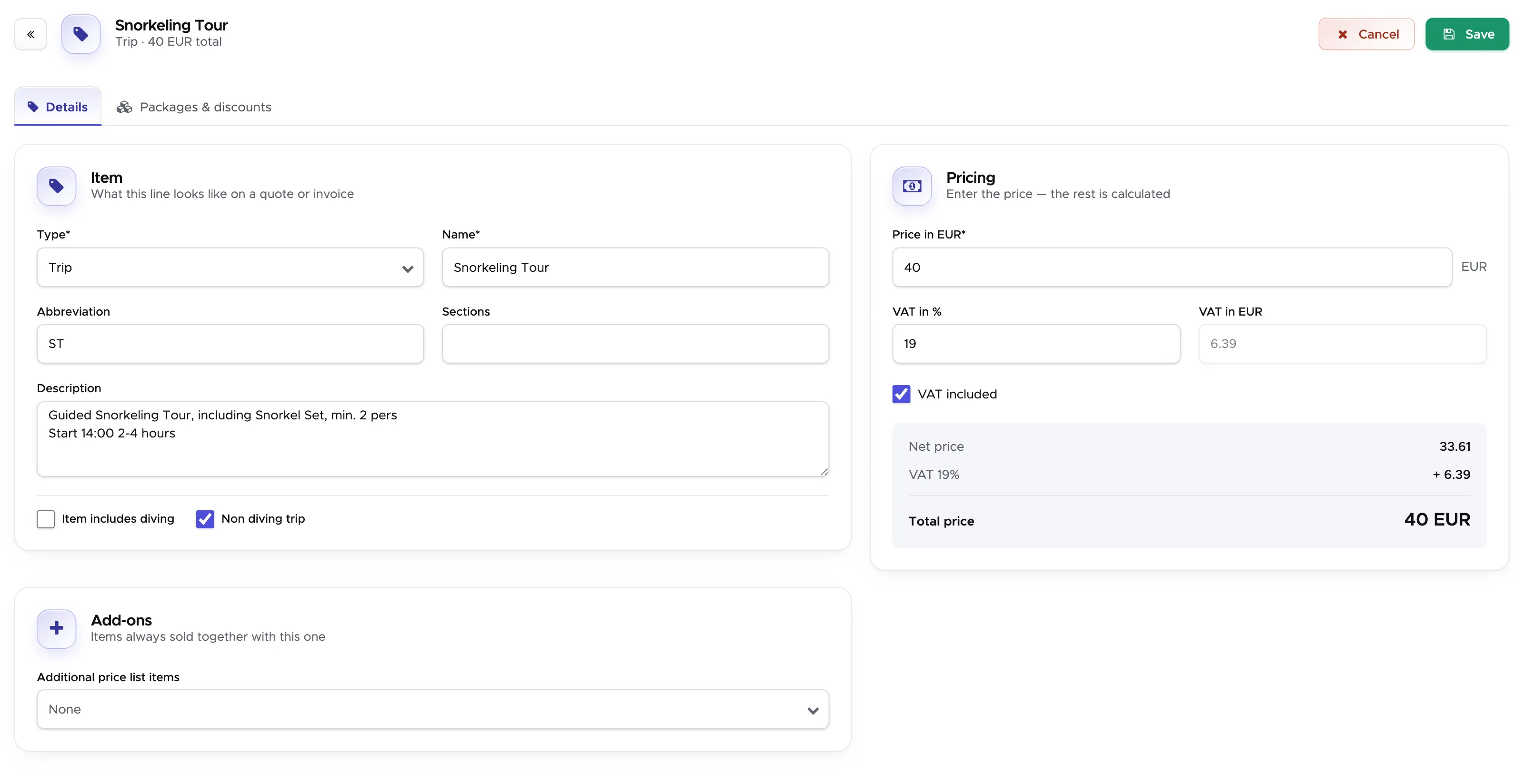
In case you wish to create a snorkeling trip, please remember to select the checkbox “Non diving trip”. This means that Geek Divers will only charge your customers for the price written in this item. In the example below here the customer’s bill will show one line: Snorkeling Tour for 40 EUR. If you select an item in the Add-ons card (e.g. a lunch on the boat), the bill will show it as a second line.
Don’t forget to click on the button Save!
Example no. 2: Trip that includes dives
Section titled “Example no. 2: Trip that includes dives”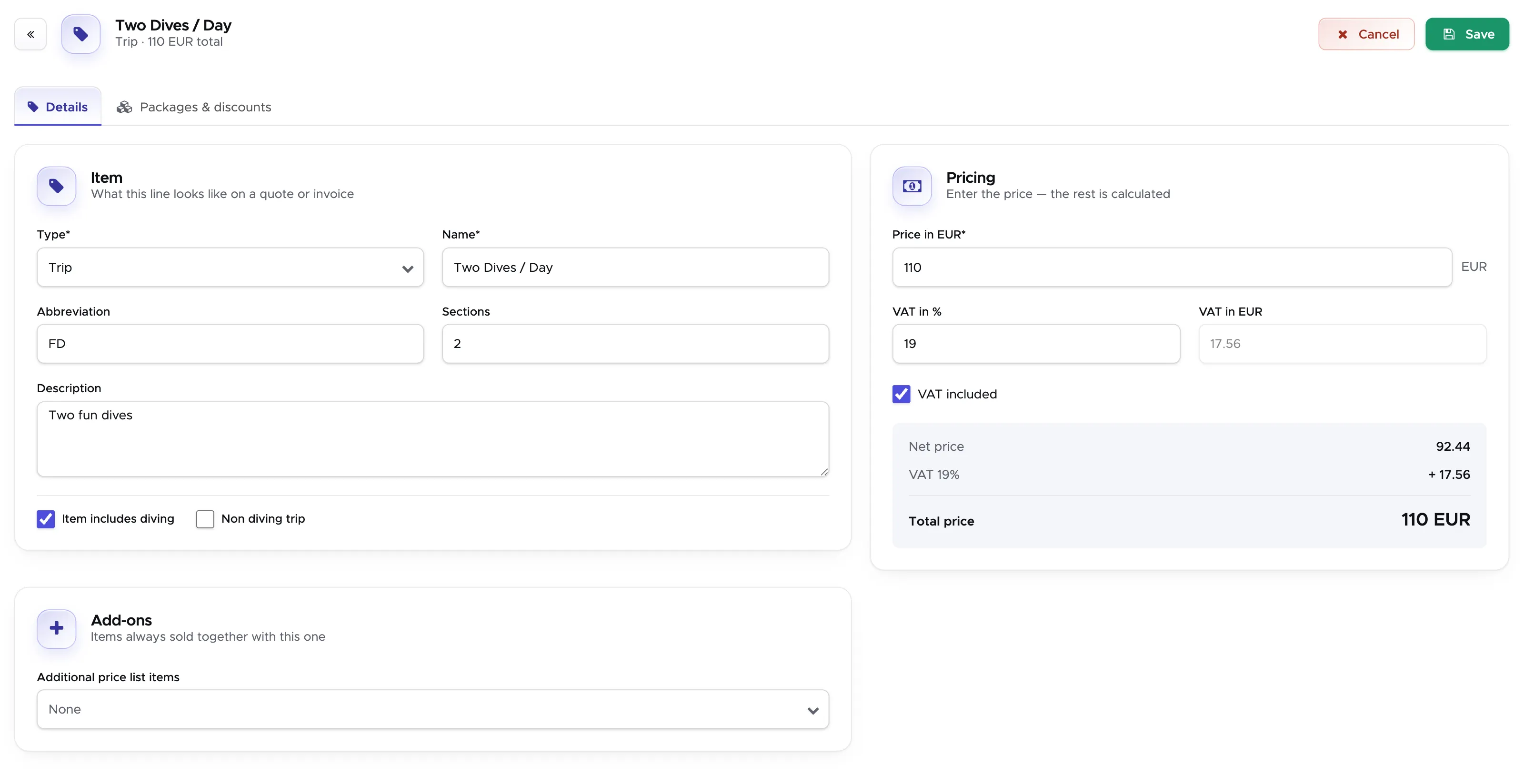
In the picture above you can see that the Type is Trip. Write a name that lets you immediately understand what kind of trip it is and a short description (you can edit the description later if you prefer). Please consider that the name of your choice will be shown in the customer’s bill. The description will be visible in the Activity (more on this in chapter Activity).
In this specific example you can see a trip with two dives (“Two Dives / Day”), but you can set it up with the number of dives that you wish.
In the Abbreviation field you can type a few characters and/or numbers that specify the type of this trip. In the example above you can see “FD” that stands for Fun Dive. This will be shown in the Activity Calendar, in the Trip pop-up and in the Trip List that is available for every Activity that you will create (more on this in chapter Activity).
Write a price and a tax percentage (if applicable) and choose if the tax is included or excluded from your price.
Tick the checkbox “Item includes diving”. This is important! If you don’t tick this checkbox, Geek Divers will charge your customer for the trip AND for the number of dives according to your prices for Single dive.
In case you need to add extra costs to this trip and you’ve already set them up in your price list, you can add them in the Additional price list items field of the Add-ons card. E.g. lunch on the boat (type Food and Drink), marine park fee (type Fee). Just click on this field and start typing: Geek Divers will show you the names of the price list items that you’ve already created. The items that you add in field Additional Price List Items will be automatically written in the customers bills whenever they join this trip.
Set up automatic item package prices
Section titled “Set up automatic item package prices ”Both in Example no.1 and in Example no.2, if you offer discounts on the trip price you can use the button Add Package to select your preferences as you did for the dive packages.
No discount before
Section titled “No discount before”Here you can see an example of Trip packages:
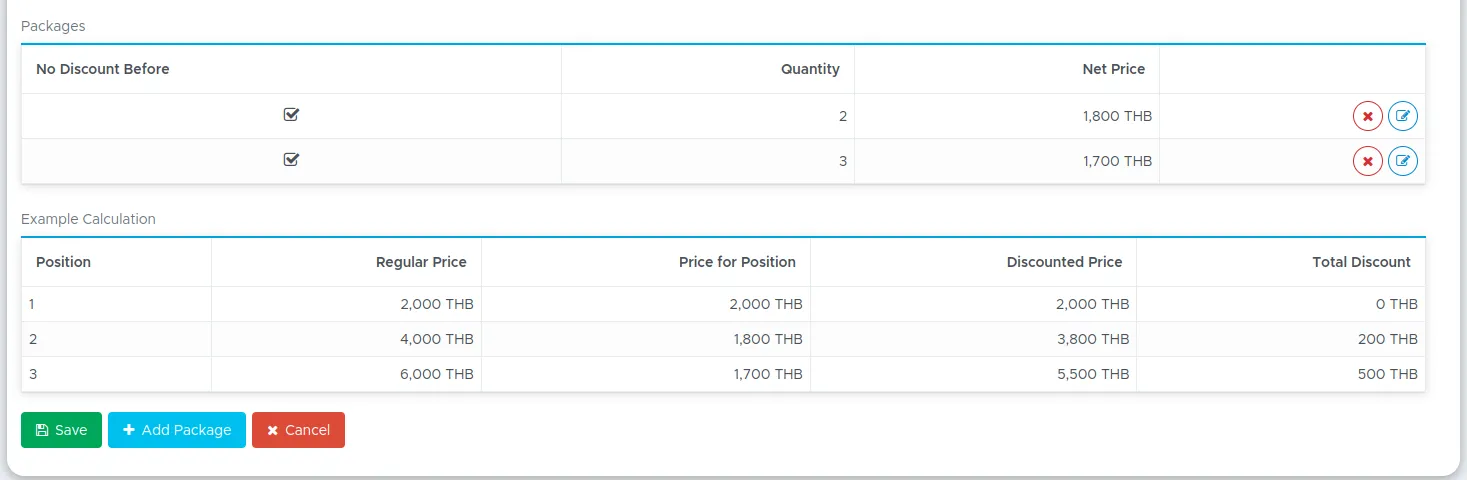
In the picture above here there are two packages: if the customer joins the trip a second time the price is reduced from the original 2000 THB to 1800 THB, if the customer joins a trip a third time the price is reduced to 1700 THB. In column Price for Position you will see that there’s no discount on the first trip, but for trip no.2 the customer will only pay 1800 THB and 1700 THB for trip no.3. In column Discounted Price you can see the total charges for your customer for 1, 2 or 3 trips.
Checkbox ‘No Discount before’ - taking the example above here, if you tick this checkbox you’re saying that the first time the customer should be charged the full price, the second time there’s a discount of 200 THB and the third time of 300 THB. The overall discount for 3 trips will be 500 THB.
Regular item package price
Section titled “Regular item package price”If you choose not to tick checkbox “No discount before” you’re saying that the customer should be charged 2000 THB for the first trip, 3600 THB (1800 THB x2) if the customer joins two trips and 5100 THB (1700 THB x3) if the customer joins three trips. Geek Divers will take care of recalculating the price of each item in the customer’s bill.
Below here is how it looks like without a tick on checkbox ‘No Discount before’:

Don’t forget to click on the button Save!
If you’re not sure about how to set up your trips or their package prices, please feel free to send us a message.
2.4 Price list item type Course
Section titled “2.4 Price list item type Course”Here we set up your complete educational offer.
In the Price List, click on Add New Item.
Choose Type Course, write the course name, the abbreviation and the description. Remember that the course name will be shown in the customer’s bill, while the abbreviation and description will be shown only in the Activity more about Activities in chapter Activity).
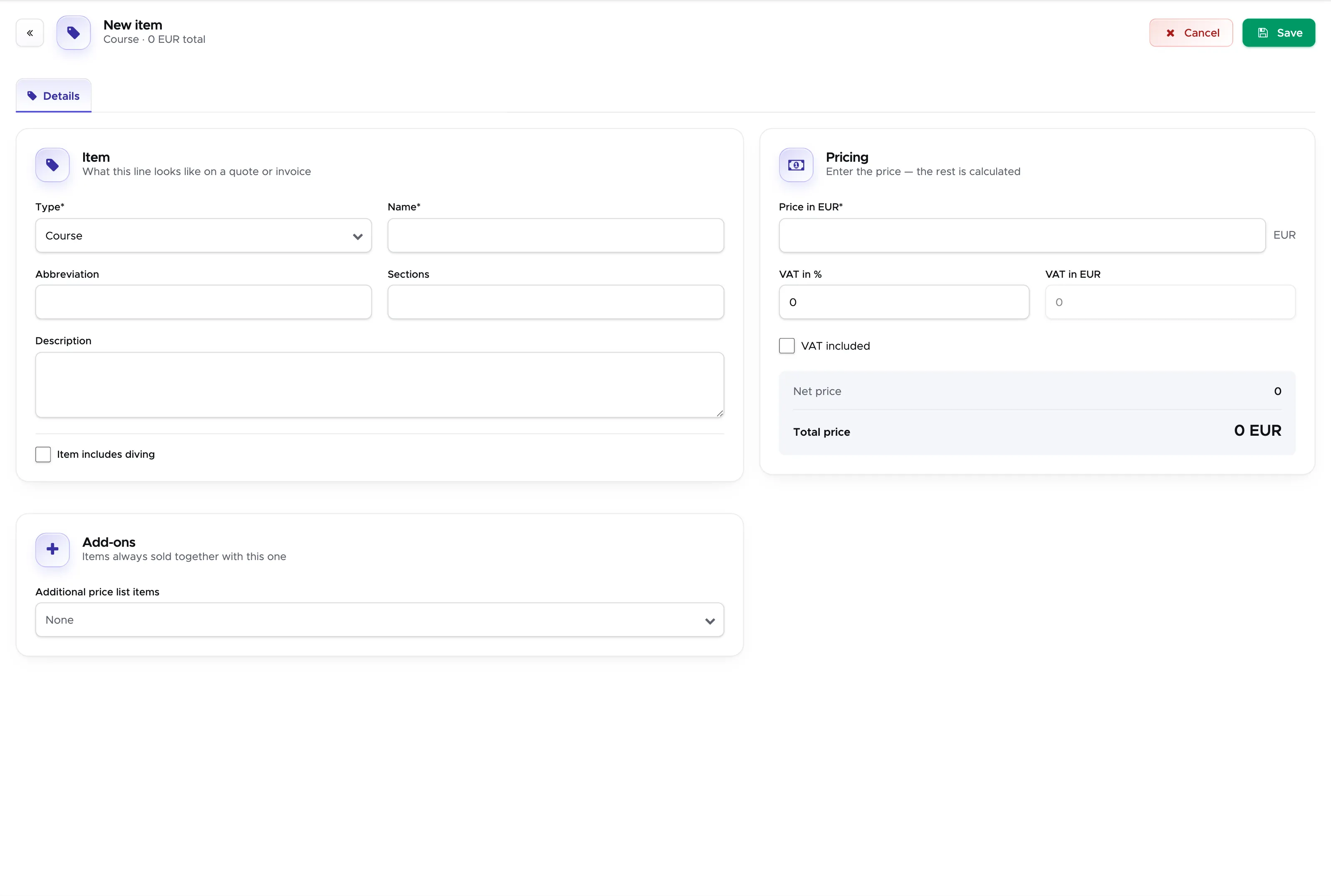
In the Abbreviation field you can type a few characters and/or numbers that specify the type of course that you offer. In the example above you can see “OW4sd” that stands for “Open Water 4 shore dives” . This will be shown in the Activity Calendar and in the Trip List that is available for every Trip that you will create (more on this in chapter Activity).
Enter a price, tax and tick the box Tax included (if appropriate).
In Additional Price List Items you can add the price list items that you’ve already created with types Fee, Extra, Material, Food and Drink or Rental. Just click on this field and start typing: Geek Divers will show you the names of the price list items that you’ve already created. The items that you add in field Additional Price List Items will be automatically written in the customers bills whenever they join this trip.
The field named “Price including ‘Additional Price List Items’” shows you the total price of this course that will be charged to your customer. In the customer’s bill you will see separate positions, each containing the costs for the course (above here in the picture it’s 5500 THB) and each additional price list item.
If your staff remuneration is based on commissions and the course commission is in percentage, the percentage of your choice will be calculated on the course price (in the above example 5500 THB), without considering the additional price list items.
Sections
Section titled “Sections”If more than one staff member can be assigned to a course (e.g. one instructor will teach the theory, another one the confined water dives and another one the open water dives, maybe together with an assistant instructor or a divemaster), you can add the maximum number of sections that the course can be divided into. In the above example you can see 14 sections that are calculated as follows: 5 theory chapters, 5 confined water dives and 4 open water dives for a PADI Open Water Diver course. If you read further in chapter Activity - New Course and chapter Staff commissions/salary, you will see that each staff member can receive a specific commission based on the number of sections that they’ve taught. Potentially you can assign 14 staff members to the above course. Feel free to choose the number of sections that is most appropriate for your model. If you prefer, you can type 100 sections and in the Activity define a number of sections intended as a percentage for every instructor. E.g. 60 for one instructor and 40 for another. This way you are saying that this course was taught by one instructor for 60% and the other for 40%. If you expect one instructor to start and finish a course, then you don’t need to worry about the sections. You can leave this field empty.
Field Section is available both in price list item type Course and Trip.
Don’t forget to click on the button Save!
You will need to repeat the above for every course that you offer.
Please feel free to send us a message in case you’re not sure of how to set up your courses.
2.5 Price list item type EAN
Section titled “2.5 Price list item type EAN”If you offer Nitrox tanks at an extra charge, Geek Divers can calculate it automatically in your customers’ bills. If you don’t offer EAN tanks or if you don’t charge extra, you can skip this chapter.
Tip: if you offer Nitrox tanks at no extra charge we recommend setting up this price list item with a price ‘0’. Whenever you select the EAN checkbox for a customer in an Activity, a new row will be added to the customer’s bill with price ‘0’. This way you show the divers that they received a number of Nitrox tanks free of charge.
In the price list, click on Add New Item. Select type EAN, write a name and a description.
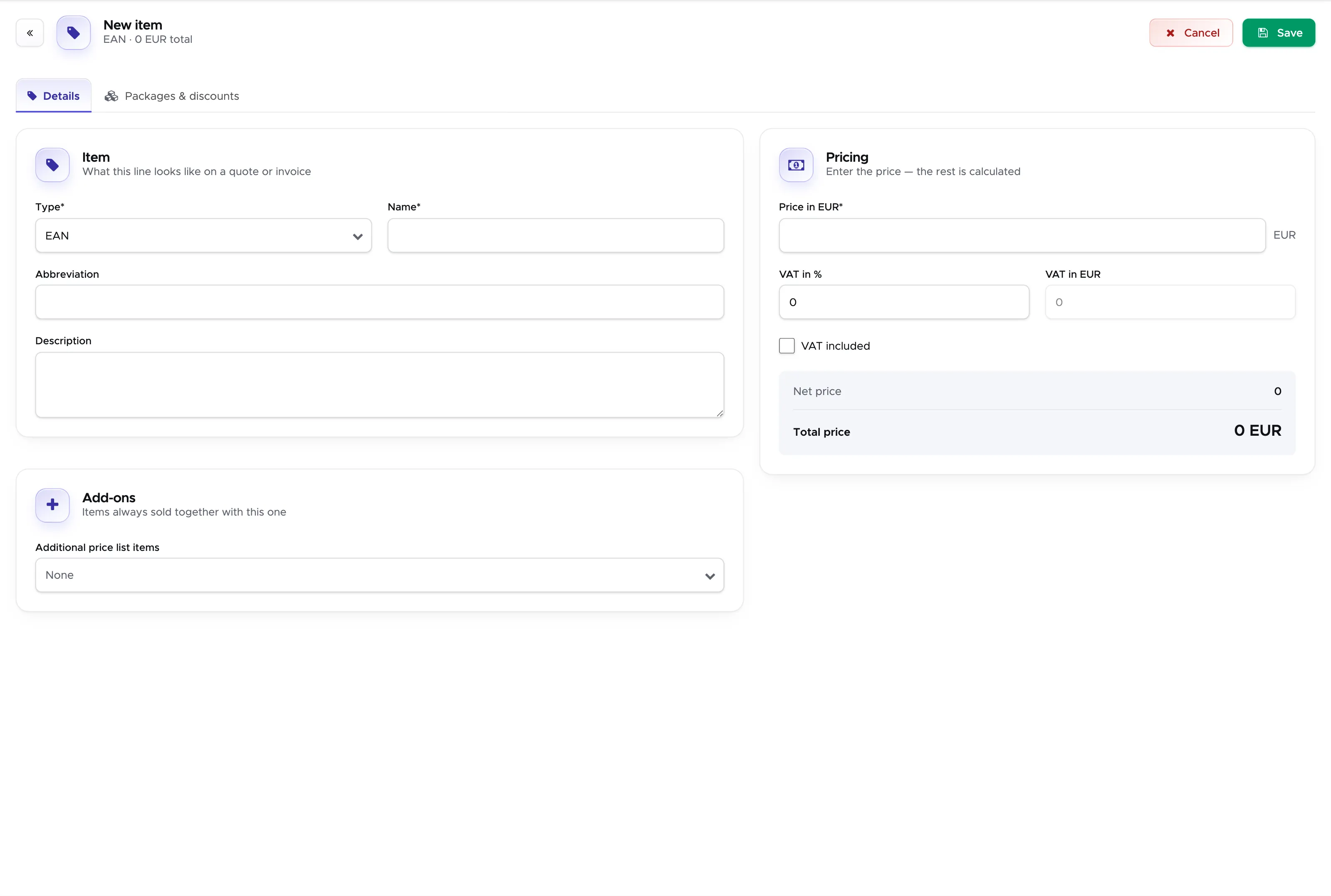
Enter a price, tax and tick on Tax included (if appropriate).
In Total Price you will see the charge for one EAN tank that will be added to the customer’s bill if the customer chooses to dive with Nitrox.
As you did for dives and trips, you can add packages for Nitrox tanks.
Click on Add Package button to add a discount package.
Here an example of EAN packages:
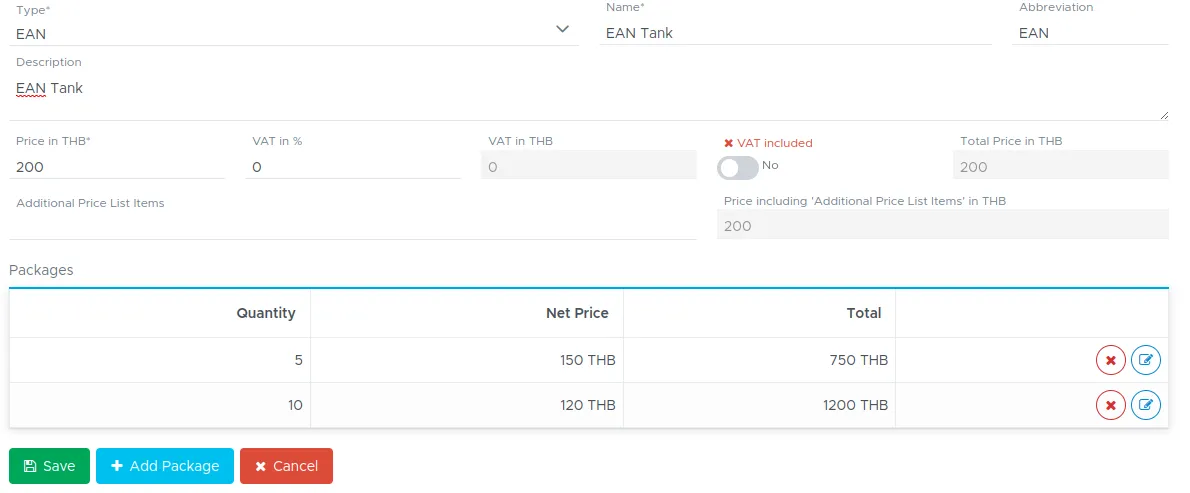
In the above example a customer who dives 5 times with a Nitrox tank will pay 150 THB per tank (instead of 200 THB) as additional charges and 120 THB per tank starting from the 10th dive.
If a similar package is set up in the price list, Geek Divers can automatically calculate the discounts in the customer’s bill, by counting the number of EAN tanks that the customer used and applying the discounts accordingly.
2.6 Add a Multi-package
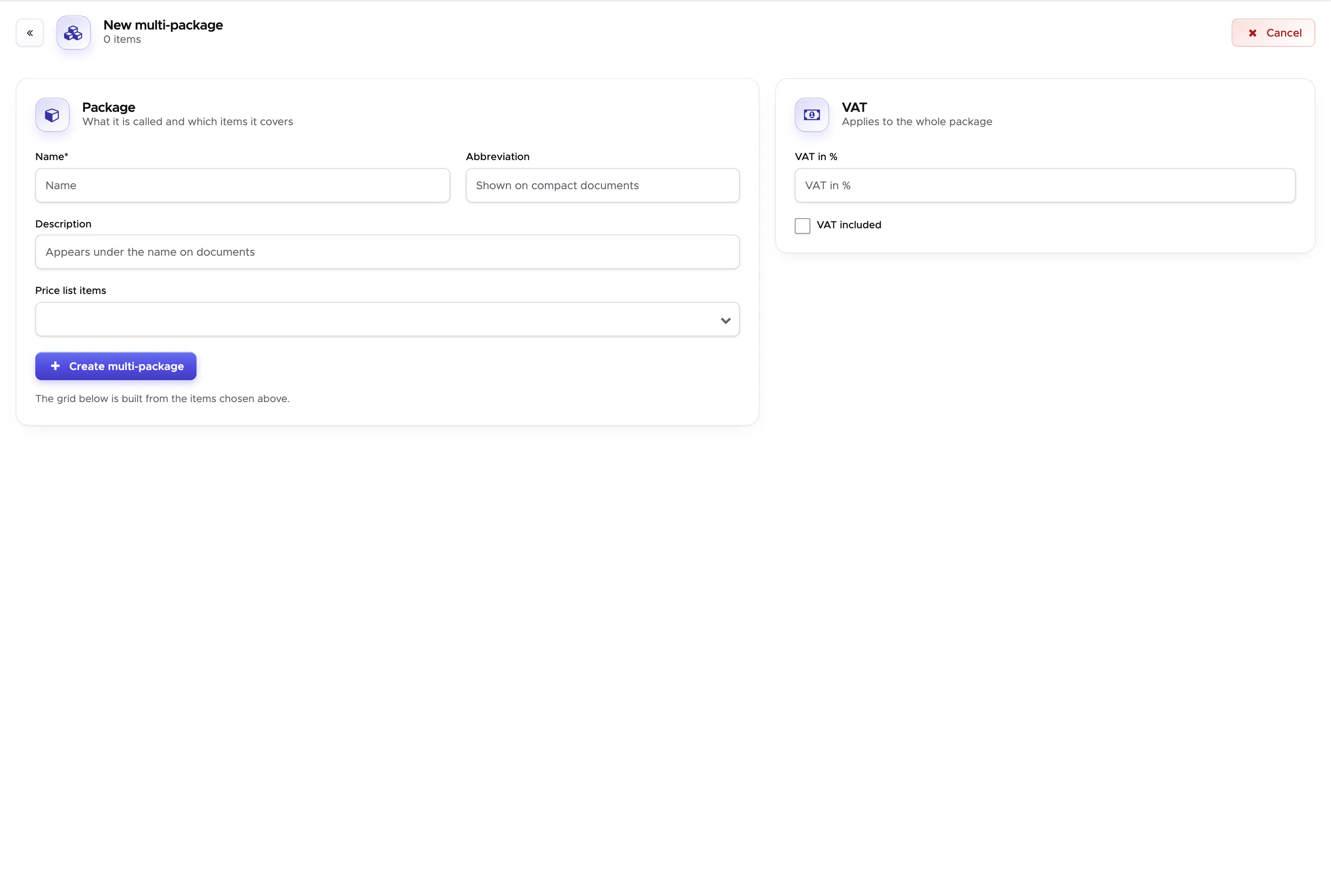
Section titled “2.6 Add a Multi-package”If you offer a package including different items, you can create a multi package in your price list. E.g. Accommodation for 7 nights, airport transfer and Open Water course.
These are 3 different items in your price list and before you create a Multi-package you need to create the separate items first. If you offer a package price (probably cheaper than the sum of the single items) to your customers, then you can create a multi package in Geek Divers.
Click on Financials, Price List and Default Price List. Now click on button Add New Multi-Package. Write a Name (this will be shown in the customer’s bill), an abbreviation of your choice and a Description (these last two are for your internal use).
Starting from version 2.0 you can add a percentage for Tax and choose if it’s included in your package price or not. Please consider that the percentage of your choice will be applied to the package, not to the single items in it.
In field Price List Items start typing the name of the items that you want to include in your multi-package and Geek Divers will show you the price list items that match your search. Once you’ve selected the items of your choice, click on button Create Multi-Package.
You will see a table in the bottom part of your screen.
For each of the items that you’ve selected, add a quantity and the package price. In the example below you can see an Open Water course, a room (type Accommodation in the Price List) and a day trip.
If your package price has some variations in the quantity of each item, you can click on the button Add Row to specify different quantities and price. In the example above the package offers an Open Water course, 5 nights in a single room and either 1 or 2 day trips.
You can create as many multi-packages as you like. E.g. IDC course + a number of nights of accommodation + a number of meals + airport transfers, Divemaster course + a number of weeks of internship + accommodation, OW course + AOW course + EAN course…etc.
See how the customer’s bill looks like with Multi-packages in chapter Multi-Package Discount.
2.7 Price list item type Package
Section titled “2.7 Price list item type Package”If the packages that you offer include items with variable quantities, the Multi-package does not apply to your pricing model. E.g. you offer unlimited shore diving in your house reef or unlimited diving for a set number of days and one zodiac ride per day. In these cases the multi-package won’t work because it’s mandatory to set the exact quantity for each of the included price list items.
Your other option is the price list item type Package.
Once your customers start doing some activities you can tick them off in their bill as part of the package price. You can set up your package price very easily in the price list. Within your price list click on button Add New Item and select type Package:
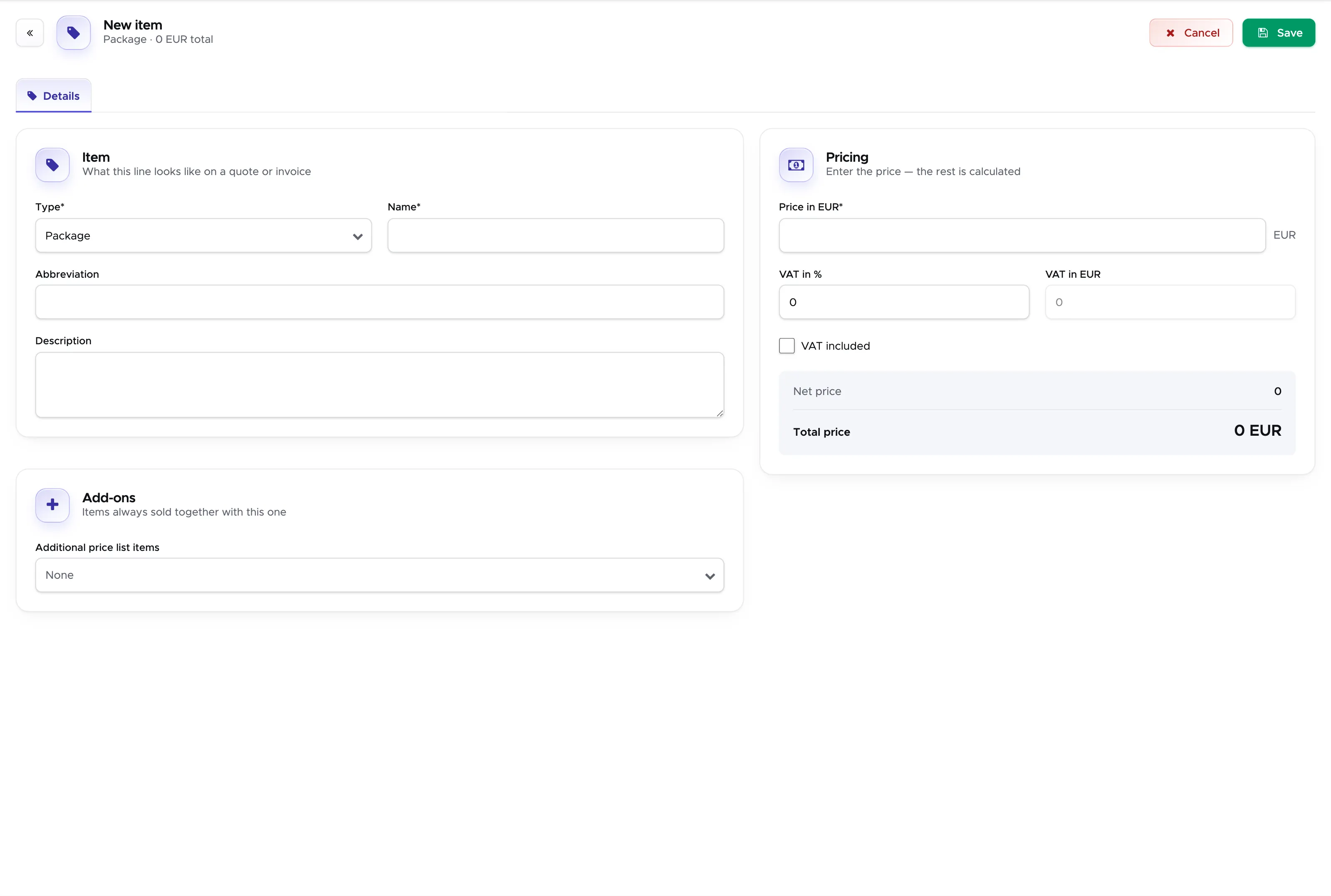
In your customer’s bill you can add this package by clicking on button Add Position (from Price List).
See how the customer’s bill looks with price list item type Package in chapter Discount with price list item type Package.
2.8 POS Inventory
Section titled “2.8 POS Inventory”Some of what you sell is stock rather than a service - masks, snorkels, T-shirts, batteries. POS Inventory keeps count of it. Click on Financial and POS Inventory.
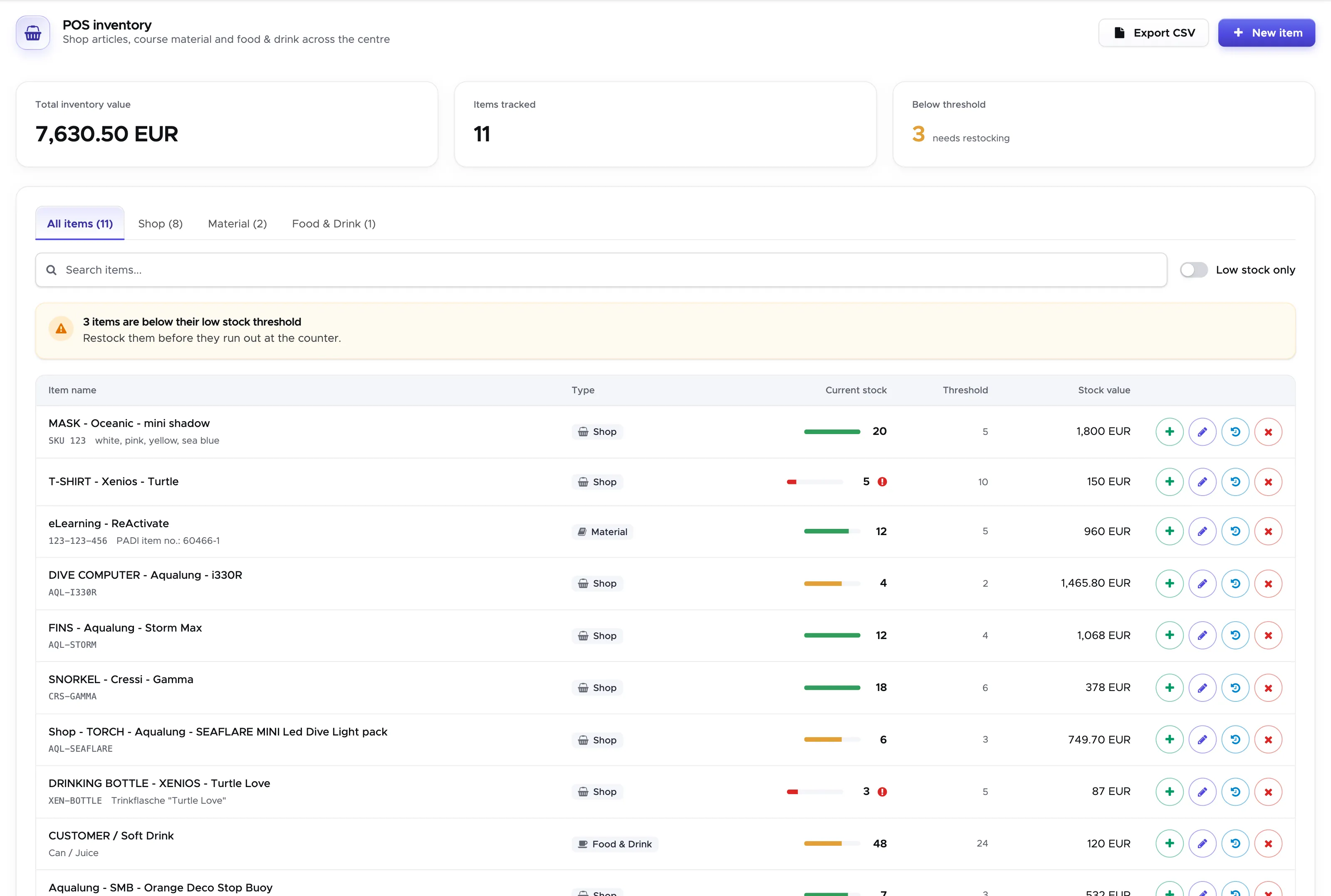
The table lists every item you have put into your inventory with its type, how many you currently have and the threshold at which you consider it low. The total value of everything in stock is shown above the table, and the toggle Show Low Stock Only reduces the list to the items that have fallen to or below their threshold - the shopping list, in other words.
Click on Add Item to Inventory to add a new one. An item you sell from stock still needs to exist in your price list to appear on a customer’s bill; the inventory is what tells you when to reorder it.
2.9 Service charge
Section titled “2.9 Service charge”Besides the sales tax, a price list item can carry a service charge — the percentage many centres add on top of a price by local custom or law. You set it on the item itself, next to the tax, and you say whether it is included in the price you typed or added on top of it.
The charge follows the item everywhere it is used: it is calculated per position on the bill, it can be printed on the bill or left off it (there is a toggle in the bill settings for centres that would rather not show it), and it appears in the bill and invoice CSV exports as its own figure. Rooms, meal plans and manual bill positions carry one too, and so do partner price lists.
A bill keeps the charge that was in force when the position was added, so re-pricing an item later never rewrites a bill you have already written.
2.10 Bulk edit
Section titled “2.10 Bulk edit”Changing the tax or the service charge on sixty items one at a time is the kind of job that gets postponed. Open your price list items and click Bulk edit.
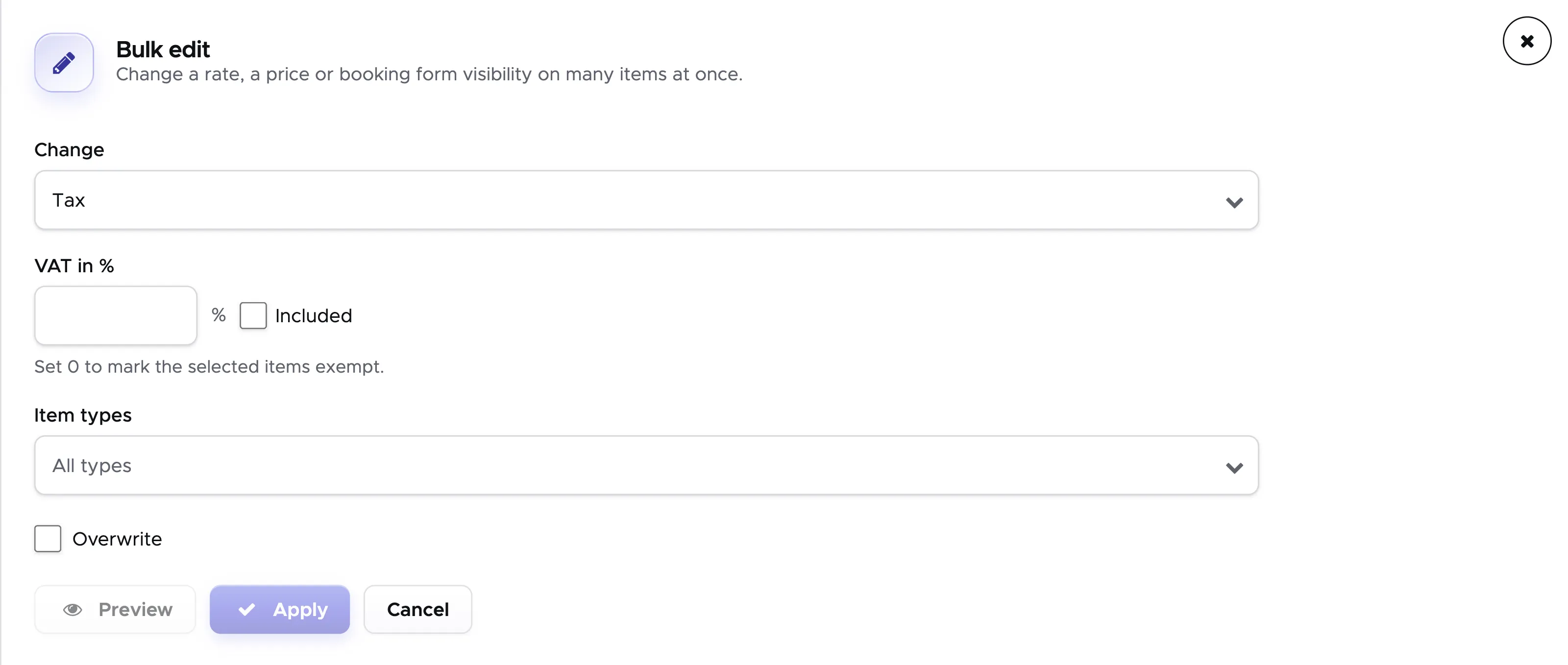
Pick what you want to change — the service charge, the tax or the price — and then which items it should apply to, either all of them or only one item type. Preview shows you exactly which items would change and what each one would become, before anything is written.
Two things are worth knowing:
- Included is the same flag as on the item itself: it says whether the percentage you are setting is already inside the price or is added on top of it.
- Overwrite decides what happens to items that already carry a value. Left unticked, only the items that have no value yet are touched — which is what you want when you are filling in the gaps. Tick it to set every selected item to the new value regardless of what it had.
Setting a rate to 0 is not the same as leaving it empty: 0 marks the selected items as deliberately exempt.
After the change is applied you are told how many items were affected, and the drawer keeps a list of the recent bulk changes — when it was made, what it did and who made it — with an Undo beside each one. If a change was not what you meant, undo it there rather than editing sixty items back by hand.
2.11 Import a price list from a PDF
Section titled “2.11 Import a price list from a PDF”Most centres already have a price list before they start with Geek Divers - the PDF on the website, the sheet on the counter. Instead of typing it in item by item, you can let Geek Divers read it. You check every line it found, and only then are the items created.
Where to find it
Section titled “Where to find it”Open your price list items and click Import PDF, next to Bulk edit.
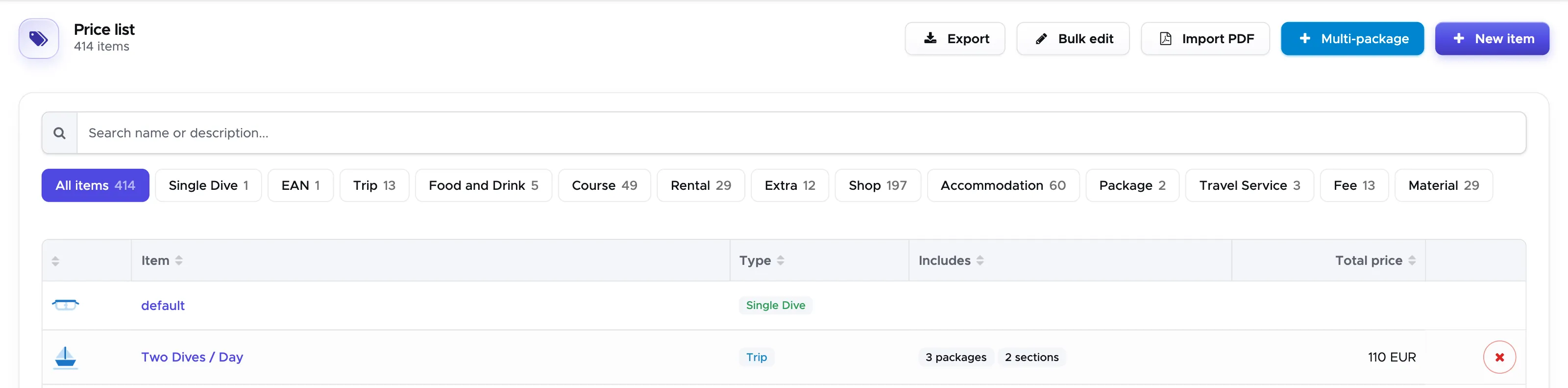
Each dive centre has a number of reads (15 to begin with), shared by all its locations. The button shows how many are left. Only a read that worked is counted - reading a file that fails costs nothing - but a read is counted whether or not you import anything from it, so pick the right file before you click. When none are left, write to info@geekdivers.com if you need more. If you do not see the button at all, the import is not available on your account.
What kind of PDF works
Section titled “What kind of PDF works”The PDF you would hand a guest works: one page or several, two or three columns, prices in boxes, coloured headings, even a scanned page. The pages are read the way they look, not as text, so the layout does not have to be tidy. What matters is that each price stands next to the thing it is for.
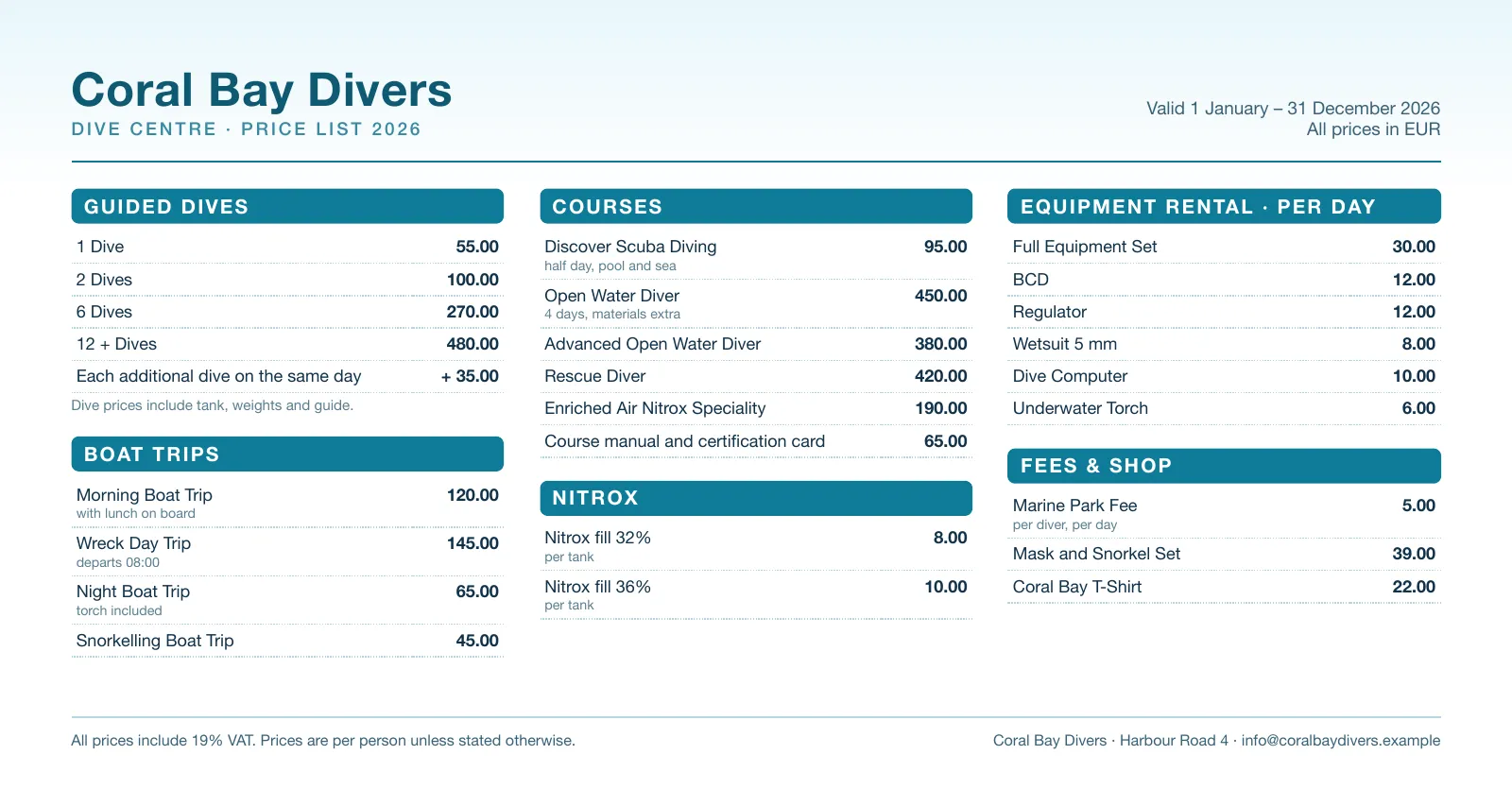
A few things on the page are used beyond the rows themselves:
- The tax line. A sentence such as “All prices include 19% VAT”, usually in the footer, is picked up once for the whole document. You confirm it on the next step.
- Dives priced by the number of them. Rows like “1 Dive / 2 Dives / 6 Dives / 12 + Dives” are recognised as one thing sold at four quantities (see below).
- The currency. It is shown to you, but prices are imported as plain numbers in the currency of your price list (General Settings - Units). A price list in another currency is not converted.
Only PDF files are accepted, up to 20 MB. A Word file or a photo of the price list has to be saved as a PDF first.
Upload and read
Section titled “Upload and read”Choose the PDF and click Read the PDF.

A typical price list takes about half a minute. While it is being read, the panel tells you what it is doing and how many seconds have passed. It cannot be closed during that time: closing it would throw the read away, and it would still count.

Nothing is created by reading. If the result is not what you expected, you can choose another file and read again without closing the panel.
Check what was read
Section titled “Check what was read”When the read is finished, the panel shows how many rows were found and how many need a look, followed by everything that applies to the whole document and then the rows themselves.
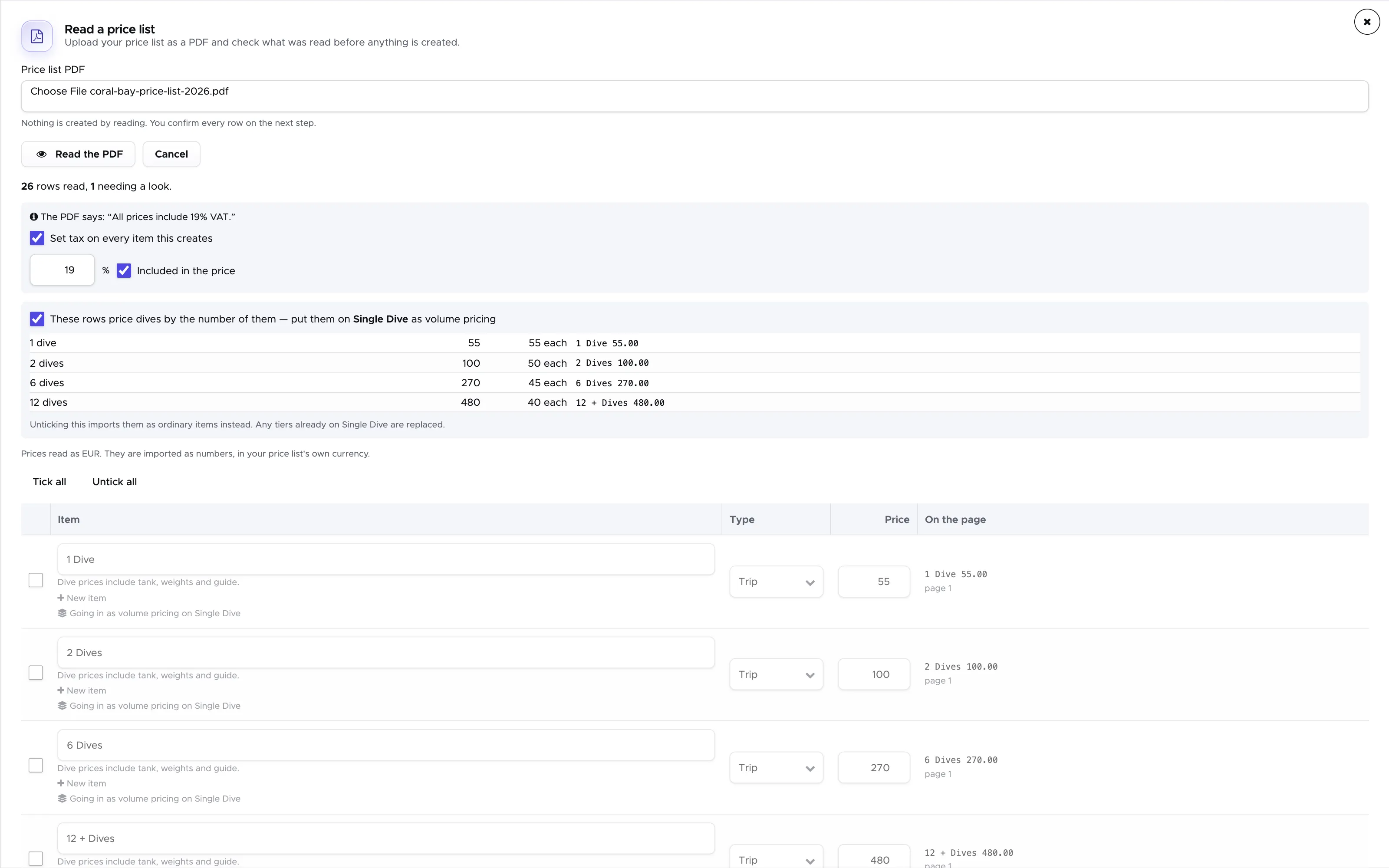
Tax. The panel quotes the sentence the rate was taken from, so you can check it. With Set tax on every item this creates ticked, the rate and the Included in the price setting are written onto every new item. Correct the figure if it is wrong, or untick the box to import the items without tax. Items that already exist and are only re-priced keep their own tax. If the PDF states no rate, no tax is imported; set it afterwards with Bulk edit.
Dives priced by the number of them. When the page sells dives by quantity, the panel offers to put those rows on your Single dive as volume pricing, rather than creating four separate items. The table shows the price for each quantity and what it comes to per dive, and a bill that charges six dives then finds the six-dive rate by itself. Any volume pricing already on Single dive is replaced. Check that the table holds only plain dives. If something else appears in it - a boat trip, a course - untick the box: all of these rows are then imported as ordinary items, and you can set up the volume pricing on Single dive by hand.
The rows. Every row shows the item as it will be created - name, type and price - and, under On the page, the line exactly as it was read, with its page number. Compare the two before you import. Under the name you see what will happen to the row:
- New item - a new price list item is created.
- Re-prices an item - an item with that name already exists in your price list. Only its price changes (from the old price to the new one); its type, tax, packages and everything else stay as they are.
- Going in as volume pricing on Single dive - the row is part of the dive table above, and is not created as an item of its own.
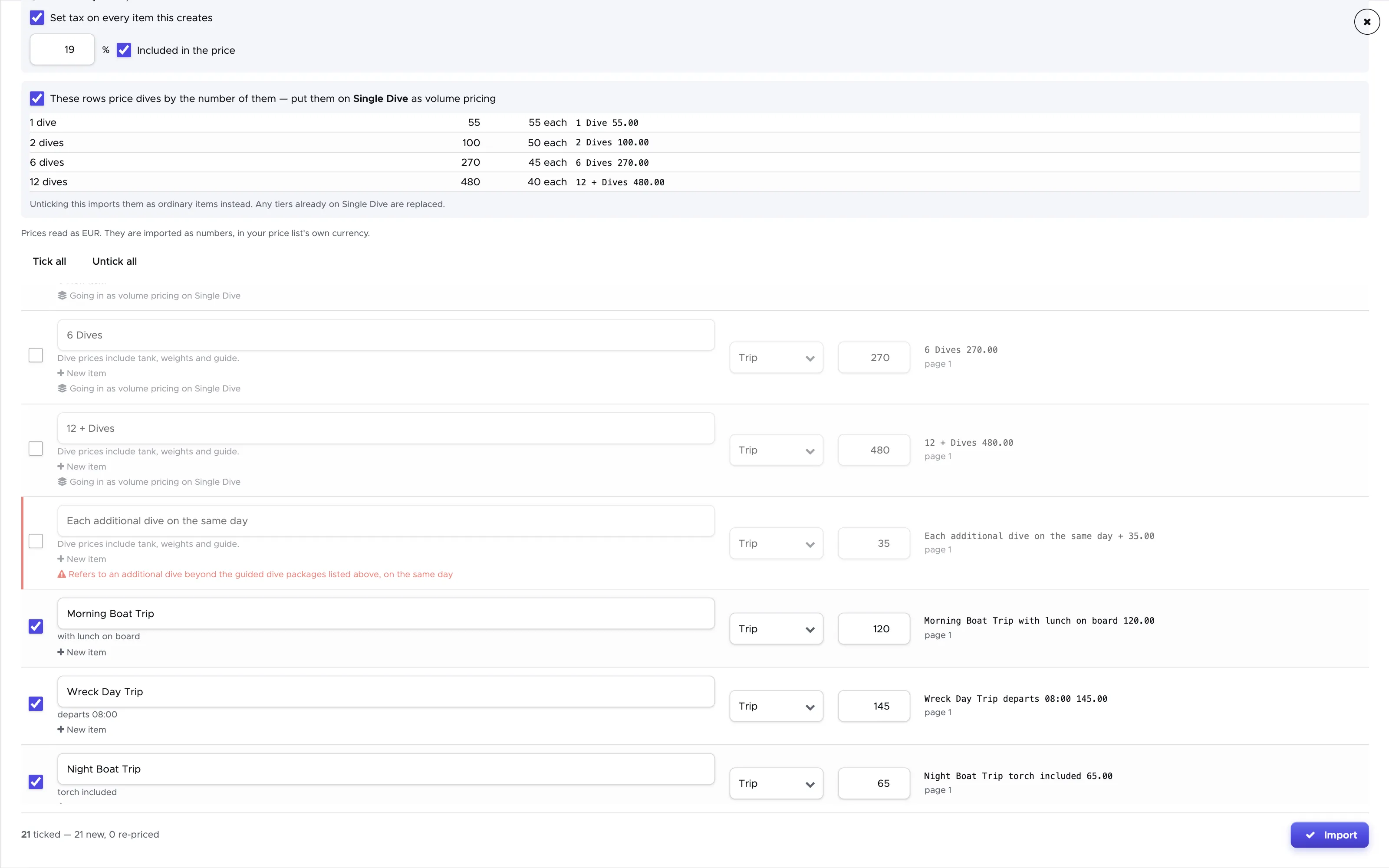
Rows that were read with confidence are ticked. A row that needs a look is unticked, marked red, and carries a note explaining why - above, “Each additional dive on the same day” is a surcharge that only makes sense next to another dive, not something to sell on its own.
Fix or skip lines
Section titled “Fix or skip lines”- Change the name, type or price directly in the row. The type list holds the same types as the price list.
- Untick a row to leave it out. Tick all and Untick all are above the table.
- A row without a name or without a valid price cannot be ticked until you fill it in.
- If a row was matched to the wrong item, click create a new item instead under the match. Single dive is the exception: it is a built-in item and can only ever be re-priced.
- Matching goes by name, so a small difference in spelling (“1 Dives” instead of “1 Dive”) makes a new item instead of re-pricing the one you have. Look at New item / Re-prices before you import if you are reading a list into a price list that is already set up, or you may end up with the same item twice.
Import
Section titled “Import”The bottom of the panel counts the ticked rows and how many of them are new and how many re-price an existing item. Click Import. A last question sums up what is about to happen - how many items are created, how many re-priced, the dive volume pricing and the tax - and nothing is written until you confirm it. Afterwards the panel closes, your price list reloads, and you are told how many items were created and re-priced.
Each new item gets the name, description, type and price from its row (and the tax, if you kept it). The import knows only what is on the page, so it does not set up anything a price list PDF does not show: course sections, packages other than the dive volume pricing, staff compensation, partner prices or POS inventory. Open the items that need them afterwards and complete them as described earlier in this chapter. To change the tax or a service charge on many of them at once, use Bulk edit.
Limits and when it goes wrong
Section titled “Limits and when it goes wrong”- “Not a PDF” - the file you chose is not a PDF. Save it as one and choose it again.
- “Could not read the PDF” - the file could not be read (it may be damaged, protected or over 20 MB), or the connection failed. Nothing was changed, and the read is not counted. Try again, or try a different export of the same price list.
- “Nothing found” - the PDF was read, but no priced rows were found in it, for example a brochure without prices or a scan too blurred to read.
- “PDF import limit reached” - your centre has used all its reads. Write to us if you need more.
- “Import failed” - the items could not be saved. Nothing was changed; you can click Import again.
A read is a very good first draft, not a guarantee. Prices are copied from the page, never worked out - a price that is hidden, cut off or unclear comes back flagged for a look - but a name can come out slightly differently from one read of the same PDF to the next. Always check the rows against On the page before you import.
To read your price list, Geek Divers sends the PDF to an AI service. The file is not stored, neither by Geek Divers nor as part of your price list.