
Cash flow
In the menu on the left, click on Financial and Cash Flow.
On this page you can view all the financial transactions that happen in your dive center (location). The top part of the page shows a Start Date and End Date that by default are equivalent to the current month. If you wish to view your cash flow in a specific period of time, you can select a different start and end date. Click on button Update and the cash flow table in the bottom part of the page will be refreshed.
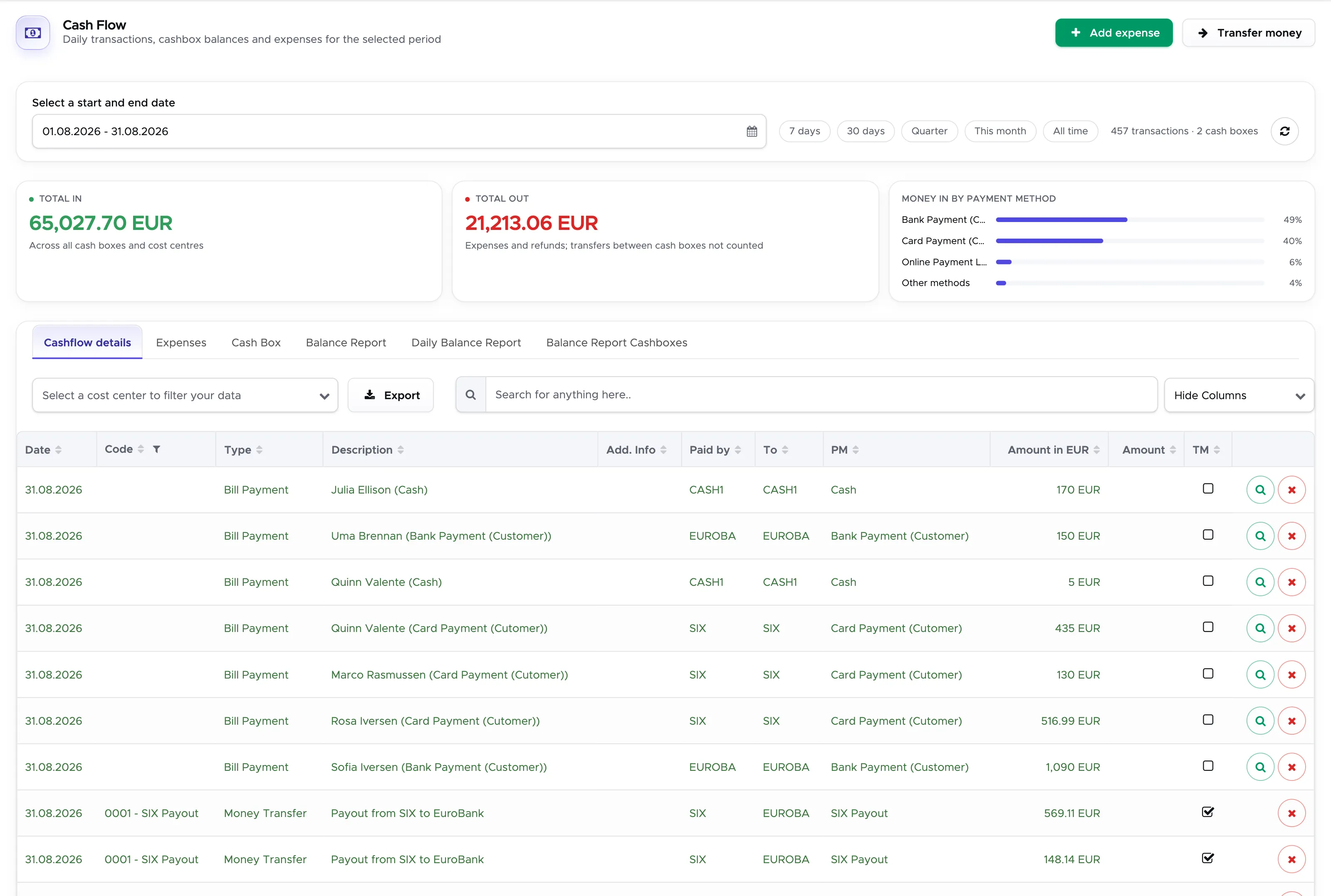
Every manually created row in the table has a button Edit on the right-hand side.
If the row was written automatically in the cash flow (payments recorded in bills, payslips, agent invoices/credit notes, partner invoices or customer credits) or if you used button Transfer Money, button Edit is not available. In every other case you can click on the Edit button to correct a mistake: change the date, expense code, cost center, amount…etc.
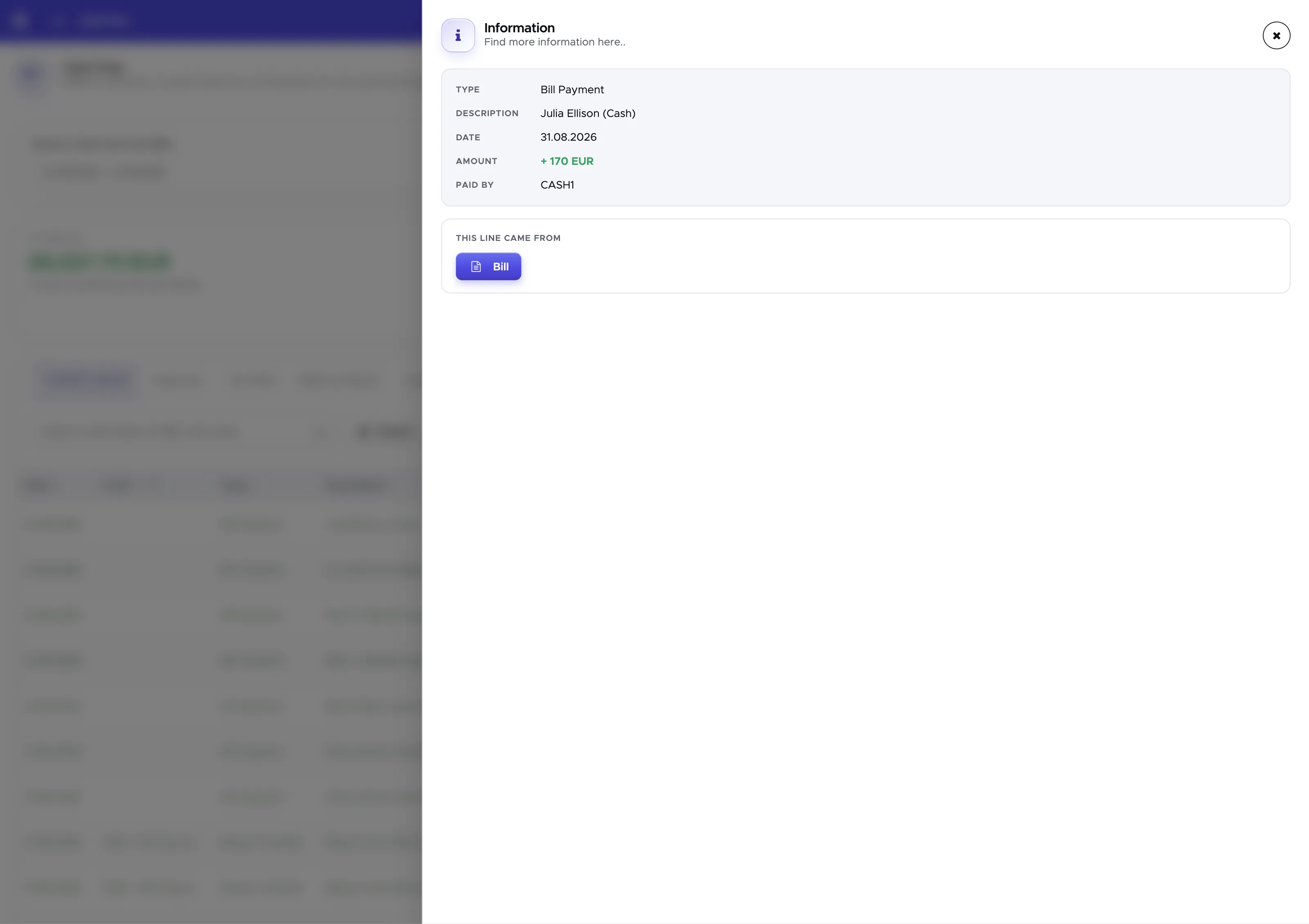
Starting with version 2.1 you will now have another button to get more information about the transaction you currently see. You can also navigate to the cause of that transaction.
Right below the Start Date and End date, you will see some tabs. The following paragraphs describe each one of them.
Please consider that when you set up your users, you can choose which tabs each user should be able to access.
The Admin login can access all of them.
As a generic suggestion and due to the kind of data displayed in these tabs, you might want to keep tabs Cashflow details and Balance Report only for the business owners or allow the access only to very trustworthy employees. Please check chapter Users to find out how to restrict access to the cash flow. If you need help in setting up your users, please feel free to contact the Geek Divers team.
12.0 Initial setup
Section titled “12.0 Initial setup”In the cash flow page in Geek Divers you can find an overview of all your costs and revenue divided by cost center and payment method.
It’s therefore important that you complete your setup of cost centers, accounting codes and payment methods before you start using the cash flow.
Once the above settings are completed, you will need to balance all your cost centers in order to have the correct values in each one of them.
Let’s assume that you’ve set up the following cost centers:
CB - Cash box SA - Safe B - Bank PP - PayPal account TW - TransferWise account
These cost centers represent the real “pots of money” that you regularly use in your business and they usually are not empty.
In order to see the correct balance, you will need to set the initial balance, which represents the current available amount.
In your accounting code you have created a code for this purpose - e.g. 5900 - Balance differences.
As an example, let’s take your Cash Box, which is usually a real box with cash or the till drawer at the counter. Count the cash that is in it.
In menu Financial - Cash Flow, click on button Add Expense.
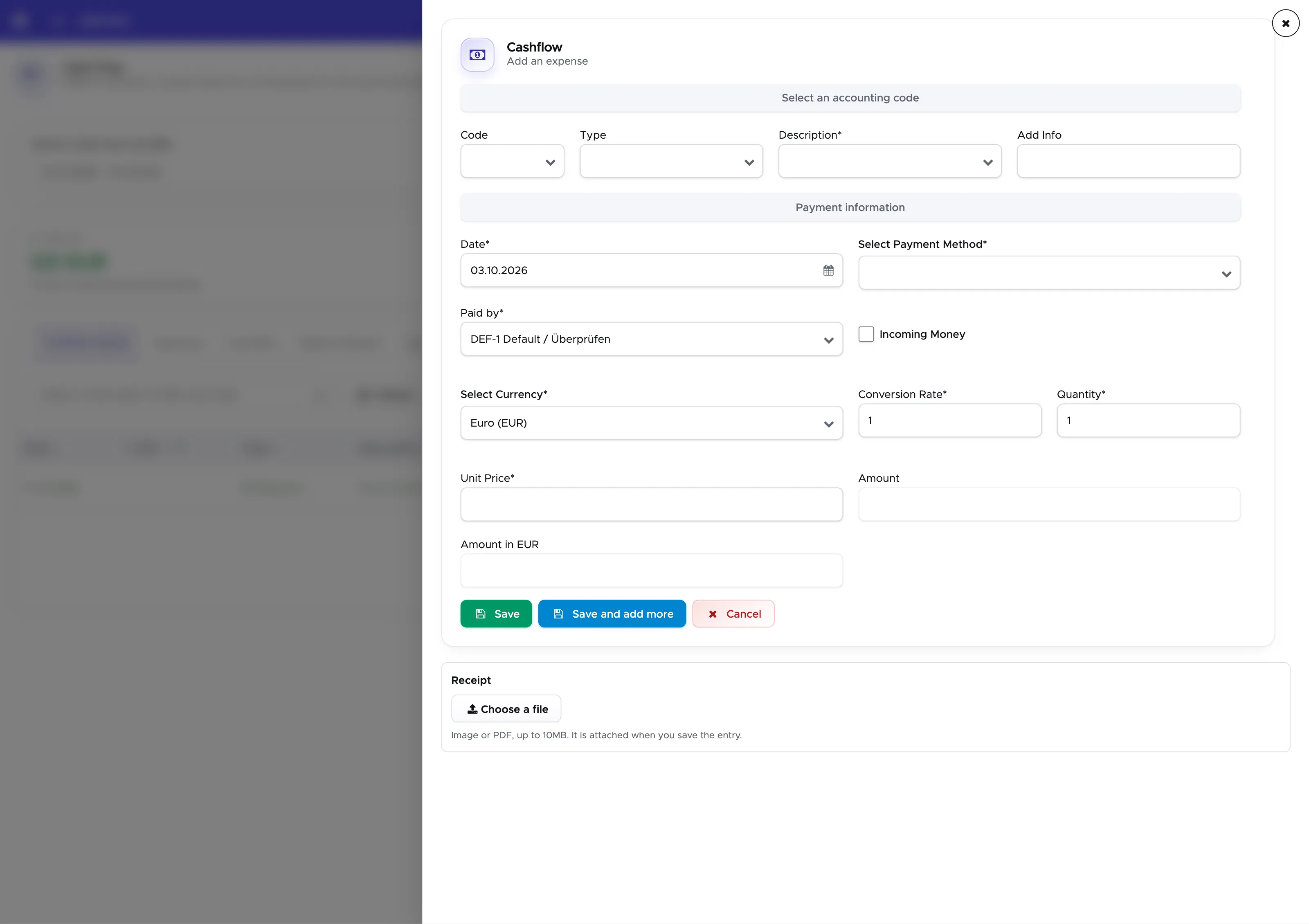
Select your balance adjustment code and feel free to add a description and some additional information. The date will be automatically set to today and you can change it, if appropriate. Select the payment method, which in this case could be Cash. In “Paid by” select your cash box (if it’s not already selected). Click on the toggle Incoming Money as you’re setting a positive balance for this cash box. In unit price, write the amount that is physically in your cash box and then click on the button Save.
In the bottom part of the screen, you will see the transaction that you’ve just entered, with your balance adjustment code:

You can also check the content of this cost center in tab Balance Report. Every cost center has its own card, with the money in, the money out and the net amount for each payment method:
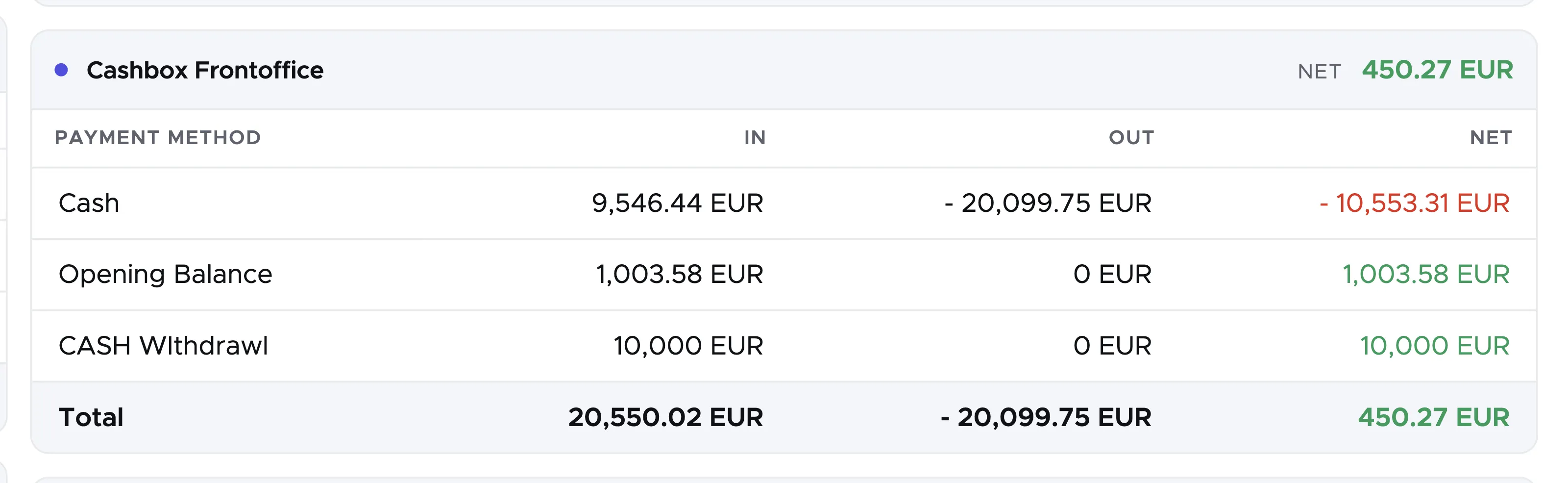
Repeat the steps for each cost center to view the correct initial balance. Please remember that you can set the correct balance even if you don’t want everybody to see how much money you have in your bank account: you can restrict the access to the cash flow only to selected users. Please check chapter Users to see how and feel free to send us a message in case you need help.
👀 Important!
Every time you receive or spend money you need to record the transaction in Geek Divers. This will guarantee the display of the correct balance in every cost center.
If you receive a payment you will need to record it in the customer’s profile (tab Bill/Agents - Add Credit), in a customer’s bill or in a partner’s invoice. If you spend money you will need to record it in an agent’s credit note or in the cash flow as an expense ( with the correct expense code). If you move money from one cost center to another - e.g. cash from the cash box to the safe - you will need to record the transaction in the cash flow, using button Transfer Money.
Once a month (or whenever you think it’s appropriate), when you receive your bank statement or when you download your PayPal/Transferwise statement, you can record the extra payment fees that you had to pay for every transaction. You can enter them as expenses with a specific code for bank fees or using the balance adjustment code.
12.1 Cash flow - Cash flow details
Section titled “12.1 Cash flow - Cash flow details”The default view for cash flow is Cashflow details. This table shows everything entered in the cash flow both manually and automatically.
Green rows represent your income and red rows represent your costs.
Every time you record a payment from your customers and you enter the payment in the customer’s bill, Geek Divers will add a row in the Cash Flow table with Type “Bill Payment” and you will find the customer’s name and the payment method in column Description.
Every time you record a payment in one of your staff members’ payslip, Geek Divers will add a red row in the Cash Flow table with Type “Staff Payment”.
Every time you record a payment in an agent’s credit note, it will be recorded in red in the cash flow. Every time you record a payment in an agent’s invoice, it will be recorded in green in the cash flow.
Every time you record a payment in a partner’s invoice, it will show in green in the cash flow.
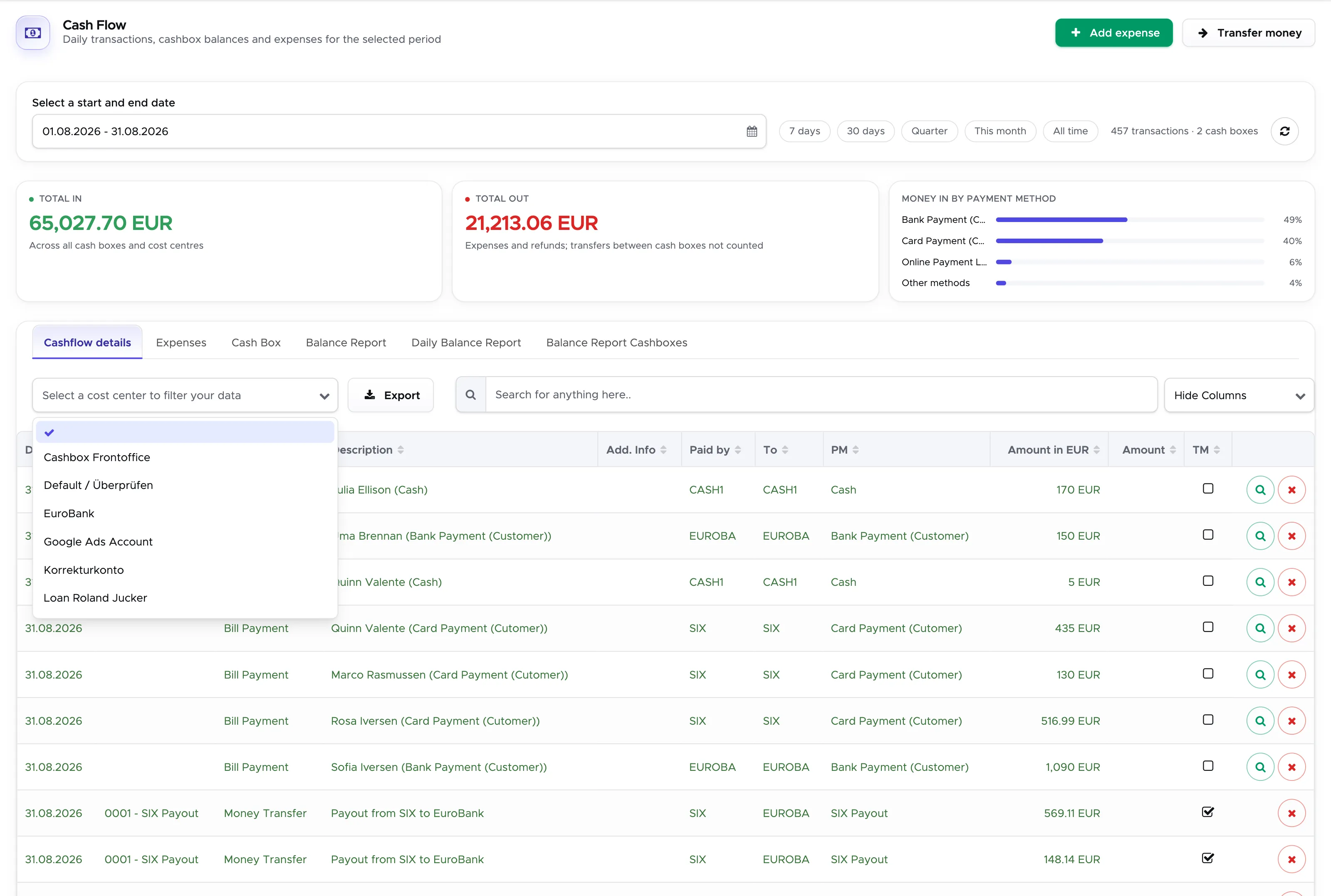
Underneath tab Cashflow details you will find a drop-down menu that you can use to filter your cash flow and view only the transactions that belong to one of your cost centers.
Select one of your cost centers to view only the transactions that belong to it between the dates defined at the top of the page.
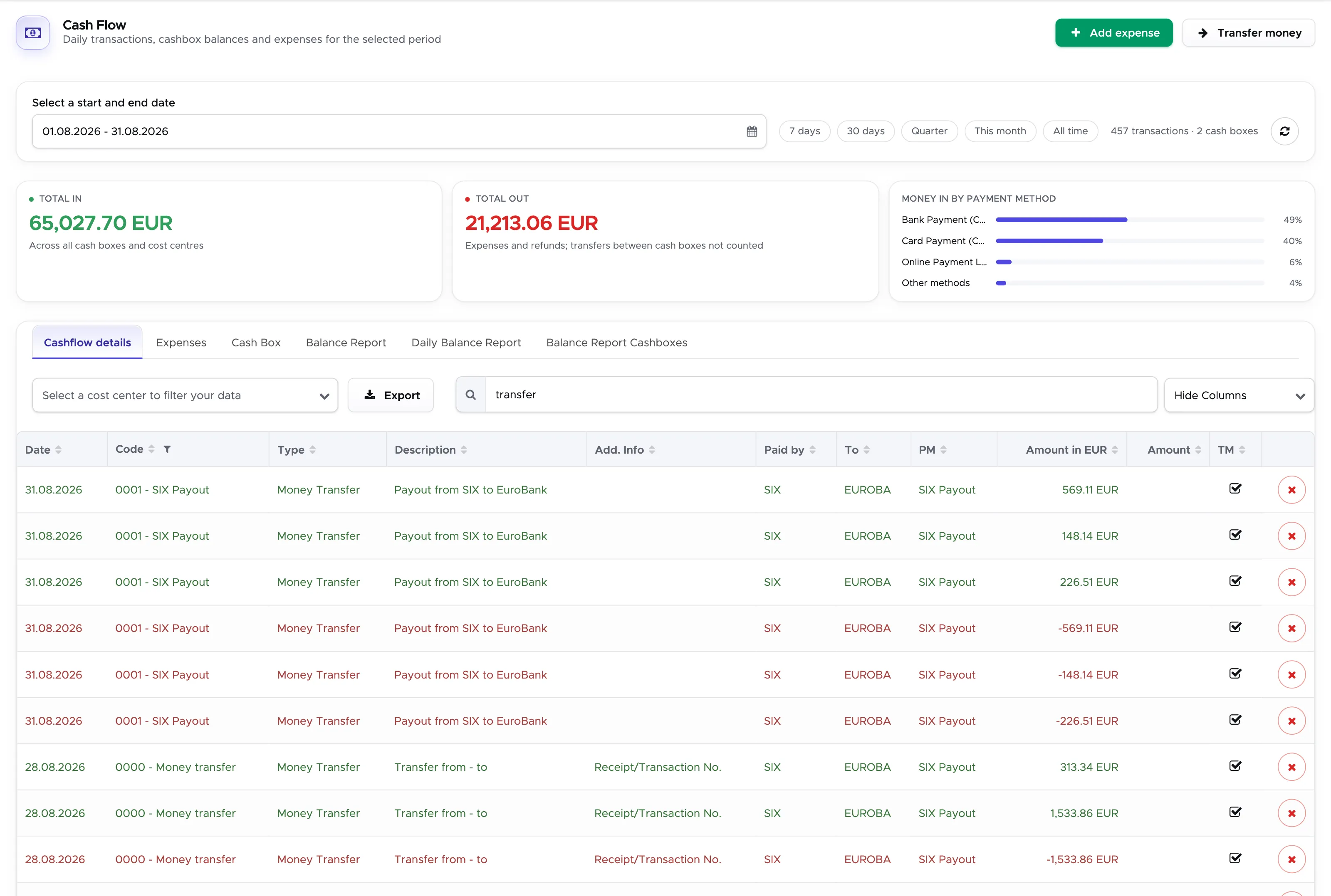
Starting with version 2.1 you can now also filter your cash flow by just entering anything you want to.
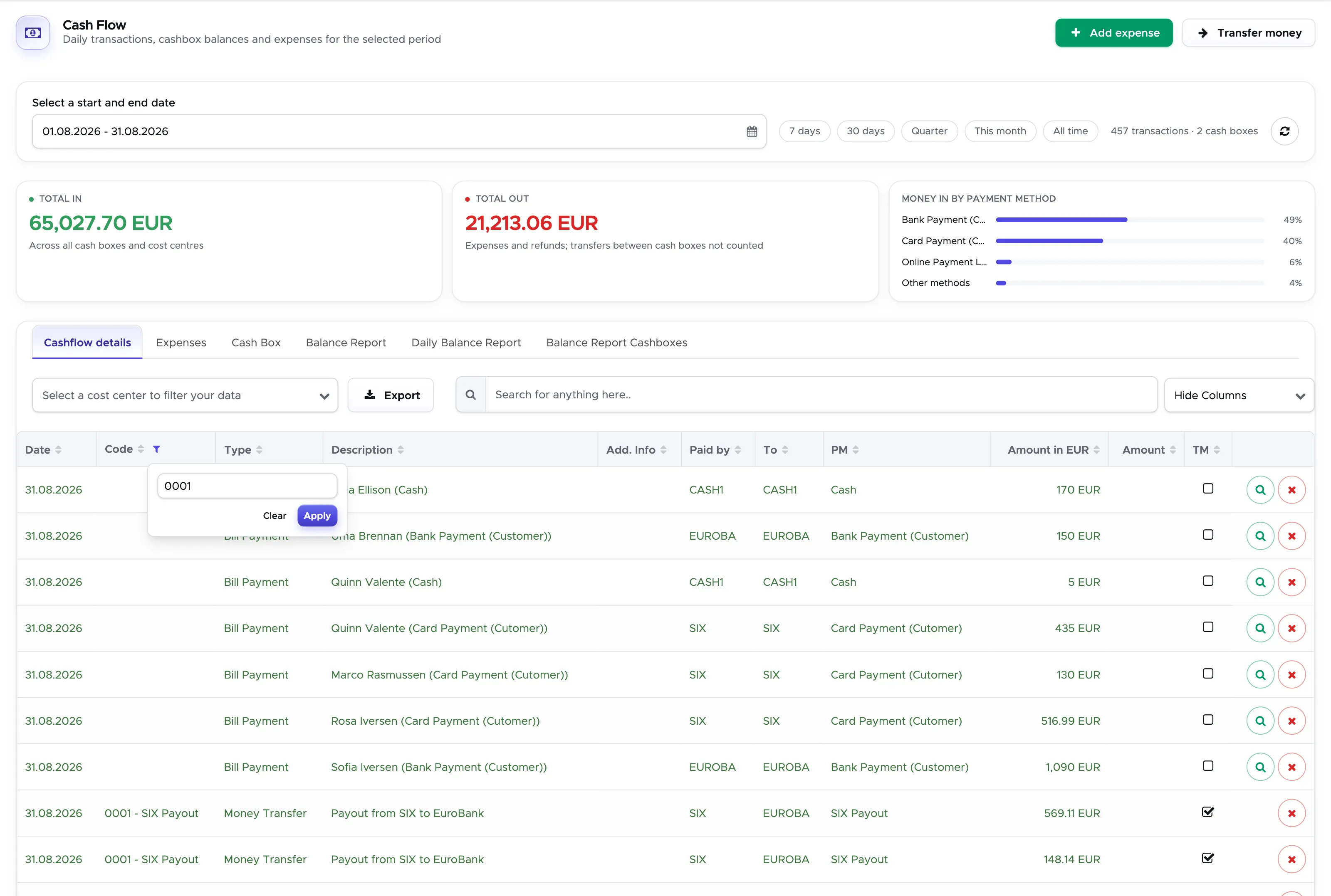
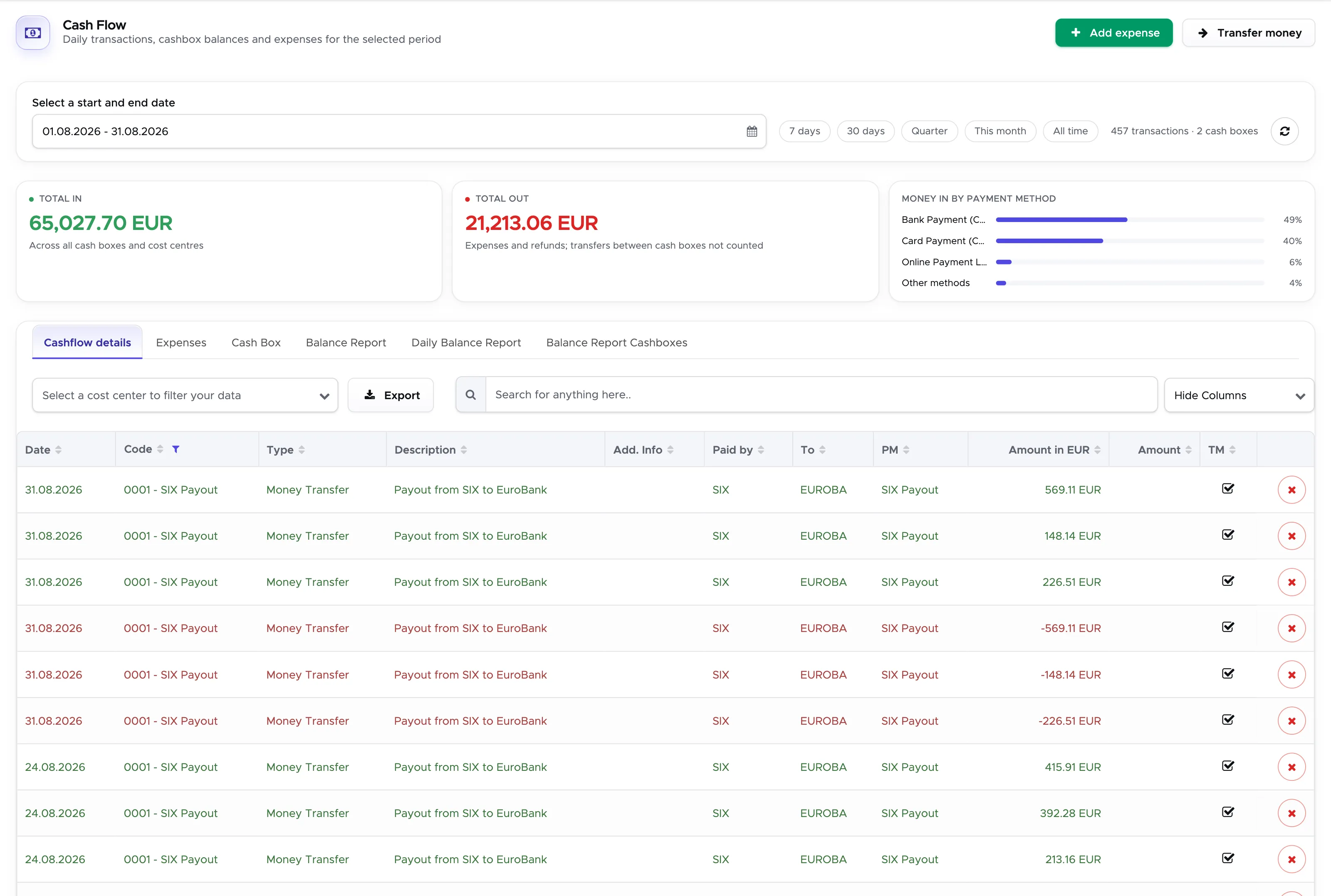
If you want to filter by “Code” and you find too many results, you can use the filter in the table.
At the bottom of this page you can click on button Export to export the table that you’re viewing in a csv file. Once you save this file you can open it as a spreadsheet.
12.2 Cash flow - Expenses
Section titled “12.2 Cash flow - Expenses”As you can probably understand, Geek Divers has no knowledge of any other costs that you might have. E.g. Geek Divers doesn’t know how much you pay for renting the premises, for gas and power, pool maintenance, grocery shopping or stationery.
Additionally, Geek Divers cannot possibly know about any other source of income.
However, you can enter costs and income manually using the button Add Expense at the top of this page.
The expense date is automatically set to today, but you can change it by clicking on the calendar icon. In code you can start typing one of the expense codes that you’ve set up in Settings (if you haven’t done it yet, please read chapter Accounting Codes) and select the correct one from the suggested list. Alternatively, if you don’t remember the exact code, you can start typing the type in field Type and select the correct code from the suggested list.
Once you select the code, Type, Description are automatically pre-filled with the information that you used in your Settings. You can write more details in field Add. info. Choose a payment method and the field “Paid by” will be automatically pre-filled with the cost center assigned to it (if you haven’t done it yet, please read chapter Cost Center and Payment Methods). Field Currency is showing your default currency. You could select a different currency and type the correct currency conversion. Add the quantity and unit price. The Amount and Amount in your default currency will be automatically calculated.
When you save the expense the quantity and unit price won’t be visible in the table below. However if you export the table, these values will be part of the exported csv file.
To enter a source of income, repeat the above and tick the “Incoming Money” checkbox. In this case, the amount will be written in green.
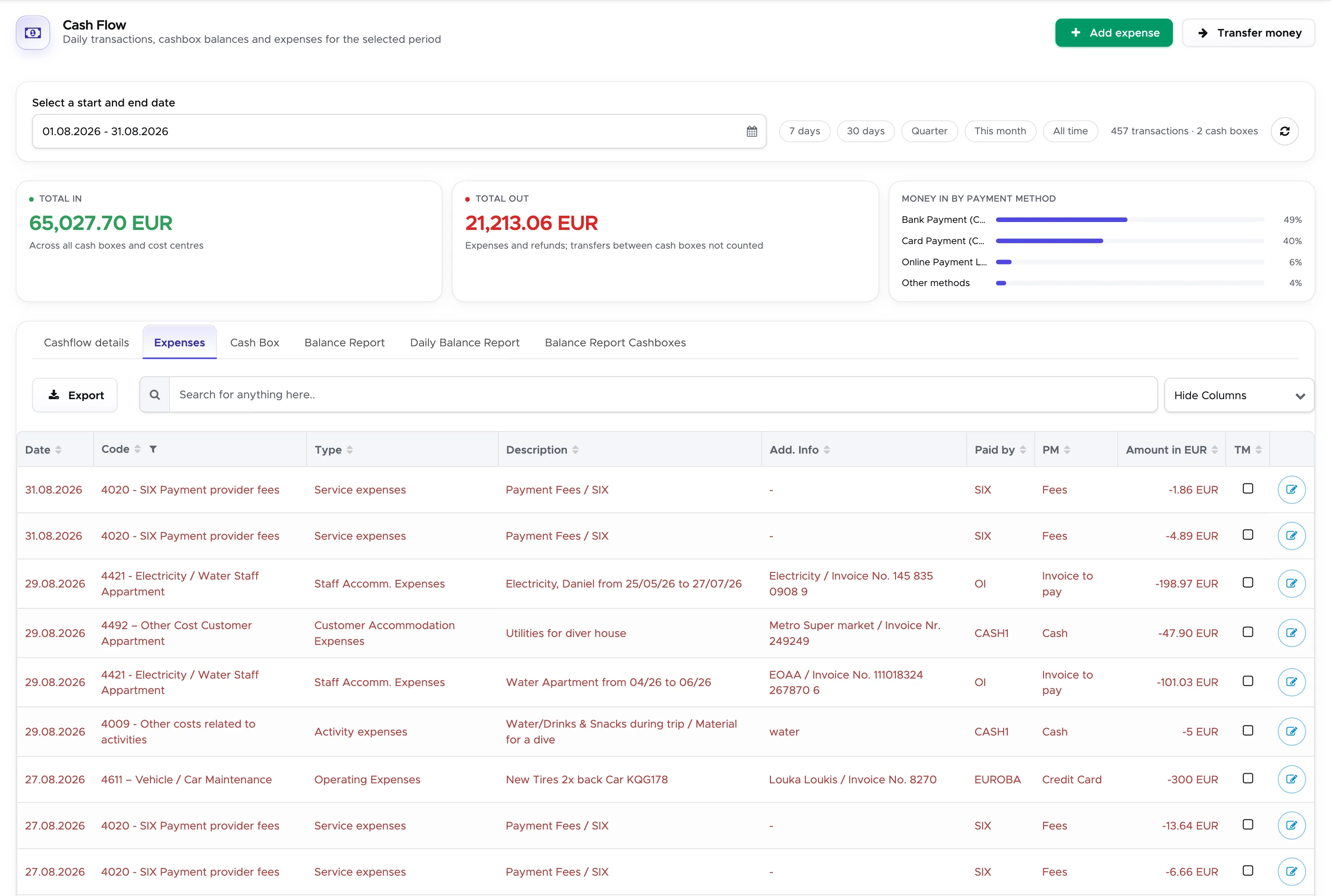
You can also search for a specific expense in your selected time range to filter the results.
At the bottom of the list you will see a total amount that represents the sum of all the rows above.
If you wish to export your list of expenses, click on the button Export at the bottom of the screen. You can save the csv file on your local device and open it with your spreadsheet software.
Receipts
Section titled “Receipts”You can attach the receipts that belong to an expense or an income, e.g. the photo of a till receipt or the invoice of a supplier as a PDF. One entry can hold several files.
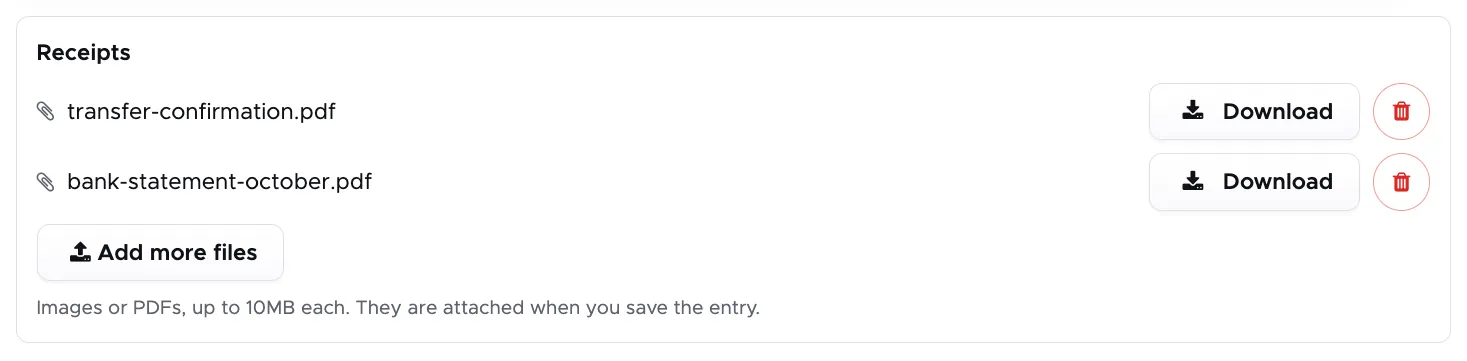
In the Add expense form scroll down to Receipts and click on Choose files. Pick one or more images or PDFs, up to 10MB each. Every file is listed with its name. Click on Add more files to attach further ones, or on the bin icon to remove a file. The files are attached when you save the entry.
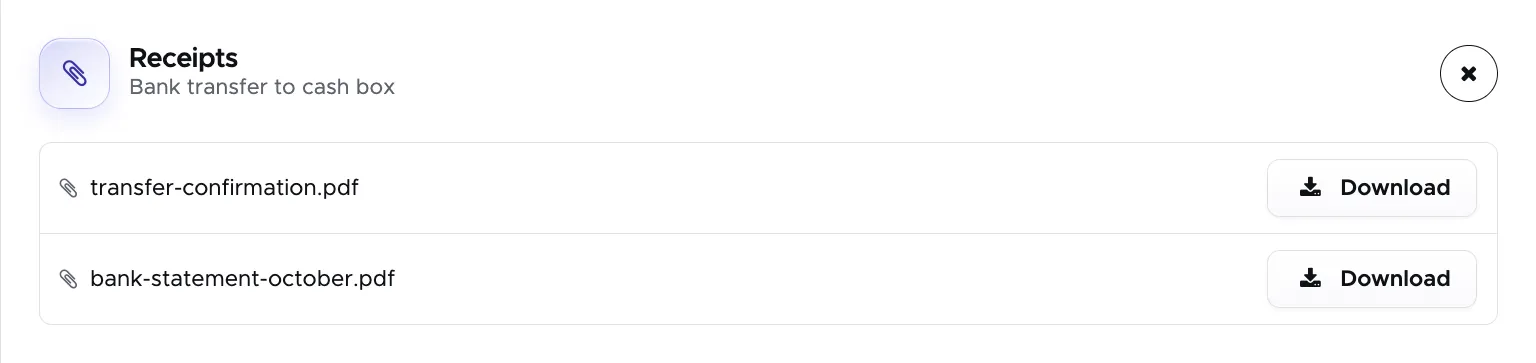
In the cash flow table an entry with receipts has a paperclip button at the end of its row. Click on it to open the Receipts sidebar and download the file that you need.
To add or remove a receipt later, open the entry with the pencil button. A receipt that you remove is deleted when you save the entry. A money transfer cannot hold receipts.
12.3 Cash flow - Cash box
Section titled “12.3 Cash flow - Cash box”In this tab you can select any of your cash boxes from the drop-down menu and view the list of transactions in an interval of time. This view is very similar to Cash flow Details, but it’s restricted to cash boxes.
Set a Start Date and End Date at the top of the page and click on button Update. In the cash box drop-down menu select the cash box that you wish to display and Geek Divers will show you a table with the list of transactions in this interval of time.
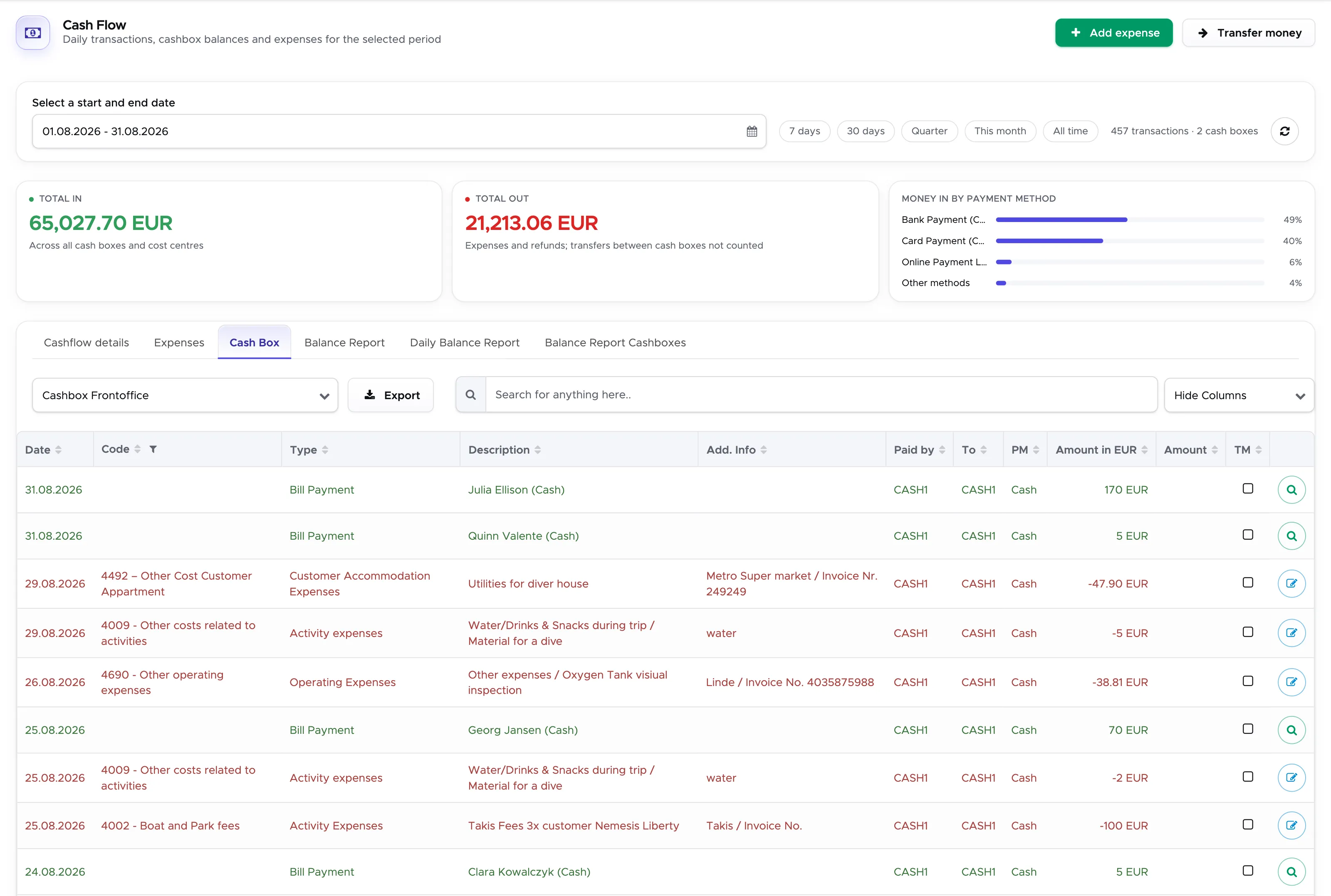
You can also search for a specific expense in your selected time range to filter the results.
At the bottom of the page you will find the total amount in the cash box in this interval of time and button Export to export the table to a spreadsheet.
12.4 Cash flow - Balance Report
Section titled “12.4 Cash flow - Balance Report ”In this tab you will see a set of 3 tables for each of your cost centers.
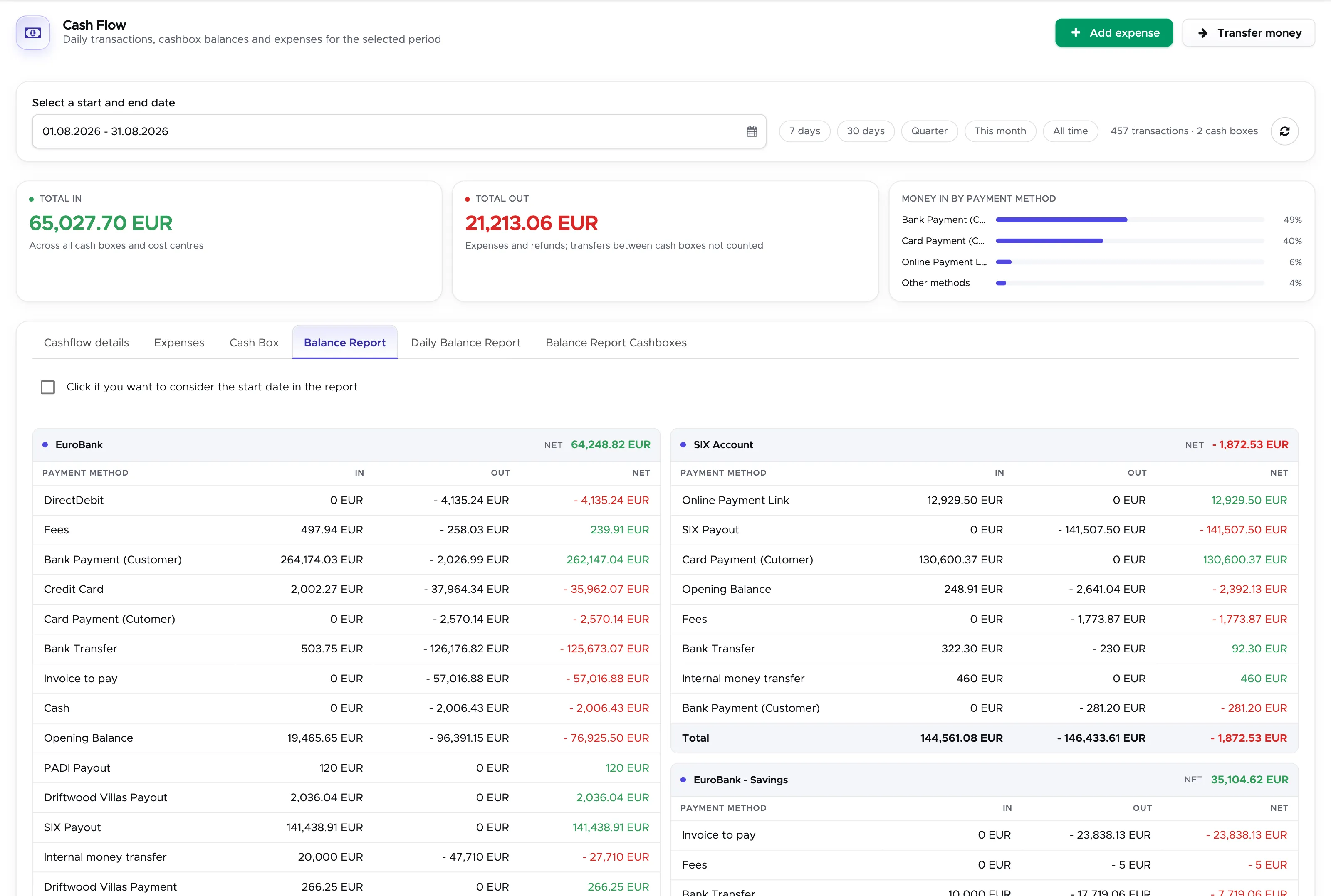
The light-blue table shows the sum of all the transactions (both in and out) divided by payment method. The green table shows only the incoming transactions, while the red table shows the outgoing transactions.
If you’ve deactivated cost centers that you no longer need or in case of old data (before December 2018), you will see a set of tables called ‘Other’.
If a payment method was never used in combination with a cost center, it won’t be shown in the tables.
By default these tables show your numbers from the first day you started using Geek Divers and until the End Date that you’ve set at the top of this page.
If you wish the system to consider a specific start and end date, you need to set a specific Start Date and End Date at the top of the page and then click the checkbox ‘Click if you want to consider the start date in the report’. Then click on button Update to refresh the tables.
12.5 Cash flow - Daily Balance Report
Section titled “12.5 Cash flow - Daily Balance Report ”In this tab you will see the same sets of 3 tables for each of your cost centers that you see in the Balance Report.
The only difference here is that you can only view the numbers that belong to one day in the calendar.
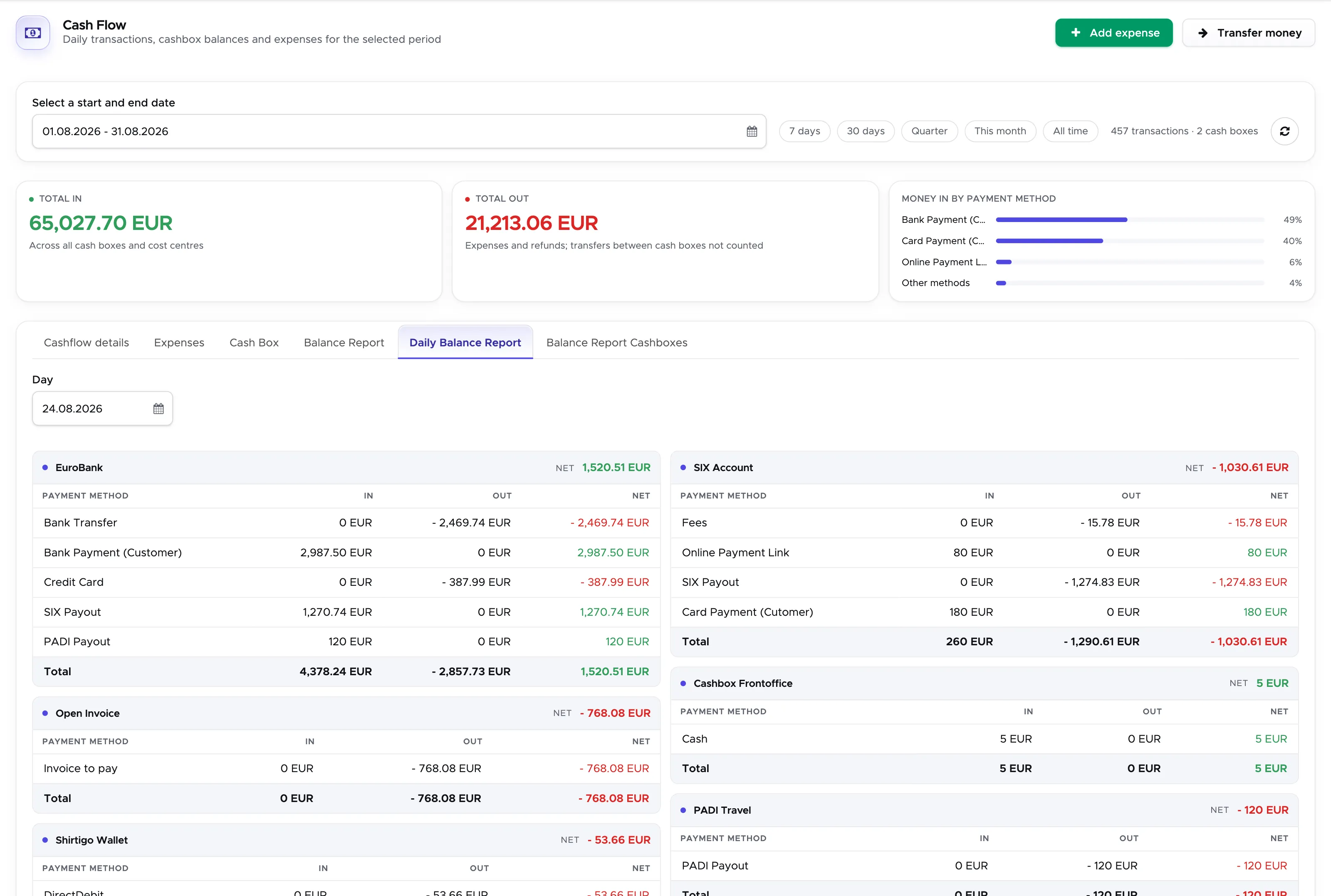
By default Geek Divers will show today and you can use the calendar above to select a different day.
Only the cost centers that actually had any recorded transactions on that specific date will be displayed.
12.6 Cash flow - Balance Report Cashboxes
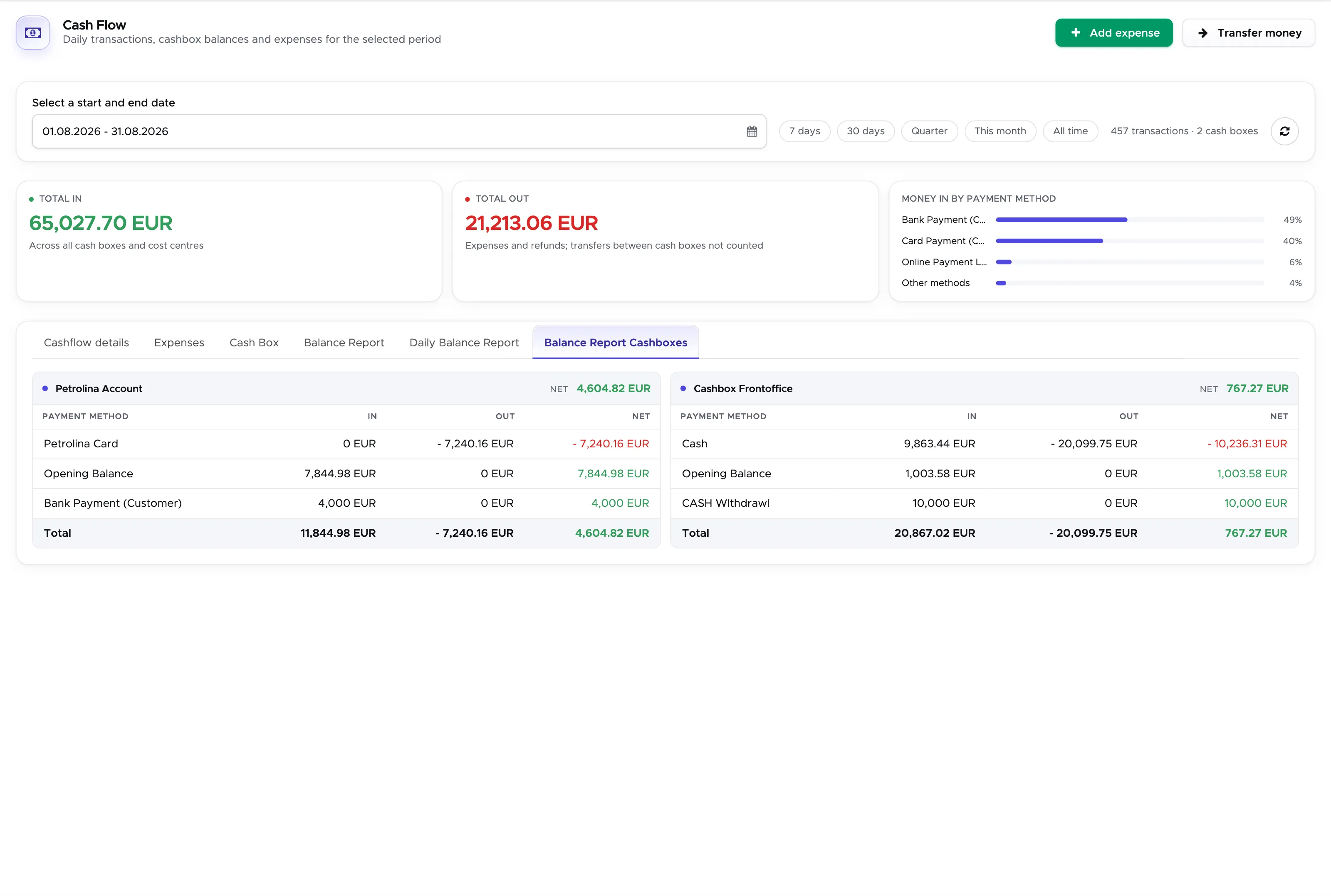
Section titled “12.6 Cash flow - Balance Report Cashboxes”This tab behaves exactly like tab Balance Report, but it only shows you a set of tables for each of your cash boxes. Your cost centers that are not marked as cash boxes won’t be available here.
12.7 Cash flow - Cash Report (Legacy*)
Section titled “12.7 Cash flow - Cash Report (Legacy*)”This tab has been removed in version 2.1 and is no longer available.
* This tab is no longer supported or maintained.
The cash in each cost center is shown in tab Balance Report and, for your cash boxes, in tab Balance Report Cashboxes.
12.8 Transfer Money
Section titled “12.8 Transfer Money”This button, at the top of the cash flow page, can be used to move money from one cost center to another. Please consider that you need to be in the location of the sending cost center to be able to select it, but you can select any cost center in your organization as the receiving one, providing that the sending location and the target location are set up with the same default currency.
E.g. you wish to move some cash out of your cashbox behind the counter and into your safe.
Click on the button Transfer Money.
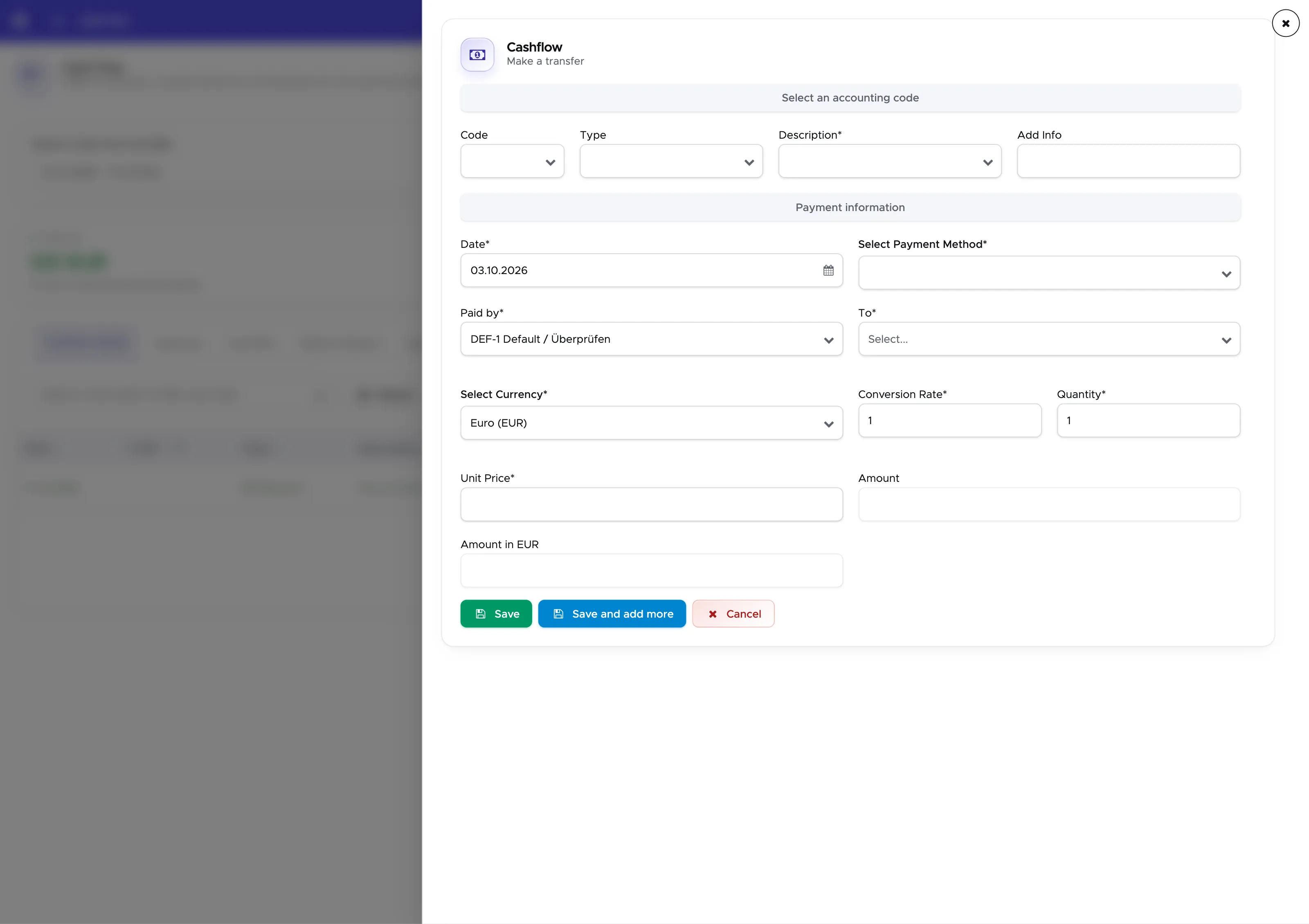
The date is automatically set to today, but you can change it by clicking on the calendar icon. Select the accounting code that you’ve set up for money transfers and the Type and Description will be automatically pre-filled. If needed, you can type more information in field Add. Info. Select a payment method and verify that the cost centers written in Paid By (=transfer from - e.g. your cashbox) is correct or modify it. Choose a cost center in To (=target cost center - e.g. your safe). If needed, select a currency (your default currency is pre-selected) and write a conversion rate. Type the amount that you wish to transfer and click on then button Save.
In the tab Cashflow Details or Cost Centers select the sending cost center.
You will see your transfer in red because this is an outgoing transaction.
Now select the receiving cost center.
You will see the same transaction in green because this is an incoming transaction.
Now click on tab Cashflow Details.
If the sending and the receiving cost center belong to the same location you will see both the incoming and the outgoing transactions. These transactions balance each other because you’ve just moved money: you didn’t spend it or earn it.